
Short description
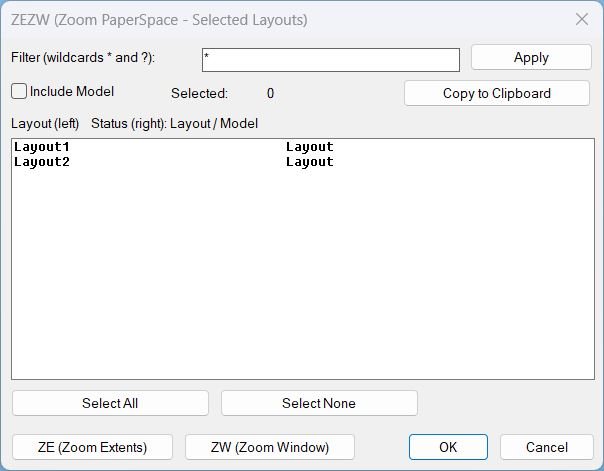
What this LISP does ZEZW opens a DCL dialog to multi-select layouts and then applies Zoom Extents or Zoom Window in Paper Space on the selected layouts.
Key concept The zoom action runs after the dialog closes for stability and predictable execution.
Command:
Commands
- ZEZW Main command that launches the selection dialog and triggers zoom actions.
- ZEZW Alias command (same behavior).
- _ZEZW Alias command (same behavior).
Description:
User workflow
- Run ZEZW to open the layout selection dialog.
- Use the filter box with wildcards * and ? to narrow the layout list.
- Optionally toggle Include Model to show or hide MODEL in the list.
- Multi-select layouts in the list (fixed width display shows layout name and status).
- Click ZE (Zoom Extents) to zoom extents on each selected layout in Paper Space.
- Click ZW (Zoom Window) to pick two corners once, then apply the same zoom window to each selected layout in Paper Space.
- If selection is empty, the program prompts the user to select one or more layouts before running zoom.
Helper function: (if any)
Notable helper functions and internal mechanisms
- LV:GetLayouts Collects layout names using layoutlist for reliability.
- LV:FilterLayouts Applies wildcard filtering via wcmatch and optionally excludes MODEL.
- LV:MakeTempDCL Creates a robust temporary DCL path (mktemp with fallback to TEMP or DWGPREFIX).
- LV:WriteDCL Writes the dialog definition with a unique dialog name each run.
- LV:CopyClipboard Copies text via MSHTML clipboardData, with fallback to PowerShell Set-Clipboard and cmd clip.
- LV:ZoomExtentsLayouts Iterates layouts and runs COM zoom extents with command fallback ZOOM E.
- LV:ZoomWindowLayouts Prompts for a window once and applies it to all selected layouts with COM and command fallback ZOOM W.
- LV:Cleanup Unloads the dialog and deletes the temporary DCL file to avoid residue and lock issues.
- *error* handler ensures cleanup runs on unexpected failures and suppresses noise on normal cancel events.
Functionalities:
Functionalities
- Dialog UI with filter, multi-select list, select all, select none, and selected count display.
- Layout filtering using wildcards to quickly isolate target layout tabs.
- Clipboard export of selected layout names and their status, formatted line-by-line for paste into other tools.
- Zoom Extents across selected layouts in Paper Space with stable post-dialog execution.
- Zoom Window across selected layouts using one picked window applied consistently to all layouts.
- Paper Space enforcement by forcing MSpace false before zooming to avoid viewport context issues.
- Undo grouping using StartUndoMark and EndUndoMark for clean rollback of multi-layout operations.
- Robust fallbacks for zoom (COM first, then command-based) and for clipboard copy (multiple methods).
Result:
Result summary
The routine provides a stable dialog-driven way to select layouts, optionally include Model, copy selections to clipboard, then apply zoom extents or a consistent zoom window in Paper Space across the selected layouts.
Tags Layouts, Paper Space, DCL, Dialog_UI, Clipboard, Viewports, General_AutoCAD, Lisp, Extra_AutoCAD
Suggest relevant tags not in the list Zoom, Wildcards, Undo
Images, animations etc.
Log in to download.
Log in
Log in
XAML code:
<ResourceDictionary
xmlns="http://schemas.microsoft.com/winfx/2006/xaml/presentation"
xmlns:x="http://schemas.microsoft.com/winfx/2006/xaml"
xmlns:src="clr-namespace:Autodesk.Windows;assembly=AdWindows">

<src:RibbonToolTip x:Key="ZEZW">
<src:RibbonToolTip.ExpandedContent>
<StackPanel>
<TextBlock Background="AntiqueWhite" TextAlignment="Left">
<Bold>Function Syntax: ZEZW</Bold>
<LineBreak/>
<Bold>Version: 2 Date: 29.12.2025</Bold>
<LineBreak/>
<LineBreak/>
<Hyperlink>AI+https://www.cadtutor.net/forum/topic/41748-zoom-extend-all-layouts/</Hyperlink>
<Hyperlink>AI+https://www.cadtutor.net/forum/topic/41748-zoom-extend-all-layouts/</Hyperlink>
<LineBreak/>

<Bold>Program name and intent</Bold><LineBreak/>
<Run Foreground="DarkRed">ZEZW</Run> is an AutoLISP utility that opens a dialog to let the user select one or more PaperSpace layouts, then performs <Run Foreground="DarkRed">Zoom Extents</Run> or <Run Foreground="DarkRed">Zoom Window</Run> on the selected layouts after the dialog closes.<LineBreak/>

<Bold>How the user interacts with it</Bold><LineBreak/>
• The user runs the command <Run Foreground="DarkRed">ZEZW</Run> (aliases: <Run Foreground="DarkRed">ZEZW</Run> and <Run Foreground="DarkRed">_ZEZW</Run>).<LineBreak/>
• A dialog appears listing layouts (optionally including Model).<LineBreak/>
• The user can filter the list using wildcard patterns <Run Foreground="DarkRed">*</Run> and <Run Foreground="DarkRed">?</Run>, then multi-select layouts from the list.<LineBreak/>
• The dialog provides action buttons to run <Run Foreground="DarkRed">ZE (Zoom Extents)</Run> or <Run Foreground="DarkRed">ZW (Zoom Window)</Run> on the selected layouts.<LineBreak/>
• For <Run Foreground="DarkRed">ZW</Run>, the program prompts in the command line for two corners (first corner and opposite corner) to define the zoom window.<LineBreak/>

<Bold>Main functionalities</Bold><LineBreak/>
• <Bold>Layout discovery</Bold>: Collects layouts using <Run Foreground="DarkRed">layoutlist</Run> for reliability across environments.<LineBreak/>
• <Bold>Filter and display</Bold>: Applies user-entered wildcard filtering with <Run Foreground="DarkRed">wcmatch</Run> and refreshes the list dynamically.<LineBreak/>
• <Bold>Multi-select list</Bold>: Supports selecting multiple layouts at once (including Select All and Select None).<LineBreak/>
• <Bold>Include or exclude Model</Bold>: A toggle controls whether the <Run Foreground="DarkRed">MODEL</Run> tab is included in the selectable list.<LineBreak/>
• <Bold>Copy to clipboard</Bold>: Copies the selected layout names and their status (Layout or Model) to the clipboard, one per line, tab-separated.<LineBreak/>
• <Bold>Zoom Extents on selected layouts</Bold>: Switches <Run Foreground="DarkRed">CTAB</Run> through each selected layout (excluding Model by default) and runs Zoom Extents in PaperSpace.<LineBreak/>
• <Bold>Zoom Window on selected layouts</Bold>: Prompts for a window once, then applies the same window zoom to each selected layout in PaperSpace.<LineBreak/>
• <Bold>Undo safety</Bold>: Wraps multi-layout zoom operations inside <Run Foreground="DarkRed">StartUndoMark</Run> and <Run Foreground="DarkRed">EndUndoMark</Run> for cleaner undo behavior.<LineBreak/>

<Bold>Important behaviors and constraints</Bold><LineBreak/>
• <Run Foreground="DarkRed">PaperSpace only</Run>: Before zooming, it sets <Run Foreground="DarkRed">MSpace</Run> to false so the zoom is executed in PaperSpace context (not inside a viewport).<LineBreak/>
• <Run Foreground="DarkRed">Dialog-driven workflow</Run>: Zoom operations are intentionally executed <Run Foreground="DarkRed">after</Run> the dialog closes to reduce instability and avoid UI command timing issues.<LineBreak/>
• <Run Foreground="DarkRed">Model handling</Run>: Even if Model is displayed, actual zoom loops use a helper to remove <Run Foreground="DarkRed">MODEL</Run> unless explicitly included and applicable, preventing unintended Model zoom operations.<LineBreak/>
• <Run Foreground="DarkRed">TILEMODE enforcement</Run>: If <Run Foreground="DarkRed">TILEMODE</Run> is 1, it is set to 0 to ensure layout tabs are active and PaperSpace layouts are accessible.<LineBreak/>

<Bold>Clipboard copy details</Bold><LineBreak/>
• When the user clicks <Bold>Copy to Clipboard</Bold>, the program copies lines in the format:<LineBreak/>
<Run Foreground="DarkRed">LayoutName</Run> [tab] <Run Foreground="DarkRed">Layout</Run> or <Run Foreground="DarkRed">Model</Run>, followed by a newline per entry.<LineBreak/>
• Primary clipboard method uses an MSHTML object (<Run Foreground="DarkRed">htmlfile</Run> clipboardData).<LineBreak/>
• Fallback method writes a temp file and uses <Run Foreground="DarkRed">PowerShell Set-Clipboard</Run>, then also attempts <Run Foreground="DarkRed">cmd</Run> with <Run Foreground="DarkRed">clip</Run> as an additional fallback.<LineBreak/>

<Bold>Zoom implementation specifics</Bold><LineBreak/>
• Zoom Extents tries COM first: <Run Foreground="DarkRed">vla-ZoomExtents</Run>, then falls back to command call: <Run Foreground="DarkRed">_.ZOOM</Run> <Run Foreground="DarkRed">E</Run> if COM fails.<LineBreak/>
• Zoom Window tries COM first: <Run Foreground="DarkRed">vla-ZoomWindow</Run>, then falls back to command call: <Run Foreground="DarkRed">.ZOOM</Run> <Run Foreground="DarkRed">_W</Run> with the two picked points if COM fails.<LineBreak/>
• For Zoom Window, the corner selection is requested once and reused for all selected layouts, ensuring consistent framing across layouts.<LineBreak/>
• If the user cancels point picking during Zoom Window, the routine prints a cancellation message and restores the previous tab.<LineBreak/>

<Bold>User-facing dialog controls</Bold><LineBreak/>
• <Bold>Filter</Bold> edit box: wildcard filtering using <Run Foreground="DarkRed">*</Run> and <Run Foreground="DarkRed">?</Run>.<LineBreak/>
• <Bold>Apply</Bold>: rebuilds the displayed list using the current filter and include-model setting.<LineBreak/>
• <Bold>Include Model</Bold>: toggles inclusion of <Run Foreground="DarkRed">MODEL</Run> in the list.<LineBreak/>
• <Bold>Selected count</Bold>: shows how many rows are currently selected.<LineBreak/>
• <Bold>Select All</Bold> and <Bold>Select None</Bold>: convenience multi-selection controls.<LineBreak/>
• <Bold>Copy to Clipboard</Bold>: copies selected rows to the clipboard and shows a small status message in the dialog.<LineBreak/>
• <Bold>ZE (Zoom Extents)</Bold> and <Bold>ZW (Zoom Window)</Bold>: request the respective zoom action and close the dialog with a special return code so the zoom runs afterwards.<LineBreak/>

<Bold>Robustness and housekeeping</Bold><LineBreak/>
• <Bold>Temporary DCL generation</Bold>: Creates a temporary DCL file with <Run Foreground="DarkRed">vl-filename-mktemp</Run> and falls back to a TEMP or DWGPREFIX-based path if needed.<LineBreak/>
• <Bold>Unique dialog name per run</Bold>: Uses an incrementing unique id to avoid dialog name conflicts across repeated invocations.<LineBreak/>
• <Bold>Cleanup</Bold>: Unloads the dialog and deletes the temporary DCL file after the dialog closes, preventing residue files and locking issues.<LineBreak/>
• <Bold>Error handling</Bold>: Installs a custom <Run Foreground="DarkRed">error</Run> handler during execution to ensure cleanup runs even if an unexpected error occurs, while suppressing noise for normal cancel conditions.<LineBreak/>


</TextBlock>

<Grid>
<Image Source="ZoomExtendWindow_000.jpg" Stretch="Uniform"/>
</Grid>

<Grid>
<MediaElement
 Source="GIF"
 Stretch="Uniform"
 Visibility="Visible"/>
 </Grid>

</StackPanel>
</src:RibbonToolTip.ExpandedContent>
</src:RibbonToolTip>
</ResourceDictionary>
Leave a Reply
You must be logged in to post a comment.