
Short description
📐 CogoPointElevation2Clipboard.lsp is a Civil 3D AutoLISP clipboard utility that copies elevations from selected COGO points directly to plain text. The tool helps AutoCAD Civil 3D users quickly extract point elevation values, paste them into Excel or reports, and reduce manual point property checking during survey review and CAD quality control.
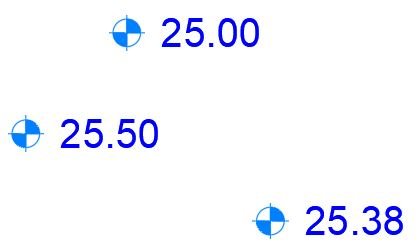
Command:
📌 Main command:
🧰 Loading method: load
📍 The command asks the user to select one or more Civil 3D COGO points.
🔍 The selection is filtered to
📐 The routine reads the
📋 The final elevation list is copied to the Windows clipboard using the
🎯 Target platform: Autodesk Civil 3D with AutoLISP, Visual LISP COM, and Windows clipboard support.
GETE.🧰 Loading method: load
CogoPointElevation2Clipboard.lsp in Autodesk Civil 3D using APPLOAD, then run GETE from the command line.📍 The command asks the user to select one or more Civil 3D COGO points.
🔍 The selection is filtered to
AECC_COGO_POINT objects only.📐 The routine reads the
Elevation property from each selected point.📋 The final elevation list is copied to the Windows clipboard using the
htmlfile COM object.🎯 Target platform: Autodesk Civil 3D with AutoLISP, Visual LISP COM, and Windows clipboard support.
Description:
🧠 This AutoLISP routine is designed for Civil 3D users who need a quick way to copy COGO point elevations from the drawing to the Windows clipboard. Instead of opening Civil 3D point properties manually or typing elevation values one by one, the user runs
The code uses
After all selected point elevations are collected, the helper function
This workflow is useful for Civil 3D survey review, elevation QA, construction documentation, field-to-office verification, quick reports, Excel transfer, and CAD production checking. The routine does not edit
GETE, selects one or more Civil 3D COGO points, and the routine extracts the elevation from each selected point.The code uses
ssget with the selection filter AECC_COGO_POINT, which means the command is focused specifically on Civil 3D point objects. Each selected point is converted into a VLA object with vlax-ename->vla-object, then the Elevation property is read with vlax-get. The elevation value is converted to text using rtos with decimal formatting and a fixed precision of two decimal places.After all selected point elevations are collected, the helper function
join-with-newlines combines the values into a plain text list with one elevation per line. The routine then uses CopyToClipboard_GETE and the Windows htmlfile COM object to send the final result directly to the clipboard.This workflow is useful for Civil 3D survey review, elevation QA, construction documentation, field-to-office verification, quick reports, Excel transfer, and CAD production checking. The routine does not edit
ProfileView, SectionView, Alignment, corridor models, labels, bands, styles, point groups, or export tables. Its purpose is focused on copying selected Civil 3D COGO point elevations to the clipboard.
Helper function: (if any)
- 📋 Clipboard export helper —
CopyToClipboard_GETEsends the final elevation text to the Windows clipboard using thehtmlfileCOM object. - 📘 Newline join helper —
join-with-newlinescombines all extracted elevation strings into one text block with one value per line. - 🔒 COM initialization —
vl-load-comenables Visual LISP COM functions required for object access and clipboard export. - 🔍 COGO point selection filter —
ssgetuses((0 . "AECC_COGO_POINT")), so the user selection is limited to Civil 3D point objects. - 🧩 VLA object conversion —
vlax-ename->vla-objectconverts each selected entity into a Visual LISP object so the point elevation can be read. - 📐 Elevation property reader —
vlax-getreads theElevationproperty from each selected Civil 3D COGO point. - 🔢 Elevation text formatting —
rtosformats each elevation using decimal mode and precision2. - ✅ Command feedback — after copying, the command line reports how many elevation values were copied to the clipboard.
Functionalities:
- 📌 Select Civil 3D COGO points — the user selects one or more
AECC_COGO_POINTobjects directly from the drawing. - 📐 Extract point elevations — the routine reads the
Elevationproperty from each selected Civil 3D point. - 🔢 Format elevations to two decimals — each elevation is converted to plain text using decimal formatting with fixed two-decimal precision.
- 📘 Create one-line-per-point output — each selected point elevation is placed on a separate line for clean copying and pasting.
- 📋 Copy elevations to clipboard — the final elevation list is copied directly to the Windows clipboard without creating an external file.
- 🔄 Support multi-point selection — multiple COGO point elevations can be extracted in one command run.
- ⚡ Fast command line workflow — the routine does not use a DCL dialog, making the process quick for repetitive Civil 3D elevation checks.
- 🧹 No drawing modification — the command only reads point elevations and does not alter COGO points, labels, styles, point groups, or drawing geometry.
- 🔐 Important limitation — the routine copies elevation values only and does not export point numbers, coordinates, descriptions, styles, layers, or point group data.
- 🔴 Fixed precision limitation — the visible code uses
rtosprecision2, so the output is always formatted to two decimal places unless the code is edited. - 🔴 Platform limitation — this script is intended for Autodesk Civil 3D and is not a general plain AutoCAD entity exporter.
- 🔴 Clipboard dependency — the clipboard export depends on Windows COM support and the
htmlfileobject.
Result:
📘 The final result is a fast Civil 3D COGO point elevation extraction workflow. Users can select multiple Civil 3D points, copy their elevation values as a clean newline-separated list, and paste the result into Excel, Notepad, reports, emails, QA documentation, or project notes. This improves productivity, reduces manual point property checking, supports faster survey review, and helps Civil 3D users verify elevations with fewer repetitive steps.
Images, animations etc.
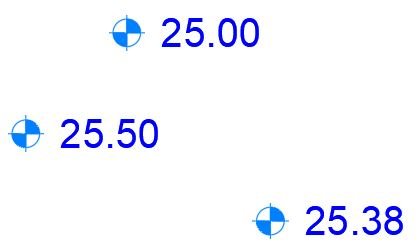
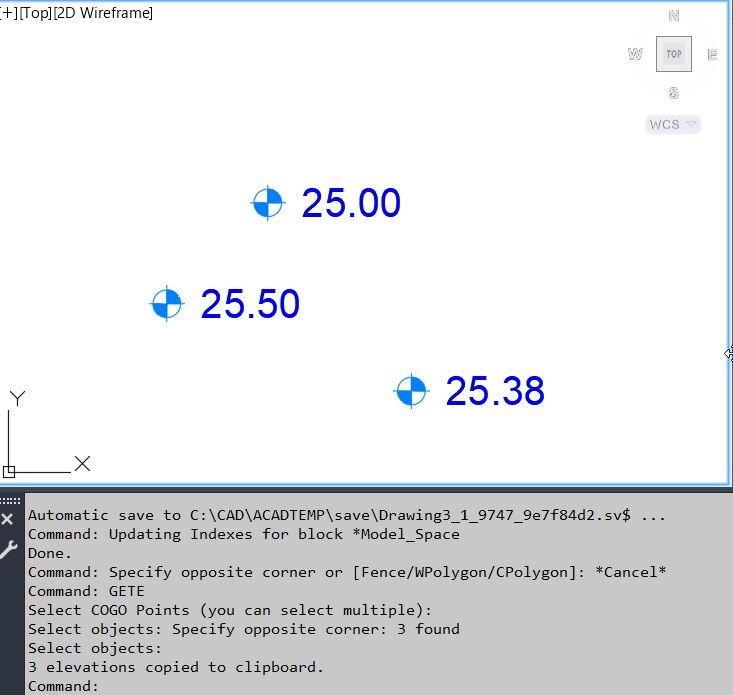
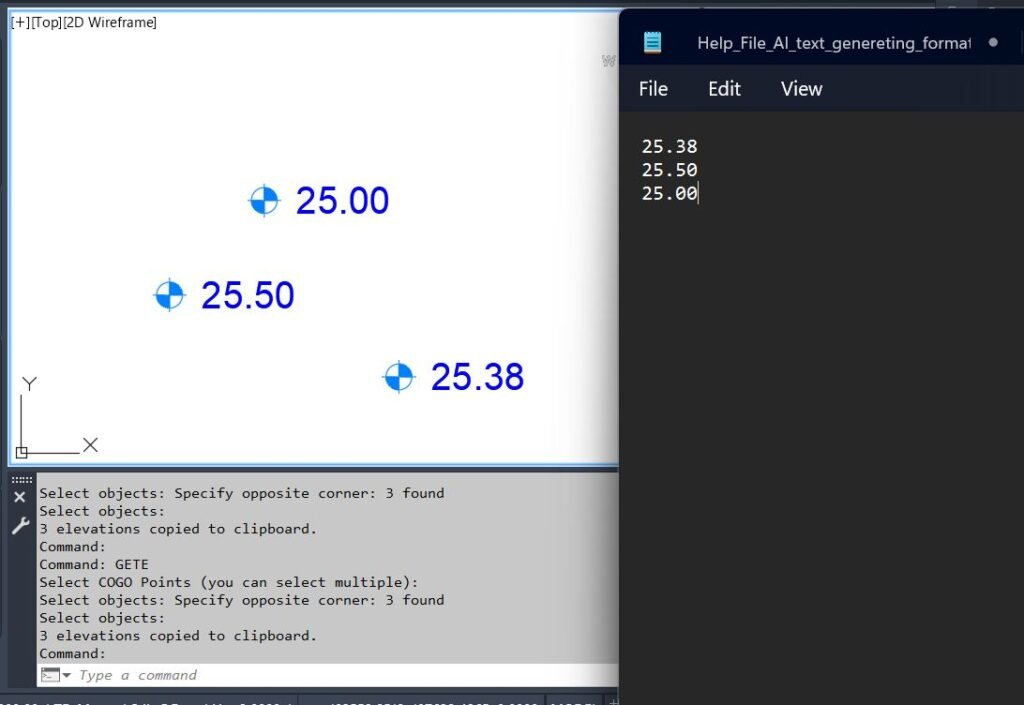
XAML code:
<ResourceDictionary
xmlns="http://schemas.microsoft.com/winfx/2006/xaml/presentation"
xmlns:x="http://schemas.microsoft.com/winfx/2006/xaml"
xmlns:src="clr-namespace:Autodesk.Windows;assembly=AdWindows">
<src:RibbonToolTip x:Key="CogoPointElevation2Clipboard">
<src:RibbonToolTip.ExpandedContent>
<StackPanel>
<TextBlock Background="AntiqueWhite" TextAlignment="Left">
<Bold>Function Syntax: GETE</Bold>
<LineBreak/>
<Hyperlink>AI+https://forums.autodesk.com/t5/civil-3d-forum/lisp-for-cogo-point-elevation/td-p/13197290</Hyperlink>
<LineBreak/>
<Bold>Description</Bold><LineBreak/>
This AutoLISP routine copies the elevations of selected Civil 3D COGO points directly to the Windows clipboard.<LineBreak/>
The program requires the user to select one or more Civil 3D point objects from the drawing.<LineBreak/>
The main command is <Bold><Run Foreground="DarkRed">GETE</Run></Bold>.<LineBreak/>
The routine filters the selection to Civil 3D COGO points only by using <Run Foreground="DarkRed">AECC_COGO_POINT</Run>.<LineBreak/>
Each selected point elevation is read, formatted to two decimal places, and copied to the clipboard as plain text with one elevation per line.<LineBreak/>
This tool is useful for quickly extracting Civil 3D point elevation values for Excel, Notepad, QA checks, survey review, reports, emails, and documentation.<LineBreak/>
<LineBreak/>
<Bold>Main Command</Bold><LineBreak/>
• <Bold>📌 <Run Foreground="DarkRed">GETE</Run></Bold> — starts the Civil 3D COGO point elevation copy workflow.<LineBreak/>
<LineBreak/>
<Bold>Loading Method</Bold><LineBreak/>
• <Bold>🧰 Load LISP File</Bold> — load the file <Run Foreground="DarkRed">CogoPointElevation2Clipboard.lsp</Run> in Civil 3D using <Run Foreground="DarkRed">APPLOAD</Run>.<LineBreak/>
• <Bold>📌 Run Command</Bold> — run <Run Foreground="DarkRed">GETE</Run> from the Civil 3D command line.<LineBreak/>
<LineBreak/>
<Bold>User Workflow</Bold><LineBreak/>
• <Bold>🚀 Start Command</Bold> — the user runs <Run Foreground="DarkRed">GETE</Run>.<LineBreak/>
• <Bold>📌 Select COGO Points</Bold> — the command line prompts the user to select one or more Civil 3D COGO points.<LineBreak/>
• <Bold>🔍 Filter Selection</Bold> — the routine accepts only objects with the type <Run Foreground="DarkRed">AECC_COGO_POINT</Run>.<LineBreak/>
• <Bold>📐 Read Elevation</Bold> — the program reads the <Run Foreground="DarkRed">Elevation</Run> property from each selected point object.<LineBreak/>
• <Bold>🔢 Format Elevation</Bold> — each elevation is formatted using <Run Foreground="DarkRed">rtos</Run> with decimal mode and precision set to two decimal places.<LineBreak/>
• <Bold>📘 Build Text Output</Bold> — all elevation values are combined into one plain text string, with each elevation on a separate line.<LineBreak/>
• <Bold>📋 Copy to Clipboard</Bold> — the generated text is copied to the Windows clipboard using the <Run Foreground="DarkRed">htmlfile</Run> COM clipboard method.<LineBreak/>
• <Bold>✅ Confirm Result</Bold> — the command line reports how many elevation values were copied.<LineBreak/>
<LineBreak/>
<Bold>Functionalities</Bold><LineBreak/>
• <Bold>📌 Civil 3D Point Selection</Bold> — the routine uses <Run Foreground="DarkRed">ssget</Run> with the filter <Run Foreground="DarkRed">AECC_COGO_POINT</Run>, so it only accepts Civil 3D COGO point objects.<LineBreak/>
• <Bold>📐 Elevation Extraction</Bold> — the routine reads the <Run Foreground="DarkRed">Elevation</Run> property from every selected COGO point.<LineBreak/>
• <Bold>🔢 Two Decimal Formatting</Bold> — the elevation values are formatted with <Run Foreground="DarkRed">rtos</Run> using decimal format and precision <Run Foreground="DarkRed">2</Run>.<LineBreak/>
• <Bold>📘 One Value Per Line</Bold> — each selected point elevation is placed on its own line for easy pasting into Excel, Notepad, Word, or reports.<LineBreak/>
• <Bold>📋 Clipboard Export</Bold> — the routine sends the final elevation list directly to the Windows clipboard.<LineBreak/>
• <Bold>🔄 Multi Selection Support</Bold> — the command supports multiple selected COGO points in one operation.<LineBreak/>
• <Bold>🧠 Selection Order Handling</Bold> — the routine collects values in a list and reverses the list before copying, preserving the processed selection order.<LineBreak/>
• <Bold>🔒 Visual LISP COM Support</Bold> — the routine loads COM support with <Run Foreground="DarkRed">vl-load-com</Run> and uses Visual LISP object functions.<LineBreak/>
• <Bold>🧹 No Temporary File Output</Bold> — the routine does not create a CSV, TXT, Excel file, table, or Civil 3D report file.<LineBreak/>
• <Bold>⚡ Fast Command Line Workflow</Bold> — there is no DCL dialog, so the workflow is quick and direct.<LineBreak/>
<LineBreak/>
<Bold>Important Helper Logic</Bold><LineBreak/>
• <Bold>📋 Clipboard Helper</Bold> — <Run Foreground="DarkRed">CopyToClipboard_GETE</Run> copies the generated text to the Windows clipboard through a temporary <Run Foreground="DarkRed">htmlfile</Run> COM object.<LineBreak/>
• <Bold>📘 Newline Join Helper</Bold> — <Run Foreground="DarkRed">join-with-newlines</Run> combines all elevation strings into one output text block using newline separators.<LineBreak/>
• <Bold>🔒 COM Initialization</Bold> — <Run Foreground="DarkRed">vl-load-com</Run> enables the Visual LISP COM functions required for VLA object access and clipboard export.<LineBreak/>
• <Bold>🔍 Entity to VLA Conversion</Bold> — <Run Foreground="DarkRed">vlax-ename->vla-object</Run> converts each selected Civil 3D point entity into a VLA object.<LineBreak/>
• <Bold>📐 Elevation Property Access</Bold> — <Run Foreground="DarkRed">vlax-get</Run> reads the <Run Foreground="DarkRed">Elevation</Run> property from each selected COGO point.<LineBreak/>
• <Bold>🔢 Elevation Formatting</Bold> — <Run Foreground="DarkRed">rtos</Run> converts the elevation number into text using decimal format and two decimal places.<LineBreak/>
• <Bold>✅ Result Message</Bold> — the command prints the number of copied elevations after a successful clipboard operation.<LineBreak/>
<LineBreak/>
<Bold>Important Code Notes</Bold><LineBreak/>
• <Bold>📌 Command Name</Bold> — <Run Foreground="Red">the command name is GETE.</Run><LineBreak/>
• <Bold>🔴 Platform Requirement</Bold> — <Run Foreground="Red">the routine is intended for Autodesk Civil 3D because it selects AECC_COGO_POINT objects.</Run><LineBreak/>
• <Bold>🔴 Clipboard Requirement</Bold> — <Run Foreground="Red">the clipboard method depends on Windows COM support and the htmlfile object.</Run><LineBreak/>
• <Bold>🔴 Fixed Precision Note</Bold> — <Run Foreground="Red">the visible code formats elevations to exactly two decimal places using rtos with precision 2.</Run><LineBreak/>
• <Bold>🔴 No Dialog Note</Bold> — <Run Foreground="Red">this routine does not include a DCL interface, field selector, precision selector, or settings dialog.</Run><LineBreak/>
• <Bold>🔴 Export Limitation</Bold> — <Run Foreground="Red">the routine copies elevation values only. It does not copy point number, easting, northing, description, style, layer, latitude, longitude, or point group information.</Run><LineBreak/>
• <Bold>🔴 Civil 3D Object Limitation</Bold> — <Run Foreground="Red">the routine does not modify ProfileView, SectionView, Alignment, corridor models, labels, bands, styles, point groups, or export tables.</Run><LineBreak/>
• <Bold>🔴 Error Handling Note</Bold> — <Run Foreground="Red">the visible code assumes selected AECC_COGO_POINT objects support the Elevation property and does not wrap the elevation read in vl-catch-all-apply.</Run><LineBreak/>
<LineBreak/>
<Bold>Final Result</Bold><LineBreak/>
The final result is a fast Civil 3D elevation extraction workflow.<LineBreak/>
The user selects one or more COGO points, runs the command, and receives a newline-separated elevation list copied directly to the Windows clipboard.<LineBreak/>
This reduces manual point property checking, speeds up survey QA, supports quick elevation reporting, improves Civil 3D review workflows, and makes it easier to paste elevation values into Excel, Notepad, emails, or project documentation.<LineBreak/>
</TextBlock>
<Grid>
<Image Source="CogoPointElevation2Clipboard_001.jpg" Stretch="Uniform"/>
</Grid>
<Grid>
<Image Source="CogoPointElevation2Clipboard_002.jpg" Stretch="Uniform"/>
</Grid>
<Grid>
<Image Source="CogoPointElevation2Clipboard_003.jpg" Stretch="Uniform"/>
</Grid>
</StackPanel>
</src:RibbonToolTip.ExpandedContent>
</src:RibbonToolTip>
</ResourceDictionary>
Additional info:
Learn more:
Open Website
Share this page:
Subscribe
Login
0 Comments
Oldest