
Short description
AutoBackupCUIX is an AutoCAD and Civil 3D AutoLISP utility that automatically creates a daily filtered backup of CIVIL.cuix at 17:00, with manual start, stop, status, backup-now, and DCL control dialog commands.
Command:
Commands:
– AutoBackupCUIX_Start – enables the automatic command-reactor backup workflow.
– AutoBackupCUIX_Stop – disables the automatic backup reactor.
– AutoBackupCUIX_Now – runs the backup immediately.
– AutoBackupCUIX_Status – prints enabled state, reactor status, schedule, save path, and last backup date.
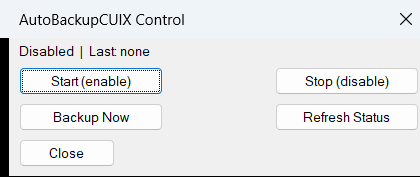
– AutoBackupCUIX_All – opens the AutoBackupCUIX Control dialog with Start, Stop, Backup Now, Refresh Status, and Close buttons.
Description:
AutoBackupCUIX is a practical Civil 3D CUIX backup automation tool designed to protect customized ribbon and toolbar configuration data. The routine searches for CIVIL.cuix using AutoCAD findfile, creates a timestamped backup named [username]C3D_dd.mm.yyyy_hh.mm.ss.cuix, and stores it in the configured menu folder.
The automatic schedule is controlled by a vlr-command-reactor on :vlr-commandEnded, which makes the workflow compatible with Civil 3D versions where vlr-idle-reactor is not available. After the configured time has passed, the next completed AutoCAD command can trigger the backup once per day.
The backup core launches a hidden PowerShell process through a temporary VBS script. PowerShell extracts the CUIX archive, edits RibbonRoot.cui, keeps only the configured ribbon panel sources and tab sources, rebuilds the CUIX package, and writes a done file so AutoLISP can report success, failure, or timeout.
Helper function: (if any)
Main helper functions:
– ABC:FileExists – checks whether a path can be opened for reading.
– ABC:ReadLine – reads one status line from a text file.
– ABC:WriteLines – writes generated VBS, PowerShell, and DCL files.
– ABC:RunID – creates a numeric run identifier from the AutoCAD DATE variable.
– ABC:WaitForFile – waits for the PowerShell done file with a timeout.
– ABC:LaunchViaVBS – launches PowerShell hidden by using a temporary VBS wrapper.
– ABC:DateOnly – returns the current date as dd.mm.yyyy.
– ABC:Timestamp – returns the current timestamp as dd.mm.yyyy_hh.mm.ss.
– ABC:CurrentHour – converts the current AutoCAD CDATE time to decimal hours.
– ABC:DoBackup – performs the complete CUIX backup and filter workflow.
– ABC:CommandEndedCallback – checks the schedule after completed commands and triggers one daily backup when due.
Functionalities:
Key functionalities:
– Automatic daily backup at 17:00 using ABC:HOUR and ABC:MINUTE settings.
– Manual Backup Now command for immediate CUIX protection.
– Start and Stop commands for enabling or disabling the command reactor.
– Status command showing enabled state, reactor state, configured schedule, save path, and last backup date.
– DCL control dialog generated in the Temp folder for non-command-line operation.
– CIVIL.cuix discovery using findfile, so the active AutoCAD support path is used.
– Timestamped output file names for versioned backup history.
– Hidden PowerShell execution using a VBS launcher to avoid a visible console window.
– CUIX archive extraction and rebuild using System.IO.Compression.FileSystem.
– RibbonRoot.cui filtering that keeps [username]_ribbon_Acad, [username]_ribbon_C3D, [username]_C3D, and [username]_Acad ribbon definitions.
– Done-file reporting for OK, error message, or timeout feedback.
– Auto-start integration through s::startup so the backup reactor can enable when AutoCAD starts.
Result:
The result is a timestamped, filtered backup copy of CIVIL.cuix saved to the configured menu folder. When enabled, the routine protects the Civil 3D customization environment once per day and gives the user manual control through command-line commands or the AutoBackupCUIX dialog.
Images, animations etc.
XAML code:
<src:RibbonToolTip x:Key="AutoBackupCUIX">
<src:RibbonToolTip.ExpandedContent>
<StackPanel>
<TextBlock Background="AntiqueWhite" TextAlignment="Left">
<Bold>Function Syntax: AutoBackupCUIX_Start / AutoBackupCUIX_Stop / AutoBackupCUIX_Now / AutoBackupCUIX_Status / AutoBackupCUIX_All</Bold>
<LineBreak/>
<Bold>Version: 1.1 Date: 20.06.2026 6:39:01PM</Bold>
<LineBreak/>
<Hyperlink>N/A</Hyperlink>
<LineBreak/>

<Bold><Run Foreground="DodgerBlue">AutoBackupCUIX - AutoCAD Civil 3D CUIX Backup Utility</Run></Bold><LineBreak/>
<LineBreak/>
<Run Foreground="White">🚀 AutoBackupCUIX is an AutoLISP automation tool that creates a daily filtered backup of </Run><Bold><Run Foreground="Orange">CIVIL.cuix</Run></Bold><Run Foreground="White"> for AutoCAD and Civil 3D workspace protection.</Run><LineBreak/>
<Run Foreground="LimeGreen">It helps CAD managers protect ribbon customization, CUI menu data, workspace setup, and production toolbar configuration without manually copying CUIX files every day.</Run><LineBreak/>
<LineBreak/>
<Bold><Run Foreground="DodgerBlue">Main Commands</Run></Bold><LineBreak/>
<Run Foreground="White">🟢 </Run><Bold><Run Foreground="Orange">AutoBackupCUIX_Start</Run></Bold><Run Foreground="White"> - enables the automatic command-ended backup reactor.</Run><LineBreak/>
<Run Foreground="White">🔴 </Run><Bold><Run Foreground="Orange">AutoBackupCUIX_Stop</Run></Bold><Run Foreground="White"> - disables the automatic backup workflow.</Run><LineBreak/>
<Run Foreground="White">💾 </Run><Bold><Run Foreground="Orange">AutoBackupCUIX_Now</Run></Bold><Run Foreground="White"> - runs a CUIX backup immediately.</Run><LineBreak/>
<Run Foreground="White">📊 </Run><Bold><Run Foreground="Orange">AutoBackupCUIX_Status</Run></Bold><Run Foreground="White"> - prints enabled state, reactor state, schedule, save path, and last backup date.</Run><LineBreak/>
<Run Foreground="White">🧰 </Run><Bold><Run Foreground="Orange">AutoBackupCUIX_All</Run></Bold><Run Foreground="White"> - opens the AutoBackupCUIX Control dialog.</Run><LineBreak/>
<LineBreak/>
<Bold><Run Foreground="DodgerBlue">SEO Optimized Description</Run></Bold><LineBreak/>
<Run Foreground="White">📘 This AutoCAD Civil 3D utility automatically backs up </Run><Bold><Run Foreground="Orange">CIVIL.cuix</Run></Bold><Run Foreground="White"> to preserve ribbon panels, CUI menu customization, and CAD workspace configuration.</Run><LineBreak/>
<Run Foreground="White">🕔 The default schedule runs once per day after </Run><Bold><Run Foreground="Orange">17:00</Run></Bold><Run Foreground="White"> when the next AutoCAD command finishes.</Run><LineBreak/>
<Run Foreground="White">🔄 The routine uses </Run><Bold><Run Foreground="LimeGreen">vlr-command-reactor</Run></Bold><Run Foreground="White"> with </Run><Bold><Run Foreground="LimeGreen">:vlr-commandEnded</Run></Bold><Run Foreground="White"> instead of an idle reactor, improving compatibility with Civil 3D 2024 workflows.</Run><LineBreak/>
<Run Foreground="White">📦 A hidden PowerShell process extracts the CUIX archive, filters configured ribbon panels and tabs, rebuilds the backup CUIX file, and returns status to AutoLISP.</Run><LineBreak/>
<LineBreak/>
<Bold><Run Foreground="LimeGreen">Functionalities</Run></Bold><LineBreak/>
<Run Foreground="White">💾 </Run><Bold><Run Foreground="LimeGreen">Timestamped backup creation</Run></Bold><Run Foreground="White"> - saves files using </Run><Bold><Run Foreground="Orange">@DanC3D_dd.mm.yyyy_hh.mm.ss.cuix</Run></Bold><Run Foreground="White"> naming.</Run><LineBreak/>
<Run Foreground="White">🔍 </Run><Bold><Run Foreground="LimeGreen">CIVIL.cuix discovery</Run></Bold><Run Foreground="White"> - uses AutoCAD support-path lookup through </Run><Bold><Run Foreground="Orange">findfile</Run></Bold><Run Foreground="White">.</Run><LineBreak/>
<Run Foreground="White">🧩 </Run><Bold><Run Foreground="LimeGreen">Ribbon filter logic</Run></Bold><Run Foreground="White"> - keeps </Run><Bold><Run Foreground="Orange">@Dan_ribbon_Acad</Run></Bold><Run Foreground="White">, </Run><Bold><Run Foreground="Orange">@Dan_ribbon_C3D</Run></Bold><Run Foreground="White">, </Run><Bold><Run Foreground="Orange">@Dan_C3D</Run></Bold><Run Foreground="White">, and </Run><Bold><Run Foreground="Orange">@Dan_Acad</Run></Bold><Run Foreground="White"> definitions in the backup copy.</Run><LineBreak/>
<Run Foreground="White">🧰 </Run><Bold><Run Foreground="LimeGreen">DCL control panel</Run></Bold><Run Foreground="White"> - provides Start, Stop, Backup Now, Refresh Status, and Close buttons.</Run><LineBreak/>
<Run Foreground="White">🔐 </Run><Bold><Run Foreground="LimeGreen">Safe status reporting</Run></Bold><Run Foreground="White"> - reports OK, failure messages, or timeout after the background backup task.</Run><LineBreak/>
<Run Foreground="White">🚀 </Run><Bold><Run Foreground="LimeGreen">Startup integration</Run></Bold><Run Foreground="White"> - can enable the backup reactor from </Run><Bold><Run Foreground="Orange">s::startup</Run></Bold><Run Foreground="White">.</Run><LineBreak/>
<LineBreak/>
<Bold><Run Foreground="DodgerBlue">Practical Result</Run></Bold><LineBreak/>
<Run Foreground="White">✅ The result is a timestamped filtered backup of </Run><Bold><Run Foreground="Orange">CIVIL.cuix</Run></Bold><Run Foreground="White"> stored in the configured menu folder, protecting Civil 3D customization and AutoCAD workspace setup.</Run><LineBreak/>
<LineBreak/>
<Bold><Run Foreground="DarkRed">Important Notes</Run></Bold><LineBreak/>
<Run Foreground="White">⚠️ The save path is hard-coded in </Run><Bold><Run Foreground="DarkOrange">ABC:SAVEPATH</Run></Bold><Run Foreground="White"> and should be changed before deployment on another workstation.</Run><LineBreak/>
<Run Foreground="White">⚠️ The default backup time is hard-coded by </Run><Bold><Run Foreground="DarkOrange">ABC:HOUR</Run></Bold><Run Foreground="White"> and </Run><Bold><Run Foreground="DarkOrange">ABC:MINUTE</Run></Bold><Run Foreground="White">.</Run><LineBreak/>
<Run Foreground="White">⚠️ Automatic backup runs after a command ends, so it triggers after the next completed AutoCAD command after the scheduled time.</Run><LineBreak/>
<Run Foreground="White">⚠️ This workflow depends on Windows, PowerShell, WScript/VBS, and .NET compression support.</Run><LineBreak/>


</TextBlock>

<Grid>
<Image Source="Image_000.png" Stretch="Uniform"/>
</Grid>

</StackPanel>
</src:RibbonToolTip.ExpandedContent>
</src:RibbonToolTip>