
Short description
🚀 ToolbarManager is an AutoCAD Civil 3D .NET Framework 4.8 plugin for managing, filtering, saving, restoring, exporting, and repositioning AutoCAD toolbars across monitor setups. It helps CAD users create repeatable toolbar profiles, fix floating toolbar positions, audit toolbar contents, and improve productivity in multi-monitor Civil 3D production environments.
Command:
🧰 Load the compiled plugin with NETLOAD and select ToolbarManager_023.dll or the current build DLL generated from ToolbarManager_023.csproj.
🚀 Run the generated command TOOLBARMANAGER_023 to open the modeless WinForms toolbar manager inside AutoCAD or Civil 3D.
📌 The command name is generated from BQ_Build through BuildConstants.CommandName, so future builds use the same pattern, for example TOOLBARMANAGER_024.
🧩 Target platform: AutoCAD Civil 3D 2024 x64, .NET Framework 4.8, WinForms, AutoCAD COM Interop, and ObjectARX managed references such as AcMgd.dll, AcDbMgd.dll, accoremgd.dll, Autodesk.AutoCAD.Interop.dll, and Autodesk.AutoCAD.Interop.Common.dll.
Description:
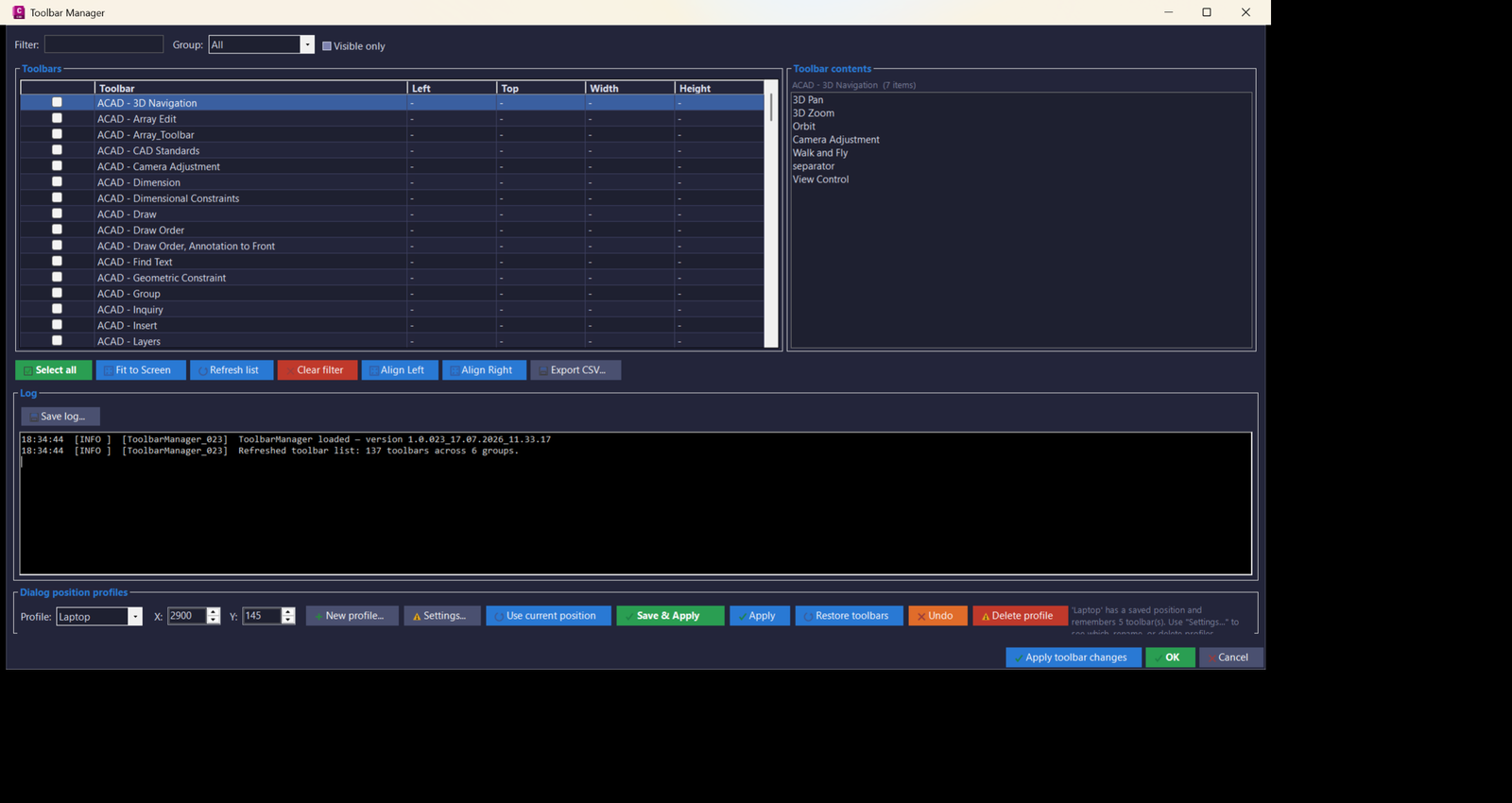
📘 ToolbarManager scans the active AutoCAD or Civil 3D session, reads every available toolbar from every AutoCAD menu group, and presents the result in a filterable grid. The user can search toolbars, filter by menu group, show only visible toolbars, inspect toolbar commands, and apply visibility changes from one central panel.
🔍 The program is designed for CAD users who work with many floating AutoCAD toolbars, custom CUI toolbars, Civil 3D workspaces, and multi-monitor layouts. It records each toolbar label, group, visibility state, screen position, width, height, and toolbar contents where AutoCAD exposes that information through the COM API.
📌 A key purpose of the tool is toolbar profile management. Users can save named profiles such as office monitor, laptop, docking station, or project-specific layouts, then restore the dialog position and saved floating toolbar set later. This makes it easier to move between Civil 3D workstations, screen resolutions, remote sessions, and multiple monitor arrangements.
🧠 The project includes a monitor-aware fix through ScreenHelper.cs. Instead of relying on AutoCAD SCREENSIZE, it uses the AutoCAD main window handle and Windows screen detection to determine the correct monitor. This improves Fit to Screen behavior when Civil 3D is not on the primary display.
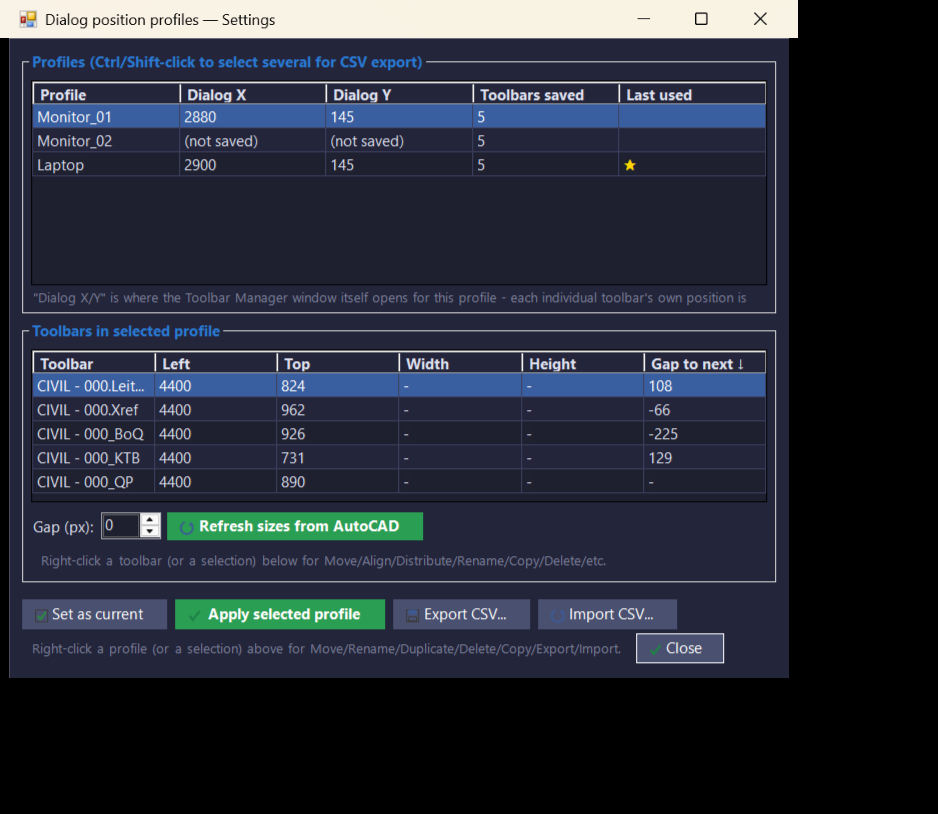
📊 The settings dialog provides advanced profile editing, toolbar ordering, align tools, gap control, distribution, CSV import/export, clipboard round-trip support, and right-click context menus. This makes the plugin useful for AutoCAD toolbar organization, Civil 3D UI standardization, workspace recovery, and CAD production setup automation.
Helper function: (if any)
- 🧩 Command registration –
Commands.csregistersRunToolbarManager()with[CommandMethod(BuildConstants.CommandName)], making the build-specific AutoCAD command available afterNETLOAD. - 🔍 Toolbar enumeration engine –
ToolbarService.Refresh()scansAcadApplication.MenuGroupsandAcadToolbarcollections to collect toolbar labels, groups, visibility, Left, Top, Width, and Height. - 📋 Toolbar contents reader –
ToolbarService.GetToolbarItems()reads toolbar button names and command macros with late-bound COM access and caches the result for faster row selection. - 🟢 Visibility apply logic –
ApplySelectionand the toolbar grid let users turn selected AutoCAD toolbars on or off without opening multiple AutoCAD CUI or toolbar dialogs. - 📐 Fit-to-screen layout –
ToolbarService.FitToScreen()computes visible toolbar bounds and shifts floating toolbar groups back inside the real AutoCAD monitor area. - 🖥️ Monitor-aware bounds –
ScreenHelper.GetAcadWindowBounds()uses the AutoCAD main window handle,GetWindowRect, andScreen.FromHandle()to detect the actual monitor instead of guessing from viewport size. - 💾 Profile persistence –
WindowSettings.csstores named profiles, dialog positions, toolbar sets, toolbar geometry, order, and last-used profile in a plain text settings file under the user application data folder. - 🔄 Profile restore workflow –
ToolbarService.RestoreToolbarSet()turns saved toolbars on and repositions them to their stored Left and Top values when those values are available. - 📊 CSV import and export –
CsvUtil.csandWindowSettings.ExportDetailedCsv()create Excel-friendly profile and toolbar-set reports for backup, review, or transfer to another workstation. - 📌 Toolbar profile editor –
ProfileSettingsForm.csprovides profile reorder, rename, duplicate, delete, apply, export, import, toolbar move, copy, paste, distribute, align, and refresh-size actions. - 🧰 Profile panel –
ProfilePanel.csembeds the day-to-day profile save/apply controls in the main form and delegates advanced editing to the settings dialog. - 🎨 Civil 3D style UI theme –
C3DTheme.cs,Theme.cs, andButtonIconFactory.csapply a dark CAD-style palette, role-colored buttons, and generated GDI icons without relying on external image resources. - 📝 Prompt and selection dialogs –
PromptDialog.csandChooseProfileDialog.csprovide reusable text input and profile selection dialogs for rename, duplicate, import, and copy workflows. - 🔒 Logging and diagnostics –
Logger.cswrites timestamped info, warning, and error messages to the UI log and a persisted log file for troubleshooting Civil 3D toolbar behavior.
Functionalities:
- 🚀 Open toolbar manager – run
TOOLBARMANAGER_023to launch a modeless AutoCAD Civil 3D toolbar management window. - 🔍 Filter toolbar list – search by toolbar name, filter by menu group, and optionally show visible toolbars only.
- 📋 Inspect toolbar contents – select a toolbar row to view its internal buttons, separators, and command macros.
- 🟢 Apply toolbar visibility – check or uncheck toolbar rows and apply visibility changes to the active AutoCAD session.
- 📐 Fit toolbars to screen – move floating toolbars back into the visible AutoCAD monitor area for multi-monitor recovery.
- 📌 Save dialog and toolbar profiles – store named layouts with the manager window position and the currently visible toolbar set.
- 🔄 Restore saved toolbar profiles – turn saved toolbars back on and reposition floating toolbars to their recorded coordinates.
- 🧭 Manage multiple monitor profiles – keep separate profiles for laptop, office monitor, external screen, remote desktop, or custom Civil 3D workspaces.
- 🧩 Edit toolbar sets per profile – move toolbar entries up, down, to top, to bottom, duplicate entries, rename entries, and delete entries.
- 📏 Align and distribute toolbars – align left or right, set a common Left value, set all gaps, distribute vertically, and distribute horizontally.
- 📊 Refresh real toolbar sizes – read live toolbar Width and Height from AutoCAD so spacing and distribution use actual toolbar geometry.
- 📤 Export and import CSV – share profile and toolbar position data through Excel-friendly CSV files.
- 📋 Clipboard round-trip – copy toolbar entries or profiles to the clipboard, edit tabular data in Excel, and paste values back into the profile editor.
- ⭐ Set current profile – mark a profile as the default last-used profile without applying or moving toolbars immediately.
- 🧹 Clear filters and refresh lists – quickly reset search controls and rescan AutoCAD toolbar state.
- 🔐 Preserve safe restore behavior – restore saved toolbar sets without automatically hiding unrelated toolbars that the user turned on for other work.
Result:
✅ The final result is a productivity-focused AutoCAD Civil 3D toolbar layout manager that centralizes toolbar discovery, visibility control, monitor-aware positioning, profile storage, profile restore, toolbar-set editing, CSV export, clipboard workflows, and diagnostic logging.
🟢 It reduces manual AutoCAD UI setup, improves multi-monitor Civil 3D workflow recovery, makes toolbar layouts repeatable across workstations, and helps CAD teams standardize floating toolbar arrangements with fewer repetitive steps.
Images, animations etc.
XAML code:
<ResourceDictionary
xmlns="http://schemas.microsoft.com/winfx/2006/xaml/presentation"
xmlns:x="http://schemas.microsoft.com/winfx/2006/xaml"
xmlns:src="clr-namespace:Autodesk.Windows;assembly=AdWindows">

<src:RibbonToolTip x:Key="ToolbarManager_1.0">
<src:RibbonToolTip.ExpandedContent>
<StackPanel>
<TextBlock Background="AntiqueWhite" TextAlignment="Left">
<Bold>Function Syntax: ToolbarManager</Bold>
<LineBreak/>
<Bold>Version: 1.0 Date: 10.11.2025</Bold>
<LineBreak/>

</TextBlock>

<Grid>
<Image Source=".jpg" Stretch="Uniform"/>
</Grid>

<Grid>
<Image Source=".png" Stretch="Uniform"/>
</Grid>


</StackPanel>
</src:RibbonToolTip.ExpandedContent>
</src:RibbonToolTip>

<src:RibbonToolTip x:Key="ToolbarManager_1.1">
<src:RibbonToolTip.ExpandedContent>
<StackPanel>
<TextBlock Background="AntiqueWhite" TextAlignment="Left">
<Bold>Function Syntax: ToolbarManager</Bold>
<LineBreak/>
<Bold>Version: 1.1 Date: 20.06.2026 6:38:54PM</Bold>
<LineBreak/>


</TextBlock>
<Grid>
<Image Source=".jpg" Stretch="Uniform"/>
</Grid>

<Grid>
<Image Source=".png" Stretch="Uniform"/>
</Grid>


</StackPanel>
</src:RibbonToolTip.ExpandedContent>
</src:RibbonToolTip>

</ResourceDictionary>