
Short description
📊 Civil3DProfileViewUtils is an Autodesk Civil 3D C# .NET plugin that manages Profile View and Section View styles from a custom dark-themed Windows Forms dialog. It helps Civil 3D users apply graph styles and band set styles to multiple ProfileViews or SectionViews at once, reducing repetitive style editing and improving drawing standardization.
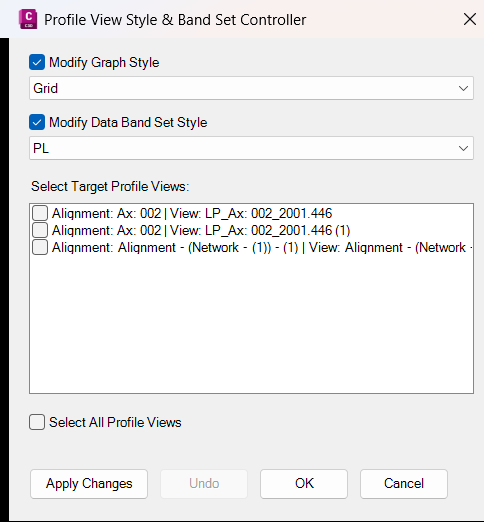
Description:
🧠 Civil3DProfileViewUtils is a Civil 3D style management plugin designed to speed up Profile View and Section View standardization. Instead of opening each Civil 3D view manually and changing styles one by one, the user runs a command, selects multiple target views from a dialog, and applies a selected graph style, a selected band set style, or both.
The command
The plugin opens a dark-themed Windows Forms dialog with two main options:
Before applying changes, the code captures a
This project is useful for Civil 3D production drawing cleanup, profile view standardization, section view QA, band style management, drawing template enforcement, and faster project-wide style updates. It does not modify alignments, profiles, sample lines, corridors, surfaces, labels, bands directly, or export tables. Its purpose is focused on ProfileView and SectionView style assignment and band set style import.
The command
ManageProfileViewStyles collects Civil 3D Profile View styles, Profile View band set styles, and Profile Views from alignments in the active drawing. The command ManageSectionViewStyles collects Civil 3D Section View styles, Section View band set styles, and Section Views by traversing alignments, sample line groups, sample lines, and Section View IDs.The plugin opens a dark-themed Windows Forms dialog with two main options:
Apply Graph Style and Apply Band Set Style. The user can enable either option independently, choose the target style from a combo box, check one or more target views, use Select / Deselect All, and click Apply. The dialog stays open after Apply so the user can continue editing additional view sets.Before applying changes, the code captures a
ViewSnapshot for each selected Profile View or Section View. This allows the dialog’s Undo button to reverse the last Apply operation during the active dialog session. Graph style undo is straightforward because the previous StyleId is stored. Band set undo is more complex because Civil 3D does not expose a simple current band set style ID, so the plugin tries to resolve the previous band set by comparing top and bottom band items against available band set styles.This project is useful for Civil 3D production drawing cleanup, profile view standardization, section view QA, band style management, drawing template enforcement, and faster project-wide style updates. It does not modify alignments, profiles, sample lines, corridors, surfaces, labels, bands directly, or export tables. Its purpose is focused on ProfileView and SectionView style assignment and band set style import.
Command:
📌 Main commands:
🧰 Loading method: build
🚀
📊
🪟 The command opens a modal Windows Forms dialog with style selection, band set style selection, target view selection, Apply, Undo, OK, and Cancel controls.
🎯 Target platform: Autodesk Civil 3D with AutoCAD .NET APIs, Civil 3D managed APIs, .NET Framework 4.8, x64, and references such as
ManageProfileViewStyles and ManageSectionViewStyles.🧰 Loading method: build
Civil3DProfileViewUtils.csproj, then load Civil3DProfileViewUtils.dll in Autodesk Civil 3D using NETLOAD.🚀
ManageProfileViewStyles opens the style manager for Civil 3D Profile Views.📊
ManageSectionViewStyles opens the style manager for Civil 3D Section Views.🪟 The command opens a modal Windows Forms dialog with style selection, band set style selection, target view selection, Apply, Undo, OK, and Cancel controls.
🎯 Target platform: Autodesk Civil 3D with AutoCAD .NET APIs, Civil 3D managed APIs, .NET Framework 4.8, x64, and references such as
accoremgd, acdbmgd, acmgd, AeccDbMgd, and AeccLandDbMgd.
Helper function: (if any)
- 🚀 Plugin bootstrap —
ProfileViewStyleExtension.Initializeprints a Civil 3D command-line load message showing the available commands. - 📌 Command registration —
StyleManagerCommandsdefinesManageProfileViewStylesandManageSectionViewStyleswith AutoCADCommandMethodattributes. - 🧩 Profile View data collection —
CollectProfileViewDatareadsProfileViewStyles,ProfileViewBandSetStyles, alignments, and Profile View IDs. - 📊 Section View data collection —
CollectSectionViewDatareadsSectionViewStyles,SectionViewBandSetStyles, alignments, sample line groups, sample lines, and Section View IDs. - 📦 Dialog data models —
StyleItem,ViewItem, andDrawingDatastore style ObjectIds, view ObjectIds, visible names, and available dialog lists. - ↩️ Undo snapshot model —
ViewSnapshotrecords previous style IDs, previous band set style IDs, and modification flags before an Apply operation. - ✔ Apply engine —
StyleApplyEngine.Applyopens selected views for write, changesStyleId, imports selected band set styles, commits the transaction, and pushes snapshots to the undo stack. - ↩️ Undo engine —
StyleApplyEngine.Undorestores previous graph styles and attempts to restore previous band set styles by re-importing the resolved previous band set style. - 📊 Profile band set resolver —
ResolveProfileBandSetStyleIdcompares Profile View top and bottom band items with available Profile View band set style definitions. - 📊 Section band set resolver —
ResolveSectionBandSetStyleIdcompares Section View top and bottom band items with available Section View band set style definitions. - 🔍 Band item comparator —
BandItemsMatchcompares band style ObjectIds in order to decide whether a view’s current bands match a band set style. - 🪟 Dialog builder —
StyleManagerFormbuilds the dark-themed Windows Forms UI with combo boxes, check boxes, a checked list box, status text, and action buttons. - ✅ Apply button handler —
BtnApply_Clickvalidates user options, collects checked views, calls the apply engine, and updates the dialog status. - ↩️ Undo button handler —
BtnUndo_Clickcalls the undo engine and updates the status message and Undo button state. - 🎨 UI styling helpers —
MakeCheckBox,MakeComboBox,MakeButton,Lighten, andClampbuild the custom dialog controls and button colors.
Functionalities:
- 🚀 Manage Profile View styles —
ManageProfileViewStyleslets users apply Profile View styles and Profile View band set styles to multiple Profile Views. - 📊 Manage Section View styles —
ManageSectionViewStyleslets users apply Section View styles and Section View band set styles to multiple Section Views. - 🧩 Discover Profile Views automatically — the plugin finds Profile Views by reading Civil 3D alignments and calling
GetProfileViewIds. - 📐 Discover Section Views automatically — the plugin finds Section Views through alignments, sample line groups, sample lines, and
GetSectionViewIds. - 🎨 Collect available view styles — the dialog lists available Profile View styles or Section View styles from the active Civil 3D drawing.
- 📊 Collect available band set styles — the dialog lists available Profile View band set styles or Section View band set styles.
- ✅ Apply to multiple target views — checked views can be updated in a single transaction-based workflow.
- ✔ Apply graph style only — users can update only the main ProfileView or SectionView style without importing a new band set.
- 📊 Apply band set style only — users can import a band set style without changing the main graph style.
- 🧩 Apply graph style and band set together — both changes can be applied in one operation for faster Civil 3D style standardization.
- 🟢 Select or deselect all views — the dialog includes a quick toggle for all target views.
- ↩️ Undo the last Apply operation — the Undo button reverses the most recent operation tracked during the active dialog session.
- 🔒 Use DocumentLock for safe writes — the plugin locks the active document before modifying Civil 3D view objects.
- 🧩 Use AutoCAD transactions — changes are committed through database transactions for safer Civil 3D object editing.
- 🔄 Regenerate drawing after changes —
Editor.Regenrefreshes the drawing display after Apply and Undo. - ⚠️ Show validation warnings — the dialog prevents Apply when no option is enabled or no target view is selected.
- 🔴 Important limitation — the tool changes style assignments and imports band set styles only. It does not edit geometry, labels, profiles, alignments, corridors, surfaces, or export data.
- 🔴 Band set undo limitation — previous band set restoration depends on finding a matching band set style by comparing band items. Manually customized bands may not be fully restorable.
- 🔴 Build path limitation — the project imports a machine-specific AutoCAD and Civil 3D reference props file that may need to be edited before building on another workstation.
- 🔐 Platform limitation — this plugin requires Autodesk Civil 3D and is not intended for plain AutoCAD without Civil 3D managed APIs.
Result:
📘 The final result is a faster Civil 3D Profile View and Section View style management workflow. Users can update multiple ProfileViews or SectionViews in one dialog, apply graph styles, import band set styles, use Select All for batch updates, and undo the last Apply operation during the active session. This improves productivity, reduces repetitive Civil 3D style editing, supports drawing standardization, improves QA review, and helps project teams keep ProfileView and SectionView presentation consistent across production drawings.
Images, animations etc.
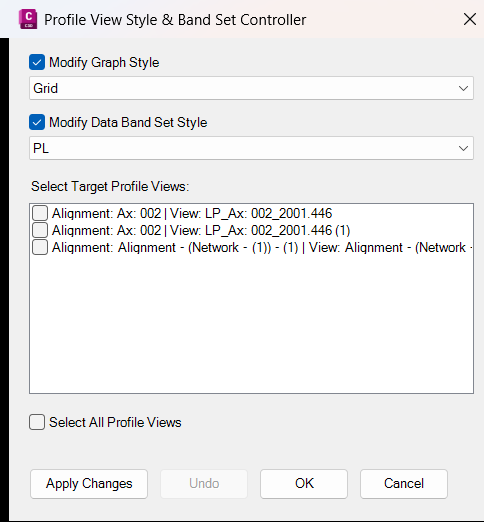
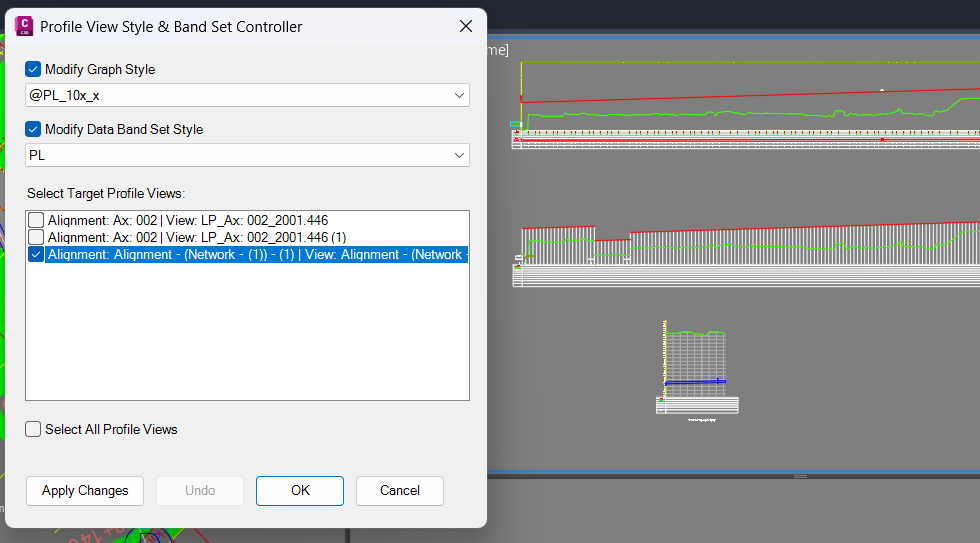
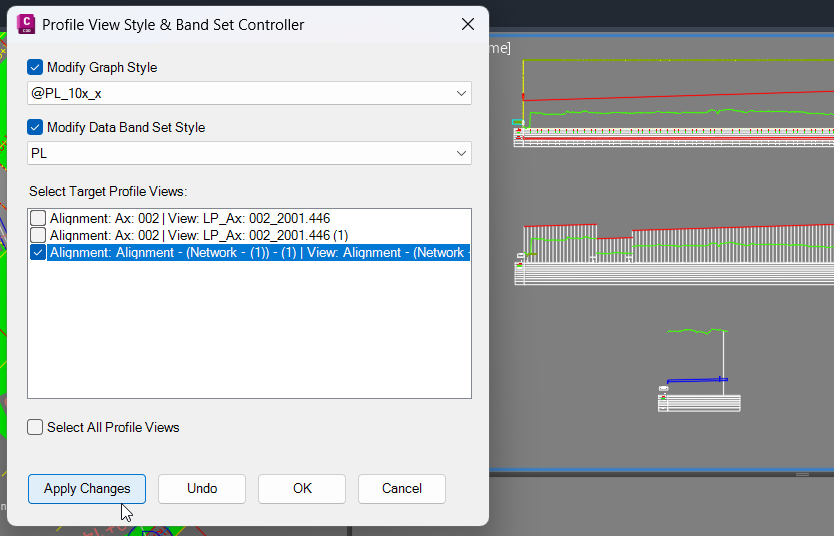
XAML code:
<ResourceDictionary
xmlns="http://schemas.microsoft.com/winfx/2006/xaml/presentation"
xmlns:x="http://schemas.microsoft.com/winfx/2006/xaml"
xmlns:src="clr-namespace:Autodesk.Windows;assembly=AdWindows">

<src:RibbonToolTip x:Key="ManageProfileViewStyles">
<src:RibbonToolTip.ExpandedContent>
<StackPanel>
<TextBlock Background="AntiqueWhite" TextAlignment="Left">
<Bold>Function Syntax: ManageProfileViewStyles / ManageSectionViewStyles</Bold>
<LineBreak/>
<Bold>Version: 1.0 Date: 07.06.2026 19:14:44</Bold>
<LineBreak/>
<Bold>Version: 1.0 Date: 08.06.2026 08:57:08</Bold>
<LineBreak/>
<Bold>Version: 1.1 Date: 07.06.2026 8:37:46PM</Bold>
<LineBreak/>
<Hyperlink>N/A</Hyperlink>
<Bold>Description</Bold><LineBreak/>
This project is an Autodesk Civil 3D C# .NET plugin that manages Profile View and Section View styles from a custom dark-themed Windows Forms dialog.<LineBreak/>
The plugin allows the user to select existing Civil 3D Profile Views or Section Views, then apply a selected graph style, a selected band set style, or both.<LineBreak/>
The main commands are <Bold><Run Foreground="DarkRed">ManageProfileViewStyles</Run></Bold> and <Bold><Run Foreground="DarkRed">ManageSectionViewStyles</Run></Bold>.<LineBreak/>
The project is built as a .NET Framework plugin DLL named <Bold><Run Foreground="DarkRed">Civil3DProfileViewUtils.dll</Run></Bold>.<LineBreak/>
The tool is useful for Civil 3D users who need to update multiple ProfileView or SectionView styles quickly without editing each view manually.<LineBreak/>
<Bold>Project Type</Bold><LineBreak/>
• <Bold>🧩 C# .NET Plugin</Bold> — the project builds a Civil 3D managed DLL named <Run Foreground="DarkRed">Civil3DProfileViewUtils.dll</Run>.<LineBreak/>
• <Bold>🪟 Windows Forms Interface</Bold> — the UI is created in code using <Run Foreground="DarkRed">System.Windows.Forms</Run>, not XAML or WPF.<LineBreak/>
• <Bold>🎨 Dark Theme Dialog</Bold> — the form uses custom dark background colors, styled buttons, combo boxes, check boxes, and a checked view list.<LineBreak/>
• <Bold>📘 Documentation Included</Bold> — the project includes <Run Foreground="DarkRed">README.md</Run> with command names, build notes, loading instructions, and project structure.<LineBreak/>
• <Bold>🔴 Not A Standalone LISP</Bold> — <Run Foreground="Red">this uploaded project is not an AutoLISP routine and does not include a visible LSP loader file.</Run><LineBreak/>
<Bold>Main Commands</Bold><LineBreak/>
• <Bold>🚀 <Run Foreground="DarkRed">ManageProfileViewStyles</Run></Bold> — opens the style manager for Civil 3D Profile Views.<LineBreak/>
• <Bold>📊 <Run Foreground="DarkRed">ManageSectionViewStyles</Run></Bold> — opens the style manager for Civil 3D Section Views.<LineBreak/>
<Bold>Loading Method</Bold><LineBreak/>
• <Bold>🧰 Build DLL</Bold> — open <Run Foreground="DarkRed">Civil3DProfileViewUtils.csproj</Run> in Visual Studio and build the project.<LineBreak/>
• <Bold>📦 Load Plugin</Bold> — load <Run Foreground="DarkRed">Civil3DProfileViewUtils.dll</Run> in Civil 3D using <Run Foreground="DarkRed">NETLOAD</Run>.<LineBreak/>
• <Bold>📌 Run Command</Bold> — run <Run Foreground="DarkRed">ManageProfileViewStyles</Run> or <Run Foreground="DarkRed">ManageSectionViewStyles</Run> from the Civil 3D command line.<LineBreak/>
• <Bold>📘 Load Banner</Bold> — when the DLL loads, the plugin writes a command-line message showing the available commands.<LineBreak/>
<Bold>User Workflow</Bold><LineBreak/>
• <Bold>🚀 Start Command</Bold> — the user runs <Run Foreground="DarkRed">ManageProfileViewStyles</Run> or <Run Foreground="DarkRed">ManageSectionViewStyles</Run>.<LineBreak/>
• <Bold>🧩 Collect Civil 3D Data</Bold> — the plugin reads available styles, band set styles, and target views from the active Civil 3D drawing.<LineBreak/>
• <Bold>🪟 Open Dialog</Bold> — the plugin opens either <Run Foreground="DarkRed">Profile View Style Manager</Run> or <Run Foreground="DarkRed">Section View Style Manager</Run>.<LineBreak/>
• <Bold>🎨 Choose Graph Style</Bold> — the user can enable <Run Foreground="DarkRed">Apply Graph Style</Run> and select a Profile View or Section View style.<LineBreak/>
• <Bold>📊 Choose Band Set Style</Bold> — the user can enable <Run Foreground="DarkRed">Apply Band Set Style</Run> and select a Profile View or Section View band set style.<LineBreak/>
• <Bold>📌 Select Target Views</Bold> — the user checks one or more views in the <Run Foreground="DarkRed">Target Views</Run> list.<LineBreak/>
• <Bold>✅ Select All Option</Bold> — the user can use <Run Foreground="DarkRed">Select and Deselect All</Run> to toggle all listed views.<LineBreak/>
• <Bold>✔ Apply Changes</Bold> — the user clicks <Run Foreground="DarkRed">Apply</Run> to update the selected views while keeping the dialog open.<LineBreak/>
• <Bold>↩ Undo Last Apply</Bold> — the user clicks <Run Foreground="DarkRed">Undo</Run> to reverse the last applied style or band set operation when possible.<LineBreak/>
• <Bold>✅ Close With OK</Bold> — the user clicks <Run Foreground="DarkRed">OK</Run> to close the dialog.<LineBreak/>
• <Bold>🔴 Cancel Dialog</Bold> — the user clicks <Run Foreground="DarkRed">Cancel</Run> to close the dialog.<LineBreak/>
<Bold>Functionalities</Bold><LineBreak/>
• <Bold>🚀 Profile View Style Management</Bold> — <Run Foreground="DarkRed">ManageProfileViewStyles</Run> lets the user apply Profile View styles and Profile View band set styles to multiple Profile Views.<LineBreak/>
• <Bold>📊 Section View Style Management</Bold> — <Run Foreground="DarkRed">ManageSectionViewStyles</Run> lets the user apply Section View styles and Section View band set styles to multiple Section Views.<LineBreak/>
• <Bold>🧩 Automatic Profile View Discovery</Bold> — the plugin searches Civil 3D alignments and reads Profile Views through <Run Foreground="DarkRed">Alignment.GetProfileViewIds</Run>.<LineBreak/>
• <Bold>📐 Automatic Section View Discovery</Bold> — the plugin searches alignments, sample line groups, sample lines, and Section Views using <Run Foreground="DarkRed">GetSampleLineGroupIds</Run>, <Run Foreground="DarkRed">GetSampleLineIds</Run>, and <Run Foreground="DarkRed">GetSectionViewIds</Run>.<LineBreak/>
• <Bold>🎨 Style List Collection</Bold> — the plugin reads <Run Foreground="DarkRed">ProfileViewStyles</Run> or <Run Foreground="DarkRed">SectionViewStyles</Run> from the Civil 3D style collection.<LineBreak/>
• <Bold>📊 Band Set Style Collection</Bold> — the plugin reads <Run Foreground="DarkRed">ProfileViewBandSetStyles</Run> or <Run Foreground="DarkRed">SectionViewBandSetStyles</Run> from the Civil 3D style collection.<LineBreak/>
• <Bold>✅ Multi View Selection</Bold> — the user can update many Profile Views or Section Views in one Apply operation.<LineBreak/>
• <Bold>✔ Apply Graph Style Only</Bold> — the user can enable only the graph style option and update view styles without changing bands.<LineBreak/>
• <Bold>📊 Apply Band Set Style Only</Bold> — the user can enable only the band set option and import a new band set style without changing the graph style.<LineBreak/>
• <Bold>🧩 Apply Both Style Types</Bold> — the user can update both the main view style and the band set style in one operation.<LineBreak/>
• <Bold>↩ In Dialog Undo</Bold> — the plugin records a snapshot before Apply and can reverse the last applied operation from the dialog.<LineBreak/>
• <Bold>🔒 Document Locking</Bold> — write operations are wrapped with <Run Foreground="DarkRed">DocumentLock</Run> before modifying the Civil 3D drawing database.<LineBreak/>
• <Bold>🧩 Transaction Handling</Bold> — view style changes and band set imports are wrapped inside AutoCAD database transactions.<LineBreak/>
• <Bold>🔄 Drawing Regen</Bold> — the plugin calls <Run Foreground="DarkRed">Editor.Regen</Run> after Apply or Undo so the view display updates.<LineBreak/>
• <Bold>⚠ Validation Messages</Bold> — the dialog warns the user when no style option is enabled or no target view is selected.<LineBreak/>
• <Bold>🪟 Modal Dialog</Bold> — the plugin uses <Run Foreground="DarkRed">Application.ShowModalDialog</Run> so the style manager stays focused during editing.<LineBreak/>
<Bold>Important Helper Logic</Bold><LineBreak/>
• <Bold>🚀 Plugin Bootstrap</Bold> — <Run Foreground="DarkRed">ProfileViewStyleExtension.Initialize</Run> prints the load message and available commands when the plugin loads.<LineBreak/>
• <Bold>📌 Command Class</Bold> — <Run Foreground="DarkRed">StyleManagerCommands</Run> defines <Run Foreground="DarkRed">ManageProfileViewStyles</Run> and <Run Foreground="DarkRed">ManageSectionViewStyles</Run>.<LineBreak/>
• <Bold>🧩 Profile View Data Collector</Bold> — <Run Foreground="DarkRed">CollectProfileViewData</Run> collects Profile View styles, Profile View band set styles, and Profile Views found through alignments.<LineBreak/>
• <Bold>📊 Section View Data Collector</Bold> — <Run Foreground="DarkRed">CollectSectionViewData</Run> collects Section View styles, Section View band set styles, and Section Views found through sample line groups and sample lines.<LineBreak/>
• <Bold>📦 Data Models</Bold> — <Run Foreground="DarkRed">StyleItem</Run>, <Run Foreground="DarkRed">ViewItem</Run>, and <Run Foreground="DarkRed">DrawingData</Run> store style names, ObjectIds, view names, and dialog data.<LineBreak/>
• <Bold>↩ Snapshot Model</Bold> — <Run Foreground="DarkRed">ViewSnapshot</Run> stores the previous style ID, previous band set style ID, and flags showing what was modified.<LineBreak/>
• <Bold>✔ Apply Engine</Bold> — <Run Foreground="DarkRed">StyleApplyEngine.Apply</Run> applies selected styles and band set styles to all checked views.<LineBreak/>
• <Bold>↩ Undo Engine</Bold> — <Run Foreground="DarkRed">StyleApplyEngine.Undo</Run> restores the previous style and attempts to restore the previous band set style.<LineBreak/>
• <Bold>📊 Profile Band Set Resolver</Bold> — <Run Foreground="DarkRed">ResolveProfileBandSetStyleId</Run> compares current Profile View band items against available Profile View band set styles.<LineBreak/>
• <Bold>📊 Section Band Set Resolver</Bold> — <Run Foreground="DarkRed">ResolveSectionBandSetStyleId</Run> compares current Section View band items against available Section View band set styles.<LineBreak/>
• <Bold>🔍 Band Item Comparator</Bold> — <Run Foreground="DarkRed">BandItemsMatch</Run> compares band style ObjectIds and order between live band items and style band items.<LineBreak/>
• <Bold>🪟 Dialog Class</Bold> — <Run Foreground="DarkRed">StyleManagerForm</Run> builds the full dark-themed Windows Forms interface in code.<LineBreak/>
• <Bold>✅ Apply Button Handler</Bold> — <Run Foreground="DarkRed">BtnApply_Click</Run> validates options, collects checked views, calls the Apply engine, and updates the status label.<LineBreak/>
• <Bold>↩ Undo Button Handler</Bold> — <Run Foreground="DarkRed">BtnUndo_Click</Run> calls the Undo engine and updates the dialog status.<LineBreak/>
• <Bold>🎨 UI Button Factory</Bold> — <Run Foreground="DarkRed">MakeButton</Run> creates styled dialog buttons for Apply, Undo, OK, and Cancel.<LineBreak/>
<Bold>Important Code Notes</Bold><LineBreak/>
• <Bold>📌 Command Names</Bold> — <Run Foreground="Red">the command names are ManageProfileViewStyles and ManageSectionViewStyles.</Run><LineBreak/>
• <Bold>🔴 Platform Requirement</Bold> — <Run Foreground="Red">this project requires Autodesk Civil 3D because it uses CivilDocument, ProfileView, SectionView, Alignment, SampleLineGroup, SampleLine, and Civil 3D style APIs.</Run><LineBreak/>
• <Bold>🔴 Build Requirement</Bold> — <Run Foreground="Red">the project targets .NET Framework 4.8 and x64 and requires AutoCAD and Civil 3D managed references.</Run><LineBreak/>
• <Bold>🔴 Props File Requirement</Bold> — <Run Foreground="Red">the project imports a machine-specific props file from a OneDrive path. If that file is missing, the project may fail to build until the reference path is corrected.</Run><LineBreak/>
• <Bold>🔴 README Output Path Mismatch</Bold> — <Run Foreground="Red">the README mentions C:\B\PVU, but the visible project file redirects output to USERPROFILE\PVU. The documentation should be updated to match the actual project file.</Run><LineBreak/>
• <Bold>🔴 Undo Scope Note</Bold> — <Run Foreground="Red">the Undo button reverses only the last Apply operation tracked inside the open dialog session. It is not a persistent undo history after closing and reopening the dialog.</Run><LineBreak/>
• <Bold>🔴 Band Set Undo Limitation</Bold> — <Run Foreground="Red">band set undo depends on matching current top and bottom band items against available band set styles. If no exact match is found before Apply, the previous band set may not be fully restored.</Run><LineBreak/>
• <Bold>🔴 No Style Filtering</Bold> — <Run Foreground="Red">the visible dialog does not include wildcard filtering or search boxes for style names, band set names, or target views.</Run><LineBreak/>
• <Bold>🔴 No LSP Loader</Bold> — <Run Foreground="Red">the visible project files do not include an AutoLISP loader, so the DLL is loaded manually with NETLOAD unless a loader is created separately.</Run><LineBreak/>
• <Bold>🔴 No Geometry Editing</Bold> — <Run Foreground="Red">the plugin does not create or modify alignments, profiles, sample lines, corridors, surfaces, labels, or drawing geometry. It changes Profile View and Section View style assignments and band set imports.</Run><LineBreak/>
<Bold>Final Result</Bold><LineBreak/>
The final result is a faster Civil 3D Profile View and Section View style management workflow.<LineBreak/>
The user can select multiple Profile Views or Section Views, apply graph styles, apply band set styles, update many views in one operation, and undo the last Apply operation from the same dialog.<LineBreak/>
This improves productivity, reduces repetitive Civil 3D style editing, supports better drawing standardization, helps QA review, and makes ProfileView and SectionView management easier in production drawings.<LineBreak/>
</TextBlock>

<Grid>
<Image Source="ManageProfileViewStyles_000.png" Stretch="Uniform"/>
</Grid>

<Grid>
<Image Source="ManageProfileViewStyles_001.png" Stretch="Uniform"/>
</Grid>

<Grid>
<Image Source="ManageProfileViewStyles_002.png" Stretch="Uniform"/>
</Grid>

</StackPanel>
</src:RibbonToolTip.ExpandedContent>
</src:RibbonToolTip>
</ResourceDictionary>
Additional info:
Based on / Source code:
Open Website
Share this page:
Subscribe
Login
0 Comments
Oldest
Categories: AutoCAD_Lips
Categories: AutoCAD_Lips