
Short description
Xref → Own Layer Manager
This AutoLISP routine scans the current drawing for attached xrefs, shows them in a dialog with a checkbox and a per xref layer popup, and lets the user create or assign layers for those xrefs in one place.
The dialog is generated dynamically so it always shows the exact xrefs that exist in the drawing at that moment.
Command:
Command Name: CreatesXrefsLayersAssign
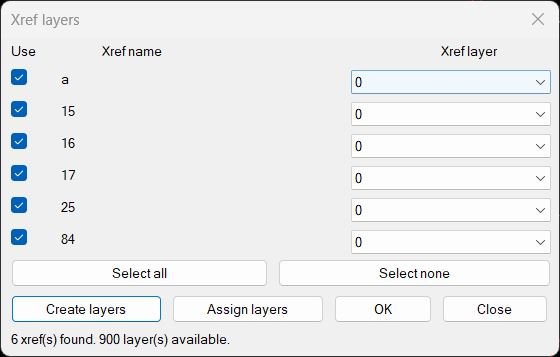
Type CreatesXrefsLayersAssign in the AutoCAD command line to open the “Xref layers” dialog.
If no xrefs are found the program prints “No xrefs found.” and exits cleanly.
Description:
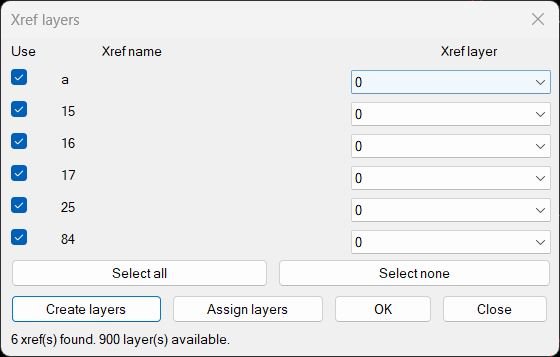
The dialog shows one row per found xref: a checkbox to include or skip that xref, the xref name, and a layer popup listing all layers in the drawing.
There are buttons to select all or select none, to create suggested layers for the checked xrefs, and to assign the chosen layers to all inserts of the checked xrefs in model space and paper space.
The routine also tries to detect the current insert layer of each xref and preselects it in the popup if it exists.
A status text at the bottom reports how many xrefs were found and how many layers are available for assignment.
Helper function: (if any)
Helper Functions:
• XRL-GetXrefs gets all xref block names from the drawing.
• XRL-GetLayers collects all layer names, sorts them, and caps the count so the DCL does not overload.
• XRL-GetFirstInsertLayer tries to find on which layer a given xref is inserted, in model space and then in paper space.
• XRL-EnsureLayer creates a layer if it does not exist and sets its color to 7 (white).
• XRL-MoveInsertsToLayer actually reassigns all inserts of an xref to the chosen layer.
• XRL-WriteDCL builds the dialog definition text on the fly with one row per xref.
These helpers make the dialog flexible and let it match whatever xrefs are present in the current file.
Functionalities:
Functionalities:
• Automatic xref detection: every external reference in the drawing is listed in the dialog.
• Per xref enable checkbox: only checked xrefs will be processed by create or assign actions.
• Per xref layer popup: each xref can be assigned to any existing layer through a dropdown.
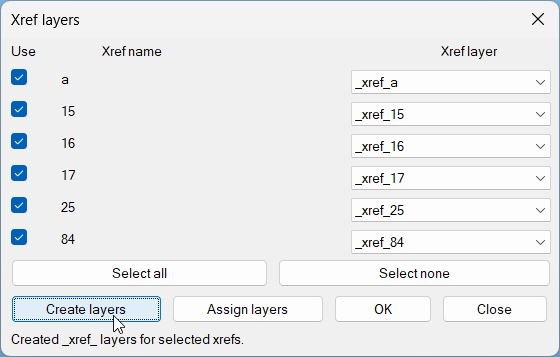
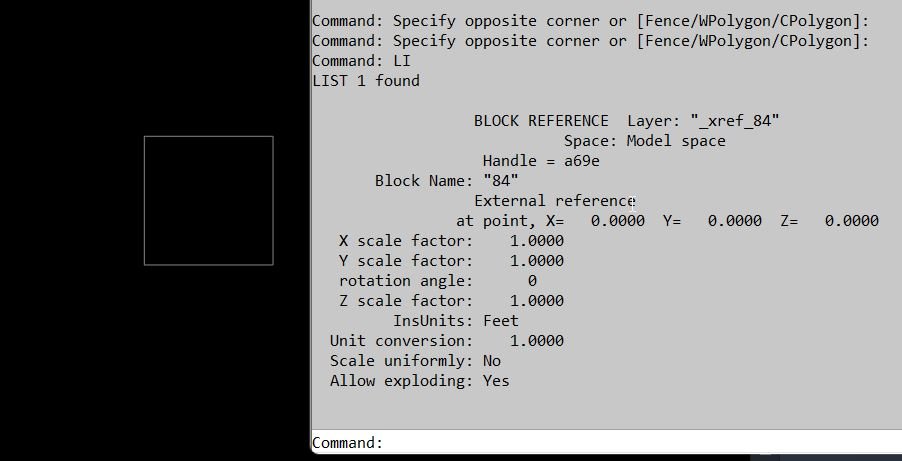
• Create layers button: makes layers named _xref_xrefName for all checked xrefs, ensures they exist, refreshes the popups, and selects the new layer for those rows.
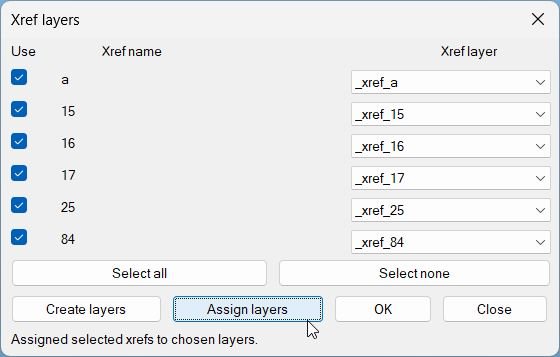
• Assign layers button: moves all inserts of the checked xrefs to the currently selected layer, in both model space and paper space.
• Select all and Select none: quick buttons to toggle all checkboxes in one click.
• Dynamic layer list: if new layers are created the dialog reloads the layer list so the new layers can be picked immediately.
• OK button: performs the assign action then closes the dialog.
• Close button: exits without changes.
Result:
Result / Outcome:
All selected xrefs are moved to the layers chosen in the dialog, so each external reference can live on its own dedicated layer (for example _xref_xrefname) for better control of visibility, plotting, and color.
This makes it very fast to standardize xref layers across drawings without manually searching for each xref insert.
Images, animations etc.
XAML code:
<ResourceDictionary
xmlns="http://schemas.microsoft.com/winfx/2006/xaml/presentation"
xmlns:x="http://schemas.microsoft.com/winfx/2006/xaml"
xmlns:src="clr-namespace:Autodesk.Windows;assembly=AdWindows">

<src:RibbonToolTip x:Key="CreatesXrefsLayersAssign">
<src:RibbonToolTip.ExpandedContent>
<StackPanel>
<TextBlock Background="AntiqueWhite" TextAlignment="CreatesXrefsLayersAssign">
<Bold>Function Syntax: Command</Bold>
<LineBreak/>
<Bold>Version: 1 Date: 10.11.2025</Bold>
<LineBreak/>

<Hyperlink>N/A</Hyperlink>
<LineBreak/>
<Bold>Description</Bold><LineBreak/>
<LineBreak/>
This updated AutoLISP program provides a professional interface to manage <Run Foreground="DarkRed">XREF layers</Run> directly from a single dialog window in AutoCAD.<LineBreak/>
It supports both <Run Foreground="DarkRed">bulk reassignment</Run> of all XREF inserts to a chosen existing layer and <Run Foreground="DarkRed">per-XREF layer standardization</Run> using a configurable prefix.<LineBreak/><LineBreak/>
<LineBreak/>
<Bold>Main Purpose</Bold><LineBreak/>
The program scans the current drawing for all <Run Foreground="Red">attached XREFs</Run> and enables the user to:<LineBreak/>
• <Run Foreground="DarkRed">Assign all XREF inserts</Run> to one selected existing layer using a filtered layer selector.<LineBreak/>
• Create dedicated layers for each XREF using a naming prefix (e.g. <Run Foreground="DarkRed">"xref_[xref name]"</Run>).<LineBreak/>
• Assign each XREF block reference to its own target layer based on the prefix.<LineBreak/>
• View and manage all XREFs in a dynamic <Run Foreground="DarkBlue">DCL (Dialog Control Language)</Run> interface, including a live “Current Layer” report.<LineBreak/><LineBreak/>
<LineBreak/>
<Bold>Program Actions</Bold><LineBreak/>
<LineBreak/>
<Run Foreground="DarkRed">Scans</Run> the current drawing and detects every external reference (XREF) loaded in the drawing.<LineBreak/>
<LineBreak/>
<Run Foreground="DarkRed">Generates</Run> a temporary DCL dialog showing:<LineBreak/>
 • A <Run Foreground="DarkBlue">Select Layer (Filtered)</Run> panel to find an existing layer by name.<LineBreak/>
 • A <Run Foreground="DarkGreen">list of XREF names</Run> detected in the drawing.<LineBreak/>
 • A <Run Foreground="DarkCyan">Current Layer</Run> column that reports where each XREF insert currently resides:<LineBreak/>
  – the layer name if all inserts share one layer,<LineBreak/>
  – <Run Foreground="DarkCyan"><varies></Run> if inserts are on multiple layers,<LineBreak/>
  – <Run Foreground="DarkCyan"><none></Run> if no inserts are found.<LineBreak/>
 • A <Run Foreground="DarkCyan">Target Layer</Run> column built from the current prefix and XREF name.<LineBreak/>

Provides quick-access buttons:<LineBreak/>
 • <Run Foreground="Red">Select All</Run> and <Run Foreground="Red">Select None</Run> to control which XREFs are affected by “Create Layers” and “Assign Inserts”.<LineBreak/>
 • <Run Foreground="DarkRed">Assign Layer</Run> (in the filtered panel) to move <Run Foreground="DarkRed">all XREF inserts</Run> to the selected matching layer and set that layer current.<LineBreak/>
 • <Run Foreground="DarkRed">Create Layers</Run> to generate target layers for the selected XREFs using the prefix (white color, AutoCAD color 7).<LineBreak/>
 • <Run Foreground="DarkRed">Assign Inserts</Run> to move selected XREF inserts to their corresponding target layers.<LineBreak/>
 • <Run Foreground="DarkRed">Create + Assign</Run> to perform the two steps above in one action.<LineBreak/>
 • <Run Foreground="DarkRed">OK</Run> to close the dialog (no additional actions are executed).<LineBreak/>
 • <Run Foreground="DarkRed">Close</Run> to exit the dialog.<LineBreak/><LineBreak/>
<LineBreak/>
<Bold>Layer Creation Behavior</Bold><LineBreak/>
• Each created layer follows the format: <Run Foreground="DarkRed">[Prefix][XrefName]</Run> (default prefix is <Run Foreground="DarkRed">"xref_"</Run>).<LineBreak/>
• The layer color is automatically set to <Run Foreground="Red">white (color 7)</Run>.<LineBreak/>
• The script checks if the layer already exists, updates its color if needed, and avoids duplicates.<LineBreak/><LineBreak/>

<Bold>Assignment Logic</Bold><LineBreak/>
• <Run Foreground="DarkRed">Assign Layer</Run> applies to <Run Foreground="DarkRed">all XREF inserts</Run> in the drawing, regardless of selection, and can be used to force all XREFs onto one existing layer (e.g., layer “0”).<LineBreak/>
• <Run Foreground="DarkRed">Assign Inserts</Run> applies only to the <Run Foreground="DarkRed">selected XREFs</Run> in the list and moves each XREF’s inserts to its own computed target layer.<LineBreak/>
• The program scans XREF inserts using standard <Run Foreground="DarkBlue">INSERT entity traversal</Run> and updates entity layers with <Run Foreground="DarkBlue">VLA-COM automation</Run>.<LineBreak/>
• If an insert resides on a <Run Foreground="DarkRed">locked layer</Run>, the program temporarily unlocks that layer, updates the entity, and restores the lock state, preventing silent failures.<LineBreak/>
• After any action, the “Current Layer” column refreshes immediately to reflect the real drawing state.<LineBreak/><LineBreak/>

<Bold>User Workflow</Bold><LineBreak/>

Type <Run Foreground="DarkRed">XrefLayers</Run> in AutoCAD’s command line.<LineBreak/>

Use the <Run Foreground="DarkBlue">Select Layer (Filtered)</Run> panel if you want to force all XREFs onto one existing layer:<LineBreak/>
 • Enter a filter text (optional).<LineBreak/>
 • Choose the target layer from <Run Foreground="DarkCyan">Matching Layers</Run>.<LineBreak/>
 • Click <Run Foreground="DarkRed">Assign Layer</Run>.<LineBreak/>

Use the <Run Foreground="DarkRed">Layer Prefix</Run> area if you want standardized per-XREF layers:<LineBreak/>
 • Set the prefix (e.g. <Run Foreground="DarkRed">xref_</Run>).<LineBreak/>
 • (Optional) Select specific XREFs, or leave all selected.<LineBreak/>
 • Click <Run Foreground="DarkRed">Create Layers</Run> and then <Run Foreground="DarkRed">Assign Inserts</Run>, or click <Run Foreground="DarkRed">Create + Assign</Run>.<LineBreak/>

Click <Run Foreground="DarkRed">OK</Run> or <Run Foreground="DarkRed">Close</Run> to exit the dialog.<LineBreak/><LineBreak/>

<Bold>Highlighted AutoLISP Commands</Bold><LineBreak/>
• <Run Foreground="Red">(vl-load-com)</Run> – loads the COM interface for layer and block manipulation.<LineBreak/>
• <Run Foreground="DarkRed">(vla-get-Blocks)</Run> / <Run Foreground="DarkRed">(vla-get-IsXRef)</Run> – detects XREF block definitions.<LineBreak/>
• <Run Foreground="DarkBlue">(ssget "_X" ...)</Run> and <Run Foreground="DarkBlue">(entget)</Run> – scans INSERT entities and reads block names and layers.<LineBreak/>
• <Run Foreground="DarkBlue">(vla-Add)</Run> / <Run Foreground="DarkBlue">(vla-Item)</Run> – creates or retrieves layers.<LineBreak/>
• <Run Foreground="DarkRed">(vla-put-Layer)</Run> – assigns entities to a new layer (with lock-safe fallback).<LineBreak/>
• <Run Foreground="DarkCyan">(load_dialog)</Run> and <Run Foreground="DarkCyan">(new_dialog)</Run> – loads and displays the generated DCL UI.<LineBreak/><LineBreak/>

<Bold>Key Advantages</Bold><LineBreak/>
• Provides a single, consistent UI for both “bulk” and “per-XREF” layer management.<LineBreak/>
• Eliminates manual layer creation and assignment errors.<LineBreak/>
• Adds transparency with a live <Run Foreground="DarkCyan">Current Layer</Run> report per XREF.<LineBreak/>
• Handles locked-layer conditions reliably (no silent failures).<LineBreak/>
• Fully self-contained: no external DCL file is required, it generates one dynamically at runtime.<LineBreak/><LineBreak/>

<Bold>Command to Run</Bold><LineBreak/>
Type <Run Foreground="Red">XrefLayers</Run> in AutoCAD’s command prompt.<LineBreak/>
</TextBlock>

<Grid>
<Image Source="PNG" Stretch="Uniform"/>
</Grid>

<Grid>
<MediaElement
 Source="GIF"
 Stretch="Uniform"
 Visibility="Visible"/>
 </Grid>

</StackPanel>
</src:RibbonToolTip.ExpandedContent>
</src:RibbonToolTip>
</ResourceDictionary>
Additional info:
Learn more:
Open Website
Share this page:
Subscribe
Login
0 Comments
Oldest
Categories: AutoCAD_Lips
Categories: AutoCAD_Lips