
Short description
AutoCAD Civil 3D .NET Plugin Shadow-Copy Loader — loads a managed DLL into AutoCAD
without locking the source file, enabling live rebuild-and-reload without restarting AutoCAD.
Command:
Command:
Trigger: Auto-runs on file load via
Reload shortcut: Type
ReloadPluginTrigger: Auto-runs on file load via
(load "LoadPlugin.lsp")Reload shortcut: Type
ReloadPlugin in the AutoCAD command line
Description:
This AutoLISP routine solves the most common Civil 3D .NET development frustration:
AutoCAD locks the DLL it has loaded, blocking Visual Studio from writing a new build.
The loader copies the freshly-built DLL from a watched deploy folder into a uniquely
timestamped shadow file in the Windows TEMP directory, then calls NETLOAD on that copy.
AutoCAD locks the shadow copy — never the source — so your next build always succeeds.
Old shadow copies are automatically pruned, keeping only the three most recent versions.
Helper function: (if any)
- Shadow directory creation — creates
%TEMP%\@Dan_Templeate_shadow\if it does not exist - Old copy cleanup — lists all
@Dan_Templeate_*.dllfiles, sorts descending by name, deletes all but the newest three - Timestamp stamp builder — uses
$(edtime,$(getvar,DATE),YYYYMMDD)andHH-MM-SSto generate a unique suffix per load - File copy —
vl-file-copyfrom the deploy folder to the stamped shadow path; aborts with an error message if the copy fails - NETLOAD call — loads the shadow DLL into the running AutoCAD session without blocking the deploy folder
- Confirmation echo — prints the full shadow path to the AutoCAD command line on success
Functionalities:
- 🔄 Hot-reload without restarting AutoCAD — rebuild in Visual Studio, type
ReloadPlugin, test immediately - 🔒 Zero build-lock errors — MSBuild writes to
deploy\, the loader reads from there; AutoCAD never touchesdeploy\ - 🗂️ Automatic shadow housekeeping — TEMP folder never accumulates more than three old DLL copies
- 📅 Timestamped loads — every loaded instance has a unique name, making it easy to correlate DevLog version stamps with file system copies
- ⚙️ Configurable source path — one variable at the top of the file; change
dll-sourceto match your project layout - 🚀 Auto-executes on load — the final line calls
(c:ReloadPlugin)automatically; comment it out to switch to manual-only mode - 🪵 DevLog integration — the
IExtensionApplication.Initialize()method called after load stamps the version banner in the integrated Dev Log panel using the DLL file creation date
Result:
After running, the Civil 3D plugin (
@Dan_Templeate.dll) is live in the current
AutoCAD session. All registered commands become immediately available — type
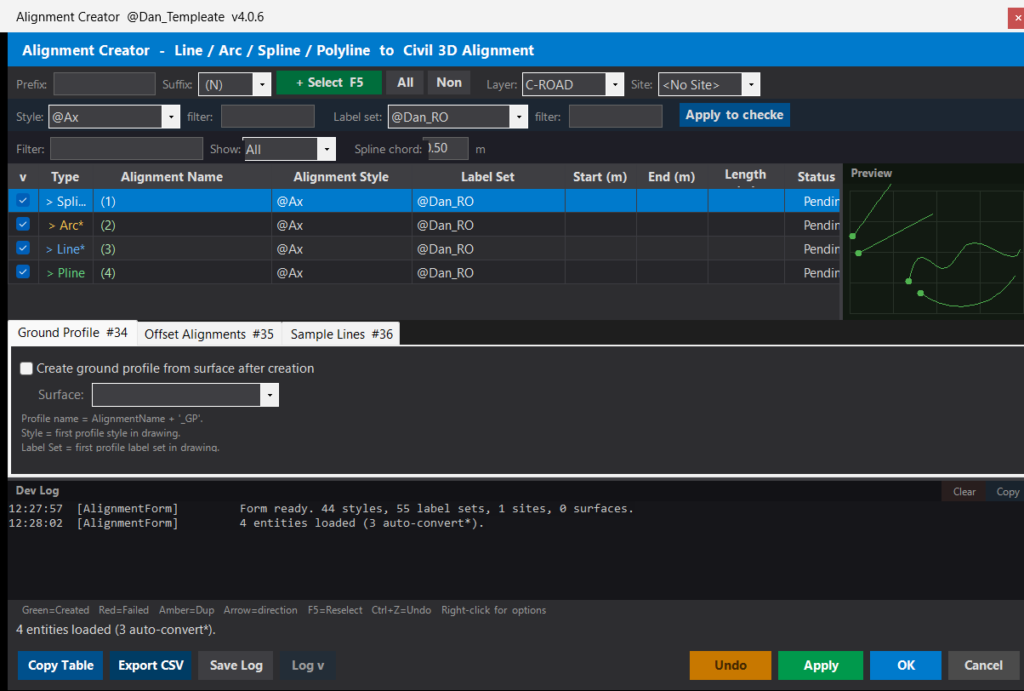
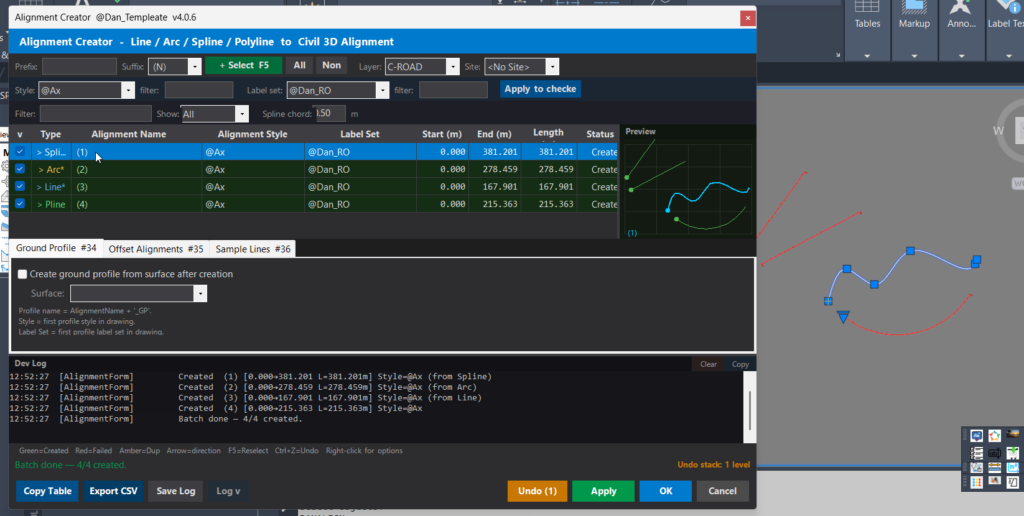
DANALIGN to open the Alignment Creator, DANLOG to raise the
standalone Dev Log, or DANHELP to list all commands with descriptions.
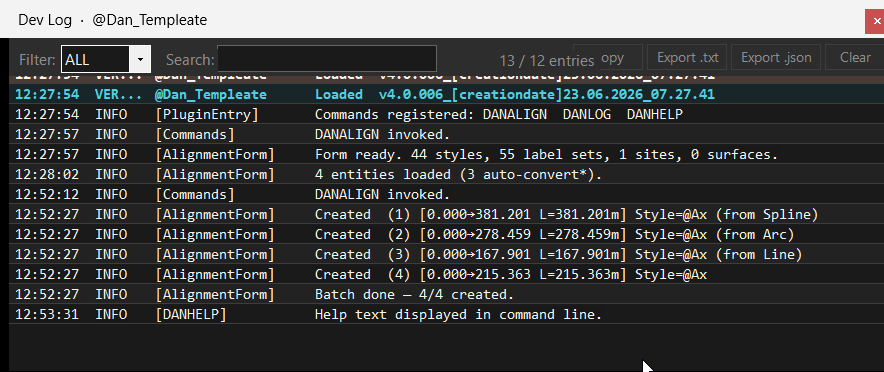
The Dev Log panel inside the Alignment Creator displays a version stamp in the format
4.0.006_[creationdate]dd.mm.yyyy_hh.mm.ss confirming which build is active.
No AutoCAD restart is required between builds.
Images, animations etc.
Additional info:
Learn more:
Open Website
Share this page:
Subscribe
Login
0 Comments
Oldest