
Short description
🚀 DANALIGN is an AutoCAD Civil 3D alignment creator workflow that uses an AutoLISP loader and a C# .NET plugin to batch-convert drawing geometry into Civil 3D alignments. The tool helps CAD and Civil 3D users select Lines, Arcs, Splines, Polylines, and compatible geometry, review the objects in a grid, apply alignment styles and label sets, and create production-ready Civil 3D alignments with fewer manual steps.
Command:
🧰 Load the AutoLISP loader and run ReloadPlugin to shadow-copy and load @Dan_Templeate.dll with AutoCAD NETLOAD.
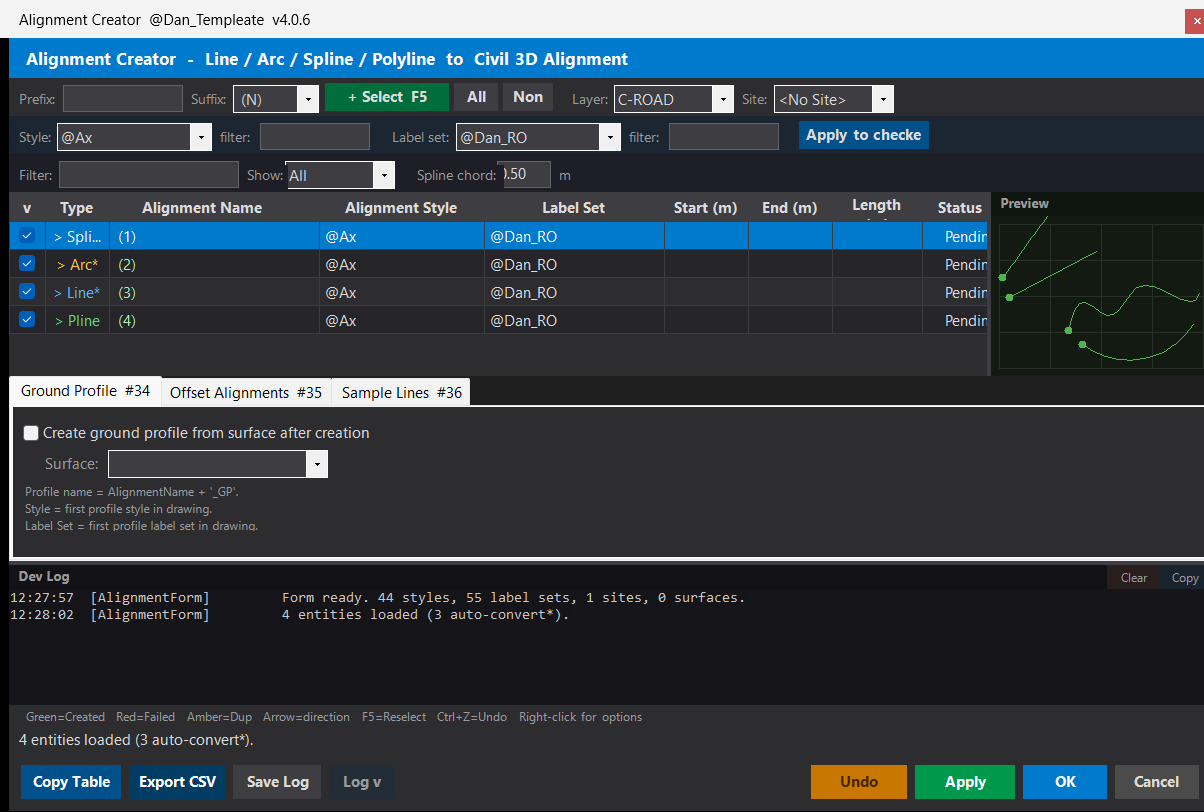
🚀 After the .NET plugin is loaded, run DANALIGN to open the Civil 3D Alignment Creator form.
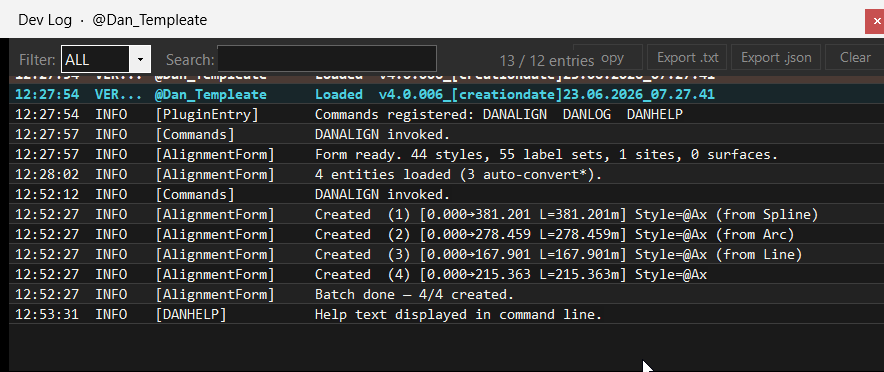
📝 Run DANLOG to open the floating development log window.
📘 Run DANHELP to print command help, shortcuts, and workflow information in the AutoCAD command line.
🎯 Target platform: AutoCAD Civil 3D x64 with a C# .NET Framework plugin and an AutoLISP loader.
Description:
This project is designed for AutoCAD Civil 3D users who need to create many alignments from existing drawing entities. The AutoLISP part acts as a development-friendly loader: it copies @Dan_Templeate.dll from a deploy folder into a temporary shadow-copy folder, creates a timestamped DLL name, removes old copies, and loads the copied DLL with NETLOAD. This avoids locking the original DLL and helps developers rebuild the plugin without closing AutoCAD.
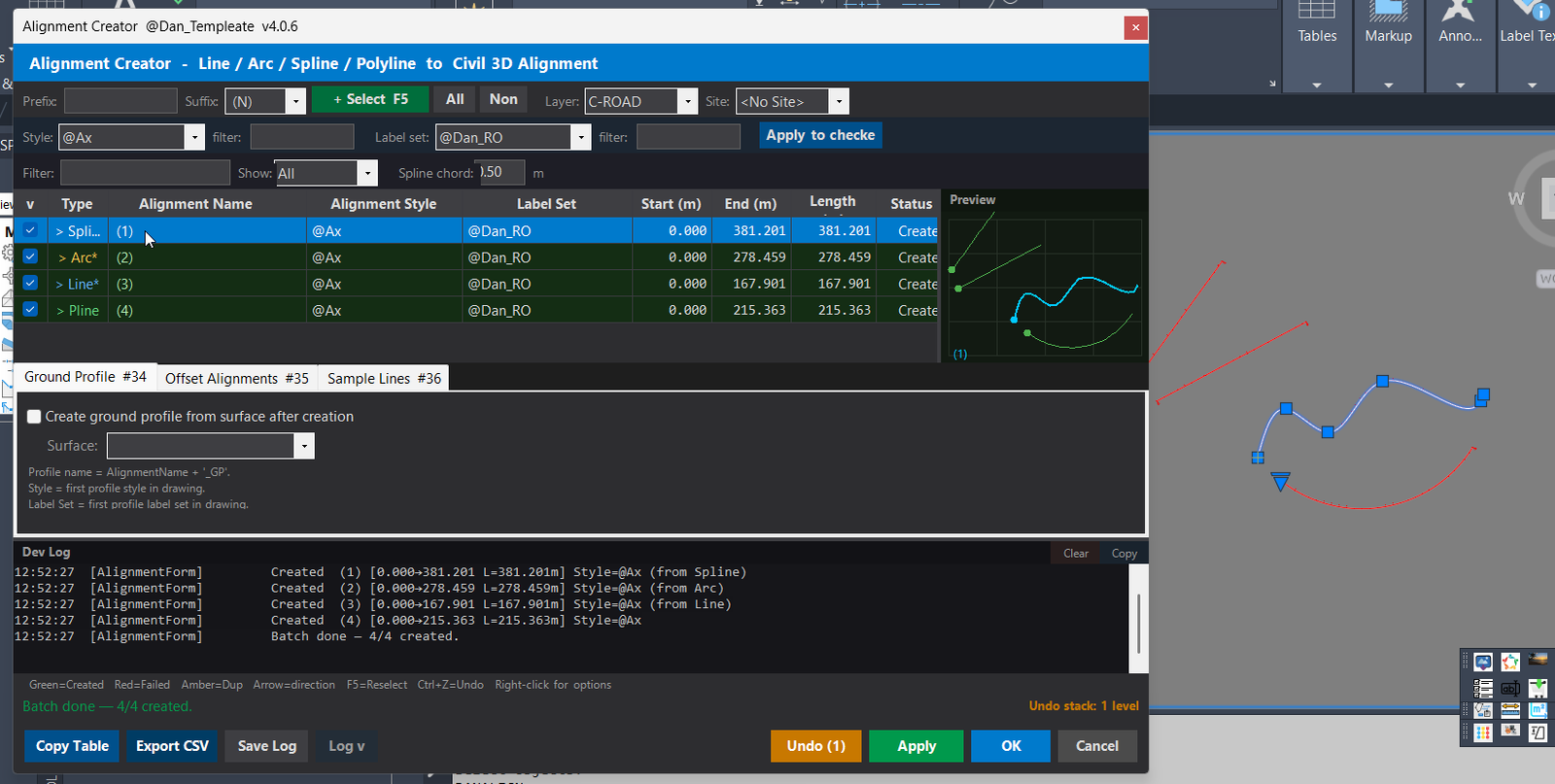
The main user workflow starts with DANALIGN. The user selects drawing geometry such as Line, Arc, Spline, Polyline, and Civil 3D-compatible polyline objects. The plugin loads the selected entities into a grid where each row can be checked, unchecked, filtered, renamed, reversed, styled, labeled, previewed, and processed. The plugin can convert AutoCAD geometry into lightweight polylines where needed, approximate splines by chord settings, and then create Civil 3D alignments using selected site, layer, style, and label set settings.
The tool also supports post-processing workflows for Civil 3D design automation. It can create ground profiles from selected surfaces, generate left and right offset alignments, and create sample line groups with regular station intervals. For production drawings, the plugin includes status colors, duplicate-name handling, undo support, CSV export, grid copy, registry-based settings, live logging, and AutoCAD database transaction safety.
Helper function: (if any)
- 🚀 Shadow-copy loader –
ReloadPlugincopies@Dan_Templeate.dllinto a Windows TEMP shadow folder and loads the timestamped copy withNETLOAD, reducing DLL locking during Visual Studio development. - 🧹 Old DLL cleanup – the loader deletes older shadow DLL copies before loading the newest plugin copy to keep the temporary folder manageable.
- 📌 Command registration – the loaded plugin exposes
DANALIGN,DANLOG, andDANHELPfor alignment creation, logging, and command documentation. - 🔍 Entity selection and validation – selected AutoCAD geometry is checked for erased or invalid database objects before alignment creation starts.
- 📊 Grid-based processing model – selected objects are loaded into a review table where rows can be checked, unchecked, filtered, edited, removed, copied, and exported.
- 🧠 Name generation logic – alignment names can use prefixes, suffix patterns, and tokens such as
{DWG},{DATE},{LAYER}, and{TYPE}. - 🔢 Duplicate-name resolver – existing or repeated alignment names are auto-renamed with version suffixes such as
_v2and_v3. - 📐 Geometry conversion engine – Lines, Arcs, and Splines are converted into lightweight polyline geometry before Civil 3D alignment creation where required.
- 🧩 Spline chord approximation – spline conversion uses a chord setting to control geometry resolution and alignment accuracy.
- 🎨 Style and label-set assignment – each row can receive Civil 3D alignment style and label set values before or after creation.
- 🔄 Post-processing tools – the plugin can create
AlignmentName_GPground profiles,AlignmentName_LandAlignmentName_Roffset alignments, andAlignmentName_SLGsample line groups. - 🔒 Safe database editing – the plugin uses document locking, transaction workflow, source-object validation, and retry logic for transient database errors.
- ↩️ Undo stack – created alignments are stored in an undo stack with up to 10 undo levels, allowing the last created batch to be erased with Undo or
Ctrl+Z. - 🔐 Settings persistence – prefix, suffix, layer, style, label set, filters, and post-processing values are saved in the Windows registry for repeatable workflows.
- 📤 Reporting and diagnostics – the plugin supports grid copy, CSV export, live log messages, and saving the log to a text file.
Functionalities:
- 🚀 Load Civil 3D alignment creator – uses
ReloadPluginandNETLOADto load the compiled C# plugin into AutoCAD Civil 3D. - 📐 Select drawing geometry – processes Lines, Arcs, Splines, Polylines, and Civil 3D-compatible source geometry from the active drawing.
- 📊 Review entities in a grid – lets users check, uncheck, filter, copy, export, remove, and edit rows before creating Civil 3D alignments.
- 🏷️ Apply styles and label sets – assigns Civil 3D alignment styles and label sets consistently across selected geometry.
- 🧠 Generate alignment names automatically – builds names from prefix, suffix patterns, drawing names, dates, layers, and entity types.
- 🔢 Handle duplicate alignment names – automatically creates versioned names such as
_v2and_v3to avoid naming conflicts. - 🔍 Use wildcard filters – supports
*,?, and semicolon-based OR patterns for filtering names, statuses, styles, and label sets. - 🔄 Reverse alignment direction – allows the user to reverse source direction before Civil 3D alignment creation.
- 🟢 Create Civil 3D alignments – converts selected geometry into alignments with selected site, layer, style, and label-set settings.
- 📌 Show alignment station data – displays starting station, ending station, and alignment length after creation.
- 🎨 Use colored row statuses – highlights created, failed, duplicate, and pending rows for fast quality control.
- 🔍 Preview geometry and direction – provides a 2D preview panel and highlights the source entity in the AutoCAD viewport.
- 📝 Edit created alignments – supports renaming created alignments and updating style or label-set assignments.
- 🌐 Create ground profiles – creates a surface profile named
AlignmentName_GPfrom a selected Civil 3D surface. - 🧩 Create offset alignments – creates left and right offset alignments named
AlignmentName_LandAlignmentName_R. - 📏 Create sample lines – creates a sample line group named
AlignmentName_SLGand places sample lines at regular station intervals. - ↩️ Undo created batches – erases the last created batch using the Undo button or
Ctrl+Z. - 📤 Export and copy results – copies grid data, exports CSV reports, and saves logs for documentation and troubleshooting.
- 📘 Open command help – uses
DANHELPto print command references and shortcut information.
Result:
✅ The final result is a productivity-focused AutoCAD Civil 3D alignment creation plugin that converts selected drawing entities into styled and labeled Civil 3D alignments. It reduces repetitive manual alignment creation, improves naming consistency, adds grid-based quality control, supports post-processing with profiles, offsets, and sample lines, and helps CAD teams build cleaner and faster Civil 3D production drawings.
Images, animations etc.
XAML code:
<ResourceDictionary
 xmlns="http://schemas.microsoft.com/winfx/2006/xaml/presentation"
 xmlns:x="http://schemas.microsoft.com/winfx/2006/xaml"
 xmlns:src="clr-namespace:Autodesk.Windows;assembly=AdWindows">

 <src:RibbonToolTip x:Key="Polylines_Alignments">
 <src:RibbonToolTip.ExpandedContent>
 <StackPanel>
 <TextBlock Background="AntiqueWhite" TextAlignment="Left">
<Bold>Function Syntax: DANALIGN / DANLOG / DANHELP</Bold>
<LineBreak/>
<Bold>Version: 1.1 Date: 23.06.2026 7:27:41AM</Bold>
<LineBreak/>
<Hyperlink>https://forums.autodesk.com/t5/civil-3d-forum/how-to-generate-multiple-alignments-from-multiple-polylines/td-p/9137424</Hyperlink>
<LineBreak/>
<Bold>AutoCAD Civil 3D Alignment Creator Loader and Plugin Description</Bold><LineBreak/>
<Run Foreground="DarkRed" FontWeight="Bold">Important:</Run> The AutoLISP file does not create alignments by itself. It loads the compiled AutoCAD .NET plugin named <Bold>@Dan_Templeate.dll</Bold> into AutoCAD Civil 3D.<LineBreak/>
<Bold>General action of the program</Bold><LineBreak/>
This program allows the user to load a Civil 3D alignment creation tool, select drawing entities, review them in a grid, apply styles and label sets, then batch-convert those entities into Civil 3D alignments.<LineBreak/>
<Run Foreground="DarkRed" FontWeight="Bold">Main AutoLISP command:</Run> <Bold>ReloadPlugin</Bold><LineBreak/>
The command copies the plugin DLL from the deploy folder into a temporary shadow folder, gives the copied DLL a timestamped name, then loads that copy with the AutoCAD <Run Foreground="DarkRed" FontWeight="Bold">NETLOAD</Run> command.<LineBreak/>
This prevents AutoCAD from locking the original DLL in the deploy folder, so the developer can rebuild the plugin from Visual Studio without closing AutoCAD.<LineBreak/>
<Bold>DLL loading workflow</Bold><LineBreak/>
 The LISP sets the source path for <Bold>@Dan_Templeate.dll</Bold>.<LineBreak/>
 The LISP creates a temporary shadow-copy folder inside the Windows TEMP directory.<LineBreak/>
 The LISP deletes old shadow DLL copies before loading the new one.<LineBreak/>
 The LISP generates a timestamp using the AutoCAD drawing date variable.<LineBreak/>
 The LISP copies the DLL to the shadow folder using the timestamped filename.<LineBreak/>
 The LISP runs <Run Foreground="DarkRed" FontWeight="Bold">NETLOAD</Run> on the copied DLL.<LineBreak/>
 The LISP prints a loader message in the AutoCAD command line after the plugin is loaded.<LineBreak/>
<Run Foreground="Red" FontWeight="Bold">Configuration aspect:</Run> The DLL source path is hard-coded and must be changed if the deploy folder is moved to another computer or another project location.<LineBreak/>
<Run Foreground="DarkOrange" FontWeight="Bold">Code note:</Run> The comment says that the loader keeps the last 3 shadow copies, but the current implementation uses <Bold>cddr</Bold>, so it actually skips the two newest files and deletes the rest.<LineBreak/>
<Bold>Main plugin commands registered after loading</Bold><LineBreak/>
 <Run Foreground="DarkRed" FontWeight="Bold">DANALIGN</Run> opens the Alignment Creator form.<LineBreak/>
 <Run Foreground="DarkRed" FontWeight="Bold">DANLOG</Run> opens the floating development log window.<LineBreak/>
 <Run Foreground="DarkRed" FontWeight="Bold">DANHELP</Run> prints the command reference and shortcut information in AutoCAD.<LineBreak/>
<Bold>DANALIGN functionality</Bold><LineBreak/>
 Allows the user to select <Bold>Line</Bold>, <Bold>Arc</Bold>, <Bold>Spline</Bold>, <Bold>Polyline</Bold>, and Civil 3D-compatible polyline geometry from the drawing.<LineBreak/>
 Loads the selected entities into a grid where each row can be checked or unchecked before processing.<LineBreak/>
 Generates alignment names using a prefix, suffix pattern, and optional tokens such as <Bold>{DWG}</Bold>, <Bold>{DATE}</Bold>, <Bold>{LAYER}</Bold>, and <Bold>{TYPE}</Bold>.<LineBreak/>
 Lets the user choose alignment style and label set for each row.<LineBreak/>
 Includes filters for names, statuses, styles, and label sets.<LineBreak/>
 Supports wildcard filtering with <Bold>*</Bold>, <Bold>?</Bold>, and semicolon-based OR patterns.<LineBreak/>
 Converts Lines, Arcs, and Splines into lightweight polylines before creating Civil 3D alignments.<LineBreak/>
 Uses a spline chord setting to control how finely splines are approximated during conversion.<LineBreak/>
 Creates Civil 3D alignments with selected site, layer, style, and label set settings.<LineBreak/>
 Auto-renames duplicate alignment names by adding version suffixes such as <Bold>_v2</Bold>, <Bold>_v3</Bold>, and higher values.<LineBreak/>
 Shows created, failed, duplicate, and pending status information using different row colors.<LineBreak/>
 Displays starting station, ending station, and alignment length after creation.<LineBreak/>
 Provides a 2D preview panel showing the selected geometry and current direction.<LineBreak/>
 Highlights the source entity in the AutoCAD viewport when a row is selected.<LineBreak/>
<Bold>Right-click grid options</Bold><LineBreak/>
 Copy selected rows to the clipboard.<LineBreak/>
 Check or uncheck all visible rows.<LineBreak/>
 Check or uncheck selected rows.<LineBreak/>
 Apply bulk style and label set to selected rows.<LineBreak/>
 Rename an already-created alignment in the drawing.<LineBreak/>
 Update style and label set on an already-created alignment.<LineBreak/>
 Reverse alignment direction before creation.<LineBreak/>
 Open entity information for the selected row.<LineBreak/>
 Remove selected rows from the processing list.<LineBreak/>
<Bold>Post-processing functionality</Bold><LineBreak/>
 <Run Foreground="Green" FontWeight="Bold">Ground Profile:</Run> Creates a surface profile named AlignmentName_GP from the selected Civil 3D surface.<LineBreak/>
 <Run Foreground="Green" FontWeight="Bold">Offset Alignments:</Run> Creates left and right offset alignments named AlignmentName_L and AlignmentName_R.<LineBreak/>
 <Run Foreground="Green" FontWeight="Bold">Sample Lines:</Run> Creates a sample line group named AlignmentName_SLG and places sample lines at regular station intervals.<LineBreak/>
<Bold>Safety and usability features</Bold><LineBreak/>
 Uses a document lock and transaction workflow when modifying the AutoCAD database.<LineBreak/>
 Checks whether source entities are erased or invalid before trying to create alignments.<LineBreak/>
 Retries certain transient database errors up to three times.<LineBreak/>
 Stores created alignments in an undo stack with up to 10 undo levels.<LineBreak/>
 Allows the last created batch of alignments to be erased with the Undo button or Ctrl+Z.<LineBreak/>
 Saves user settings in the Windows registry, including prefix, suffix, layer, style, label set, filters, and post-processing values.<LineBreak/>
 Provides live log messages for info, warning, error, and version events.<LineBreak/>
 Allows copying the grid table, exporting it to CSV, and saving the log to a text file.<LineBreak/>
<Bold>Final result</Bold><LineBreak/>
The user can quickly transform multiple AutoCAD drawing entities into Civil 3D alignments, assign consistent styles and labels, generate related profiles, offsets, and sample lines, then review the results directly inside AutoCAD Civil 3D.<LineBreak/>
</TextBlock>

<Grid>
<Image Source="Image_000.png" Stretch="Uniform"/>
</Grid>

<Grid>
<Image Source="Image_001.png" Stretch="Uniform"/>
</Grid>

<Grid>
<Image Source="Image_002.png" Stretch="Uniform"/>
</Grid>


 <!-- Use MediaElement for GIF (static first frame) and Image as fallback -->


 </StackPanel>
 </src:RibbonToolTip.ExpandedContent>
 </src:RibbonToolTip>
</ResourceDictionary>