
Short description
Civil 3D Label Extractor — audit, filter, and export all band label text from
Profile Views and Section Views in a single modeless panel, without blocking
AutoCAD workflows.
Command:
GetLabelText
Description:
The Civil 3D Label Extractor (command:
GetLabelText)
scans every ProfileView and SectionView in the active drawing and collects the
complete text of every band label — chainage, elevation, profile name, section
offset, station, coordinates, and any custom band label style component — into
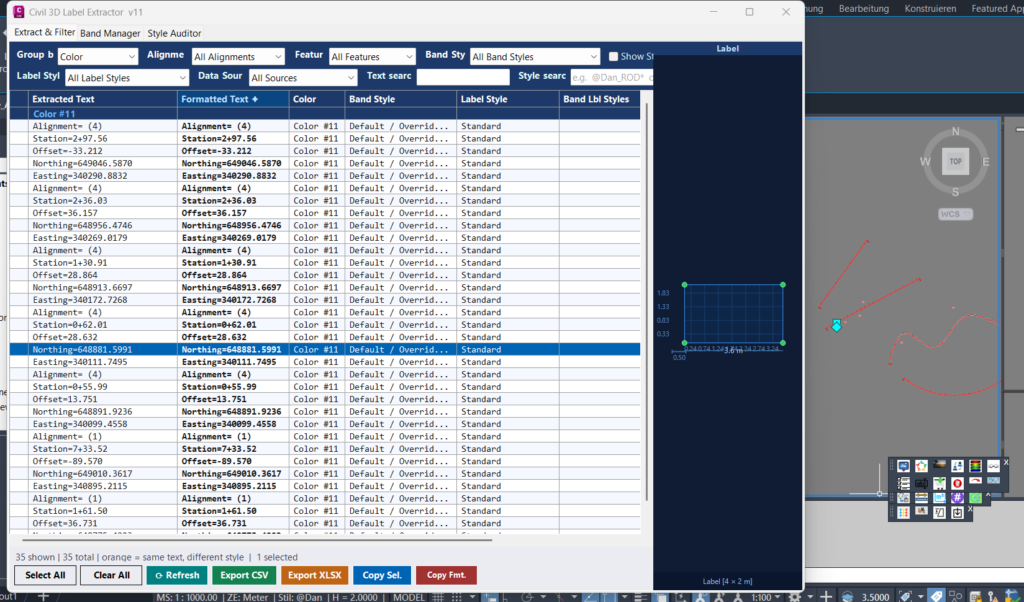
a filterable, sortable, exportable grid. The dialog is modeless: AutoCAD
remains fully interactive while the panel is open, so you can continue editing,
zooming, or selecting entities without closing the tool.
Helper function: (if any)
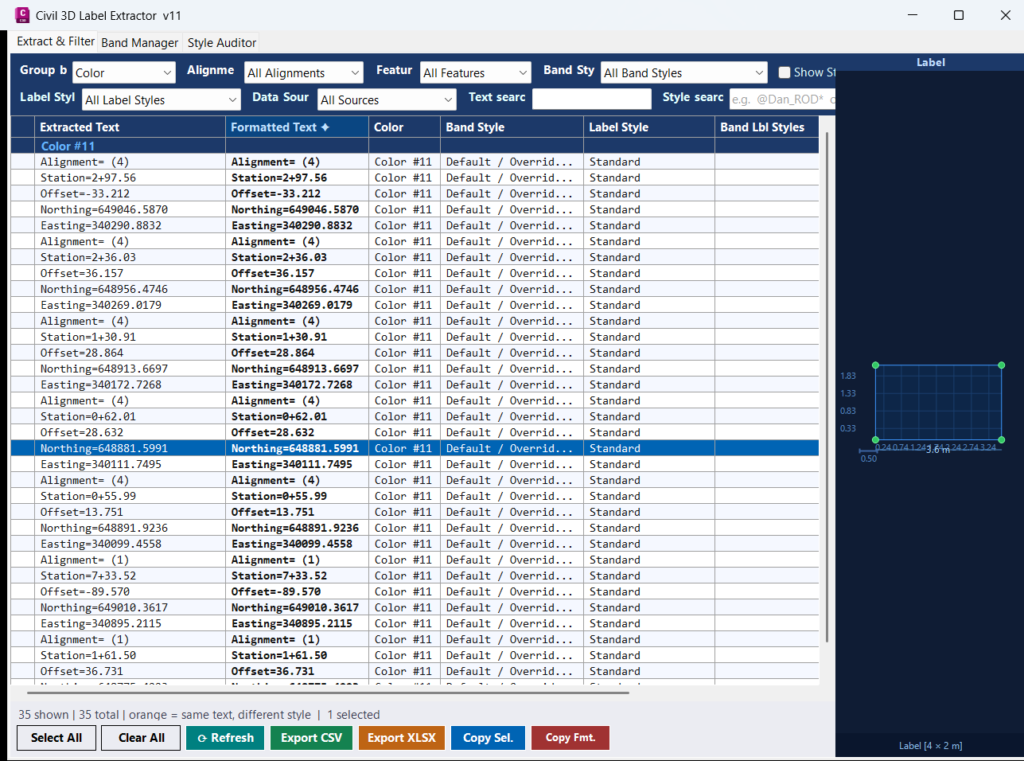
- Viewport highlight — selecting any row automatically highlights the
source entity (ProfileView or SectionView) in the active AutoCAD viewport via
Editor.SetImpliedSelection+UpdateScreen(), with zero transaction overhead. - Entity Preview panel — a live schematic of the selected entity renders in the right-hand panel: dark background, faint grid with axis tick labels, a proportionally-scaled bounding outline with filled interior and green corner nodes, plus width × height dimension annotations — identical in concept to the Preview pane in the Civil 3D Alignment Creator.
- km formatter — a dedicated Formatted Text column (positioned
immediately after Extracted Text) automatically converts Civil 3D station notation
such as
km112+69.381?km 11,2+69.381. All other text (coordinates, alignment names, offsets) is passed through unchanged. - Double-click to copy — double-clicking any grid cell copies its text to the Windows clipboard with a 1.8 s status-bar confirmation flash.
- Keyboard shortcuts — Ctrl+C copies selected rows, Ctrl+A selects all visible rows.
- Band Manager tab — reassign band styles and data sources (Profile / Section) on any ProfileView or SectionView directly from the dialog, applied in a single undo-able transaction.
- Style Auditor tab — compares all BandStyles in the drawing library against items actually used in the extraction; green = in use, red = orphaned. Batch-rename any band style across all views in one click.
Functionalities:
- 🔄 Hot-reload without restarting AutoCAD — rebuild in Visual Studio, type
ReloadPlugin, test immediately - 🔒 Zero build-lock errors — MSBuild writes to
deploy, the loader reads from there; AutoCAD never touchesdeploy - 🗂️ Automatic shadow housekeeping — TEMP folder never accumulates more than three old DLL copies
- 📅 Timestamped loads — every loaded instance has a unique
- Extracts text from all ProfileViews and SectionViews via the
native Civil 3D typed API (
pv.Bands.GetBottomBandItems()) — no COM interop, no reflection for band reads. - Multi-level filters: Alignment, Feature Type, Band Style, Label Style,
Data Source (Profile 1 / Section 1), free-text search, and wildcard style search
(e.g.
@Dan_ROD*). - Group-by options: Color, Band Style, Label Style, Feature Type, or Alignment ? View hierarchy.
- Duplicate detector — identical text appearing under different band styles is highlighted in orange, flagging copy-paste data inconsistencies.
- Station column (toggle) — shows
SampleLine.Station(F3 format) per item; included in CSV and XLSX exports. - Export CSV — UTF-8 BOM, 13 columns including Formatted Text.
- Export XLSX — hand-written Open XML / PKZIP, frozen header row, auto-filter, two sheets (data + style frequency summary), no external dependencies.
- Filter presets persisted to the Windows registry and restored on next launch.
- Background extraction with a cancellable progress dialog — the UI stays responsive on large drawings with hundreds of views.
- Extracts text from all ProfileViews and SectionViews via the
native Civil 3D typed API (
Result:
After running
GetLabelText, a modeless panel opens alongside the active
drawing. Every band label from every ProfileView and SectionView is listed in a
colour-coded grid. Selecting any row highlights the corresponding view in the
AutoCAD viewport and renders a scaled schematic of the entity in the Preview panel.
Text can be copied to the clipboard with a double-click or Ctrl+C;
chainage values are auto-formatted in the Formatted Text column
(e.g. km 11,2+69.381). Results can be exported to CSV or XLSX for
reporting, QA checking, or import into external systems.
Images, animations etc.
XAML code:
<ResourceDictionary
xmlns="http://schemas.microsoft.com/winfx/2006/xaml/presentation"
xmlns:x="http://schemas.microsoft.com/winfx/2006/xaml"
xmlns:src="clr-namespace:Autodesk.Windows;assembly=AdWindows">

<src:RibbonToolTip x:Key="GetLabelText">
<src:RibbonToolTip.ExpandedContent>
<StackPanel>
<TextBlock Background="AntiqueWhite" TextAlignment="Left">
<Bold>Function Syntax: GetLabelText</Bold>
<LineBreak/>
<Bold>Version: 1.0 Date: 04.06.2026 18:04:07</Bold>
<LineBreak/>
<Bold>Version: 1.1 Date: 02.07.2026 6:24:06AM</Bold>
<LineBreak/>
<Hyperlink>https://forums.autodesk.com/t5/civil-3d-customization-forum/civil3d-api-c-extract-label-text/td-p/6988920</Hyperlink>
<LineBreak/>
<Bold>AutoCAD Civil 3D Label Extractor Plugin Description</Bold><LineBreak/>
<Run Foreground="DarkRed" FontWeight="Bold">Main command:</Run> <Bold>GETLABELTEXT</Bold><LineBreak/>
<Bold>General action of the program</Bold><LineBreak/>
This program opens a modeless Civil 3D Label Extractor window that allows the user to pick Civil 3D labels, profile views, section views, and related annotation objects directly from the drawing, extract their visible text, classify the extracted information, filter it, export it, and use it to update MLeader station text.<LineBreak/>
<Run Foreground="DarkRed" FontWeight="Bold">Important workflow:</Run> The command <Bold>GETLABELTEXT</Bold> opens the window first with an empty table. The user then clicks <Bold>Pick Labels</Bold> inside the dialog to select objects from AutoCAD Civil 3D.<LineBreak/>
<Run Foreground="DarkOrange" FontWeight="Bold">Code type:</Run> This is a compiled AutoCAD Civil 3D .NET plugin written in C# targeting .NET Framework 4.8 and x64 AutoCAD Civil 3D.<LineBreak/>
<Bold>Main window structure</Bold><LineBreak/>
 <Run Foreground="DarkRed" FontWeight="Bold">Extract and Filter tab:</Run> Extracts label text, displays rows in a grid, applies filters, copies text, formats station text, updates MLeader text, and exports data.<LineBreak/>
 <Run Foreground="DarkRed" FontWeight="Bold">Band Manager tab:</Run> Loads profile view and section view band rows, lets the user change band styles and data sources, then writes those changes back to the drawing.<LineBreak/>
 <Run Foreground="DarkRed" FontWeight="Bold">Style Auditor tab:</Run> Audits band styles in the Civil 3D drawing, shows which styles are used or unused, and supports replacing one style across all profile views and section views.<LineBreak/>
<Bold>Command behavior</Bold><LineBreak/>
When the user runs <Bold>GETLABELTEXT</Bold>, the plugin creates a new <Bold>MainForm</Bold> with an empty extraction list and displays it as a modeless AutoCAD dialog.<LineBreak/>
Because the dialog is modeless, AutoCAD remains interactive while the window is open.<LineBreak/>
The user does not need to select labels before launching the command. Selection happens later from the <Bold>Pick Labels</Bold> button.<LineBreak/>
<Bold>Pick Labels functionality</Bold><LineBreak/>
 Prompts the user to select Civil 3D labels, profile views, section views, or other supported annotation objects in the drawing.<LineBreak/>
 Extracts visible text from selected objects and appends the result to the existing table.<LineBreak/>
 Allows repeated picking without closing and reopening the dialog.<LineBreak/>
 Uses a document lock while reading drawing objects to keep AutoCAD database access safe.<LineBreak/>
 For small selections, extraction runs directly in the UI workflow.<LineBreak/>
 For selections of 25 or more objects, the plugin displays a cancellable progress dialog.<LineBreak/>
 If no text is found, the program shows an information message instead of modifying the table.<LineBreak/>
 After extraction, active text and style filters are cleared so newly added rows are immediately visible.<LineBreak/>
<Bold>Extracted data shown in the grid</Bold><LineBreak/>
 Extracted Text.<LineBreak/>
 Formatted Text.<LineBreak/>
 Station, when the station column is enabled.<LineBreak/>
 Color name.<LineBreak/>
 Band style name.<LineBreak/>
 Label style name.<LineBreak/>
 Band label styles.<LineBreak/>
 Data source 1.<LineBreak/>
 Data source 2.<LineBreak/>
 Feature type.<LineBreak/>
 Alignment name.<LineBreak/>
 View name.<LineBreak/>
 Checked status for export selection.<LineBreak/>
<Bold>Supported Civil 3D extraction logic</Bold><LineBreak/>
 Reads <Bold>ProfileView</Bold> objects and extracts profile view band text, graph text, alignment name, view name, style name, data sources, and band label information.<LineBreak/>
 Reads <Bold>SectionView</Bold> objects and extracts section view band text, graph text, sample line station, alignment name, view name, data source, and band style information.<LineBreak/>
 Reads general AutoCAD and Civil 3D entities by exploding them and collecting DBText and MText content.<LineBreak/>
 Cleans MText formatting codes before storing the text in the grid.<LineBreak/>
 Detects feature type based on the selected object class, such as Alignment, Profile View, Section View, Section, Corridor, Feature Line, CoGo Point, Pipe, Structure, Parcel, Surface, Label, or Annotation.<LineBreak/>
 Reads style names and label style names using direct API access and reflection fallback where needed.<LineBreak/>
<Run Foreground="DarkRed" FontWeight="Bold">Band extraction aspect:</Run> The code uses Civil 3D typed API access for band items, including bottom bands, top bands, band style IDs, profile sources, section sources, and band label style data.<LineBreak/>
<Bold>Filtering functionality</Bold><LineBreak/>
 Filter by alignment.<LineBreak/>
 Filter by feature type.<LineBreak/>
 Filter by band style.<LineBreak/>
 Filter by label style.<LineBreak/>
 Filter by data source.<LineBreak/>
 Search inside extracted text.<LineBreak/>
 Search inside style fields using wildcard patterns.<LineBreak/>
 Group rows by color, band style, label style, feature type, or alignment and view.<LineBreak/>
 Save filter preferences in the Windows registry and restore them when the tool opens again.<LineBreak/>
<Bold>Duplicate detection</Bold><LineBreak/>
 The program checks whether the same extracted text appears under different band styles.<LineBreak/>
 Duplicate text with different styles is highlighted in orange.<LineBreak/>
 This helps the user detect copy-paste inconsistencies or wrong band style assignments in Civil 3D annotation data.<LineBreak/>
<Bold>Station formatting functionality</Bold><LineBreak/>
 Converts raw station text such as <Bold>km112+69.381</Bold> into <Bold>km 11,2+69.381</Bold>.<LineBreak/>
 Only converts strings that start with the literal <Bold>km</Bold> prefix and contain a valid station pattern.<LineBreak/>
 Leaves unrelated text unchanged, such as coordinate strings or object names.<LineBreak/>
 Adds the converted value to the <Bold>Formatted Text</Bold> column.<LineBreak/>
 Provides a <Bold>Copy Fmt.</Bold> button to copy formatted text from selected rows.<LineBreak/>
<Bold>MLeader update functionality</Bold><LineBreak/>
 The user selects a row in the grid.<LineBreak/>
 The user clicks <Bold>Update MLeader</Bold>.<LineBreak/>
 The user picks an MLeader in the drawing.<LineBreak/>
 The plugin replaces the first matching <Bold>km</Bold> station value inside the MLeader text with the selected row's formatted station text.<LineBreak/>
 If no station pattern is found inside the MLeader, the plugin asks whether the entire MLeader text should be replaced.<LineBreak/>
 The <Bold>Reuse target</Bold> option allows the same MLeader to be updated repeatedly with different selected rows.<LineBreak/>
<Bold>Export and copy functionality</Bold><LineBreak/>
 Copy selected rows to the clipboard.<LineBreak/>
 Double-click any grid cell to copy that cell text.<LineBreak/>
 Use Ctrl+C to copy selected row text.<LineBreak/>
 Use Ctrl+A to select all visible rows.<LineBreak/>
 Export visible rows to a UTF-8 CSV file.<LineBreak/>
 Export visible rows to an XLSX file.<LineBreak/>
 The XLSX export includes a <Bold>Label Data</Bold> sheet and a <Bold>Summary</Bold> sheet.<LineBreak/>
 The summary sheet counts band styles and label styles.<LineBreak/>
<Bold>Band Manager functionality</Bold><LineBreak/>
 Allows switching between <Bold>Profile Views</Bold> and <Bold>Section Views</Bold>.<LineBreak/>
 Lists available views from the active Civil 3D drawing.<LineBreak/>
 Loads bottom and top band rows for the selected view.<LineBreak/>
 Displays band location, band style name, source 1, and source 2.<LineBreak/>
 Lets the user choose a different band style from a drop-down list.<LineBreak/>
 Lets the user change profile or section data sources where available.<LineBreak/>
 Applies selected changes back to the Civil 3D profile view or section view in one transaction.<LineBreak/>
 Uses Civil 3D methods such as <Bold>GetBottomBandItems</Bold>, <Bold>GetTopBandItems</Bold>, <Bold>SetBottomBandItems</Bold>, and <Bold>SetTopBandItems</Bold>.<LineBreak/>
<Bold>Style Auditor functionality</Bold><LineBreak/>
 Reads the Civil 3D band style library from the active drawing.<LineBreak/>
 Compares available band styles against the styles found in the extracted table.<LineBreak/>
 Shows used styles in green.<LineBreak/>
 Shows unused styles in red.<LineBreak/>
 Displays style name, style type, and use count.<LineBreak/>
 Supports replacing a selected style with another style across all profile views and section views in the drawing.<LineBreak/>
 Performs the batch style replacement in a single Civil 3D transaction.<LineBreak/>
<Bold>Safety and usability features</Bold><LineBreak/>
 Uses AutoCAD document locking when reading or modifying the drawing database.<LineBreak/>
 Uses transactions for safe database operations.<LineBreak/>
 Handles Civil 3D API differences with reflection fallback for properties that may not exist in every Civil 3D version.<LineBreak/>
 Shows user-friendly error and information messages for failed selection, failed extraction, empty results, and MLeader update problems.<LineBreak/>
 Stores UI filter preferences under the Windows registry key used by the plugin.<LineBreak/>
 Includes a build tag shown in the status bar so the user can confirm which DLL build is loaded.<LineBreak/>
 Keeps preview panel code in the source, but the preview panel is currently disabled by the <Bold>SHOW_PREVIEW_PANEL</Bold> constant.<LineBreak/>
<Run Foreground="Red" FontWeight="Bold">Build and loading note:</Run> The project builds a DLL named <Bold>GetLabelText.dll</Bold>. AutoCAD loads the plugin with <Bold>NETLOAD</Bold>, then the user runs <Bold>GETLABELTEXT</Bold>.<LineBreak/>
<Run Foreground="DarkOrange" FontWeight="Bold">Configuration note:</Run> The project imports AutoCAD and Civil 3D references from a local shared props file path. That path must exist on the build computer or be updated before building.<LineBreak/>
<Bold>Final result</Bold><LineBreak/>
The plugin gives the user a structured Civil 3D label extraction and management tool. It helps collect label text from profile views, section views, and annotations, review the data in a filterable grid, detect inconsistent duplicate text, format station values, export results to CSV or XLSX, update MLeader station text, manage band styles, and audit unused or used Civil 3D band styles directly inside AutoCAD Civil 3D.<LineBreak/>

</TextBlock>

<Grid>
<Image Source="Image_000.png" Stretch="Uniform"/>
</Grid>

<Grid>
<Image Source="Image_001.png" Stretch="Uniform"/>
</Grid>

<Grid>
<Image Source="Image_002.png" Stretch="Uniform"/>
</Grid>

<Grid>
<Image Source="Image_003.png" Stretch="Uniform"/>
</Grid>

<Grid>
<Image Source="Image_004.png" Stretch="Uniform"/>
</Grid>

<Grid>
<Image Source="Image_005.png" Stretch="Uniform"/>
</Grid>

<Grid>
<Image Source="Image_006.png" Stretch="Uniform"/>
</Grid>


</StackPanel>
</src:RibbonToolTip.ExpandedContent>
</src:RibbonToolTip>
</ResourceDictionary>
Additional info:
Learn more:
Open Website
Share this page:
Subscribe
Login
0 Comments
Oldest
Tags: 🏷️ C3D_extra_menu, 🏷️ C3D_tools
Tags: 🏷️ C3D_extra_menu, 🏷️ C3D_tools