
Short description
CreateFolderStructure is an AutoCAD AutoLISP utility that builds a complete Help_File command folder for a new ribbon button by reading CIVIL.cuix, selecting a [username]_ribbon_* panel, choosing a Row 1 group, and generating the required LISP, XAML, icon, screenshot, and VLX/FAS support folders.
Command:
Primary command: CreateFolderStructure
Diagnostic command: CBS_Diag
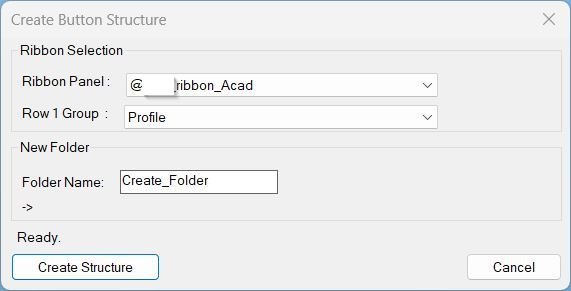
Run CreateFolderStructure to scan CIVIL.cuix, choose the target ribbon panel and Row 1 group, enter the new command folder name, preview the final path, and create the complete folder structure.
Run CBS_Diag to print and save a diagnostic report with configured paths, CIVIL.cuix detection, cached ribbon data, history values, and environment information.
Description:
CreateFolderStructure.lsp is a production helper for AutoCAD and Civil 3D ribbon customization workflows. It creates the standard Help_File folder layout used for new ribbon button documentation and support files.
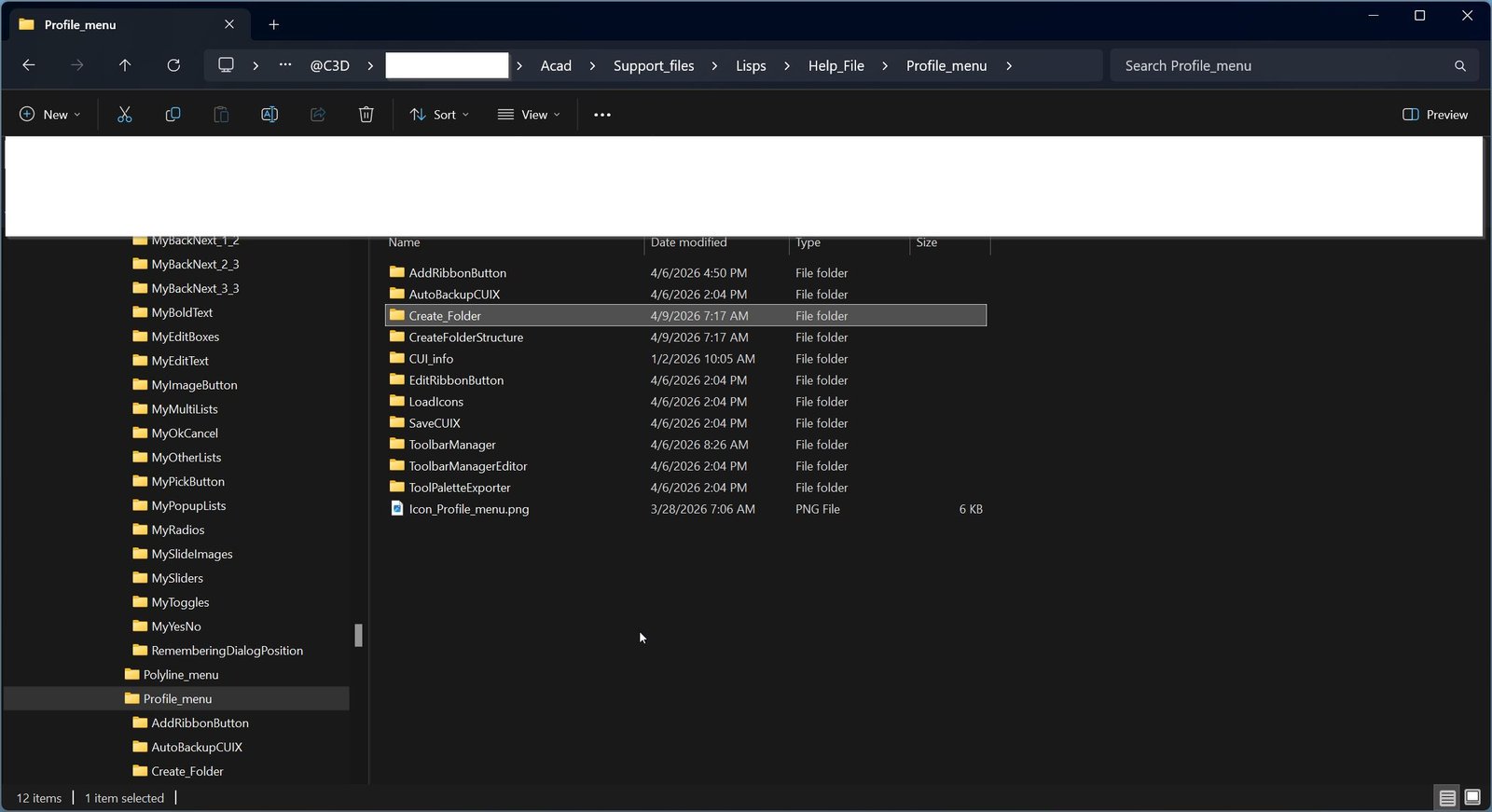
The tool reads CIVIL.cuix from the AutoCAD search path, extracts ribbon panels named [username]_ribbon_*, finds Row 1 ribbon groups, and maps the selected ribbon and group to the correct Help_File destination. For [username]_ribbon_Acad it writes directly under the main Help_File folder. For [username]_ribbon_XXX it creates the structure under the matching discipline subfolder.
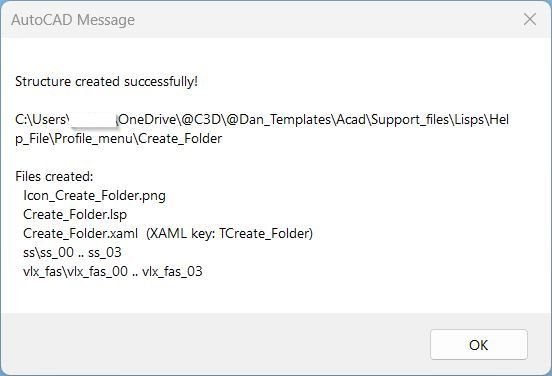
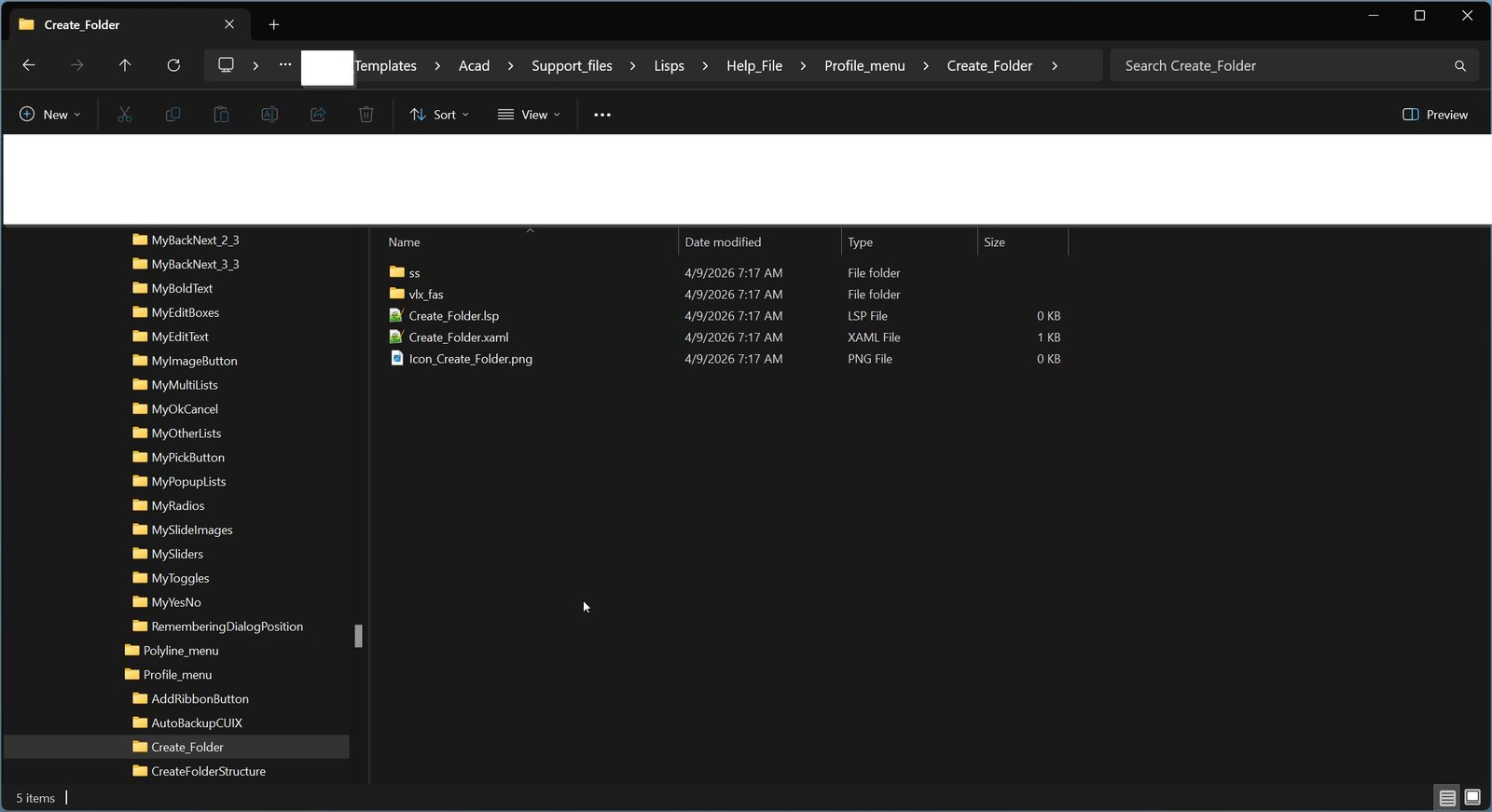
After the user selects the ribbon panel, group, and new folder name, the script creates the target command folder, adds a blank Icon_Name.png file, adds a blank Name.lsp file, creates a Name.xaml file from the configured template, replaces the template x:Key with TName, and builds screenshot and compiled-code subfolder structures for ss_00 through ss_03 and vlx_fas_00 through vlx_fas_03.
The workflow uses temporary DCL dialogs, PowerShell file operations, a VBS launcher, persisted history in the TEMP folder, and a diagnostic command for support and troubleshooting.
Helper function: (if any)
Important internal helper groups:
– CBS:ReadCUIX reads CIVIL.cuix by extracting RibbonRoot.cui through PowerShell and collecting [username]_ribbon_* panels and Row 1 groups.
– CBS:RibbonBase, CBS:GroupDir, and CBS:TargetDir calculate the final Help_File destination path.
– CBS:BuildStructure creates the root folder, blank icon, blank LISP file, XAML copy, screenshot folders, and VLX/FAS folders.
– CBS:WriteDCL, CBS:FillList, CBS:GroupsFor, and CBS:RefPath support the runtime DCL dialog and live path preview.
– CBS:SaveHistory and CBS:LoadHistory persist the last selected ribbon, group, and folder name in the TEMP history file.
– CBS_Diag writes a support report containing environment, path, template, CUIX, cached ribbon, and path-computation details.
Functionalities:
– Scans CIVIL.cuix from the AutoCAD search path.
– Extracts ribbon panels whose names match [username]_ribbon_*.
– Reads Row 1 groups, split buttons, folded panels, command buttons, and toggle buttons from RibbonRoot.cui.
– Displays a DCL dialog titled Create Button Structure.
– Lets the user select the target ribbon panel and Row 1 group.
– Provides a folder-name input for the new command/help item.
– Shows a live computed target path before creating files.
– Maps [username]_ribbon_Acad directly to the main Help_File folder.
– Maps [username]_ribbon_XXX to Help_File\XXX.
– Creates the final folder as {RibbonBase}\{Group}_menu\{Name}.
– Creates a blank Icon_{Name}.png file.
– Creates a blank {Name}.lsp file.
– Copies the configured XAML model template to {Name}.xaml.
– Replaces x:Key=”Test” with x:Key=”T{Name}” in the generated XAML file.
– Creates ss\ss_00, ss\ss_01, ss\ss_02, and ss\ss_03 folders.
– Creates vlx_fas\vlx_fas_00, vlx_fas\vlx_fas_01, vlx_fas\vlx_fas_02, and vlx_fas\vlx_fas_03 folders.
– Persists last-used ribbon, group, and folder name between runs.
– Uses unique temporary DCL, PowerShell, and done-file names based on the AutoCAD DATE value.
– Includes a CBS_Diag command for troubleshooting path setup, template availability, CUIX detection, and cached data.
Result:
The result is a ready-to-use AutoCAD Help_File command folder for a new ribbon button. The generated folder includes the expected icon placeholder, LISP placeholder, XAML tooltip file, screenshot folders, and compiled support folders, placed in the correct ribbon and group-based Help_File location.
Images, animations etc.
XAML code:
<ResourceDictionary
xmlns="http://schemas.microsoft.com/winfx/2006/xaml/presentation"
xmlns:x="http://schemas.microsoft.com/winfx/2006/xaml"
xmlns:src="clr-namespace:Autodesk.Windows;assembly=AdWindows">

<src:RibbonToolTip x:Key="CreateFolderStructure">
<src:RibbonToolTip.ExpandedContent>
<StackPanel>
<TextBlock Background="AntiqueWhite" TextAlignment="Left">
<Bold>Function Syntax: CreateFolderStructure / CBS_Diag</Bold>
<LineBreak/>
<Bold>Version: 1.0 Date: 09.04.2026</Bold>
<LineBreak/>
<Hyperlink>N/A</Hyperlink>
<LineBreak/>

<Bold>Function Syntax: CreateFolderStructure</Bold><LineBreak/>
<Bold>Version: 1.0</Bold>
<LineBreak/>
<Bold>Version: 1.0 Date: 28.04.2026 4:11:49PM</Bold><LineBreak/>
<Bold><Run Foreground="DodgerBlue">SEO Friendly Description</Run></Bold><LineBreak/>
<Run Foreground="White">?? CreateFolderStructure is an AutoCAD and Civil 3D AutoLISP utility that creates a complete Help_File folder structure for a new ribbon button.</Run><LineBreak/>
<Run Foreground="LimeGreen">It speeds up ribbon customization by scanning CIVIL.cuix, selecting the correct @Dan_ribbon_* panel, choosing the Row 1 group, and generating the required documentation and support folders automatically.</Run><LineBreak/>
<Bold><Run Foreground="DodgerBlue">Main Commands</Run></Bold><LineBreak/>
<Run Foreground="White">?? Run </Run><Bold><Run Foreground="Orange">CreateFolderStructure</Run></Bold><Run Foreground="White"> to open the Create Button Structure dialog and generate the folder layout.</Run><LineBreak/>
<Run Foreground="White">?? Run </Run><Bold><Run Foreground="Orange">CBS_Diag</Run></Bold><Run Foreground="White"> to create diagnostic output for CIVIL.cuix access, template paths, cached ribbon data, and environment checks.</Run><LineBreak/>
<Bold><Run Foreground="LimeGreen">Functionalities</Run></Bold><LineBreak/>
<Run Foreground="White">?? Scans </Run><Bold><Run Foreground="Orange">CIVIL.cuix</Run></Bold><Run Foreground="White"> from the AutoCAD search path and extracts </Run><Bold><Run Foreground="Orange">@Dan_ribbon_*</Run></Bold><Run Foreground="White"> ribbon panels.</Run><LineBreak/>
<Run Foreground="White">?? Reads Row 1 ribbon groups, folded panels, split buttons, command buttons, and toggle buttons from </Run><Bold><Run Foreground="Orange">RibbonRoot.cui</Run></Bold><Run Foreground="White">.</Run><LineBreak/>
<Run Foreground="White">?? Maps </Run><Bold><Run Foreground="Orange">@Dan_ribbon_Acad</Run></Bold><Run Foreground="White"> to the main Help_File folder and maps </Run><Bold><Run Foreground="Orange">@Dan_ribbon_XXX</Run></Bold><Run Foreground="White"> to the matching discipline folder.</Run><LineBreak/>
<Run Foreground="White">?? Builds the final destination as </Run><Bold><Run Foreground="Orange">{RibbonBase}\{Group}_menu\{Name}</Run></Bold><Run Foreground="White">.</Run><LineBreak/>
<Run Foreground="White">?? Creates a blank </Run><Bold><Run Foreground="Orange">{Name}.lsp</Run></Bold><Run Foreground="White"> file and a blank </Run><Bold><Run Foreground="Orange">Icon_{Name}.png</Run></Bold><Run Foreground="White"> placeholder.</Run><LineBreak/>
<Run Foreground="White">?? Copies the XAML model template to </Run><Bold><Run Foreground="Orange">{Name}.xaml</Run></Bold><Run Foreground="White"> and replaces the template key with </Run><Bold><Run Foreground="Orange">T{Name}</Run></Bold><Run Foreground="White">.</Run><LineBreak/>
<Run Foreground="White">??? Creates screenshot folders </Run><Bold><Run Foreground="Orange">ss_00</Run></Bold><Run Foreground="White"> through </Run><Bold><Run Foreground="Orange">ss_03</Run></Bold><Run Foreground="White">.</Run><LineBreak/>
<Run Foreground="White">?? Creates compiled support folders </Run><Bold><Run Foreground="Orange">vlx_fas_00</Run></Bold><Run Foreground="White"> through </Run><Bold><Run Foreground="Orange">vlx_fas_03</Run></Bold><Run Foreground="White">.</Run><LineBreak/>
<Run Foreground="White">?? Saves the last selected ribbon, group, and folder name in the TEMP history file for faster repeat use.</Run><LineBreak/>
<Run Foreground="White">?? Uses temporary PowerShell, VBS, DCL, and done files to keep the AutoCAD dialog workflow controlled and repeatable.</Run><LineBreak/>
<Bold><Run Foreground="DodgerBlue">Practical Result</Run></Bold><LineBreak/>
<Run Foreground="White">? The final result is a ready Help_File command folder with icon, LISP, XAML, screenshot, and compiled-code support structure prepared for a new AutoCAD ribbon button.</Run><LineBreak/>
<Run Foreground="LimeGreen">This improves CAD customization speed, standardizes ribbon-button documentation folders, and reduces manual file setup for AutoCAD and Civil 3D help-system development.</Run><LineBreak/>
<Bold><Run Foreground="DarkRed">Important Note</Run></Bold><LineBreak/>
<Run Foreground="White">The script uses hard-coded Help_File and template paths. CIVIL.cuix must be found by AutoCAD, and PowerShell/VBS execution must be allowed.</Run><LineBreak/>
<Run Foreground="White">The generated PNG and LISP files are placeholders. The tool creates the structure; it does not create the final command implementation.</Run><LineBreak/>


</TextBlock>
<Grid>
<Image Source="Image_000.jpg" Stretch="Uniform"/>
</Grid>

<Grid>
<Image Source="Image_001.jpg" Stretch="Uniform"/>
</Grid>

<Grid>
<Image Source="Image_002.jpg" Stretch="Uniform"/>
</Grid>

<Grid>
<Image Source="Image_003.jpg" Stretch="Uniform"/>
</Grid>
</StackPanel>
</src:RibbonToolTip.ExpandedContent>
</src:RibbonToolTip>
</ResourceDictionary>