
Short description
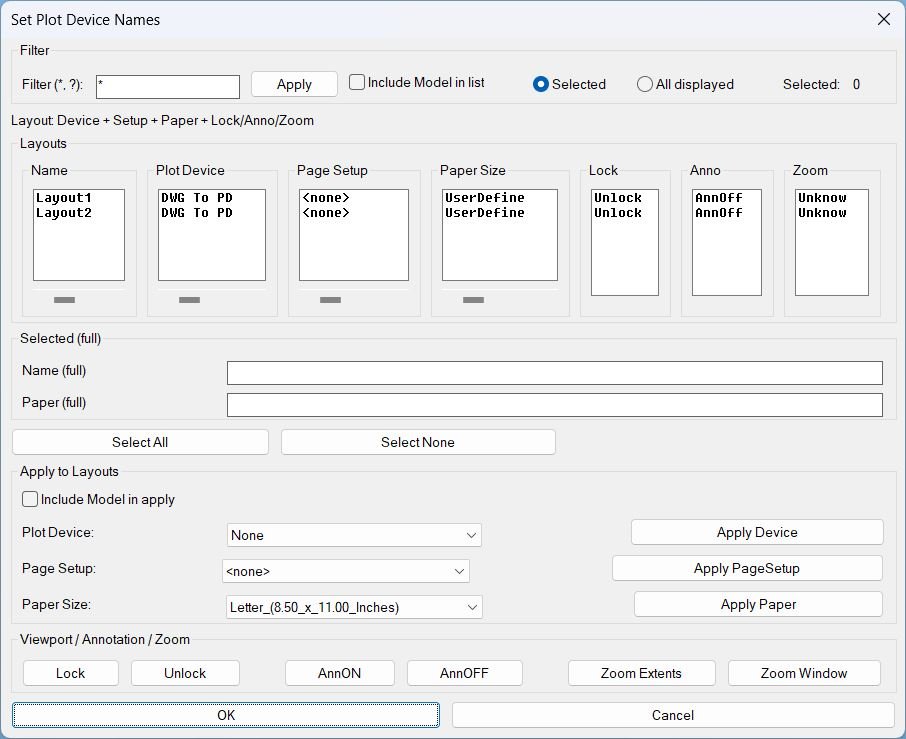
🖨️ SetPlotDeviceNames is an AutoCAD/Civil 3D AutoLISP DCL manager for batch editing layout plot devices, page setups, paper sizes, viewport locks, annotation visibility, and zoom settings.
📐 It provides filtered layout selection, synchronized columns, per-column horizontal scrolling, and apply tools for production plotting workflows.
Command:
🚀 Main command: SetPlotDeviceNames
🔍 Layout filter: supports * and ? wildcard filtering.
🖨️ Apply actions: Apply Device, Apply PageSetup, Apply Paper.
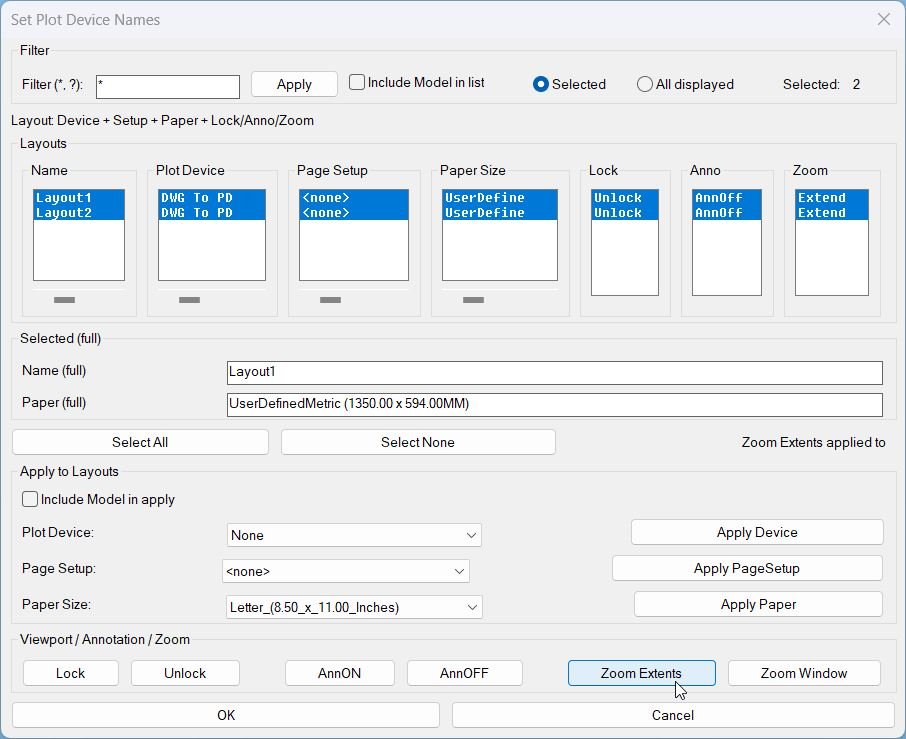
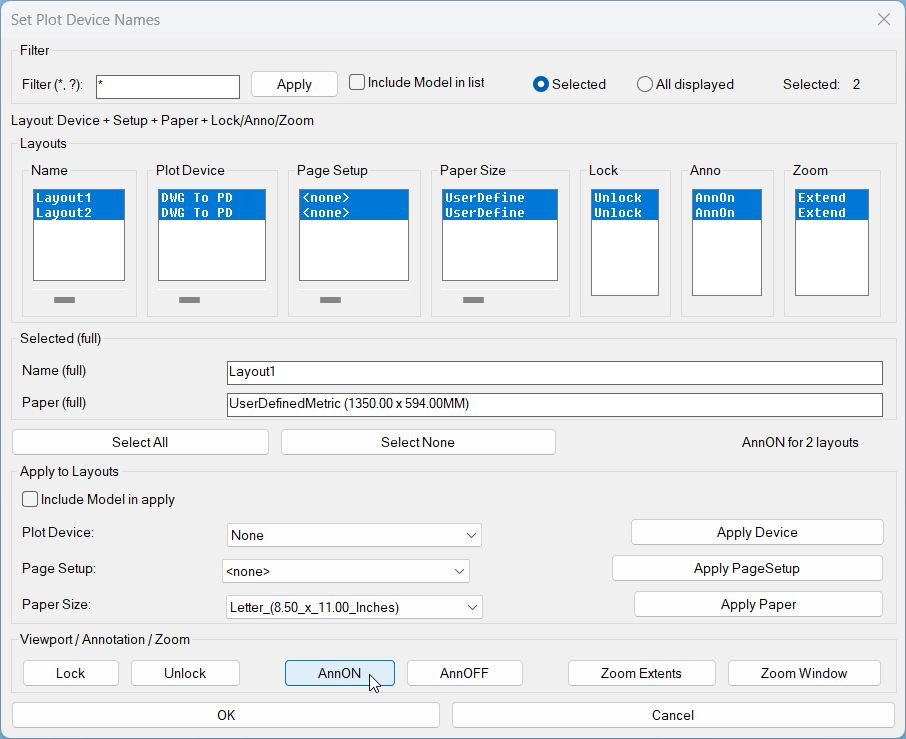
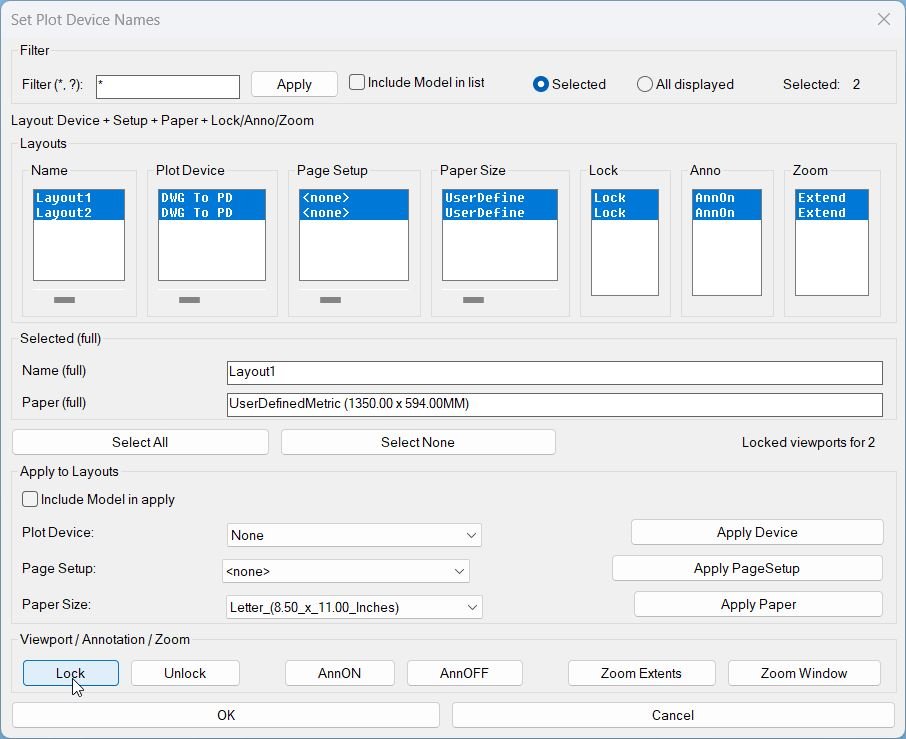
🔒 Viewport tools: Lock, Unlock, AnnON, AnnOFF, Zoom Extents, Zoom Window.
Description:
🖨️ SetPlotDeviceNames is an SEO-friendly AutoCAD layout plotting utility for managing plot device names, page setups, canonical media names, and paper sizes from one DCL interface.
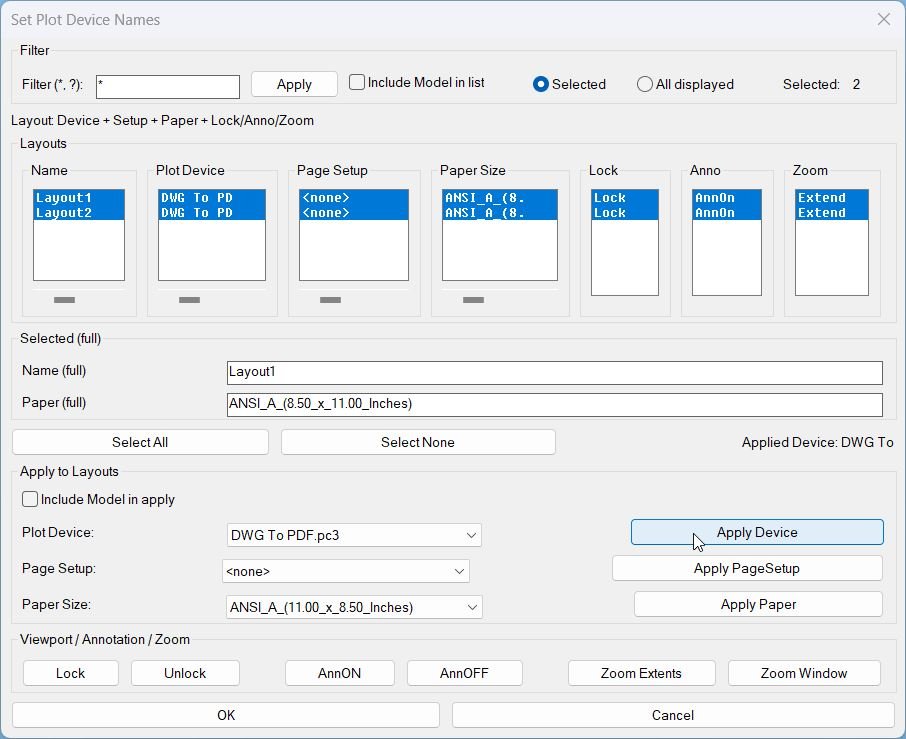
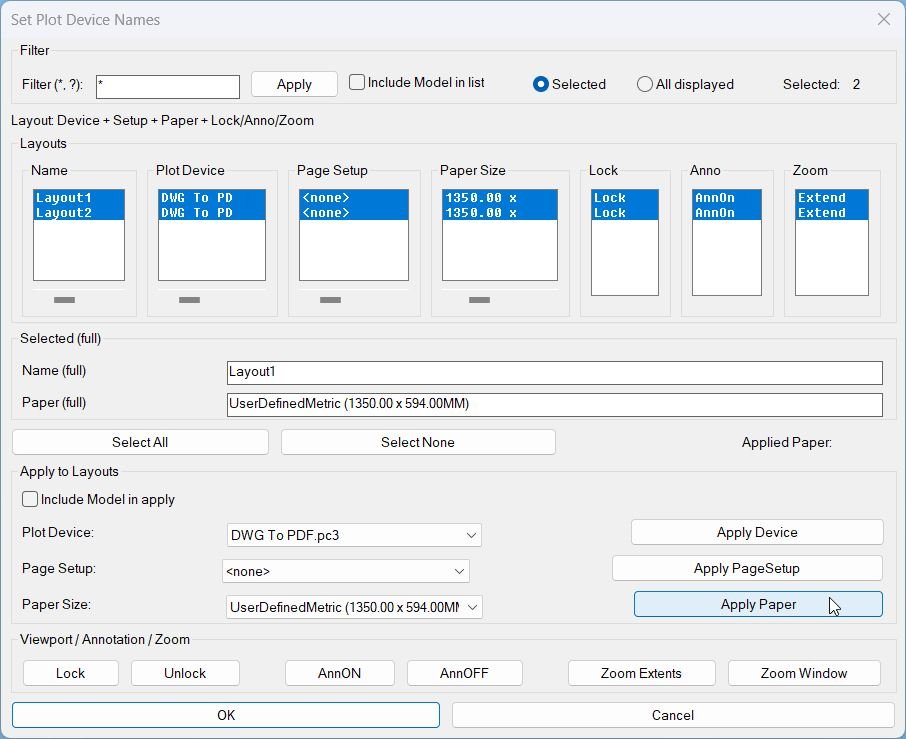
📊 The dialog shows synchronized layout columns for Name, Plot Device, Page Setup, Paper Size, Lock, Anno, and Zoom, with compact column widths and horizontal sliders for long values.
🔍 Users can filter layout names using wildcard patterns, include or exclude Model in the list/apply scope, and choose between selected rows or all displayed rows.
📐 The tool can batch-apply plot devices, page setups, and paper sizes to selected layouts, while also managing paper-space viewport lock state and annotation visibility.
🧭 Zoom tools let the user apply Zoom Extents or pick a Zoom Window for layout viewports, with zoom state persisted through a named-object dictionary record.
Helper function: (if any)
🧩 spdn:filter-layouts builds the working layout list from the current drawing and wildcard filter.
🧩 spdn:fill-device-popup, spdn:fill-pagesetup-popup, and spdn:fill-paper-popup populate the DCL dropdown controls.
🧩 spdn:apply-device-to-layouts and spdn:apply-paper-to-layouts perform the batch plotting updates.
🧩 spdn:set-locked-for-layouts changes paper-space viewport lock states.
🧩 spdn:set-anno manages ANNOALLVISIBLE behavior per selected layouts.
🧩 spdn:zoom-layout-viewports, spdn:do-zoom-extents, and spdn:do-zoom-window-execute handle viewport zoom actions.
🧩 spdn:ensure-nod-dict and xrecords store persistent zoom-state flags in the drawing database.
Functionalities:
✅ List layouts with plot device, page setup, paper size, viewport lock, annotation, and zoom status.
✅ Filter layouts with * and ? wildcard support.
✅ Select all, select none, selected scope, or all displayed scope.
✅ Apply plot device changes to selected layouts.
✅ Apply existing page setups to layouts.
✅ Apply compatible paper/media names from the selected plot device.
✅ Lock or unlock paper-space viewports in selected layouts.
✅ Toggle annotation visibility and run Zoom Extents or Zoom Window viewport tools.
Result:
🎯 Layout plotting settings can be cleaned and standardized faster across many sheets.
🖨️ Plot device, page setup, and paper-size mismatches become easier to find and correct.
🔒 Viewport lock, annotation, and zoom preparation are handled in the same production dialog.
Images, animations etc.
XAML code:
<ResourceDictionary
xmlns="http://schemas.microsoft.com/winfx/2006/xaml/presentation"
xmlns:x="http://schemas.microsoft.com/winfx/2006/xaml"
xmlns:src="clr-namespace:Autodesk.Windows;assembly=AdWindows">

<src:RibbonToolTip x:Key="SetPlotDeviceNames">
<src:RibbonToolTip.ExpandedContent>
<StackPanel>
<TextBlock Background="AntiqueWhite" TextAlignment="Left">
<Bold>Function Syntax: SetPlotDeviceNames</Bold>
<LineBreak/>
<Bold>Version: 1 Date: 17.10.2025</Bold>
<Bold>Version: 2 Date: 01.01.2026</Bold>
<LineBreak/>
<Hyperlink>AI+https://www.cadtutor.net/forum/topic/17353-change-printer/</Hyperlink>
<Hyperlink>AI+https://www.cadtutor.net/forum/topic/17353-change-printer/</Hyperlink>
<LineBreak/>
<Bold>Title</Bold><LineBreak/>
SetPlotDeviceNames LISP for AutoCAD layouts and plotting management<LineBreak/>
<Bold>Description</Bold><LineBreak/>
This program opens a dialog that lets the user review and batch-edit plotting settings per layout, plus viewport lock, annotation visibility, and viewport zoom operations, while keeping layout selection synchronized across columns.<LineBreak/>
<Bold><Red>How it is started</Red></Bold><LineBreak/>
<Red>Command:</Red> <Bold><DarkRed>SetPlotDeviceNames</DarkRed></Bold><LineBreak/>
The user runs <Bold><DarkRed>SetPlotDeviceNames</DarkRed></Bold> at the AutoCAD command line to open the dialog interface.<LineBreak/>
<Bold>What the user does</Bold><LineBreak/>
• The user reviews a table of layouts showing <Bold>Layout Name</Bold>, <Bold>Plot Device</Bold>, <Bold>Page Setup</Bold>, <Bold>Paper Size</Bold>, plus status columns for <Bold>Lock</Bold>, <Bold>Anno</Bold>, and <Bold>Zoom</Bold>.<LineBreak/>
• The user filters layouts by a wildcard filter and chooses a scope: <Bold>Selected</Bold> or <Bold>All displayed</Bold>.<LineBreak/>
• The user optionally includes or excludes <Bold>Model</Bold> from the list and from apply operations.<LineBreak/>
• The user applies changes to the chosen scope using dedicated buttons for device, page setup, and paper size.<LineBreak/>
• The user can also run viewport utility actions (lock, annotation visibility, zoom tools) for the chosen scope.<LineBreak/>
<Bold><Red>Key interface behaviors</Red></Bold><LineBreak/>
• <Bold>Multi-column synchronized selection</Bold> meaning selecting rows in any list aligns the same rows in every other list.<LineBreak/>
• <Bold>Horizontal scrolling per column</Bold> meaning each of the four main text columns has its own slider that shifts the visible substring left or right without changing the underlying values.<LineBreak/>
• <Bold>Selected full readouts</Bold> show the complete <Bold>Name</Bold> and complete <Bold>Paper</Bold> for the first selected layout.<LineBreak/>
<Bold><DarkRed>Filtering and scope</DarkRed></Bold><LineBreak/>
• Filter supports wildcard patterns such as star and question mark.<LineBreak/>
• <Bold>Include Model in list</Bold> controls whether the Model tab appears in the layouts list.<LineBreak/>
• <Bold>Selected</Bold> scope applies changes only to the currently selected rows.<LineBreak/>
• <Bold>All displayed</Bold> scope applies changes to every layout currently shown after filtering.<LineBreak/>
• <Bold>Include Model in apply</Bold> controls whether apply operations are allowed to target the Model tab.<LineBreak/>
<Bold><Red>Functionalities</Red></Bold><LineBreak/>
• <Bold>Apply Plot Device</Bold> changes the plotter configuration name for each targeted layout and refreshes plot device information.<LineBreak/>
• <Bold>Apply Page Setup</Bold> copies a named page setup into each targeted layout, or clears the page setup when the user selects <Bold>none</Bold>.<LineBreak/>
• <Bold>Apply Paper Size</Bold> sets the canonical media name based on the selected device and chosen paper display name.<LineBreak/>
• <Bold><DarkRed>Lock</DarkRed></Bold> sets all non-overall paper-space viewports in each targeted layout to <Bold>locked</Bold>.<LineBreak/>
• <Bold><DarkRed>Unlock</DarkRed></Bold> sets all non-overall paper-space viewports in each targeted layout to <Bold>unlocked</Bold>.<LineBreak/>
• <Bold><DarkRed>AnnON</DarkRed></Bold> sets <Bold>ANNOALLVISIBLE</Bold> to on for each targeted paper-space layout.<LineBreak/>
• <Bold><DarkRed>AnnOFF</DarkRed></Bold> sets <Bold>ANNOALLVISIBLE</Bold> to off for each targeted paper-space layout.<LineBreak/>
• <Bold><DarkRed>Zoom Extents</DarkRed></Bold> activates each layout, enters viewport context, zooms extents in each viewport, then marks that layout as having an extents zoom state for display purposes.<LineBreak/>
• <Bold><DarkRed>Zoom Window</DarkRed></Bold> prompts the user to pick two corners in a viewport on the first targeted layout, then applies the same zoom window to viewports in all targeted layouts without setting an extents zoom flag.<LineBreak/>
<Bold><Red>Displayed status columns</Red></Bold><LineBreak/>
• <Bold>Lock status</Bold> shows <Bold>Locked</Bold>, <Bold>Unlocked</Bold>, <Bold>Mixed</Bold>, <Bold>NoVP</Bold>, or <Bold>Model</Bold> depending on viewport presence and lock state.<LineBreak/>
• <Bold>Anno status</Bold> shows <Bold>AnnOn</Bold>, <Bold>AnnOff</Bold>, or unknown if not retrievable.<LineBreak/>
• <Bold>Zoom status</Bold> shows <Bold><DarkRed>ZExt</DarkRed></Bold> only when the tool explicitly marked the layout after <Bold><DarkRed>Zoom Extents</DarkRed></Bold>, otherwise it shows <Bold>Z?</Bold>.<LineBreak/>
<Bold><Red>Important system variables and state handling</Red></Bold><LineBreak/>
• The program temporarily switches <Bold>TILEMODE</Bold>, <Bold>CTAB</Bold>, and <Bold>MSPACE</Bold> when reading or modifying paper-space layout settings, then restores them to the prior values to avoid disrupting the user environment.<LineBreak/>
• <Bold>Undo grouping</Bold> is used when applying viewport lock changes so the operation can be reverted cleanly.<LineBreak/>
<Bold><DarkRed>Prompts and user interaction</DarkRed></Bold><LineBreak/>
• <Bold><DarkRed>Zoom Window</DarkRed></Bold> prompts for first corner and opposite corner inside a viewport, then applies the window consistently across selected layouts.<LineBreak/>
• All other operations are button driven from the dialog and do not require selecting entities in the drawing.<LineBreak/>
<Bold><Red>Safety and persistence behavior</Red></Bold><LineBreak/>
• Zoom state labeling is stored in the drawing named object dictionary using a dedicated dictionary name so older stored flags do not affect current display.<LineBreak/>
• <Bold><DarkRed>ZExt</DarkRed></Bold> is only shown when explicitly produced by this tool to prevent misleading zoom labels.<LineBreak/>


<Bold><Run Foreground="DodgerBlue">Description</Run></Bold><LineBreak/>
<Run Foreground="White">🖨️ SetPlotDeviceNames is an AutoCAD/Civil 3D AutoLISP DCL manager for batch editing layout plot devices, page setups, paper sizes, viewport locks, annotation visibility, and zoom settings.</Run><LineBreak/>
<Run Foreground="LimeGreen">📐 It provides filtered layout selection, synchronized columns, per-column horizontal scrolling, and apply tools for production plotting workflows.</Run><LineBreak/>
<LineBreak/>

<Bold><Run Foreground="DodgerBlue">Function Syntax</Run></Bold><LineBreak/>
<Run Foreground="White">🚀 Main command: </Run><Bold><Run Foreground="Orange">SetPlotDeviceNames</Run></Bold><LineBreak/>
<Run Foreground="White">🔍 Layout filter: </Run><Bold><Run Foreground="Orange">supports * and ? wildcard filtering.</Run></Bold><LineBreak/>
<Run Foreground="White">🖨️ Apply actions: </Run><Bold><Run Foreground="Orange">Apply Device, Apply PageSetup, Apply Paper.</Run></Bold><LineBreak/>
<Run Foreground="White">🔒 Viewport tools: </Run><Bold><Run Foreground="Orange">Lock, Unlock, AnnON, AnnOFF, Zoom Extents, Zoom Window.</Run></Bold><LineBreak/>
<LineBreak/>

<Bold><Run Foreground="DodgerBlue">SEO Optimized Overview</Run></Bold><LineBreak/>
<Run Foreground="White">🖨️ SetPlotDeviceNames is an SEO-friendly AutoCAD layout plotting utility for managing plot device names, page setups, canonical media names, and paper sizes from one DCL interface.</Run><LineBreak/>
<Run Foreground="White">📊 The dialog shows synchronized layout columns for Name, Plot Device, Page Setup, Paper Size, Lock, Anno, and Zoom, with compact column widths and horizontal sliders for long values.</Run><LineBreak/>
<Run Foreground="White">🔍 Users can filter layout names using wildcard patterns, include or exclude Model in the list/apply scope, and choose between selected rows or all displayed rows.</Run><LineBreak/>
<Run Foreground="White">📐 The tool can batch-apply plot devices, page setups, and paper sizes to selected layouts, while also managing paper-space viewport lock state and annotation visibility.</Run><LineBreak/>
<Run Foreground="White">🧭 Zoom tools let the user apply Zoom Extents or pick a Zoom Window for layout viewports, with zoom state persisted through a named-object dictionary record.</Run><LineBreak/>
<LineBreak/>

<Bold><Run Foreground="DodgerBlue">Core AutoCAD / Civil 3D Workflow</Run></Bold><LineBreak/>
<Run Foreground="White">✅ List layouts with plot device, page setup, paper size, viewport lock, annotation, and zoom status.</Run><LineBreak/>
<Run Foreground="White">✅ Filter layouts with * and ? wildcard support.</Run><LineBreak/>
<Run Foreground="White">✅ Select all, select none, selected scope, or all displayed scope.</Run><LineBreak/>
<Run Foreground="White">✅ Apply plot device changes to selected layouts.</Run><LineBreak/>
<Run Foreground="White">✅ Apply existing page setups to layouts.</Run><LineBreak/>
<Run Foreground="White">✅ Apply compatible paper/media names from the selected plot device.</Run><LineBreak/>
<Run Foreground="White">✅ Lock or unlock paper-space viewports in selected layouts.</Run><LineBreak/>
<Run Foreground="White">✅ Toggle annotation visibility and run Zoom Extents or Zoom Window viewport tools.</Run><LineBreak/>
<LineBreak/>

<Bold><Run Foreground="DodgerBlue">Important Functions and Implementation Details</Run></Bold><LineBreak/>
<Run Foreground="White">🧩 spdn:filter-layouts builds the working layout list from the current drawing and wildcard filter.</Run><LineBreak/>
<Run Foreground="White">🧩 spdn:fill-device-popup, spdn:fill-pagesetup-popup, and spdn:fill-paper-popup populate the DCL dropdown controls.</Run><LineBreak/>
<Run Foreground="White">🧩 spdn:apply-device-to-layouts and spdn:apply-paper-to-layouts perform the batch plotting updates.</Run><LineBreak/>
<Run Foreground="White">🧩 spdn:set-locked-for-layouts changes paper-space viewport lock states.</Run><LineBreak/>
<Run Foreground="White">🧩 spdn:set-anno manages ANNOALLVISIBLE behavior per selected layouts.</Run><LineBreak/>
<Run Foreground="White">🧩 spdn:zoom-layout-viewports, spdn:do-zoom-extents, and spdn:do-zoom-window-execute handle viewport zoom actions.</Run><LineBreak/>
<Run Foreground="White">🧩 spdn:ensure-nod-dict and xrecords store persistent zoom-state flags in the drawing database.</Run><LineBreak/>
<LineBreak/>

<Bold><Run Foreground="DodgerBlue">Result</Run></Bold><LineBreak/>
<Run Foreground="White">🎯 Layout plotting settings can be cleaned and standardized faster across many sheets.</Run><LineBreak/>
<Run Foreground="White">🖨️ Plot device, page setup, and paper-size mismatches become easier to find and correct.</Run><LineBreak/>
<Run Foreground="White">🔒 Viewport lock, annotation, and zoom preparation are handled in the same production dialog.</Run><LineBreak/>
<LineBreak/>

<Bold><Run Foreground="DodgerBlue">Important Notes</Run></Bold><LineBreak/>
<Run Foreground="DarkRed">⚠️ This routine changes layout plotting settings and viewport states. Review the selected/all-displayed scope before applying changes.</Run><LineBreak/>
<Run Foreground="DarkRed">⚠️ Model layout inclusion is optional and controlled separately for list and apply operations.</Run><LineBreak/>
<Run Foreground="White">ℹ️ The code creates a temporary DCL file at runtime and deletes it after the dialog closes.</Run><LineBreak/>
<LineBreak/>

<Bold><Run Foreground="DodgerBlue">Search Keywords</Run></Bold><LineBreak/>
<Run Foreground="White">🔎 AutoCAD plot device manager, batch page setup AutoLISP, layout paper size update, viewport lock manager, Civil 3D plotting utility</Run><LineBreak/>
<LineBreak/>

<Bold><Run Foreground="Yellow">Tags</Run></Bold><LineBreak/>
<Run Foreground="Yellow">🏷️ AutoCAD, 🏷️ AutoLISP, 🏷️ Civil 3D, 🏷️ Plot Device, 🏷️ Page Setup, 🏷️ Paper Size, 🏷️ Layout Manager, 🏷️ Viewport Lock, 🏷️ Annotation Visibility, 🏷️ Zoom Extents</Run><LineBreak/>


</TextBlock>

<Grid>
<Image Source="Image_000.jpg" Stretch="Uniform"/>
</Grid>

<Grid>
<Image Source="Image_001.jpg" Stretch="Uniform"/>
</Grid>

<Grid>
<Image Source="Image_002.jpg" Stretch="Uniform"/>
</Grid>

<Grid>
<Image Source="Image_003.jpg" Stretch="Uniform"/>
</Grid>

<Grid>
<Image Source="Image_004.jpg" Stretch="Uniform"/>
</Grid>

<Grid>
<Image Source="Image_005.jpg" Stretch="Uniform"/>
</Grid>


</StackPanel>
</src:RibbonToolTip.ExpandedContent>
</src:RibbonToolTip>


</ResourceDictionary>