
Short description
🔖 BookmarksC3DEntities.lsp is an AutoCAD Civil 3D AutoLISP bookmark manager that lets users save selected Civil 3D entities into a searchable navigation list. The tool stores object type, object name, color, bounding-box location, handle, and user remarks so designers can quickly zoom back to important alignments, profiles, profile views, corridors, pipes, structures, COGO points, surfaces, sections, assemblies, and other Civil 3D objects.
Command:
📌 Main command:
🧰 Loading method: load
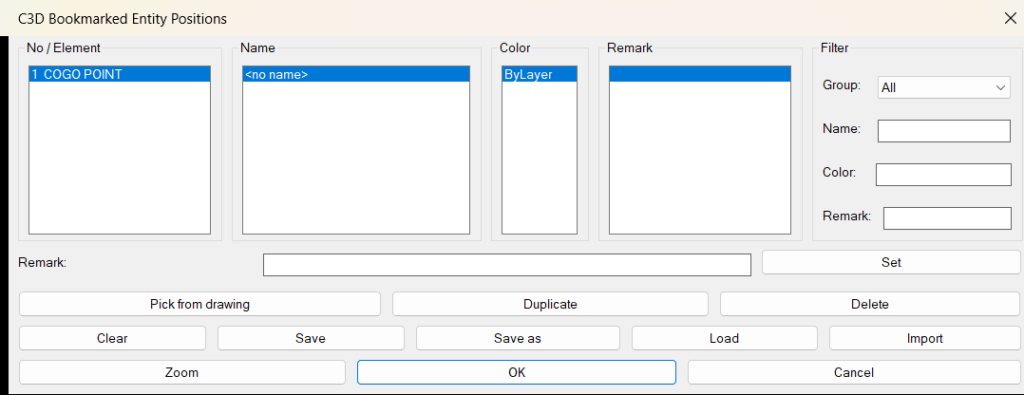
🪟 The command opens a temporary DCL dialog named
📌 The user clicks
🔎 The user selects a saved bookmark and clicks
💾 The user can save, save as, load, or import bookmark lists using
🎯 Target platform: Autodesk Civil 3D with AutoLISP and Visual LISP COM support through functions such as
BMEntityPosC3D.🧰 Loading method: load
BookmarksC3DEntities.lsp in Autodesk Civil 3D using APPLOAD, then run BMEntityPosC3D from the command line.🪟 The command opens a temporary DCL dialog named
C3D Bookmarked Entity Positions.📌 The user clicks
Pick from drawing to select supported Civil 3D entities.🔎 The user selects a saved bookmark and clicks
Zoom to navigate back to the object location.💾 The user can save, save as, load, or import bookmark lists using
.lst files.🎯 Target platform: Autodesk Civil 3D with AutoLISP and Visual LISP COM support through functions such as
vl-load-com, vla-getboundingbox, vla-ZoomWindow, vlax-ename->vla-object, vlax-get-property, and handent.
Description:
🧠 This AutoLISP routine is designed for Civil 3D users who work in large production drawings and need a faster way to return to important design objects. Instead of manually panning and zooming around a complex model, the user can bookmark selected Civil 3D entities and later zoom back to them from a DCL dialog.
The workflow starts with the command
When the user selects Civil 3D objects, the routine checks the object class name and accepts supported entities such as
Each bookmark stores a label, bounding-box coordinates, color text, AutoCAD handle, Civil 3D object type, and remark. When the user clicks
This tool is useful for Civil 3D design review, corridor checking, pipe network review, profile and section navigation, surface QA, COGO point review, large drawing management, and project coordination. It does not edit
The workflow starts with the command
BMEntityPosC3D. The tool opens the C3D Bookmarked Entity Positions dialog, where the user can pick objects from the drawing, view bookmarked objects in synchronized columns, filter the list, add remarks, duplicate entries, delete entries, clear the list, save the list, load a default list, or import another bookmark list.When the user selects Civil 3D objects, the routine checks the object class name and accepts supported entities such as
AeccDbAlignment, AeccDbProfile, AeccDbProfileView, AeccDbSampleLine, AeccDbFeatureLine, AeccDbCogoPoint, AeccDbCorridor, AeccDbPipe, AeccDbStructure, AeccDbNetwork, AeccDbSurfaceTin, AeccDbGraphCrossSection, AeccDbSection, AeccDbAssembly, and AeccDbSubassembly objects.Each bookmark stores a label, bounding-box coordinates, color text, AutoCAD handle, Civil 3D object type, and remark. When the user clicks
Zoom, the routine tries to find the object again by handle and refresh its bounding box. If the handle is still valid, the zoom is based on the current object extents. If the object is no longer found, the stored bounding-box values can still provide a fallback location.This tool is useful for Civil 3D design review, corridor checking, pipe network review, profile and section navigation, surface QA, COGO point review, large drawing management, and project coordination. It does not edit
ProfileView, SectionView, Alignment, labels, bands, styles, corridors, pipe networks, or point groups. Its purpose is focused on navigation, bookmarking, filtering, saving, loading, and zooming to Civil 3D entity locations.
Helper function: (if any)
- 📐 Bounding-box reader —
bmC3d-get-bboxreads object extents withvla-getboundingboxand converts the result into point lists. - 🔎 Zoom window helper —
bmC3d-zoom-ll-urusesvla-ZoomWindowto zoom the AutoCAD view to a lower-left and upper-right window. - 📐 Padding window builder —
bmC3d-make-windowcreates a padded zoom window around the bookmarked object extents. - 🎨 Color name mapper —
bmC3d-aci-nameconverts common AutoCAD ACI indexes into readable color names. - 🎨 Color string builder —
bmC3d-color-stringreads entity color data and returns ByLayer, ByBlock, ACI color names, ACI numbers, or true-color text. - 🔒 Safe property reader —
bmC3d-safe-propusesvl-catch-all-applyto read object properties without stopping the command when a property is unavailable. - 🏷️ Civil 3D name resolver —
bmC3d-get-name-from-objreadsNameorDisplayNamefrom supported Civil 3D objects. - 🔍 Wildcard matching —
bmC3d-wild-matchperforms case-insensitive filtering with wildcard patterns throughwcmatch. - 🔐 Supported object validator —
bmC3d-supported-pchecks Civil 3D object class names and keeps only supported object types. - 🧩 Group mapping —
bmC3d-map-groupmaps Civil 3D class names into user-friendly groups such as Alignments, Profiles, Profile Views, Sections, Cogo Points, Corridors, Pipes, Structures, Surfaces, and Assemblies. - 📁 Default file path builder —
bmC3d-file-pathcreates the default bookmark list path usingDWGPREFIX,DWGNAME, and_BMEntityPosC3D.lst. - 💾 Bookmark file writer —
bmC3d-write-list-to-filewrites the current bookmark list to a.lstfile withprin1. - 📂 Bookmark file reader —
bmC3d-read-list-from-filereads a saved bookmark list from a.lstfile. - 📚 Group list builder —
bmC3d-build-groupsbuilds the available filter groups from the active bookmark entries. - 🧩 Visible list updater —
bmC3d-update-listrefreshes synchronized list boxes for element type, name, color, and remark. - 📌 Pick and store engine —
bmC3d-pick-and-storeprocesses the user selection, validates Civil 3D object types, reads extents and color, and appends bookmark entries. - 🔎 Zoom action —
bmC3d-apply-zoomzooms to the selected bookmark using a current handle-based bounding box when available. - 📝 Remark editor —
bmC3d-set-remarkstores the user remark on the selected bookmark entry. - 🧹 Delete selected bookmark —
bmC3d-delete-selectedremoves the selected bookmark from the active list. - 📋 Duplicate selected bookmark —
bmC3d-duplicate-selectedduplicates the selected bookmark entry directly after the original. - 🪟 Runtime DCL writer —
bmC3d-write-dclcreates theC3D Bookmarked Entity Positionsdialog dynamically at runtime.
Functionalities:
- 🔖 Bookmark Civil 3D entities — the user can select supported Civil 3D objects and store them in a reusable navigation list.
- 🧩 Support many Civil 3D object types — the routine supports alignments, profiles, profile views, sample lines, feature lines, COGO points, corridors, pipes, structures, pipe networks, surfaces, section views, assemblies, subassemblies, and profile network parts.
- 📐 Store object extents — each bookmark stores the selected object bounding box so it can be used for zoom navigation.
- 🔎 Zoom to selected bookmark — the user can select a row and zoom directly to the bookmarked Civil 3D object location.
- 🔄 Refresh extents by handle — when the original entity still exists, the tool recalculates the current bounding box before zooming.
- 🎨 Capture object color — stored color values help identify bookmarked objects and allow color-based filtering.
- 🏷️ Read object names — the routine displays Civil 3D object names or display names when available.
- 🧩 Filter by object group — users can filter bookmarks by Civil 3D category such as Alignments, Profiles, Cogo Points, Corridors, Pipes, Structures, Surfaces, and Assemblies.
- 🔍 Filter by name — wildcard name filtering helps users find bookmarks in large Civil 3D drawings.
- 🔍 Filter by color — wildcard color filtering helps isolate bookmarked entities by stored color text.
- 📝 Filter by remark — custom remarks can be searched with wildcard filters for faster review workflows.
- 📝 Add custom remarks — the user can attach a note or description to any bookmark entry.
- 📋 Duplicate bookmark entries — a selected bookmark can be duplicated for repeated review workflows or list organization.
- 🧹 Delete selected bookmarks — unwanted bookmark rows can be removed from the active list.
- 🧹 Clear the full list — the entire bookmark list can be cleared from the dialog.
- 💾 Save bookmark lists — the current list can be saved to a drawing-based
.lstfile. - 📁 Save bookmark lists as custom files — users can choose a custom save location for bookmark list sharing or archiving.
- 📂 Load drawing bookmark lists — the tool can reload the default bookmark list for the current drawing.
- 📥 Import bookmark lists — saved bookmark lists from other files can be imported into the active session.
- 🪟 Use a temporary DCL dialog — the interface is created at runtime and does not require a separate permanent DCL file.
- 🔴 Important limitation — this routine stores bookmark data and zoom locations only. It does not create named views or modify Civil 3D design objects.
- 🔴 Save limitation — bookmarks are not saved automatically when the dialog closes. The user must click
SaveorSave as. - 🔐 Platform limitation — this script is intended for Autodesk Civil 3D and is not a general plain AutoCAD bookmark manager for all entity types.
Result:
📘 The final result is a faster Civil 3D navigation and design-review workflow. Users can bookmark important Civil 3D objects, organize them by type, filter them by name, color, or remark, add notes, save and reload bookmark lists, and zoom back to critical drawing areas with fewer manual steps. This improves productivity, reduces time spent searching large Civil 3D drawings, supports better QA review, and helps project teams manage complex Civil 3D models more efficiently.
Images, animations etc.
XAML code:
<ResourceDictionary
xmlns="http://schemas.microsoft.com/winfx/2006/xaml/presentation"
xmlns:x="http://schemas.microsoft.com/winfx/2006/xaml"
xmlns:src="clr-namespace:Autodesk.Windows;assembly=AdWindows">

<src:RibbonToolTip x:Key="BookmarksC3DEntities">
<src:RibbonToolTip.ExpandedContent>
<StackPanel>
<TextBlock Background="AntiqueWhite" TextAlignment="Left">
<Bold>Function Syntax: BMEntityPosC3D</Bold>
<LineBreak/>
<Bold>Version: 1 Date: 01.12.2025</Bold>
<LineBreak/>
<Bold>Version: 2 Date: 28.04.2026 8:36:46AM</Bold>
<LineBreak/>
<Hyperlink>AI</Hyperlink>
<LineBreak/>
<Bold>Description</Bold><LineBreak/>
This AutoLISP routine creates a Civil 3D entity bookmark manager for quickly saving, filtering, reopening, and zooming to important Civil 3D objects in the current drawing.<LineBreak/>
The program requires the user to select supported Civil 3D entities from the drawing, such as alignments, profiles, profile views, sample lines, feature lines, COGO points, corridors, pipes, structures, pipe networks, surfaces, section views, assemblies, and subassemblies.<LineBreak/>
The main command is <Bold><Run Foreground="DarkRed">BMEntityPosC3D</Run></Bold>.<LineBreak/>
The tool stores a bookmark entry for each supported selected object, including the entity type label, bounding-box coordinates, color, object handle, Civil 3D object type, and optional user remark.<LineBreak/>
The result is a reusable Civil 3D navigation list that lets the user return to important design objects faster without manually searching the drawing.<LineBreak/>
<Bold>Main Command</Bold><LineBreak/>
• <Bold>📌 <Run Foreground="DarkRed">BMEntityPosC3D</Run></Bold> — opens the Civil 3D bookmarked entity position manager.<LineBreak/>
<Bold>Loading Method</Bold><LineBreak/>
• <Bold>🧰 Load LISP File</Bold> — load the file <Run Foreground="DarkRed">BookmarksC3DEntities.lsp</Run> in AutoCAD Civil 3D using <Run Foreground="DarkRed">APPLOAD</Run>.<LineBreak/>
• <Bold>📌 Run Command</Bold> — run <Run Foreground="DarkRed">BMEntityPosC3D</Run> from the Civil 3D command line.<LineBreak/>
<Bold>User Workflow</Bold><LineBreak/>
• <Bold>🚀 Start Command</Bold> — the user runs <Run Foreground="DarkRed">BMEntityPosC3D</Run>.<LineBreak/>
• <Bold>🪟 Open Dialog</Bold> — the program creates a temporary DCL dialog named <Run Foreground="DarkRed">C3D Bookmarked Entity Positions</Run>.<LineBreak/>
• <Bold>📌 Pick From Drawing</Bold> — the user clicks <Run Foreground="DarkRed">Pick from drawing</Run> to temporarily leave the dialog and select Civil 3D objects.<LineBreak/>
• <Bold>🔍 Validate Selection</Bold> — the routine checks each selected object and keeps only supported Civil 3D entity types.<LineBreak/>
• <Bold>📚 Store Bookmark Entries</Bold> — the routine stores the object type label, bounding box, color, handle, object name, and an empty remark field.<LineBreak/>
• <Bold>🧩 Review Bookmarks</Bold> — the dialog displays bookmarks in synchronized columns for element type, object name, color, and remark.<LineBreak/>
• <Bold>🔍 Filter Bookmarks</Bold> — the user can filter the list by group, name, color, and remark.<LineBreak/>
• <Bold>📝 Add Remarks</Bold> — the user can type a remark for the selected bookmark and click <Run Foreground="DarkRed">Set</Run>.<LineBreak/>
• <Bold>🔎 Zoom To Object</Bold> — the user selects a bookmark and clicks <Run Foreground="DarkRed">Zoom</Run> to zoom to the stored or current object extents.<LineBreak/>
• <Bold>💾 Save List</Bold> — the user can save the bookmark list to a default drawing-based <Run Foreground="DarkRed">.lst</Run> file.<LineBreak/>
• <Bold>📁 Save As</Bold> — the user can save the bookmark list to a custom <Run Foreground="DarkRed">.lst</Run> file.<LineBreak/>
• <Bold>📂 Load List</Bold> — the user can load the default bookmark list for the current drawing.<LineBreak/>
• <Bold>📥 Import List</Bold> — the user can import a bookmark list from another <Run Foreground="DarkRed">.lst</Run> file.<LineBreak/>
• <Bold>✅ Finish</Bold> — the user clicks <Run Foreground="DarkRed">OK</Run> to close the dialog.<LineBreak/>
• <Bold>🔴 Cancel</Bold> — the user clicks <Run Foreground="DarkRed">Cancel</Run> to close the dialog.<LineBreak/>
<Bold>Functionalities</Bold><LineBreak/>
• <Bold>📌 Civil 3D Entity Bookmarking</Bold> — the routine stores selected supported Civil 3D objects as bookmark entries for fast navigation later.<LineBreak/>
• <Bold>🧩 Supported Object Detection</Bold> — the code checks <Run Foreground="DarkRed">ObjectName</Run> values such as <Run Foreground="DarkRed">AeccDbAlignment</Run>, <Run Foreground="DarkRed">AeccDbProfile</Run>, <Run Foreground="DarkRed">AeccDbProfileView</Run>, <Run Foreground="DarkRed">AeccDbCogoPoint</Run>, <Run Foreground="DarkRed">AeccDbCorridor</Run>, <Run Foreground="DarkRed">AeccDbPipe</Run>, <Run Foreground="DarkRed">AeccDbStructure</Run>, <Run Foreground="DarkRed">AeccDbSurfaceTin</Run>, <Run Foreground="DarkRed">AeccDbAssembly</Run>, and related Civil 3D object classes.<LineBreak/>
• <Bold>🔍 General Selection With Post Filtering</Bold> — the command uses <Run Foreground="DarkRed">ssget</Run> without a selection filter, then accepts only objects approved by <Run Foreground="DarkRed">bmC3d-supported-p</Run>.<LineBreak/>
• <Bold>📐 Bounding Box Storage</Bold> — each bookmarked object stores its lower-left and upper-right bounding-box coordinates using <Run Foreground="DarkRed">vla-getboundingbox</Run>.<LineBreak/>
• <Bold>🔎 Zoom To Bookmark</Bold> — the routine zooms to the selected bookmark using <Run Foreground="DarkRed">vla-ZoomWindow</Run> with a small automatic padding around the object extents.<LineBreak/>
• <Bold>🔄 Live Bounding Box Refresh</Bold> — when the original entity handle still exists, the zoom function recalculates the current bounding box before zooming.<LineBreak/>
• <Bold>🧠 Fallback Stored Position</Bold> — if the object cannot be found by handle, the routine can still use the stored bounding-box coordinates from the bookmark entry.<LineBreak/>
• <Bold>🎨 Color Capture</Bold> — the routine reads AutoCAD color information from entity data and stores ByLayer, ByBlock, ACI color names, ACI numbers, or true-color values.<LineBreak/>
• <Bold>🧩 Group Filter</Bold> — bookmarks are grouped into categories such as Alignments, Profiles, Profile Views, Sections, Feature Lines, Cogo Points, Corridors, Pipes, Structures, Pipe Networks, Surfaces, Section Views, Assemblies, and Profile Network Parts.<LineBreak/>
• <Bold>🔍 Name Filter</Bold> — the user can filter bookmarks by Civil 3D object name using wildcard patterns.<LineBreak/>
• <Bold>🎨 Color Filter</Bold> — the user can filter bookmarks by stored color text using wildcard patterns.<LineBreak/>
• <Bold>📝 Remark Filter</Bold> — the user can filter bookmarks by custom remark text using wildcard patterns.<LineBreak/>
• <Bold>📚 Multi Column Dialog List</Bold> — the DCL dialog uses synchronized list boxes for element type, object name, color, and remark.<LineBreak/>
• <Bold>📝 Remark Editing</Bold> — the selected bookmark can be assigned a custom text remark for documentation and easier identification.<LineBreak/>
• <Bold>📋 Duplicate Bookmark</Bold> — the selected bookmark entry can be duplicated directly in the list.<LineBreak/>
• <Bold>🧹 Delete Bookmark</Bold> — the selected bookmark entry can be removed from the active bookmark list.<LineBreak/>
• <Bold>🧹 Clear All Bookmarks</Bold> — the user can clear the entire active bookmark list from the dialog.<LineBreak/>
• <Bold>💾 Save Bookmark List</Bold> — the routine saves the list to a drawing-based <Run Foreground="DarkRed">.lst</Run> file named with the current drawing base name and suffix <Run Foreground="DarkRed">_BMEntityPosC3D.lst</Run>.<LineBreak/>
• <Bold>📁 Save Bookmark List As</Bold> — the user can choose a custom <Run Foreground="DarkRed">.lst</Run> destination with <Run Foreground="DarkRed">getfiled</Run>.<LineBreak/>
• <Bold>📂 Load Default Bookmark List</Bold> — the tool can reload the default list associated with the current drawing path and drawing name.<LineBreak/>
• <Bold>📥 Import Bookmark List</Bold> — the user can import a bookmark list from another <Run Foreground="DarkRed">.lst</Run> file.<LineBreak/>
• <Bold>🪟 Temporary DCL Interface</Bold> — the dialog file is generated dynamically by the LISP code and deleted when the command ends.<LineBreak/>
<Bold>Important Helper Logic</Bold><LineBreak/>
• <Bold>📐 Bounding Box Reader</Bold> — <Run Foreground="DarkRed">bmC3d-get-bbox</Run> reads object extents with <Run Foreground="DarkRed">vla-getboundingbox</Run> and converts safe arrays into point lists.<LineBreak/>
• <Bold>🔎 Zoom Helper</Bold> — <Run Foreground="DarkRed">bmC3d-zoom-ll-ur</Run> performs a window zoom using <Run Foreground="DarkRed">vla-ZoomWindow</Run>.<LineBreak/>
• <Bold>📐 Zoom Window Builder</Bold> — <Run Foreground="DarkRed">bmC3d-make-window</Run> calculates a padded zoom window from two stored bounding-box points.<LineBreak/>
• <Bold>🎨 ACI Color Name Mapper</Bold> — <Run Foreground="DarkRed">bmC3d-aci-name</Run> converts common ACI color indexes into readable color names such as RED, YELLOW, GREEN, CYAN, BLUE, MAGENTA, WHITE, DARK GRAY, and LIGHT GRAY.<LineBreak/>
• <Bold>🎨 Color String Builder</Bold> — <Run Foreground="DarkRed">bmC3d-color-string</Run> converts AutoCAD entity color data into readable text for the dialog color column.<LineBreak/>
• <Bold>🔒 Safe Property Reader</Bold> — <Run Foreground="DarkRed">bmC3d-safe-prop</Run> reads Visual LISP object properties with <Run Foreground="DarkRed">vl-catch-all-apply</Run> to reduce command interruption when a property is unavailable.<LineBreak/>
• <Bold>🏷️ Object Name Reader</Bold> — <Run Foreground="DarkRed">bmC3d-get-name-from-obj</Run> reads <Run Foreground="DarkRed">Name</Run> or <Run Foreground="DarkRed">DisplayName</Run> from Civil 3D objects.<LineBreak/>
• <Bold>🔍 Wildcard Matcher</Bold> — <Run Foreground="DarkRed">bmC3d-wild-match</Run> performs case-insensitive wildcard matching with <Run Foreground="DarkRed">wcmatch</Run>.<LineBreak/>
• <Bold>🔐 Supported Object Validator</Bold> — <Run Foreground="DarkRed">bmC3d-supported-p</Run> determines whether a selected object type should become a bookmark.<LineBreak/>
• <Bold>🧩 Group Mapper</Bold> — <Run Foreground="DarkRed">bmC3d-map-group</Run> converts Civil 3D object class names into user-friendly group names.<LineBreak/>
• <Bold>📁 Default File Path Builder</Bold> — <Run Foreground="DarkRed">bmC3d-file-path</Run> builds the default bookmark list path from <Run Foreground="DarkRed">DWGPREFIX</Run>, <Run Foreground="DarkRed">DWGNAME</Run>, and <Run Foreground="DarkRed">_BMEntityPosC3D.lst</Run>.<LineBreak/>
• <Bold>💾 File Writer</Bold> — <Run Foreground="DarkRed">bmC3d-write-list-to-file</Run> writes the current bookmark list to a text-based LISP data file with <Run Foreground="DarkRed">prin1</Run>.<LineBreak/>
• <Bold>📂 File Reader</Bold> — <Run Foreground="DarkRed">bmC3d-read-list-from-file</Run> reads a saved bookmark list back into memory.<LineBreak/>
• <Bold>📚 Group Builder</Bold> — <Run Foreground="DarkRed">bmC3d-build-groups</Run> builds the list of available filter groups from the current bookmarks.<LineBreak/>
• <Bold>🧩 List Updater</Bold> — <Run Foreground="DarkRed">bmC3d-update-list</Run> refreshes all visible list boxes and synchronizes filtered bookmark indexes.<LineBreak/>
• <Bold>📌 Pick And Store</Bold> — <Run Foreground="DarkRed">bmC3d-pick-and-store</Run> lets the user select objects, validates supported Civil 3D object types, and appends bookmark entries to the active list.<LineBreak/>
• <Bold>🔎 Zoom Action</Bold> — <Run Foreground="DarkRed">bmC3d-apply-zoom</Run> zooms to the selected visible bookmark row.<LineBreak/>
• <Bold>📝 Remark Setter</Bold> — <Run Foreground="DarkRed">bmC3d-set-remark</Run> writes the current remark edit-box value into the selected bookmark entry.<LineBreak/>
• <Bold>🧹 Delete Helper</Bold> — <Run Foreground="DarkRed">bmC3d-delete-selected</Run> removes the selected bookmark from the active list.<LineBreak/>
• <Bold>📋 Duplicate Helper</Bold> — <Run Foreground="DarkRed">bmC3d-duplicate-selected</Run> duplicates the selected bookmark directly after its current position.<LineBreak/>
• <Bold>🪟 DCL Writer</Bold> — <Run Foreground="DarkRed">bmC3d-write-dcl</Run> writes the temporary dialog definition for the bookmark manager.<LineBreak/>
<Bold>Important Code Notes</Bold><LineBreak/>
• <Bold>📌 Command Name</Bold> — <Run Foreground="Red">the command name is BMEntityPosC3D.</Run><LineBreak/>
• <Bold>🔴 Platform Requirement</Bold> — <Run Foreground="Red">the routine is intended for Autodesk Civil 3D drawings because it targets Civil 3D object class names such as AeccDbAlignment, AeccDbProfileView, AeccDbCogoPoint, AeccDbCorridor, AeccDbPipe, and AeccDbSurfaceTin.</Run><LineBreak/>
• <Bold>🔴 Bookmark Only Note</Bold> — <Run Foreground="Red">the routine does not create AutoCAD Named Views, Civil 3D labels, Civil 3D objects, alignments, profiles, sections, or reports. It stores an internal bookmark list and zoom locations.</Run><LineBreak/>
• <Bold>🔴 Selection Filter Note</Bold> — <Run Foreground="Red">the selection call uses ssget without a DXF filter. Unsupported selected objects are ignored after selection.</Run><LineBreak/>
• <Bold>🔴 Handle Dependency Note</Bold> — <Run Foreground="Red">the best zoom behavior depends on the stored entity handle still existing in the drawing.</Run><LineBreak/>
• <Bold>🔴 Imported File Safety Note</Bold> — <Run Foreground="Red">the routine reads imported .lst content as LISP data. Import only trusted bookmark list files.</Run><LineBreak/>
• <Bold>🔴 Color Review Note</Bold> — <Run Foreground="Red">the true-color channel extraction should be reviewed if exact RGB display is critical, because AutoCAD true-color integer channel order can be easy to misread.</Run><LineBreak/>
• <Bold>🔴 Persistence Note</Bold> — <Run Foreground="Red">the bookmark list is saved only when the user clicks Save or Save as. Closing the dialog does not automatically save unsaved bookmarks.</Run><LineBreak/>
• <Bold>🔴 No Geometry Modification</Bold> — <Run Foreground="Red">the routine does not modify geometry, point groups, styles, labels, bands, corridors, pipe networks, ProfileView objects, SectionView objects, or Alignment data.</Run><LineBreak/>
<Bold>Final Result</Bold><LineBreak/>
The final result is a practical Civil 3D navigation and bookmark workflow.<LineBreak/>
The user can collect important Civil 3D objects into a searchable list, add remarks, filter by group, name, color, or remark, save and reload the list, and zoom back to important drawing locations quickly.<LineBreak/>
This improves productivity, reduces time spent searching large Civil 3D drawings, supports faster QA review, helps organize project navigation, and makes recurring design checks easier for AutoCAD Civil 3D users.<LineBreak/>

</TextBlock>

<Grid>
<Image Source="Image_000.png" Stretch="Uniform"/>
</Grid>

</StackPanel>
</src:RibbonToolTip.ExpandedContent>
</src:RibbonToolTip>
</ResourceDictionary>
Additional info:
Based on / Source code:
Open Website
Share this page:
Subscribe
Login
0 Comments
Oldest
Categories: AutoCAD_Lips
Categories: AutoCAD_Lips