Pipes2SurfacesProfilesElevationTool_vs.00

Short description

Short description This LISP lets the user align Civil 3D pipes to chosen TIN surfaces and or profiles using elevation offsets, with a dialog that supports multi selection, live Apply preview and final OK or Cancel confirmation.
icon pipes2surfacesprofileselevationtool

Command:

Main command • PipeToSurface – launches the dialog and controls the entire workflow.

Description:

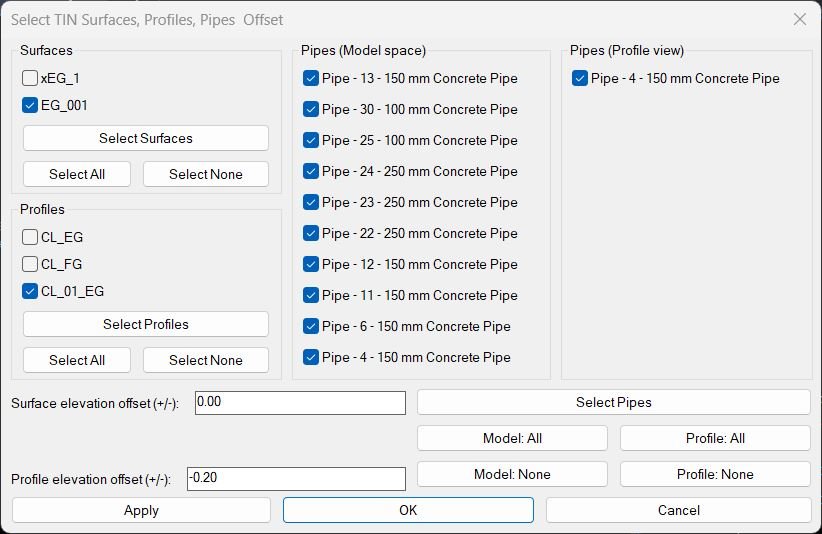
What this program does • Opens a dialog that lists all TIN surfaces and all profiles found in the current drawing, each with checkboxes. • Lets the user add pipes from Model space and pipes from Profile view into separate lists, using a single Select Pipes button. • For each checked pipe, computes new invert elevations from either the selected profiles or, if those are not valid, from the selected TIN surfaces. • Applies independent numeric offsets for surface elevation and profile elevation before setting pipe inverts. • Moves pipe start and end points vertically so that the pipe invert follows the chosen elevation source plus offset, accounting for the pipe inner diameter.

Helper function: (if any)​

Important helper logic • PipeSurf-AddPipesFromDrawing – scans selected entities, detects model pipes (AeccDbPipe) and profile view pipes (AeccDbGraphProfileNetworkPart), and maps them to their model pipes. • PipeSurf-SelectSurfacesFromDrawing – lets the user pick TIN surfaces in the drawing and automatically checks their items in the dialog list. • PipeSurf-SelectProfilesFromDrawing – lets the user pick profiles in the drawing and auto checks the corresponding profile toggles. • SetPipeInvertsToElevSources – core calculation that gets elevations from profiles or surfaces and sets the pipe start and end points accordingly. • PipeSurf-ApplyCurrent – applies the current selections and offsets to all chosen pipes and forces a REGEN so changes become visible immediately.

Functionalities:

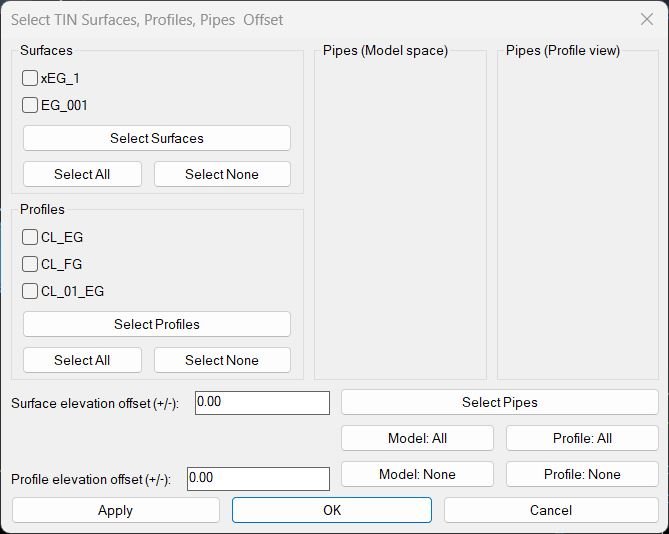
Functionalities • Surface selection area – List of all TIN surfaces with checkboxes, initially unchecked. – Select Surfaces button to pick surfaces from the drawing and auto check them. – Select All and Select None buttons to toggle all surface checkboxes at once. • Profile selection area – List of all profiles under all alignments, each with its display name and a checkbox, initially unchecked. – Select Profiles button to pick profiles in the drawing and auto check them. – Select All and Select None for profiles. • Pipes (Model space) list – Shows each added AeccDbPipe with label “DisplayName – PartSizeName” one below another. – Checkboxes control which model pipes will be processed. – Buttons Model: All and Model: None select or deselect all model pipes. • Pipes (Profile view) list – Shows pipes that were selected via profile view graphics using AeccDbGraphProfileNetworkPart and mapped to their model pipes. – Checkboxes control which of these mapped pipes are active. – Buttons Profile: All and Profile: None select or deselect all profile view pipes. • Select Pipes button – Wide button spanning under both pipe columns. – Lets the user repeatedly add pipes from Model space and Profile views without closing the dialog. • Elevation offset controls – One edit box for Surface elevation offset applied to surface based elevations. – One edit box for Profile elevation offset applied to profile based elevations. • Priority of elevation sources – For each pipe, the routine first tries all checked profiles to get station based elevations from the profile alignment. – If no valid profile elevation is found at both pipe ends, the routine falls back to the first checked surface that returns valid elevations. • Control buttons – Apply applies new elevations to all checked pipes using current settings and regenerates the drawing, while keeping the dialog open. – OK does the same as Apply and then closes the dialog. – Cancel closes the dialog without further processing.

Result:

Result • All selected pipes are repositioned so that their inverts follow either the chosen profiles or TIN surfaces, plus the specified offsets and pipe radius. • Pipes selected from profile views are correctly mapped back to their model pipes before adjustment. • The user can iteratively fine tune offsets and selections using the Apply button until the design intent is met, then confirm with OK or abort with Cancel.
::contentReference[oaicite:0]{index=0}

Images, animations etc.
pipes2surfacesprofileselevationtool 000
pipes2surfacesprofileselevationtool 001
Pixel

Additional info:

Share this page:

Leave a Reply

Page Tag: 🏷️ C3D_tools

  • Pipes2SurfacesProfilesElevationTool_vs.00

    Short description Short description This LISP lets the user align Civil 3D pipes to chosen TIN surfaces and or profiles using elevation offsets, with a dialog that supports multi selection, live Apply preview and final OK or Cancel confirmation. Command: Main command • PipeToSurface – launches the dialog and controls the entire workflow. Description: What…

  • SurfaceLocation

    Short description Comming soon … Command: Comming soon … Description: Comming soon … Helper function: (if any)​ Comming soon … Functionalities: Comming soon … Result: Comming soon … Images, animations etc. XAML file: Lisp code: Expand Code ⬇ Select Code Copy Code Comming soon … Share this page:

  • SampleLinesRename

    Short description Comming soon … Command: Comming soon … Description: Comming soon … Helper function: (if any)​ Comming soon … Functionalities: Comming soon … Result: Comming soon … Images, animations etc. XAML code: Expand Code ↓ Select Code Copy Code <ResourceDictionary xmlns="http://schemas.microsoft.com/winfx/2006/xaml/presentation" xmlns:x="http://schemas.microsoft.com/winfx/2006/xaml" xmlns:src="clr-namespace:Autodesk.Windows;assembly=AdWindows"> <src:RibbonToolTip x:Key="SampleLinesRename"> <src:RibbonToolTip.ExpandedContent> <StackPanel> <TextBlock Background="AntiqueWhite" TextAlignment="Left"> <Bold>Function Syntax: SLREPLACESEL /…

  • ProfileViewMatch

    Short description Comming soon … Command: Comming soon … Description: Comming soon … Helper function: (if any)​ Comming soon … Functionalities: Comming soon … Result: Comming soon … Images, animations etc. XAML code: Expand Code ↓ Select Code Copy Code <ResourceDictionary xmlns="http://schemas.microsoft.com/winfx/2006/xaml/presentation" xmlns:x="http://schemas.microsoft.com/winfx/2006/xaml" xmlns:src="clr-namespace:Autodesk.Windows;assembly=AdWindows"> <src:RibbonToolTip x:Key="ProfileViewMatch"> <src:RibbonToolTip.ExpandedContent> <StackPanel> <TextBlock Background="AntiqueWhite" TextAlignment="Left"> <Bold>Function Syntax: PVMATCHDCL /…

  • ImportOnlineMaps

    Short description Comming soon … Command: Comming soon … Description: Comming soon … Helper function: (if any)​ Comming soon … Functionalities: Comming soon … Result: Comming soon … Images, animations etc. XAML file: Lisp code: Expand Code ⬇ Select Code Copy Code Comming soon … Share this page:

  • StraightGrade

    Short description Comming soon … Command: Comming soon … Description: Comming soon … Helper function: (if any)​ Comming soon … Functionalities: Comming soon … Result: Comming soon … Images, animations etc. XAML code: Expand Code ↓ Select Code Copy Code <ResourceDictionary xmlns="http://schemas.microsoft.com/winfx/2006/xaml/presentation" xmlns:x="http://schemas.microsoft.com/winfx/2006/xaml" xmlns:src="clr-namespace:Autodesk.Windows;assembly=AdWindows"> <src:RibbonToolTip x:Key="StraightGrade"> <src:RibbonToolTip.ExpandedContent> <StackPanel> <TextBlock Background="AntiqueWhite" TextAlignment="Left"> <Bold>Function Syntax: StraightGrade</Bold> <LineBreak/>…

  • Profile2Poly

    Short description Comming soon … Command: Comming soon … Description: Comming soon … Helper function: (if any)​ Comming soon … Functionalities: Comming soon … Result: Comming soon … Images, animations etc. XAML code: Expand Code ↓ Select Code Copy Code <ResourceDictionary xmlns="http://schemas.microsoft.com/winfx/2006/xaml/presentation" xmlns:x="http://schemas.microsoft.com/winfx/2006/xaml" xmlns:src="clr-namespace:Autodesk.Windows;assembly=AdWindows"> <src:RibbonToolTip x:Key="Profile2Poly"> <src:RibbonToolTip.ExpandedContent> <StackPanel> <TextBlock Background="AntiqueWhite" TextAlignment="Left"> <Bold>Function Syntax: Profile2Poly</Bold> <LineBreak/>…

  • Section2Poly

    Short description Comming soon … Command: Comming soon … Description: Comming soon … Helper function: (if any)​ Comming soon … Functionalities: Comming soon … Result: Comming soon … Images, animations etc. XAML code: Expand Code ↓ Select Code Copy Code <ResourceDictionary xmlns="http://schemas.microsoft.com/winfx/2006/xaml/presentation" xmlns:x="http://schemas.microsoft.com/winfx/2006/xaml" xmlns:src="clr-namespace:Autodesk.Windows;assembly=AdWindows"> <src:RibbonToolTip x:Key="Section2Poly"> <src:RibbonToolTip.ExpandedContent> <StackPanel> <TextBlock Background="AntiqueWhite" TextAlignment="Left"> <Bold>Function Syntax: Section2Poly</Bold> <LineBreak/>…

  • PurgeStyles

    Short description Comming soon … Command: Comming soon … Description: Comming soon … Helper function: (if any)​ Comming soon … Functionalities: Comming soon … Result: Comming soon … Images, animations etc. XAML file: Lisp code: Expand Code ⬇ Select Code Copy Code Comming soon … Share this page:

  • ObjectLayerFreeze

    Short description Comming soon … Command: Comming soon … Description: Comming soon … Helper function: (if any)​ Comming soon … Functionalities: Comming soon … Result: Comming soon … Images, animations etc. XAML code: Expand Code ↓ Select Code Copy Code <ResourceDictionary xmlns="http://schemas.microsoft.com/winfx/2006/xaml/presentation" xmlns:x="http://schemas.microsoft.com/winfx/2006/xaml" xmlns:src="clr-namespace:Autodesk.Windows;assembly=AdWindows"> <src:RibbonToolTip x:Key="ObjectLayerFreeze"> <src:RibbonToolTip.ExpandedContent> <StackPanel> <TextBlock Background="AntiqueWhite" TextAlignment="Left"> <Bold>Function Syntax: OLF</Bold> <LineBreak/>…