Text2Multileader_01

Short description

Sort description Creates a new MLEADER from selected TEXT or MTEXT, using a selected LINE or POLYLINE as leader geometry, then deletes the source objects.

Command:

Command
  • am2.

Description:

Description
  • Prompts the user to select one or more TEXT or MTEXT entities and extracts their content.
  • Sorts the selected text objects by insertion point Y coordinate to build a readable top-to-bottom string sequence.
  • Concatenates all text strings into a single note, separated by spaces, then trims the final trailing space.
  • Computes a target text width as the maximum bounding-box width among the selected text objects.
  • Prompts the user to select a LINE or POLYLINE to define the leader start and end points.
  • Creates a MLEADER using the extracted points and assigns the concatenated text and computed width to the new leader.
  • If the leader creation succeeds, deletes the selected line or polyline and deletes the original text entities.

Helper function: (if any)​

Helper function
  • rjp-getbbwdth computes the text object width by calling vla-getboundingbox and measuring the horizontal distance between bounding box corners.
  • The widest text object determines the final TextWidth assigned to the created MLEADER.

Functionalities:

Functionalities
  • Creates one MLEADER from multiple text entities.
  • Automatically orders the note content using insertion point Y coordinates to preserve reading order in typical stacked notes.
  • Supports leader point extraction from LINE start and end points.
  • Supports leader point extraction from LWPOLYLINE or POLYLINE by using the first and last vertex coordinates.
  • Sets the leader text width using the maximum bounding-box width among selected text objects for more consistent wrapping behavior.
  • Performs cleanup by deleting the source leader geometry and deleting the original text objects after successful creation.
  • Prints warnings when the chosen polyline has insufficient points or when the selected leader object is not supported.

Result:

Result
  • A new MLEADER is created at the specified leader points, containing the combined text content and an assigned text width based on the widest selected text object.
  • The selected LINE or POLYLINE used for leader points is deleted after successful leader creation.
  • The originally selected TEXT or MTEXT entities are deleted after successful leader creation.
  • Tags: Mleader, Leader, Text, Mtext, Polyline, Coordinates, CAD, General_AutoCAD, Dimnesions Leader.
  • Suggested relevant tags not in the list: Annotation, Cleanup, Automation.

Images, animations etc.

Pixel

Additional info:

Share this page:

Leave a Reply

Page Tag: 🏷️ Autocad Lisps

  • Text2Multileader_01

    Short description Sort description Creates a new MLEADER from selected TEXT or MTEXT, using a selected LINE or POLYLINE as leader geometry, then deletes the source objects. Command: Command am2. Description: Description Prompts the user to select one or more TEXT or MTEXT entities and extracts their content. Sorts the selected text objects by insertion…

  • Text2Multileader

    XAML code: Expand Code ↓ Select Code Copy Code <ResourceDictionary xmlns="http://schemas.microsoft.com/winfx/2006/xaml/presentation" xmlns:x="http://schemas.microsoft.com/winfx/2006/xaml" xmlns:src="clr-namespace:Autodesk.Windows;assembly=AdWindows"> <src:RibbonToolTip x:Key="Text2Multileader"> <src:RibbonToolTip.ExpandedContent> <StackPanel> <TextBlock Background="AntiqueWhite" TextAlignment="Left"> <Bold>Function Syntax: am</Bold> <LineBreak/> <Hyperlink>https://autocadtips1.com/2012/09/28/text-to-multileader/</Hyperlink> <LineBreak/> <Bold>Text to Multileader</Bold> <LineBreak/> Posted on September 28, 2012 by AutoCAD Tips This routine will allow you to select either an MTEXT or DTEXT (single line text) object and…

  • SetPublishLocation_01

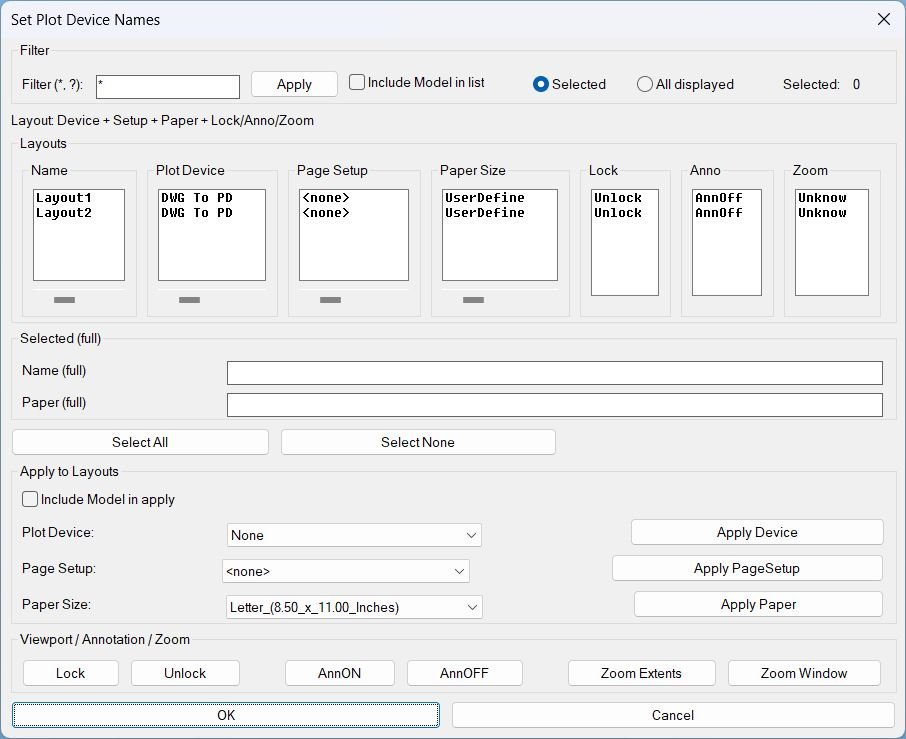
    Short description Summary This LISP provides a dialog to review and batch-edit plotting and layout settings across multiple layouts, plus viewport utilities for lock, annotation visibility, and zoom tools. Designed for fast QA and standardization of Plot Device, Page Setup, and Paper Size per layout. Command: Command Run: SetPlotDeviceNames Opens the DCL dialog for layout…
  • SetPlotDeviceNames

    XAML code: Expand Code ↓ Select Code Copy Code <ResourceDictionary xmlns="http://schemas.microsoft.com/winfx/2006/xaml/presentation" xmlns:x="http://schemas.microsoft.com/winfx/2006/xaml" xmlns:src="clr-namespace:Autodesk.Windows;assembly=AdWindows"> <src:RibbonToolTip x:Key="SetPlotDeviceNames"> <src:RibbonToolTip.ExpandedContent> <StackPanel> <TextBlock Background="AntiqueWhite" TextAlignment="Left"> <Bold>Function Syntax: SetPlotDeviceNames</Bold> <LineBreak/> <Bold>Version: 1 Date: 17.10.2025</Bold> <Bold>Version: 2 Date: 01.01.2026</Bold> <LineBreak/> <LineBreak/> <Hyperlink>AI+https://www.cadtutor.net/forum/topic/17353-change-printer/</Hyperlink> <Hyperlink>AI+https://forums.autodesk.com/t5/visual-lisp-autolisp-and-general/assign-a-page-setup-to-all-layout-tabs-prior-to-or-without-going/m-p/11757775#M34324</Hyperlink> <LineBreak/> <Bold>Title</Bold><LineBreak/> SetPlotDeviceNames LISP for AutoCAD layouts and plotting management<LineBreak/> <LineBreak/> <Bold>Description</Bold><LineBreak/> This program opens a dialog that lets…

  • DuplicateLayouts_01

    Short description DuplicateLayouts provides a DCL Dialog_UI to queue layout tabs with copy counts, then batch duplicate them using -LAYOUT Copy with safe fallbacks and unique naming. Command: Commands DuplicateLayouts opens the dialog and runs the full tool workflow. Description: What the user does Run DuplicateLayouts to open the DCL dialog. Select a layout in…

  • DuplicateLayouts

    XAML code: Expand Code ↓ Select Code Copy Code <ResourceDictionary xmlns="http://schemas.microsoft.com/winfx/2006/xaml/presentation" xmlns:x="http://schemas.microsoft.com/winfx/2006/xaml" xmlns:src="clr-namespace:Autodesk.Windows;assembly=AdWindows"> <src:RibbonToolTip x:Key="DuplicateLayouts"> <src:RibbonToolTip.ExpandedContent> <StackPanel> <TextBlock Background="AntiqueWhite" TextAlignment="Left"> <Bold>Function Syntax: DuplicateLayouts</Bold> <LineBreak/> <Hyperlink>N/A</Hyperlink> <LineBreak/> <Bold>DuplicateLayouts summary</Bold><LineBreak/> This program opens a <DarkRed>Dialog UI (DCL)</DarkRed> that lets the user pick existing <DarkRed>layout tabs</DarkRed>, set how many copies to create for each one, then duplicates them…

  • LayoutTools

    Short description LayoutTools manages layout tabs to batch Lock or Unlock viewports, toggle AnnON or AnnOFF, and apply Zoom Extents or Zoom Window in Paper Space across selected or displayed layouts, with status tracking stored in the DWG. Command: Commands and aliases LayoutTools opens the main dialog. LayoutTools is an alias that runs the same…

  • Zoom Extend Window

    Short description What this LISP does ZEZW opens a DCL dialog to multi-select layouts and then applies Zoom Extents or Zoom Window in Paper Space on the selected layouts. Key concept The zoom action runs after the dialog closes for stability and predictable execution. Command: Commands ZEZW Main command that launches the selection dialog and…