
Short description
🚀 CreateBlockSelect.lsp is an AutoCAD and Civil 3D AutoLISP block creation utility that converts selected drawing entities into reusable named blocks with automatic numbering, insertion-point control, layer assignment, optional MText labels, optional TAG attributes, block renaming, and a dedicated undo action. It improves CAD productivity by reducing repetitive drafting steps and helping users maintain cleaner drawing standards.
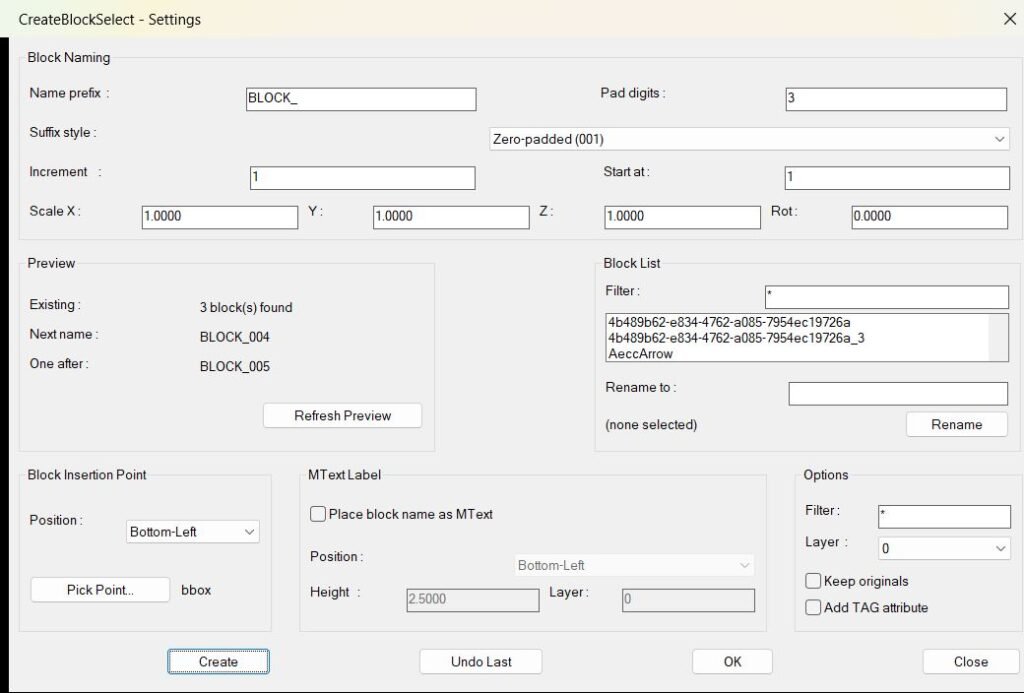
Command:
📌 Main commands:
🧰 Loading method: load
🧱
🔄
🟢
✅
↩️
🔴
🎯 Target platform: AutoCAD and Civil 3D with AutoLISP and Visual LISP COM support, using functions such as
CreateBlockSelect and CreateBlockSelect1.🧰 Loading method: load
CreateBlockSelect.lsp in AutoCAD or Civil 3D using APPLOAD, then run the command from the AutoCAD command line.🧱
CreateBlockSelect creates one block from the full user selection.🔄
CreateBlockSelect1 creates one separate block for each selected entity.🟢
Create starts the block creation process using the current dialog settings.✅
OK saves the dialog settings and closes the DCL window.↩️
Undo Last reverses the last block creation operation made during the current command session.🔴
Close exits the dialog without continuing the creation workflow.🎯 Target platform: AutoCAD and Civil 3D with AutoLISP and Visual LISP COM support, using functions such as
vl-load-com, vla-copyobjects, vla-insertblock, vla-addmtext, and vla-addattribute.
Description:
🧠 This AutoLISP project is designed to speed up AutoCAD and Civil 3D block creation workflows by allowing users to convert selected drawing objects into structured, reusable, and consistently named block definitions.
The user starts the command, configures the
The command
The updated interface separates
Although this routine can be used inside Civil 3D drawings, it does not directly edit Civil 3D-specific objects such as
The user starts the command, configures the
CreateBlockSelect - Settings DCL dialog, selects a block name prefix, suffix style, start number, increment, padding digits, insertion-point position, scale, rotation, target layer, MText label options, TAG attribute options, and original-object behavior. After the user clicks Create, the program asks for drawing entities, creates the block definition, inserts the new block reference, and optionally places a block-name MText label or TAG attribute.The command
CreateBlockSelect is used when the selected objects should become one combined block. The command CreateBlockSelect1 is used when every selected entity should become its own separate block. This makes the tool useful for CAD technicians, AutoCAD users, Civil 3D designers, drafting teams, survey drawing cleanup, block library creation, and production drawing standardization.The updated interface separates
Create, OK, Undo Last, and Close into different actions. This gives the user clearer control over when to create geometry, when to save settings, when to undo the previous operation, and when to close the dialog.Although this routine can be used inside Civil 3D drawings, it does not directly edit Civil 3D-specific objects such as
ProfileView, SectionView, Alignment, corridor models, labels, bands, styles, or export tables. Its main purpose is AutoCAD block automation inside drawings that may also contain Civil 3D design objects.
Helper function: (if any)
- 🧠 Settings persistence — the configuration logic stores values such as prefix, suffix style, increment, padding, scale, rotation, layer, MText options, TAG attribute options, and dialog position in
CreateBlockSelect_v4.cfg. - 🔢 Automatic numbering system — helper logic formats block names using zero-padded, decimal, hexadecimal, or alphabetic suffix styles, making the naming workflow flexible for different CAD standards.
- 🏷️ Block name scanning — the program checks existing block definitions before creating a new one, helping avoid duplicate block names and reducing manual cleanup.
- 📌 Preview refresh logic — the dialog displays existing matching block count, the next generated block name, and the following block name before the user creates new blocks.
- 📐 Bounding-box insertion logic — the code calculates object extents and uses nine placement modes such as Top-Left, Middle-Center, and Bottom-Left to define the block insertion point.
- 🟢 Manual pick-point system — the
Pick Pointaction lets the user choose a custom insertion point directly in the drawing instead of relying only on the calculated bounding box. - 🎨 Layer filtering system — layer helper logic reads drawing layers and allows wildcard filtering with patterns such as
*and?. - 🔍 Block list filtering — the dialog lists existing non-anonymous blocks and lets the user filter block names for faster lookup in large drawings.
- 📝 MText label logic — the MText controls allow the generated block name to be placed as a readable drawing label with independent position, height, and layer settings.
- 🏷️ TAG attribute logic — when enabled, the routine adds a
TAGattribute definition and assigns the generated block name as the inserted block attribute value. - ↩️ Undo tracking system — the updated code provides an
Undo Lastaction so the user can reverse the latest block creation from the current command session. - 🔒 Undo mark handling — AutoCAD undo marks help keep the creation workflow safer and make it easier to revert generated block operations.
- 🧩 DCL dialog control — the dialog separates
Create,OK,Undo Last, andCloseso the interface is easier to understand and less likely to close unexpectedly. - 🔐 Platform requirement — this is an AutoLISP and Visual LISP COM routine, not a compiled C# or .NET plugin. It requires AutoCAD or Civil 3D with Visual LISP COM support.
Functionalities:
- 🚀 Create one block from selected geometry —
CreateBlockSelectconverts the full selected object set into one reusable AutoCAD block. - 🔄 Create one block per selected entity —
CreateBlockSelect1creates a separate named block from each selected object for faster batch block production. - 🔢 Automatic block numbering — generates block names using prefix, start number, increment, padding digits, and suffix style.
- 🏷️ Duplicate block-name protection — checks existing block definitions and skips names that are already used in the drawing.
- 📌 Live name preview — shows the current matching block count, next available block name, and following generated block name.
- 📐 Nine insertion-point positions — supports Top-Left, Top-Center, Top-Right, Middle-Left, Middle-Center, Middle-Right, Bottom-Left, Bottom-Center, and Bottom-Right.
- 🟢 Manual insertion point — allows the user to click a custom base point in the drawing with
Pick Point. - 🎨 Layer assignment — places inserted block references on a selected target layer to improve drawing organization.
- 🔍 Layer wildcard filtering — helps users find layers quickly in complex AutoCAD and Civil 3D drawings.
- 🧩 Existing block browser — displays block definitions already available in the drawing for review and management.
- 📝 Block rename tool — lets the user rename a selected block while checking that the new name is available.
- 🏷️ Optional TAG attribute — adds a
TAGattribute to the block and fills it with the generated block name. - 📝 Optional MText label — places the generated block name as an MText label for visual identification in the drawing.
- 📐 Independent MText placement — lets the MText label use its own position, height, and layer separate from the block reference.
- 🧹 Keep or erase source objects — gives the user control over whether the original selected entities remain after block creation.
- ↩️ Undo Last button — reverses the latest creation operation directly from the dialog during the active command session.
- ✅ Separate OK button — saves the current dialog configuration and closes the settings window without forcing block creation.
- 🟢 Separate Create button — starts block creation only when the user explicitly chooses to create geometry.
- 🔴 Separate Close button — exits the dialog cleanly without continuing the workflow.
- 💾 Persistent settings — remembers user preferences between command runs to reduce repetitive setup.
- 🔐 Important limitation — the tool automates AutoCAD block creation only and does not directly modify Civil 3D objects such as
ProfileView,SectionView,Alignment, labels, bands, styles, or export data.
Result:
📘 The final result is a faster, safer, and more organized AutoCAD block creation workflow. Users can generate named blocks, control insertion points, assign layers, add MText labels, add TAG attributes, rename existing blocks, and undo the latest creation action from a single DCL interface. This reduces repetitive manual drafting, improves CAD quality control, supports cleaner AutoCAD and Civil 3D drawing management, and helps production teams maintain consistent block naming standards with fewer errors.
Images, animations etc.
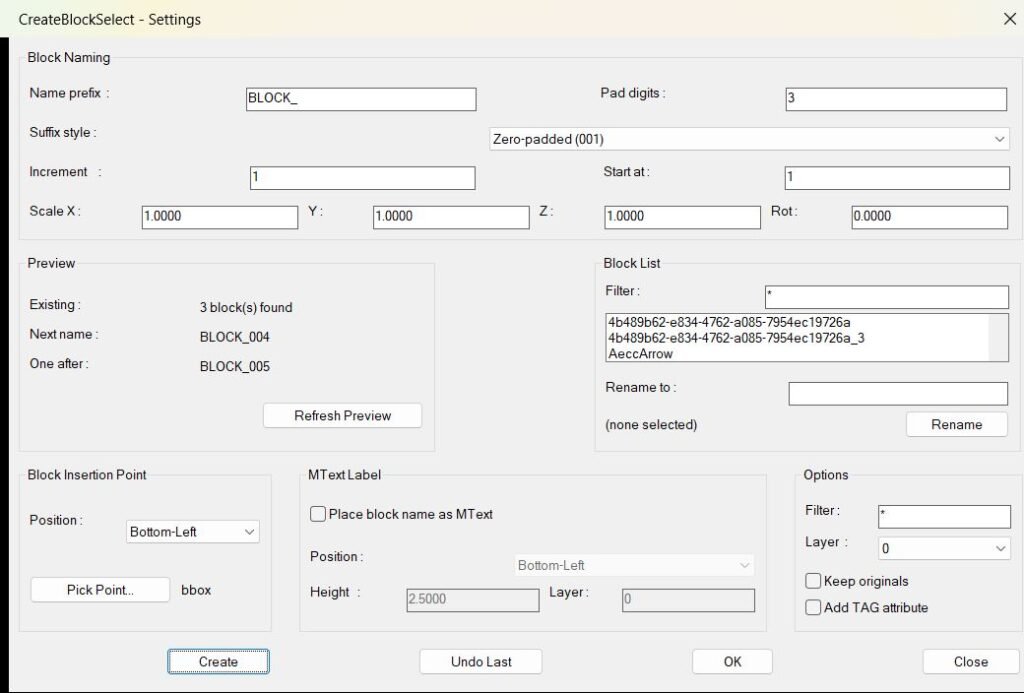
XAML code:
<ResourceDictionary
xmlns="http://schemas.microsoft.com/winfx/2006/xaml/presentation"
xmlns:x="http://schemas.microsoft.com/winfx/2006/xaml"
xmlns:src="clr-namespace:Autodesk.Windows;assembly=AdWindows">

<src:RibbonToolTip x:Key="CreateBlockSelect">
<src:RibbonToolTip.ExpandedContent>
<StackPanel>
<TextBlock Background="AntiqueWhite" TextAlignment="Left">
<Bold>Function Syntax: CreateBlockSelect / CreateBlockSelect1</Bold>
<LineBreak/>
<Bold>Version: 1.0 Date: 09.04.2026</Bold>
<LineBreak/>
<Bold>Version: 1.1 Date: 20.06.2026 6:38:48PM</Bold>
<LineBreak/>
<Hyperlink>N/A</Hyperlink>
<LineBreak/>

<Bold>SEO Title:</Bold> AutoCAD AutoLISP Block Creation Tool with Smart Selection, Naming, Layers, MText Labels, and Block Rename Tools ??<LineBreak/> <Bold>Meta Description:</Bold> CreateBlockSelect.lsp is an AutoCAD AutoLISP utility that helps users convert selected drawing entities into named blocks with automatic numbering, custom insertion points, layer control, optional MText labels, and block rename tools.<LineBreak/> <Bold>SEO Keywords:</Bold> AutoCAD AutoLISP block creator, Civil 3D block automation, AutoCAD selection to block, AutoLISP DCL dialog, automatic block naming, AutoCAD MText label, block rename AutoLISP, CAD productivity tool<LineBreak/> <Bold>Suggested URL Slug:</Bold> autocad-autolisp-create-block-select-tool<LineBreak/>
<Bold>?? Plugin Type:</Bold> AutoCAD AutoLISP utility with a generated DCL settings dialog.<LineBreak/> <Bold>Important Note:</Bold> This uploaded file is an <Run Foreground="DarkRed">AutoLISP LSP script</Run>, not a C# plugin project.<LineBreak/>
<Bold>?? Main Purpose:</Bold><LineBreak/>
This program helps AutoCAD and Civil 3D users quickly convert selected drawing geometry into reusable named blocks through an interactive settings dialog.<LineBreak/>
It is designed to save time when creating many blocks that need consistent names, numbering, layers, insertion points, optional labels, and optional attributes.<LineBreak/>
<Bold>?? Main Commands:</Bold><LineBreak/>
 <Bold><Run Foreground="DarkRed">CreateBlockSelect</Run></Bold> creates <Bold>one single block</Bold> from all selected entities.<LineBreak/>
 <Bold><Run Foreground="DarkRed">CreateBlockSelect1</Run></Bold> creates <Bold>one separate block for each selected entity</Bold>.<LineBreak/>
<Bold>?? User Workflow:</Bold><LineBreak/>
 The user runs <Bold><Run Foreground="DarkRed">CreateBlockSelect</Run></Bold> or <Bold><Run Foreground="DarkRed">CreateBlockSelect1</Run></Bold> from the AutoCAD command line.<LineBreak/>
 The program opens a custom <Run Foreground="DarkRed">CreateBlockSelect - Settings</Run> dialog.<LineBreak/>
 The user configures the block name prefix, numbering style, insertion point, scale, rotation, target layer, MText label options, and original-object behavior.<LineBreak/>
 The user clicks <Bold><Run Foreground="DarkRed">Create</Run></Bold>.<LineBreak/>
 The program asks the user to select drawing entities in AutoCAD.<LineBreak/>
 The selected geometry is copied into a new block definition.<LineBreak/>
 A block reference is inserted back into the drawing at the calculated or manually picked insertion point.<LineBreak/>
 The dialog reopens after creation so the user can continue creating more blocks without restarting the command.<LineBreak/>
 The user clicks <Bold><Run Foreground="DarkRed">Close</Run></Bold> to exit the tool.<LineBreak/>
<Bold>? Key Functionalities:</Bold><LineBreak/>
 ?? <Bold>Selection to Block:</Bold> Converts selected AutoCAD entities into named block definitions.<LineBreak/>
 ?? <Bold>Batch Block Creation:</Bold> Supports creating one block from the full selection or separate blocks from each selected entity.<LineBreak/>
 ??? <Bold>Automatic Block Naming:</Bold> Generates block names using a prefix, start number, increment value, padding, and suffix style.<LineBreak/>
 ?? <Bold>Multiple Numbering Formats:</Bold> Supports zero-padded numbers, decimal values, hexadecimal suffixes, and alphabetic suffixes.<LineBreak/>
 ??? <Bold>Live Name Preview:</Bold> Shows the number of matching existing blocks, the next available block name, and the following available name.<LineBreak/>
 ?? <Bold>Smart Insertion Point:</Bold> Lets the user choose from nine bounding-box positions such as top-left, middle-center, bottom-left, and bottom-right.<LineBreak/>
 ??? <Bold>Manual Pick Point:</Bold> Allows the user to click a custom insertion point directly in the drawing.<LineBreak/>
 ?? <Bold>Scale and Rotation Control:</Bold> Applies custom X, Y, Z scale values and rotation when inserting the new block reference.<LineBreak/>
 ?? <Bold>Layer Assignment:</Bold> Places the inserted block reference on a selected drawing layer.<LineBreak/>
 ?? <Bold>Layer Filtering:</Bold> Provides wildcard filtering for the layer list using patterns such as <Run Foreground="DarkRed">*</Run> and <Run Foreground="DarkRed">?</Run>.<LineBreak/>
 ?? <Bold>Block List Browser:</Bold> Displays existing blocks in the drawing and supports wildcard filtering.<LineBreak/>
 ?? <Bold>Block Rename Tool:</Bold> Lets the user select an existing block from the list and rename it directly from the dialog.<LineBreak/>
 ?? <Bold>Optional MText Label:</Bold> Can place the generated block name as an MText label in the drawing.<LineBreak/>
 ?? <Bold>Independent MText Position:</Bold> The MText label has its own nine-position insertion setting separate from the block insertion point.<LineBreak/>
 ?? <Bold>MText Height Control:</Bold> Allows the user to define the text height for the block-name label.<LineBreak/>
 ??? <Bold>MText Layer Control:</Bold> Allows the label to be placed on a dedicated layer.<LineBreak/>
 ??? <Bold>Optional TAG Attribute:</Bold> Can add a TAG attribute definition to the block and synchronize the inserted attribute value with the block name.<LineBreak/>
 ?? <Bold>Keep or Erase Originals:</Bold> The user can keep the original selected geometry or erase it after block creation.<LineBreak/>
 ?? <Bold>Persistent Settings:</Bold> Saves user settings to a temporary configuration file so the dialog remembers previous values.<LineBreak/>
 ?? <Bold>Dialog Position Memory:</Bold> Stores the last dialog screen position and restores it across AutoCAD sessions.<LineBreak/>
 ??? <Bold>Undo Support:</Bold> Wraps block creation operations with AutoCAD undo marks for safer editing.<LineBreak/>
 ?? <Bold>Diagnostic Output:</Bold> Prints debug information to the AutoCAD command line to help identify errors during block creation.<LineBreak/>
<Bold>?? What <Run Foreground="DarkRed">CreateBlockSelect</Run> Does:</Bold><LineBreak/>
The <Bold><Run Foreground="DarkRed">CreateBlockSelect</Run></Bold> command requires the user to select one or more drawing objects.<LineBreak/>
All selected objects are grouped into one new block definition.<LineBreak/>
The block is inserted back into the drawing at the selected insertion point.<LineBreak/>
This command is best for converting a complete selected group of geometry into one reusable block.<LineBreak/>
<Bold>?? What <Run Foreground="DarkRed">CreateBlockSelect1</Run> Does:</Bold><LineBreak/>
The <Bold><Run Foreground="DarkRed">CreateBlockSelect1</Run></Bold> command requires the user to select multiple entities.<LineBreak/>
Each selected entity is processed independently.<LineBreak/>
Each entity becomes its own separate block with its own automatically generated name.<LineBreak/>
This command is useful when many individual objects need to become separate reusable blocks quickly.<LineBreak/>
<Bold>??? Block Naming System:</Bold><LineBreak/>
 The user defines a name prefix such as <Run Foreground="DarkRed">BLOCK_</Run>.<LineBreak/>
 The user defines the starting number.<LineBreak/>
 The user defines the increment value.<LineBreak/>
 The user defines the number of padded digits.<LineBreak/>
 The program scans the existing block table to avoid duplicate block names.<LineBreak/>
 The program automatically skips existing names and finds the next available valid block name.<LineBreak/>
<Bold>?? Supported Suffix Styles:</Bold><LineBreak/>
 <Bold>Zero-padded:</Bold> Creates names such as <Run Foreground="DarkRed">BLOCK_001</Run>, <Run Foreground="DarkRed">BLOCK_002</Run>, and <Run Foreground="DarkRed">BLOCK_003</Run>.<LineBreak/>
 <Bold>Decimal:</Bold> Creates numeric decimal-style suffixes.<LineBreak/>
 <Bold>Hexadecimal:</Bold> Creates names using hexadecimal numbering.<LineBreak/>
 <Bold>Alphabetic:</Bold> Creates alphabet-based suffixes such as A, B, C, and extended alphabetic values.<LineBreak/>
<Bold>?? Insertion Point Options:</Bold><LineBreak/>
 Top-Left<LineBreak/>
 Top-Center<LineBreak/>
 Top-Right<LineBreak/>
 Middle-Left<LineBreak/>
 Middle-Center<LineBreak/>
 Middle-Right<LineBreak/>
 Bottom-Left<LineBreak/>
 Bottom-Center<LineBreak/>
 Bottom-Right<LineBreak/>
<Bold>?? Default Insertion Point:</Bold> <Run Foreground="DarkRed">Bottom-Left</Run> is used by default when no custom point is selected.<LineBreak/>
<Bold>?? Geometry Handling:</Bold><LineBreak/>
 The code calculates the bounding box of the selected objects.<LineBreak/>
 The bounding box is used to determine the selected insertion point location.<LineBreak/>
 If the user chooses <Bold><Run Foreground="DarkRed">Pick Point</Run></Bold>, the manually clicked point overrides the automatic bounding-box point.<LineBreak/>
 The selected entities are copied into the new block definition.<LineBreak/>
 The new block reference is inserted into the same drawing space as the original objects.<LineBreak/>
<Bold>?? MText Label Feature:</Bold><LineBreak/>
 The user can enable <Run Foreground="DarkRed">Place block name as MText</Run>.<LineBreak/>
 When enabled, the program creates an MText object containing the generated block name.<LineBreak/>
 The MText insertion point can be different from the block insertion point.<LineBreak/>
 The MText height can be customized.<LineBreak/>
 The MText can be assigned to a specific layer.<LineBreak/>
 The MText width is calculated based on the text height and the length of the block name.<LineBreak/>
<Bold>??? TAG Attribute Feature:</Bold><LineBreak/>
 When <Run Foreground="DarkRed">Add TAG attribute</Run> is enabled, the program adds an attribute definition to the block.<LineBreak/>
 The attribute tag is named <Run Foreground="DarkRed">TAG</Run>.<LineBreak/>
 The attribute prompt is <Run Foreground="DarkRed">Block Name</Run>.<LineBreak/>
 The inserted block reference receives the generated block name as the attribute value.<LineBreak/>
 This makes the block easier to identify, schedule, tag, or extract later.<LineBreak/>
<Bold>??? Layer Management:</Bold><LineBreak/>
 The program reads all layers from the drawing.<LineBreak/>
 The user can filter layers using wildcard patterns.<LineBreak/>
 The selected layer is applied to the inserted block reference.<LineBreak/>
 The MText label can use its own separate layer setting.<LineBreak/>
<Bold>?? Existing Block Management:</Bold><LineBreak/>
 The dialog displays a list of existing blocks in the drawing.<LineBreak/>
 Anonymous system blocks are skipped from the block list.<LineBreak/>
 The user can filter the block list with wildcard patterns.<LineBreak/>
 The user can select an existing block, enter a new name, and click <Bold><Run Foreground="DarkRed">Rename</Run></Bold>.<LineBreak/>
 The code checks whether the new block name already exists before renaming.<LineBreak/>
<Bold>?? Saved Settings:</Bold><LineBreak/>
 The program writes settings to <Run Foreground="DarkRed">CreateBlockSelect_v4.cfg</Run> in the AutoCAD temporary folder.<LineBreak/>
 Saved values include prefix, increment, padding, insertion point, suffix style, start number, scale, rotation, layer, keep-originals option, TAG option, MText options, and dialog position.<LineBreak/>
 The next time the command runs, the dialog reloads these values automatically.<LineBreak/>
<Bold>?? Dialog Behavior:</Bold><LineBreak/>
 The dialog is generated dynamically as a temporary DCL file.<LineBreak/>
 The dialog contains block naming controls, preview controls, block list controls, insertion point controls, MText controls, layer controls, and action buttons.<LineBreak/>
 Clicking <Bold><Run Foreground="DarkRed">Create</Run></Bold> closes the dialog, performs the block creation, then reopens the dialog for another operation.<LineBreak/>
 Clicking <Bold><Run Foreground="DarkRed">Pick Point</Run></Bold> temporarily closes the dialog, lets the user choose a point in the drawing, then reopens the dialog.<LineBreak/>
 Clicking <Bold><Run Foreground="DarkRed">Close</Run></Bold> exits the command.<LineBreak/>
<Bold>??? Safety and Error Handling:</Bold><LineBreak/>
 The program uses AutoCAD undo marks around the creation process.<LineBreak/>
 The program catches cancel, break, and exit events without displaying unnecessary error messages.<LineBreak/>
 The debug helper prints key variables and operation status to the command line.<LineBreak/>
 Some COM operations are wrapped with error handling to reduce crashes during attribute and MText creation.<LineBreak/>
<Bold>?? Technical Note:</Bold><LineBreak/> <Run Foreground="Red">The preview refresh function appears to contain a malformed expression when calculating the One after name.</Run><LineBreak/>
The suspicious part is <Run Foreground="DarkRed">*CreateBlockSelect-bp*val2*CreateBlockSelect-inc*</Run>, which looks like several variables were accidentally joined into one symbol.<LineBreak/>
The intended logic appears to be calculating the next available name after the current next name.<LineBreak/>
This may affect the preview display and should be reviewed before production use.<LineBreak/>
<Bold>?? Best Use Cases:</Bold><LineBreak/>
 Creating many numbered AutoCAD blocks from selected geometry.<LineBreak/>
 Converting repeated CAD objects into reusable block definitions.<LineBreak/>
 Preparing Civil 3D or AutoCAD drawings for cleaner object organization.<LineBreak/>
 Creating named blocks with consistent labels and attributes.<LineBreak/>
 Quickly renaming existing block definitions from a dialog interface.<LineBreak/>
 Building CAD libraries with predictable naming standards.<LineBreak/>
<Bold>?? Main Benefits:</Bold><LineBreak/>
 Saves drafting time by automating repetitive block creation.<LineBreak/>
 Reduces naming mistakes by automatically finding available block names.<LineBreak/>
 Improves drawing organization with layer control and naming rules.<LineBreak/>
 Makes blocks easier to identify with optional MText labels and TAG attributes.<LineBreak/>
 Speeds up batch workflows by reopening the dialog after each creation.<LineBreak/>
 Helps maintain CAD standards through consistent prefixes, numbering, scale, rotation, and layer settings.<LineBreak/>
<Bold>?? Website Summary:</Bold><LineBreak/> <Run Foreground="DarkRed">CreateBlockSelect.lsp</Run> is a productivity-focused AutoCAD AutoLISP tool that converts selected drawing entities into clean, named, reusable blocks.<LineBreak/>
It includes automatic block naming, duplicate-name avoidance, layer selection, insertion-point control, optional MText labels, optional TAG attributes, block renaming, wildcard filtering, persistent settings, and dialog position memory.<LineBreak/>
The tool is especially useful for CAD users who need to create many organized blocks quickly while maintaining consistent naming and drafting standards.<LineBreak/>


</TextBlock>
<Grid>
<Image Source="Image_000.jpg" Stretch="Uniform"/>
</Grid>
</StackPanel>
</src:RibbonToolTip.ExpandedContent>
</src:RibbonToolTip>
</ResourceDictionary>
Additional info:
Based on / Source code:
Open Website
Leave a Reply
You must be logged in to post a comment.