
Short description
🎨 ChangeVPLayerColor is an AutoCAD and Civil 3D AutoLISP VP Manager for applying viewport layer color overrides across selected layout viewports.
🧰 It provides filtered layer selection, Bestand/Neu color presets, paginated preset configuration dialogs, target-layout selection, and VPLAYER-based VP color assignment.
Command:
🚀 Main command: ChangeVPLayerColor
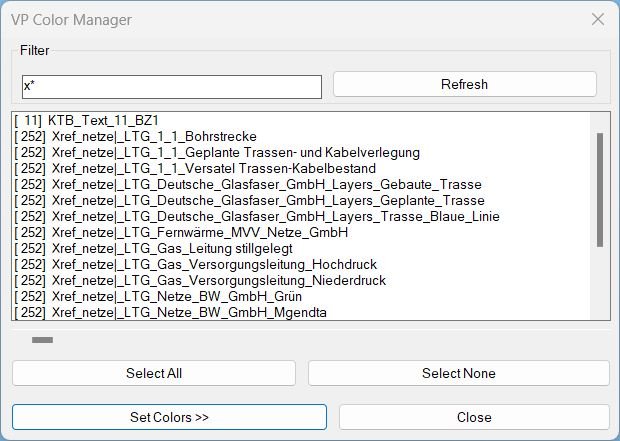
🎨 Main dialog: VP Manager v19.1 / VP Layer Color Tool
🧰 Workflow: filter layers, select layers, configure Bestand/Neu presets, choose colors, select target layouts, then apply viewport color overrides.
Description:
🎨 ChangeVPLayerColor is an SEO-friendly AutoCAD viewport layer color management tool for Civil 3D layout production and utility-plan presentation.
🔍 The main dialog builds a sorted layer list with current color values, a filter field, Apply and Refresh actions, Select All / Select None, and a horizontal display offset slider for long layer names.
🧩 The tool includes Config Bestand and Config Neu paginated dialogs where preset layer/color entries can be enabled or disabled before applying predefined color schemes.
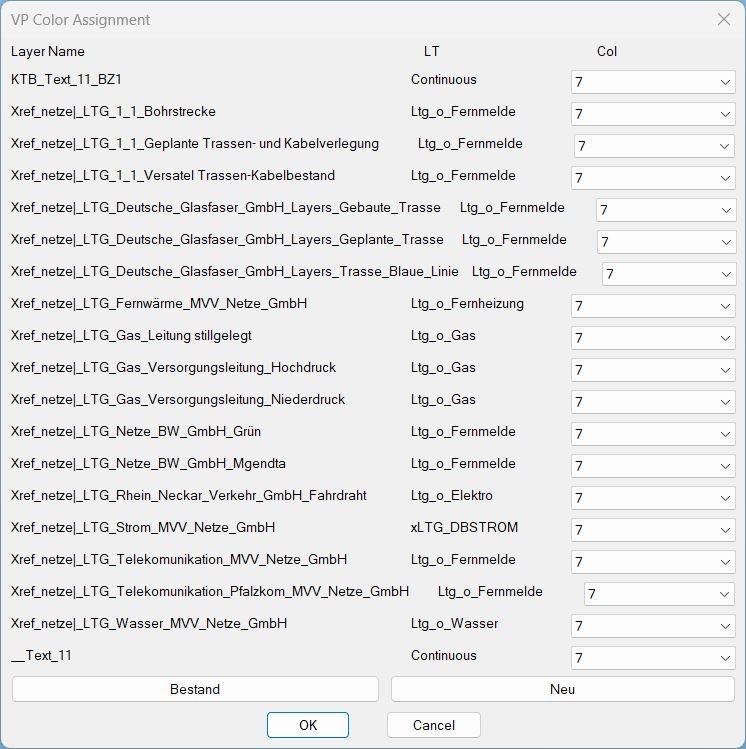
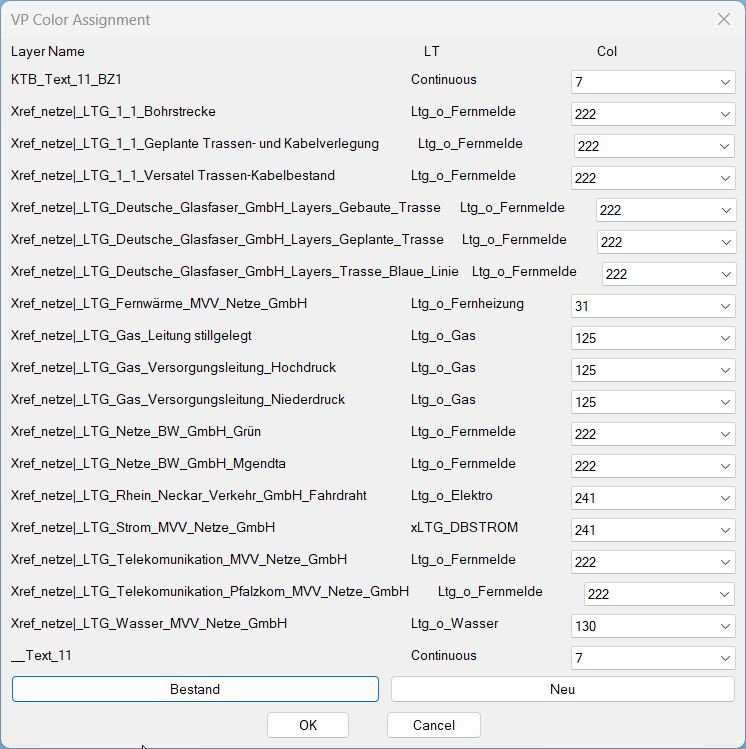
📐 The VP Color Assignment dialog lists selected layers with their linetype and color popup lists, then applies the selected colors to every real viewport in the chosen target layouts using the AutoCAD VPLAYER command.
📌 This is useful for Civil 3D viewport graphics, utility line color overrides, Bestand/Neu plan styling, layout-specific plotting, and CAD production workflows that require different colors in Paper Space viewports.
Helper function: (if any)
🧩 LC:S normalizes nil and symbol values into safe strings for dialog display.
🧩 LC:GetLT reads the linetype of a layer from the AutoCAD Layers collection and removes xref prefixes from linetype names when needed.
🧩 LC:BuildList scans drawing layers, applies the name filter, formats color numbers, sorts layer names, and supports horizontal text offset.
🧩 LC:ConfigDlg builds paginated preset configuration dialogs with filter, page select all/none, global select all/none, Back, Next, OK, and Cancel.
🧩 LC:ApplyBst and LC:ApplyNeu apply Bestand or Neu preset color choices while respecting the checked state from the configuration dialogs.
🧩 LC:ApplyToLayouts switches target layouts, finds viewport entities, skips paper-space viewport id 1, and runs VPLAYER Color for selected layers.
🧩 LC:Bulk opens the VP Color Assignment dialog and drives the layer-to-color mapping workflow.
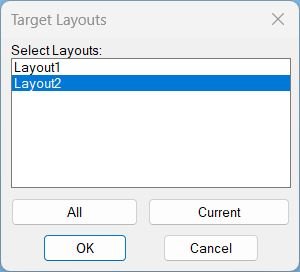
🧩 LC:LayPick lets the user choose target layouts, select all layouts, or select the current layout.
Functionalities:
✅ 🎨 Apply VP layer color overrides to selected layers in selected layout viewports.
✅ 🔍 Filter the drawing layer list and refresh layer data from the current drawing.
✅ 🧰 Select all or none from the visible layer list for faster bulk processing.
✅ 📄 Use Config Bestand and Config Neu paginated dialogs to decide which preset entries are active.
✅ 🟢 Apply Bestand and Neu preset buttons only to checked preset entries.
✅ 🎛️ Choose fixed ACI/true-color style values or open the AutoCAD color palette option.
✅ 📐 Pick target layouts and apply the VPLAYER override to viewport entities with id greater than 1.
✅ 🔄 Return to the VP Manager main dialog after preset configuration or color assignment.
Result:
🎯 The result is a faster viewport-color override workflow for AutoCAD and Civil 3D layout sheets.
✅ Users can standardize Paper Space viewport colors for existing utilities, new utilities, xref-derived layers, and project-specific layer naming schemes without manually entering repeated VPLAYER commands.
Images, animations etc.
XAML code:
<ResourceDictionary
xmlns="http://schemas.microsoft.com/winfx/2006/xaml/presentation"
xmlns:x="http://schemas.microsoft.com/winfx/2006/xaml"
xmlns:src="clr-namespace:Autodesk.Windows;assembly=AdWindows">
<src:RibbonToolTip x:Key="ChangeVPLayerColor">
<src:RibbonToolTip.ExpandedContent>
<StackPanel>
<TextBlock Background="AntiqueWhite" TextAlignment="Left">
<Bold>Function Syntax: ChangeVPLayerColor</Bold>
<LineBreak/>
<Bold>Version: 1.1 Date: 20.06.2026 6:38:54PM</Bold>
<LineBreak/>
<Hyperlink>N/A</Hyperlink>
<LineBreak/>
<Bold>Description</Bold>
<LineBreak/>
This LISP utility, <Bold><Span Foreground="DarkRed">ChangeVPLayerColor</Span></Bold>, is a professional drafting tool designed to automate the management of <Span Foreground="DarkRed">Viewport Layer Color Overrides</Span> across multiple layouts simultaneously.
<LineBreak/>
It eliminates the tedious manual task of entering each viewport to change colors by providing a centralized dashboard to filter layers, assign colors based on standardized linetype configurations, and batch-apply these changes to specific sheet sets.
<LineBreak/>
<Bold>Functionalities</Bold>
<LineBreak/>
<Span Foreground="SlateGray">•</Span> <Bold>Dynamic Layer Filtering:</Bold> Quickly isolate specific layers using a real-time search string to navigate large drawing files.
<LineBreak/>
<Span Foreground="SlateGray">•</Span> <Bold>Smart Linetype Mapping:</Bold> Automatically suggests colors by matching layer linetypes against predefined <Span Foreground="DarkRed">Bestand</Span> (Existing) and <Span Foreground="DarkRed">Neu</Span> (New) project standards.
<LineBreak/>
<Span Foreground="SlateGray">•</Span> <Bold>Layout Targeting with Search:</Bold> Features a dedicated layout picker with its own <Span Foreground="DarkRed">Filter</Span> system to target specific sub-sets of drawings (e.g., only "Floor Plans").
<LineBreak/>
<Span Foreground="SlateGray">•</Span> <Bold>ActiveX and DXF Integration:</Bold> Uses a robust engine to identify "Real" viewports while ignoring paper space borders and locked objects.
<LineBreak/>
<Span Foreground="SlateGray">•</Span> <Bold>Automated Tab Switching:</Bold> Programmatically cycles through selected Layout Tabs to apply <Span Foreground="DarkRed">VPLAYER</Span> commands and returns the user to their original starting position.
<LineBreak/>
<Span Foreground="SlateGray">•</Span> <Bold>Color Palette Access:</Bold> Includes a direct link to the standard AutoCAD Color Dialog for custom overrides not found in the quick-select list.
<LineBreak/>
<Bold>Step-by-Step Workflow</Bold>
<LineBreak/>
1. Use <Bold><Span Foreground="DarkRed">C:ChangeVPLayerColor</Span></Bold> to launch the main management console.
<LineBreak/>
2. Filter and select the layers you wish to modify from the primary list.
<LineBreak/>
3. In the Assignment screen, use the <Bold>Bestand</Bold> or <Bold>Neu</Bold> buttons to instantly map colors based on the linetype logic.
<LineBreak/>
4. Select the target <Span Foreground="DarkRed">Layouts</Span> (optionally using the Layout Filter to narrow the list).
<LineBreak/>
5. The program executes the <Bold><Span Foreground="DarkRed">VPLAYER</Span></Bold> command across all viewports in the selected sheets and restores your view.
<LineBreak/>
<Bold><Run Foreground="DodgerBlue">Description</Run></Bold><LineBreak/><Run Foreground="White">🎨 ChangeVPLayerColor is an AutoCAD and Civil 3D VP layer color override manager for controlling viewport-specific layer colors in layout sheets.</Run><LineBreak/><Run Foreground="LimeGreen">🧰 It combines layer filtering, preset configuration, target layout selection, and VPLAYER automation for Bestand/Neu drawing presentation workflows.</Run><LineBreak/><LineBreak/>
<Bold><Run Foreground="DodgerBlue">Function Syntax</Run></Bold><LineBreak/><Run Foreground="White">🚀 Main command: </Run><Bold><Run Foreground="Orange">ChangeVPLayerColor</Run></Bold><Run Foreground="White"></Run><LineBreak/><Run Foreground="White">🎨 VP override command used internally: </Run><Bold><Run Foreground="Orange">VPLAYER Color</Run></Bold><Run Foreground="White"></Run><LineBreak/><Run Foreground="White">🧰 Main dialog: </Run><Bold><Run Foreground="Orange">VP Manager v19.1</Run></Bold><Run Foreground="White"> / VP Layer Color Tool</Run><LineBreak/><LineBreak/>
<Bold><Run Foreground="DodgerBlue">SEO Optimized Overview</Run></Bold><LineBreak/><Run Foreground="White">🎨 This AutoCAD VP color tool updates viewport layer color overrides for selected layers across selected layout viewports.</Run><LineBreak/><Run Foreground="White">🔍 The main list shows layer color numbers and layer names, supports filtering, refresh, horizontal name scrolling, and multi-selection.</Run><LineBreak/><Run Foreground="White">🧩 Config Bestand and Config Neu dialogs let users control which preset layer/color pairs are active before applying the presets.</Run><LineBreak/><Run Foreground="White">📐 The routine uses </Run><Bold><Run Foreground="Orange">VPLAYER</Run></Bold><Run Foreground="White"> with viewport selection so the override is layout/viewport-specific, not a global layer color edit.</Run><LineBreak/><Run Foreground="White">📌 The workflow targets Civil 3D utility drawings, plot color control, xref presentation, and sheet-specific layer graphics.</Run><LineBreak/><LineBreak/>
<Bold><Run Foreground="LimeGreen">Primary Workflow</Run></Bold><LineBreak/><Run Foreground="White">1️⃣ Run </Run><Bold><Run Foreground="Orange">ChangeVPLayerColor</Run></Bold><Run Foreground="White"> at the AutoCAD command line.</Run><LineBreak/><Run Foreground="White">2️⃣ Filter the layer list, refresh if needed, and select the layers to process.</Run><LineBreak/><Run Foreground="White">3️⃣ Use </Run><Bold><Run Foreground="Orange">Config Bestand</Run></Bold><Run Foreground="White"> or </Run><Bold><Run Foreground="Orange">Config Neu</Run></Bold><Run Foreground="White"> to enable or disable preset layer/color entries.</Run><LineBreak/><Run Foreground="White">4️⃣ Click </Run><Bold><Run Foreground="Orange">Set Colors >></Run></Bold><Run Foreground="White">, choose colors or apply Bestand/Neu presets in the VP Color Assignment dialog.</Run><LineBreak/><Run Foreground="White">5️⃣ Select target layouts and let the routine apply VPLAYER color overrides to the viewports.</Run><LineBreak/><LineBreak/>
<Bold><Run Foreground="LimeGreen">Functionalities</Run></Bold><LineBreak/><Run Foreground="White">🎨 </Run><Bold><Run Foreground="LimeGreen">Viewport layer color override</Run></Bold><Run Foreground="White"> - applies VP-specific color changes by layer.</Run><LineBreak/><Run Foreground="White">🔍 </Run><Bold><Run Foreground="LimeGreen">Layer filter and refresh</Run></Bold><Run Foreground="White"> - shows only matching layers and reloads current layer data.</Run><LineBreak/><Run Foreground="White">🧰 </Run><Bold><Run Foreground="LimeGreen">Bestand and Neu presets</Run></Bold><Run Foreground="White"> - uses predefined project color standards for existing/new utilities.</Run><LineBreak/><Run Foreground="White">📄 </Run><Bold><Run Foreground="LimeGreen">Paginated configuration</Run></Bold><Run Foreground="White"> - handles long preset lists with page and global selection controls.</Run><LineBreak/><Run Foreground="White">📐 </Run><Bold><Run Foreground="LimeGreen">Target layout selection</Run></Bold><Run Foreground="White"> - applies changes only to selected Paper Space layouts.</Run><LineBreak/><Run Foreground="White">🎛️ </Run><Bold><Run Foreground="LimeGreen">Palette support</Run></Bold><Run Foreground="White"> - allows fixed colors or AutoCAD color palette selection.</Run><LineBreak/><Run Foreground="White">🔄 </Run><Bold><Run Foreground="LimeGreen">Dialog loop</Run></Bold><Run Foreground="White"> - returns to the main VP Manager after configuration and color assignment.</Run><LineBreak/><LineBreak/>
<Bold><Run Foreground="DodgerBlue">Key Commands and Helper Functions</Run></Bold><LineBreak/><Run Foreground="White">🧩 </Run><Bold><Run Foreground="Orange">C:ChangeVPLayerColor</Run></Bold><Run Foreground="White"> - opens the VP Manager layer filtering and color override dialog.</Run><LineBreak/><Run Foreground="White">🧩 </Run><Bold><Run Foreground="Orange">LC:BuildList</Run></Bold><Run Foreground="White"> - builds the sorted, filtered layer display list.</Run><LineBreak/><Run Foreground="White">🧩 </Run><Bold><Run Foreground="Orange">LC:ConfigDlg</Run></Bold><Run Foreground="White"> - opens the paginated Bestand/Neu preset configuration window.</Run><LineBreak/><Run Foreground="White">🧩 </Run><Bold><Run Foreground="Orange">LC:Bulk</Run></Bold><Run Foreground="White"> - opens the VP Color Assignment dialog for selected layers.</Run><LineBreak/><Run Foreground="White">🧩 </Run><Bold><Run Foreground="Orange">LC:LayPick</Run></Bold><Run Foreground="White"> - selects target layouts for the VPLAYER operation.</Run><LineBreak/><Run Foreground="White">🧩 </Run><Bold><Run Foreground="Orange">LC:ApplyToLayouts</Run></Bold><Run Foreground="White"> - iterates layout viewports and calls VPLAYER Color for each selected layer.</Run><LineBreak/><Run Foreground="White">🧩 </Run><Bold><Run Foreground="Orange">LC:ApplyBst / LC:ApplyNeu</Run></Bold><Run Foreground="White"> - apply checked preset values to the color popup lists.</Run><LineBreak/><Run Foreground="White">🧩 </Run><Bold><Run Foreground="Orange">acad_colordlg</Run></Bold><Run Foreground="White"> - opens the AutoCAD color picker when Palette is selected.</Run><LineBreak/><LineBreak/>
<Bold><Run Foreground="DodgerBlue">Practical Result</Run></Bold><LineBreak/><Run Foreground="White">✅ The final result is a controlled viewport color override workflow for selected layers and selected layouts.</Run><LineBreak/><Run Foreground="LimeGreen">🎯 ChangeVPLayerColor improves Civil 3D sheet styling, Bestand/Neu utility presentation, and layout-specific plotting without changing global model-space layer colors.</Run><LineBreak/><LineBreak/>
<Bold><Run Foreground="DarkRed">Important Notes</Run></Bold><LineBreak/><Run Foreground="White">⚠️ The routine edits viewport overrides, not the base layer color in the drawing layer table.</Run><LineBreak/><Run Foreground="White">⚠️ Model is not used as a target layout, and viewport id 1 is skipped.</Run><LineBreak/><Run Foreground="White">⚠️ Preset layer names and colors are project-specific and should be reviewed before deployment.</Run><LineBreak/><Run Foreground="White">⚠️ Large layout sets may take time because VPLAYER is run against many viewport/layer combinations.</Run><LineBreak/><LineBreak/>
<Bold><Run Foreground="Yellow">Tags</Run></Bold><LineBreak/><Run Foreground="Yellow">🏷️ AutoCAD, 🏷️ Civil 3D, 🏷️ AutoLISP, 🏷️ Visual LISP, 🏷️ DCL dialog, 🏷️ VPLAYER, 🏷️ Viewport layer color, 🏷️ VP color override, 🏷️ Layer manager, 🏷️ Layout viewports, 🏷️ Paper Space, 🏷️ Bestand, 🏷️ Neu, 🏷️ Utility layers, 🏷️ Layer filter, 🏷️ CAD plotting, 🏷️ Sheet presentation, 🏷️ Civil 3D production</Run><LineBreak/>
</TextBlock>
<Grid>
<Image Source="Image_000.jpg" Stretch="Uniform"/>
</Grid>
<Grid>
<Image Source="Image_001.jpg" Stretch="Uniform"/>
</Grid>
<Grid>
<Image Source="Image_002.jpg" Stretch="Uniform"/>
</Grid>
<Grid>
<Image Source="Image_003.jpg" Stretch="Uniform"/>
</Grid>
</StackPanel>
</src:RibbonToolTip.ExpandedContent>
</src:RibbonToolTip>
</ResourceDictionary>