
Short description
🧭 ExpImpUCS is an AutoCAD and Civil 3D AutoLISP utility for exporting and importing named UCS definitions through a practical DCL dialog.
📤 It helps CAD users save UCS setups to portable .ucs files, restore coordinate systems in another drawing, and reuse project-specific UCS_Lageplan folders with fewer manual steps.
Command:
🚀 Main command: ExpImpUCS
📤 Export command: ExpUCS
📥 Import command: ImpUCS
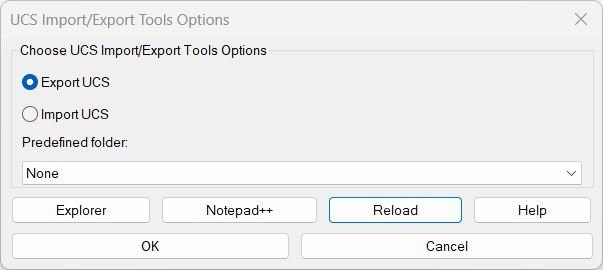
🧰 The ExpImpUCS dialog lets the user choose Export UCS or Import UCS, select a predefined project folder, open the LISP folder in Explorer, open the file in Notepad++, reload the script, or open the integrated help dialog.
Description:
🧭 ExpImpUCS is an SEO-friendly AutoCAD UCS import and export tool for managing named User Coordinate Systems in production drawings.
📤 In export mode, the tool scans all named UCS definitions in the active drawing and writes them to a portable .ucs text file.
📥 In import mode, the tool reads .ucs files line by line and creates or updates named UCS definitions in the active drawing.
🗂️ The exported UCS format stores the UCS name, origin point, X-axis point, and Y-axis point as Name;P1;P2;P3, making the file easy to reuse and inspect.
🧠 The latest importer uses COM-based UserCoordinateSystems logic to update UCS records directly, avoiding command-line UCS calls that can freeze or interrupt automated workflows.
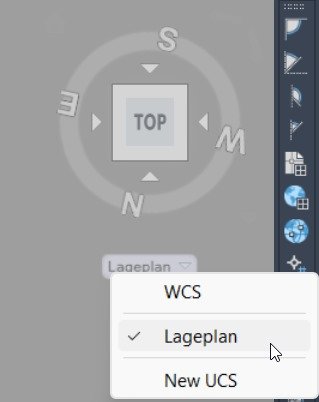
📌 This is useful for Civil 3D layout drawings, coordinate control, Lageplan UCS setup, repeated project folders, Xref orientation workflows, and CAD production environments where UCS consistency is important.
Helper function: (if any)
🧩 EI-write-dcl dynamically creates the DCL interface for the main import and export dialog and the help dialog.
🧩 EI-build-predefs searches OneDrive and project paths for predefined UCS_Lageplan folders such as Beu, La, Npl, Bis, and Tp.
🧩 EI-preferred-startdir resolves the best start folder using the selected predefined folder, fixed LSP folder, last used folder, or DWGPREFIX.
🧩 EI-clipboard-put copies help text and folder paths using cmd | clip.
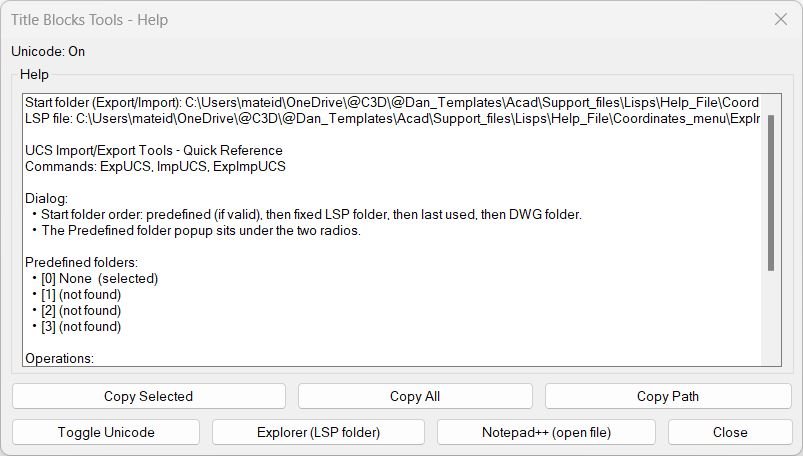
🧩 EI-help-dialog opens a persistent help window with copy selected, copy all, copy path, Unicode toggle, Explorer, and Notepad++ actions.
🧩 EI-open-explorer-fixed opens the fixed ExpImpUCS support folder.
🧩 EI-open-npp-fixed opens the fixed LISP file in Notepad++ when available, with Notepad fallback.
🧩 _ucs-add-or-update creates a new named UCS or updates an existing one through the AutoCAD UserCoordinateSystems collection.
🧩 _preferred-dir-from-dcl honors DCL-selected directories and then falls back through helper directory providers and the current drawing folder.
Functionalities:
✅ 📤 Export all named UCS definitions from the active drawing to a reusable .ucs text file.
✅ 📥 Import named UCS definitions from an external .ucs file and rebuild them in the active AutoCAD drawing.
✅ 🧭 Store UCS data as origin, X-axis point, and Y-axis point for reliable coordinate system reconstruction.
✅ 🔄 Update existing UCS definitions instead of blindly duplicating names.
✅ 🧮 Normalize and validate UCS vectors before writing them to the UserCoordinateSystems collection.
✅ 🗂️ Use predefined project folders for fast access to UCS_Lageplan directories.
✅ 🔍 Discover OneDrive project roots from environment variables, registry values, and user profile OneDrive folders.
✅ 🧰 Use a DCL dialog for Export UCS, Import UCS, predefined folder selection, help, reload, Explorer, and Notepad++ actions.
✅ 📋 Copy help text, selected help lines, and current path information to the clipboard.
✅ 🔤 Toggle Unicode help output for better compatibility with older AutoCAD or Windows clipboard behavior.
✅ 🧹 Skip empty, comment, malformed, or invalid UCS import lines safely.
✅ 🧱 Keep the user workflow focused on UCS setup, coordinate transfer, CAD standardization, and drawing preparation.
Result:
🎯 The result is a faster and more controlled UCS management workflow for AutoCAD and Civil 3D.
📤 Users can export named UCS definitions from one drawing, share the .ucs file, and import the same coordinate systems into another drawing.
📥 The tool improves drawing setup consistency, reduces repetitive UCS recreation, and supports project-based folder structures used in infrastructure and Civil 3D production.
✅ ExpImpUCS is especially useful when multiple drawings must share the same custom UCS definitions for Lageplan work, xref coordination, layout checks, and repeated CAD standards.
Images, animations etc.
XAML code:
<ResourceDictionary
 xmlns="http://schemas.microsoft.com/winfx/2006/xaml/presentation"
 xmlns:x="http://schemas.microsoft.com/winfx/2006/xaml"
 xmlns:src="clr-namespace:Autodesk.Windows;assembly=AdWindows">

 <src:RibbonToolTip x:Key="ExpImpUCS">
 <src:RibbonToolTip.ExpandedContent>
 <StackPanel>
 <TextBlock Background="AntiqueWhite" TextAlignment="Left">
<Bold>Function Syntax: ExpUCS / ImpUCS / ExpImpUCS</Bold>
<LineBreak/>
<Bold>Version: 1.1 Date: 20.06.2026 6:38:51PM</Bold>
<LineBreak/>
<Hyperlink>https://forums.augi.com/showthread.php?94673-Is-any-method-to-export-ucs</Hyperlink>

<Bold><Run Foreground="DodgerBlue">Description</Run></Bold><LineBreak/>
<Run Foreground="White">🧭 ExpImpUCS is an AutoCAD and Civil 3D AutoLISP utility for exporting and importing named UCS definitions through a custom DCL dialog.</Run><LineBreak/>
<Run Foreground="LimeGreen">📤 The main purpose is to make named UCS transfer faster, safer, and easier across drawings, project folders, Lageplan setups, and repeated CAD production environments.</Run><LineBreak/>
<LineBreak/>

<Bold><Run Foreground="DodgerBlue">Function Syntax</Run></Bold><LineBreak/>
<Run Foreground="White">🚀 Main dialog command: </Run><Bold><Run Foreground="Orange">ExpImpUCS</Run></Bold><LineBreak/>
<Run Foreground="White">📤 Direct export command: </Run><Bold><Run Foreground="Orange">ExpUCS</Run></Bold><LineBreak/>
<Run Foreground="White">📥 Direct import command: </Run><Bold><Run Foreground="Orange">ImpUCS</Run></Bold><LineBreak/>
<LineBreak/>

<Bold><Run Foreground="DodgerBlue">SEO Optimized Overview</Run></Bold><LineBreak/>
<Run Foreground="White">🧭 This AutoCAD UCS import and export tool helps users manage named User Coordinate Systems in Civil 3D and AutoCAD drawings.</Run><LineBreak/>
<Run Foreground="White">📤 In export mode, the routine scans the active drawing UCS table and writes all named UCS definitions to a portable </Run><Bold><Run Foreground="Orange">.ucs</Run></Bold><Run Foreground="White"> file.</Run><LineBreak/>
<Run Foreground="White">📥 In import mode, the routine reads a UCS file line by line and creates or updates named UCS definitions in the active drawing.</Run><LineBreak/>
<Run Foreground="White">📌 Each exported row stores the UCS name, origin point, X-axis point, and Y-axis point using the format </Run><Bold><Run Foreground="Orange">Name;P1;P2;P3</Run></Bold><Run Foreground="White">.</Run><LineBreak/>
<Run Foreground="White">🧠 The updated importer uses COM-based </Run><Bold><Run Foreground="Orange">UserCoordinateSystems</Run></Bold><Run Foreground="White"> logic to avoid command-line UCS import freezes and improve reliability.</Run><LineBreak/>
<LineBreak/>

<Bold><Run Foreground="LimeGreen">Primary Workflow</Run></Bold><LineBreak/>
<Run Foreground="White">1️⃣ Run </Run><Bold><Run Foreground="Orange">ExpImpUCS</Run></Bold><Run Foreground="White"> in the AutoCAD command line.</Run><LineBreak/>
<Run Foreground="White">2️⃣ Choose </Run><Bold><Run Foreground="DarkRed">Export UCS</Run></Bold><Run Foreground="White"> or </Run><Bold><Run Foreground="DarkRed">Import UCS</Run></Bold><Run Foreground="White"> in the dialog.</Run><LineBreak/>
<Run Foreground="White">3️⃣ Select a predefined UCS folder or use the automatic folder fallback logic.</Run><LineBreak/>
<Run Foreground="White">4️⃣ Export named UCS definitions to a </Run><Bold><Run Foreground="Orange">.ucs</Run></Bold><Run Foreground="White"> file or import them from an existing file.</Run><LineBreak/>
<Run Foreground="White">5️⃣ Use the help dialog to copy instructions, copy paths, open Explorer, open Notepad++, or reload the LISP file.</Run><LineBreak/>
<LineBreak/>

<Bold><Run Foreground="LimeGreen">Functionalities</Run></Bold><LineBreak/>
<Run Foreground="White">📤 </Run><Bold><Run Foreground="LimeGreen">Export named UCS definitions</Run></Bold><Run Foreground="White"> - writes all named UCS records from the active drawing to a reusable UCS text file.</Run><LineBreak/>
<Run Foreground="White">📥 </Run><Bold><Run Foreground="LimeGreen">Import named UCS definitions</Run></Bold><Run Foreground="White"> - reads external UCS files and rebuilds coordinate systems in the current drawing.</Run><LineBreak/>
<Run Foreground="White">🧭 </Run><Bold><Run Foreground="LimeGreen">Portable coordinate format</Run></Bold><Run Foreground="White"> - stores UCS name, origin, X-axis point, and Y-axis point as semicolon-separated data.</Run><LineBreak/>
<Run Foreground="White">🔄 </Run><Bold><Run Foreground="LimeGreen">Create or update UCS records</Run></Bold><Run Foreground="White"> - adds missing UCS definitions or updates existing names through the AutoCAD UserCoordinateSystems collection.</Run><LineBreak/>
<Run Foreground="White">🧮 </Run><Bold><Run Foreground="LimeGreen">Vector validation</Run></Bold><Run Foreground="White"> - checks imported point data, normalizes vectors, and skips invalid UCS definitions.</Run><LineBreak/>
<Run Foreground="White">🗂️ </Run><Bold><Run Foreground="LimeGreen">Predefined project folders</Run></Bold><Run Foreground="White"> - supports fast access to project-specific </Run><Bold><Run Foreground="Orange">UCS_Lageplan</Run></Bold><Run Foreground="White"> folders.</Run><LineBreak/>
<Run Foreground="White">🔍 </Run><Bold><Run Foreground="LimeGreen">OneDrive folder discovery</Run></Bold><Run Foreground="White"> - checks OneDrive environment variables, registry paths, and user profile OneDrive folders.</Run><LineBreak/>
<Run Foreground="White">🧰 </Run><Bold><Run Foreground="LimeGreen">Dialog-based workflow</Run></Bold><Run Foreground="White"> - provides radio buttons, predefined folder list, Explorer, Notepad++, Reload, and Help buttons.</Run><LineBreak/>
<Run Foreground="White">📋 </Run><Bold><Run Foreground="LimeGreen">Clipboard support</Run></Bold><Run Foreground="White"> - copies help text, selected help rows, and folder paths using </Run><Bold><Run Foreground="Orange">cmd | clip</Run></Bold><Run Foreground="White">.</Run><LineBreak/>
<Run Foreground="White">🔤 </Run><Bold><Run Foreground="LimeGreen">Unicode toggle</Run></Bold><Run Foreground="White"> - lets the user switch help copy output between Unicode and ASCII-compatible text.</Run><LineBreak/>
<Run Foreground="White">🧹 </Run><Bold><Run Foreground="LimeGreen">Safe import cleanup</Run></Bold><Run Foreground="White"> - skips comments, empty rows, malformed records, invalid coordinates, and unusable vectors.</Run><LineBreak/>
<LineBreak/>

<Bold><Run Foreground="DodgerBlue">Key Commands and Helper Functions</Run></Bold><LineBreak/>
<Run Foreground="White">🚀 </Run><Bold><Run Foreground="Orange">C:ExpImpUCS</Run></Bold><Run Foreground="White"> - opens the main UCS import and export dialog.</Run><LineBreak/>
<Run Foreground="White">📤 </Run><Bold><Run Foreground="Orange">C:ExpUCS</Run></Bold><Run Foreground="White"> - exports all named UCS definitions to a selected </Run><Bold><Run Foreground="Orange">.ucs</Run></Bold><Run Foreground="White"> file.</Run><LineBreak/>
<Run Foreground="White">📥 </Run><Bold><Run Foreground="Orange">C:ImpUCS</Run></Bold><Run Foreground="White"> - imports UCS definitions from a </Run><Bold><Run Foreground="Orange">.ucs</Run></Bold><Run Foreground="White"> file and creates or updates UCS records.</Run><LineBreak/>
<Run Foreground="White">🧩 </Run><Bold><Run Foreground="Orange">EI-write-dcl</Run></Bold><Run Foreground="White"> - generates the DCL interface at runtime.</Run><LineBreak/>
<Run Foreground="White">🧩 </Run><Bold><Run Foreground="Orange">EI-build-predefs</Run></Bold><Run Foreground="White"> - builds the predefined folder list for UCS_Lageplan locations.</Run><LineBreak/>
<Run Foreground="White">🧩 </Run><Bold><Run Foreground="Orange">EI-preferred-startdir</Run></Bold><Run Foreground="White"> - resolves the best folder for export and import file dialogs.</Run><LineBreak/>
<Run Foreground="White">🧩 </Run><Bold><Run Foreground="Orange">_ucs-add-or-update</Run></Bold><Run Foreground="White"> - writes UCS definitions through the COM UserCoordinateSystems collection.</Run><LineBreak/>
<LineBreak/>

<Bold><Run Foreground="DodgerBlue">Practical Result</Run></Bold><LineBreak/>
<Run Foreground="White">✅ The final result is a faster UCS management workflow for AutoCAD and Civil 3D users who need to transfer named coordinate systems between drawings.</Run><LineBreak/>
<Run Foreground="LimeGreen">🎯 ExpImpUCS improves coordinate setup consistency, reduces repetitive UCS recreation, supports Lageplan folders, and helps CAD teams standardize drawing orientation workflows.</Run><LineBreak/>
<LineBreak/>

<Bold><Run Foreground="DarkRed">Important Notes</Run></Bold><LineBreak/>
<Run Foreground="White">⚠️ The script includes fixed support paths and project-specific predefined folder labels that may need to be adapted before deployment on another workstation.</Run><LineBreak/>
<Run Foreground="White">⚠️ The import file must contain valid semicolon-separated UCS records with valid 3D point coordinates.</Run><LineBreak/>
<Run Foreground="White">⚠️ Existing UCS names can be updated in the active drawing, so testing on a backup drawing is recommended when importing large UCS lists.</Run><LineBreak/>
<LineBreak/>

<Bold><Run Foreground="DodgerBlue">Tags</Run></Bold><LineBreak/>
<Run Foreground="White">🏷️ AutoCAD, Civil 3D, AutoLISP, Visual LISP, UCS, Named UCS, UCS export, UCS import, Coordinate system, UserCoordinateSystems, CAD automation, DCL dialog, ObjectDBX, COM automation, OneDrive project folders, UCS_Lageplan, CAD productivity, Drawing setup, Coordinate management</Run><LineBreak/>
</TextBlock>

<Grid>
<Image Source="Image_000.jpg" Stretch="Uniform"/>
</Grid>

<Grid>
<Image Source="Image_001.jpg" Stretch="Uniform"/>
</Grid>

<Grid>
<Image Source="Image_002.jpg" Stretch="Uniform"/>
</Grid>


 <!-- Use MediaElement for GIF (static first frame) and Image as fallback -->
</StackPanel>
 </src:RibbonToolTip.ExpandedContent>
 </src:RibbonToolTip>


</ResourceDictionary>