
Short description
🧰 LayoutTools is an AutoCAD and Civil 3D AutoLISP layout management dialog for zooming layouts, locking and unlocking viewports, and toggling ANNOALLVISIBLE.
📑 It supports filtered layout selection, selected or all-displayed scope, viewport lock status, annotation visibility status, zoom status tracking, clipboard copy, and batch paper-space operations.
Command:
🚀 Main command: LayoutTools
🔁 Alias command: _LayoutTools
🧰 Load the LSP file with APPLOAD, then run the command from the AutoCAD command line.
Description:
🧰 LayoutTools is an SEO-friendly AutoCAD layout and viewport management utility for Civil 3D sheet production and paper-space cleanup.
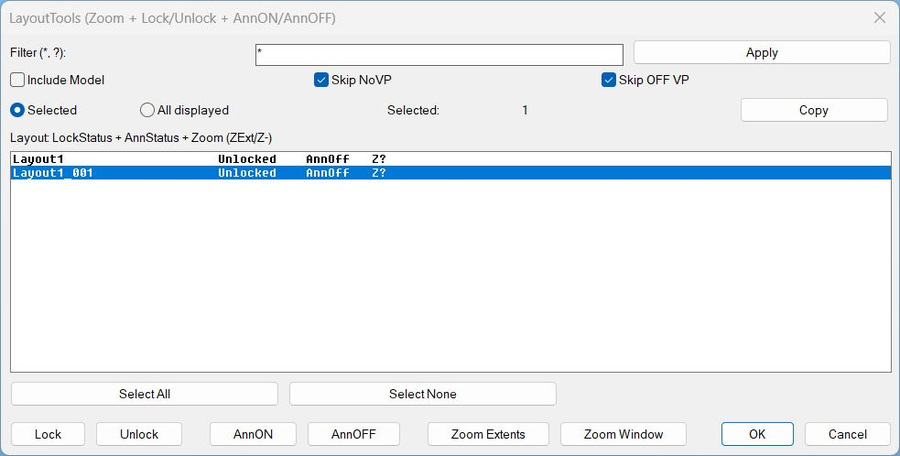
📑 The routine creates a DCL dialog titled LayoutTools with filter, Include Model, Skip NoVP, Skip OFF VP, Selected versus All displayed scope, layout status table, Select All, Select None, Copy, Lock, Unlock, AnnON, AnnOFF, Zoom Extents, and Zoom Window.
🔒 Lock and Unlock change DisplayLocked on viewports found in the target layouts, helping protect viewport scales and sheet views from accidental edits.
👁️ AnnON and AnnOFF set ANNOALLVISIBLE across selected or displayed layout tabs, allowing faster annotation visibility control during checking and plotting.
🔍 Zoom Extents and Zoom Window run after the dialog closes for command-safety, then apply the chosen view action across the target layouts.
💾 The tool stores zoom status in a Named Object Dictionary XRECORD so the list can show ZExt, Z-, or Z? status for tracked layouts.
📌 This is useful for viewport locking, layout review, sheet cleanup, annotation checks, batch zooming, plot preparation, and Civil 3D plan sheet QA/QC.
Helper function: (if any)
🧩 LayoutTools:WriteDCL dynamically creates the multi-action DCL interface.
🧩 LayoutTools:GetLayouts collects layout names and supports Model inclusion.
🧩 LayoutTools:FilterLayouts applies wildcard filtering to the layout list.
🧩 LayoutTools:GetLayoutViewports finds usable paper-space viewports in each layout.
🧩 LayoutTools:LayoutLockStatus reports viewport lock state per layout.
🧩 LayoutTools:SetAnnoAllVisible applies ANNOALLVISIBLE while preserving CTAB, TILEMODE, and MSPACE state.
🧩 LayoutTools:_SetLockedForLayouts locks or unlocks viewport DisplayLocked values in an undo mark.
🧩 LayoutTools:ZoomExtentsLayouts applies Zoom Extents to target layouts and records ZExt status.
🧩 LayoutTools:ZoomWindowLayouts applies the picked window to multiple layouts and records Z- status.
🧩 LayoutTools:CopyClipboard copies selected layout/status information using the Windows clipboard.
Functionalities:
✅ Filter layout tabs with wildcard patterns using * and ?.
✅ Display layout rows with lock status, annotation status, and zoom status.
✅ Choose Selected layouts or All displayed layouts as the action scope.
✅ Skip layouts with no viewports to avoid unnecessary processing.
✅ Skip OFF viewports when locking or unlocking, depending on the option.
✅ Lock all usable viewports on target layouts.
✅ Unlock all usable viewports on target layouts.
✅ Toggle ANNOALLVISIBLE on or off across target layout tabs.
✅ Apply Zoom Extents to multiple paper-space layouts.
✅ Apply one picked Zoom Window to multiple layouts.
✅ Copy layout status information to the clipboard.
✅ Store layout zoom status in the DWG Named Object Dictionary.
Result:
🎯 The result is a centralized layout QA and viewport management workflow for AutoCAD and Civil 3D drawings.
🔒 Users can protect viewport scales, control annotation visibility, and synchronize zoom views across many sheets from one dialog.
✅ LayoutTools improves plan set cleanup, plotting consistency, sheet navigation, and production drawing review.
Images, animations etc.
XAML code:
<ResourceDictionary
xmlns="http://schemas.microsoft.com/winfx/2006/xaml/presentation"
xmlns:x="http://schemas.microsoft.com/winfx/2006/xaml"
xmlns:src="clr-namespace:Autodesk.Windows;assembly=AdWindows">

<src:RibbonToolTip x:Key="LayoutTools">
<src:RibbonToolTip.ExpandedContent>
<StackPanel>
<TextBlock Background="AntiqueWhite" TextAlignment="Left">
<Bold>Function Syntax: LayoutTools / _LayoutTools</Bold>
<LineBreak/>
<Bold>Version: 1.1 Date: 20.06.2026 6:38:55PM</Bold>
<LineBreak/>
<Hyperlink>AI+</Hyperlink>
<LineBreak/>
<Bold>LayoutTools summary</Bold><LineBreak/>
This program opens a dialog that lets the user filter and select layout tabs, then apply viewport locking, annotation visibility toggles, and paper space zoom operations across the chosen layouts.<LineBreak/>

<Bold>How the user interacts with it</Bold><LineBreak/>
<Run>The user runs</Run> <Span Foreground="DarkRed"><Bold>LayoutTools</Bold></Span> <Run>(or its aliases) to open a DCL dialog.</Run><LineBreak/>
<Run>The user can filter the layout list by name using wildcard patterns such as </Run><Span Foreground="DarkRed"><Bold>*</Bold></Span><Run> and </Run><Span Foreground="DarkRed"><Bold>?</Bold></Span><Run>.</Run><LineBreak/>
<Run>The user selects one or more layouts in a multi select list, or switches scope to affect all currently displayed layouts.</Run><LineBreak/>
<Run>For </Run><Span Foreground="DarkRed"><Bold>Zoom Window</Bold></Span><Run>, the program closes the dialog first, then prompts the user to pick two corners in the drawing.</Run><LineBreak/>

<Bold>Main commands and aliases</Bold><LineBreak/>
<Run>Primary command</Run><Run>: </Run><Span Foreground="DarkRed"><Bold>LayoutTools</Bold></Span><LineBreak/>
<Run>Aliases</Run><Run>: </Run><Span Foreground="DarkRed"><Bold>LayoutTools</Bold></Span><Run>, </Run><Span Foreground="DarkRed"><Bold>_LayoutTools</Bold></Span><LineBreak/>

<Bold>Core functionalities</Bold><LineBreak/>
<Bold>Layout filtering and targeting</Bold><LineBreak/>
<ListView><LineBreak/></ListView>
<Run>• Filter layouts by wildcard pattern, default </Run><Span Foreground="DarkRed"><Bold>*</Bold></Span><Run> meaning all.</Run><LineBreak/>
<Run>• Option to </Run><Span Foreground="DarkRed"><Bold>Include Model</Bold></Span><Run> in the list, otherwise Model is excluded from actions.</Run><LineBreak/>
<Run>• Scope switch between </Run><Span Foreground="DarkRed"><Bold>Selected</Bold></Span><Run> layouts and </Run><Span Foreground="DarkRed"><Bold>All displayed</Bold></Span><Run> layouts.</Run><LineBreak/>
<Run>• The list displays per layout status columns for lock, annotation, and zoom tracking.</Run><LineBreak/>

<Bold>Viewport Lock and Unlock</Bold><LineBreak/>
<Run>• </Run><Span Foreground="DarkRed"><Bold>Lock</Bold></Span><Run> sets DisplayLocked for paper space viewports in the targeted layouts.</Run><LineBreak/>
<Run>• </Run><Span Foreground="DarkRed"><Bold>Unlock</Bold></Span><Run> clears DisplayLocked for the same viewports.</Run><LineBreak/>
<Run>• Optional rules that modify which layouts and viewports are affected.</Run><LineBreak/>
<Run>• </Run><Span Foreground="DarkRed"><Bold>Skip NoVP</Bold></Span><Run> prevents actions on layouts with no usable paper space viewports.</Run><LineBreak/>
<Run>• </Run><Span Foreground="DarkRed"><Bold>Skip OFF VP</Bold></Span><Run> excludes viewports that are turned off, when evaluating which viewports to lock or unlock.</Run><LineBreak/>
<Run>• Lock status shown per layout as </Run><Span Foreground="DarkRed"><Bold>Locked</Bold></Span><Run>, </Run><Span Foreground="DarkRed"><Bold>Unlocked</Bold></Span><Run>, </Run><Span Foreground="DarkRed"><Bold>Mixed</Bold></Span><Run>, </Run><Span Foreground="DarkRed"><Bold>NoVP</Bold></Span><Run>, or </Run><Span Foreground="DarkRed"><Bold>Model</Bold></Span><Run>.</Run><LineBreak/>

<Bold>Annotation visibility control per layout tab</Bold><LineBreak/>
<Run>• </Run><Span Foreground="DarkRed"><Bold>AnnON</Bold></Span><Run> sets </Run><Span Foreground="DarkRed"><Bold>ANNOALLVISIBLE</Bold></Span><Run> to 1 for the targeted layouts.</Run><LineBreak/>
<Run>• </Run><Span Foreground="DarkRed"><Bold>AnnOFF</Bold></Span><Run> sets </Run><Span Foreground="DarkRed"><Bold>ANNOALLVISIBLE</Bold></Span><Run> to 0 for the targeted layouts.</Run><LineBreak/>
<Run>• The tool reads and displays annotation state as </Run><Span Foreground="DarkRed"><Bold>AnnOn</Bold></Span><Run>, </Run><Span Foreground="DarkRed"><Bold>AnnOff</Bold></Span><Run>, or </Run><Span Foreground="DarkRed"><Bold>Ann?</Bold></Span><Run> when state cannot be determined.</Run><LineBreak/>
<Run>• When applying annotation changes, it temporarily switches to each tab as needed, forces paper space, applies the setting, then restores the previous environment.</Run><LineBreak/>

<Bold>Zoom operations in paper space across layouts</Bold><LineBreak/>
<Run>• </Run><Span Foreground="DarkRed"><Bold>Zoom Extents</Bold></Span><Run> applies a paper space zoom extents in each targeted layout.</Run><LineBreak/>
<Run>• </Run><Span Foreground="DarkRed"><Bold>Zoom Window</Bold></Span><Run> applies a paper space zoom window using two user picked corners, then repeats that same window for each targeted layout.</Run><LineBreak/>
<Run>• Zoom is executed using ActiveX when possible, and falls back to command line zoom if ActiveX fails.</Run><LineBreak/>
<Run>• The tool tracks zoom status per layout as </Run><Span Foreground="DarkRed"><Bold>ZExt</Bold></Span><Run>, </Run><Span Foreground="DarkRed"><Bold>Z-</Bold></Span><Run>, or </Run><Span Foreground="DarkRed"><Bold>Z?</Bold></Span><Run>.</Run><LineBreak/>
<Run>• Zoom status is persisted inside the drawing using </Run><Span Foreground="DarkRed"><Bold>Named Object Dictionary</Bold></Span><Run> storage with </Run><Span Foreground="DarkRed"><Bold>XRECORD</Bold></Span><Run>, so it survives reopen of the DWG.</Run><LineBreak/>

<Bold>Clipboard export</Bold><LineBreak/>
<Run>• </Run><Span Foreground="DarkRed"><Bold>Copy</Bold></Span><Run> copies a tab separated report for the current target scope.</Run><LineBreak/>
<Run>• Each line includes </Run><Run>layout name</Run><Run>, </Run><Run>lock status</Run><Run>, </Run><Run>annotation status</Run><Run>, </Run><Run>zoom status</Run><Run>.</Run><LineBreak/>
<Run>• Clipboard uses an HTMLFile clipboard interface first, with a PowerShell or clip fallback method if needed.</Run><LineBreak/>

<Bold>What the dialog displays</Bold><LineBreak/>
<Run>• A list of displayed layouts with fixed width formatting.</Run><LineBreak/>
<Run>• Columns per row: </Run><Span Foreground="DarkRed"><Bold>LockStatus</Bold></Span><Run>, </Run><Span Foreground="DarkRed"><Bold>AnnStatus</Bold></Span><Run>, </Run><Span Foreground="DarkRed"><Bold>Zoom</Bold></Span><Run>.</Run><LineBreak/>
<Run>• Buttons: </Run><Span Foreground="DarkRed"><Bold>Select All</Bold></Span><Run>, </Run><Span Foreground="DarkRed"><Bold>Select None</Bold></Span><Run>, </Run><Span Foreground="DarkRed"><Bold>Copy</Bold></Span><Run>, </Run><Span Foreground="DarkRed"><Bold>Lock</Bold></Span><Run>, </Run><Span Foreground="DarkRed"><Bold>Unlock</Bold></Span><Run>, </Run><Span Foreground="DarkRed"><Bold>AnnON</Bold></Span><Run>, </Run><Span Foreground="DarkRed"><Bold>AnnOFF</Bold></Span><Run>, </Run><Span Foreground="DarkRed"><Bold>Zoom Extents</Bold></Span><Run>, </Run><Span Foreground="DarkRed"><Bold>Zoom Window</Bold></Span><Run>.</Run><LineBreak/>
<Run>• A live count of selected layouts.</Run><LineBreak/>

<Bold>Important behavior and safeguards</Bold><LineBreak/>
<Run>• Actions avoid Model space by default and treat Model as not applicable for viewport operations.</Run><LineBreak/>
<Run>• Viewports of Number 1 in a layout are treated as the overall paper space viewport and are excluded from lock operations.</Run><LineBreak/>
<Run>• The tool wraps lock and zoom operations in an undo mark, allowing a single undo step for batch changes.</Run><LineBreak/>
<Run>• It uses a quiet mode by setting </Run><Span Foreground="DarkRed"><Bold>CMDECHO</Bold></Span><Run> to 0 and attempts to set </Run><Span Foreground="DarkRed"><Bold>NOMUTT</Bold></Span><Run> to reduce command noise, then restores original values.</Run><LineBreak/>
<Run>• It restores the previous </Run><Span Foreground="DarkRed"><Bold>TILEMODE</Bold></Span><Run>, </Run><Span Foreground="DarkRed"><Bold>CTAB</Bold></Span><Run>, and </Run><Span Foreground="DarkRed"><Bold>MSPACE</Bold></Span><Run> state after annotation and zoom operations.</Run><LineBreak/>

<Bold>One sentence description for quick identification</Bold><LineBreak/>
<Run>This tool provides a batch layout manager to </Run><Span Foreground="DarkRed"><Bold>Lock or Unlock viewports</Bold></Span><Run>, toggle </Run><Span Foreground="DarkRed"><Bold>ANNOALLVISIBLE</Bold></Span><Run> via </Run><Span Foreground="DarkRed"><Bold>AnnON or AnnOFF</Bold></Span><Run>, and apply </Run><Span Foreground="DarkRed"><Bold>Zoom Extents or Zoom Window</Bold></Span><Run> across selected or filtered layouts, while tracking zoom status persistently inside the DWG.</Run><LineBreak/>

<Bold><Run Foreground="DodgerBlue">Description</Run></Bold><LineBreak/>
<Run Foreground="White">🧰 LayoutTools is an AutoCAD and Civil 3D AutoLISP layout management dialog for zooming layouts, locking and unlocking viewports, and toggling ANNOALLVISIBLE.</Run><LineBreak/>
<Run Foreground="White">📑 It supports filtered layout selection, selected or all-displayed scope, viewport lock status, annotation visibility status, zoom status tracking, clipboard copy, and batch paper-space operations.</Run><LineBreak/>
<LineBreak/>
<Bold><Run Foreground="DodgerBlue">Function Syntax</Run></Bold><LineBreak/>
<Run Foreground="White">🚀 Main dialog command: </Run><Bold><Run Foreground="Orange">LayoutTools</Run></Bold><LineBreak/>
<Run Foreground="White">🔁 Alias command: </Run><Bold><Run Foreground="Orange">_LayoutTools</Run></Bold><LineBreak/>
<Run Foreground="White">🧰 Load the LSP with APPLOAD and run the command in AutoCAD or Civil 3D.</Run><LineBreak/>
<LineBreak/>
<Bold><Run Foreground="DodgerBlue">SEO Optimized Overview</Run></Bold><LineBreak/>
<Run Foreground="White">🧰 LayoutTools is an SEO-friendly AutoCAD layout and viewport management utility for Civil 3D sheet production and paper-space cleanup.</Run><LineBreak/>
<Run Foreground="White">📑 The routine creates a DCL dialog titled LayoutTools with filter, Include Model, Skip NoVP, Skip OFF VP, Selected versus All displayed scope, layout status table, Select All, Select None, Copy, Lock, Unlock, AnnON, AnnOFF, Zoom Extents, and Zoom Window.</Run><LineBreak/>
<Run Foreground="White">🔒 Lock and Unlock change DisplayLocked on viewports found in the target layouts, helping protect viewport scales and sheet views from accidental edits.</Run><LineBreak/>
<Run Foreground="White">👁️ AnnON and AnnOFF set ANNOALLVISIBLE across selected or displayed layout tabs, allowing faster annotation visibility control during checking and plotting.</Run><LineBreak/>
<Run Foreground="White">🔍 Zoom Extents and Zoom Window run after the dialog closes for command-safety, then apply the chosen view action across the target layouts.</Run><LineBreak/>
<Run Foreground="White">💾 The tool stores zoom status in a Named Object Dictionary XRECORD so the list can show ZExt, Z-, or Z? status for tracked layouts.</Run><LineBreak/>
<Run Foreground="White">📌 This is useful for viewport locking, layout review, sheet cleanup, annotation checks, batch zooming, plot preparation, and Civil 3D plan sheet QA/QC.</Run><LineBreak/>
<LineBreak/>
<Bold><Run Foreground="LimeGreen">Primary Workflow</Run></Bold><LineBreak/>
<Run Foreground="White">1️⃣ Load LayoutTools into AutoCAD or Civil 3D with APPLOAD.</Run><LineBreak/>
<Run Foreground="White">2️⃣ Run LayoutTools from the command line.</Run><LineBreak/>
<Run Foreground="White">3️⃣ Use the dialog or command prompts to select the target layouts, layers, viewports, or plot settings.</Run><LineBreak/>
<Run Foreground="White">4️⃣ Review the preview, status list, or command-line feedback before applying changes.</Run><LineBreak/>
<Run Foreground="White">5️⃣ Apply the operation and verify the result in the active drawing.</Run><LineBreak/>
<LineBreak/>
<Bold><Run Foreground="DodgerBlue">Main Functionalities</Run></Bold><LineBreak/>
<Run Foreground="White">✅ Filter layout tabs with wildcard patterns using * and ?.</Run><LineBreak/>
<Run Foreground="White">✅ Display layout rows with lock status, annotation status, and zoom status.</Run><LineBreak/>
<Run Foreground="White">✅ Choose Selected layouts or All displayed layouts as the action scope.</Run><LineBreak/>
<Run Foreground="White">✅ Skip layouts with no viewports to avoid unnecessary processing.</Run><LineBreak/>
<Run Foreground="White">✅ Skip OFF viewports when locking or unlocking, depending on the option.</Run><LineBreak/>
<Run Foreground="White">✅ Lock all usable viewports on target layouts.</Run><LineBreak/>
<Run Foreground="White">✅ Unlock all usable viewports on target layouts.</Run><LineBreak/>
<Run Foreground="White">✅ Toggle ANNOALLVISIBLE on or off across target layout tabs.</Run><LineBreak/>
<Run Foreground="White">✅ Apply Zoom Extents to multiple paper-space layouts.</Run><LineBreak/>
<Run Foreground="White">✅ Apply one picked Zoom Window to multiple layouts.</Run><LineBreak/>
<Run Foreground="White">✅ Copy layout status information to the clipboard.</Run><LineBreak/>
<Run Foreground="White">✅ Store layout zoom status in the DWG Named Object Dictionary.</Run><LineBreak/>
<LineBreak/>
<Bold><Run Foreground="DodgerBlue">Important Commands and Helper Functions</Run></Bold><LineBreak/>
<Run Foreground="White">🧩 LayoutTools:WriteDCL dynamically creates the multi-action DCL interface.</Run><LineBreak/>
<Run Foreground="White">🧩 LayoutTools:GetLayouts collects layout names and supports Model inclusion.</Run><LineBreak/>
<Run Foreground="White">🧩 LayoutTools:FilterLayouts applies wildcard filtering to the layout list.</Run><LineBreak/>
<Run Foreground="White">🧩 LayoutTools:GetLayoutViewports finds usable paper-space viewports in each layout.</Run><LineBreak/>
<Run Foreground="White">🧩 LayoutTools:LayoutLockStatus reports viewport lock state per layout.</Run><LineBreak/>
<Run Foreground="White">🧩 LayoutTools:SetAnnoAllVisible applies ANNOALLVISIBLE while preserving CTAB, TILEMODE, and MSPACE state.</Run><LineBreak/>
<Run Foreground="White">🧩 LayoutTools:_SetLockedForLayouts locks or unlocks viewport DisplayLocked values in an undo mark.</Run><LineBreak/>
<Run Foreground="White">🧩 LayoutTools:ZoomExtentsLayouts applies Zoom Extents to target layouts and records ZExt status.</Run><LineBreak/>
<Run Foreground="White">🧩 LayoutTools:ZoomWindowLayouts applies the picked window to multiple layouts and records Z- status.</Run><LineBreak/>
<Run Foreground="White">🧩 LayoutTools:CopyClipboard copies selected layout/status information using the Windows clipboard.</Run><LineBreak/>
<LineBreak/>
<Bold><Run Foreground="LimeGreen">Practical Result</Run></Bold><LineBreak/>
<Run Foreground="White">🎯 The result is a centralized layout QA and viewport management workflow for AutoCAD and Civil 3D drawings.</Run><LineBreak/>
<Run Foreground="White">🔒 Users can protect viewport scales, control annotation visibility, and synchronize zoom views across many sheets from one dialog.</Run><LineBreak/>
<Run Foreground="White">✅ LayoutTools improves plan set cleanup, plotting consistency, sheet navigation, and production drawing review.</Run><LineBreak/>
<LineBreak/>
<Bold><Run Foreground="DarkRed">Important Notes</Run></Bold><LineBreak/>
<Run Foreground="White">⚠️ The tool changes viewport locks, ANNOALLVISIBLE values, and view state in the active drawing.</Run><LineBreak/>
<Run Foreground="White">⚠️ Zoom Window requires point selection after the dialog closes, so the routine temporarily exits the DCL before applying the window to multiple layouts.</Run><LineBreak/>
<Run Foreground="White">⚠️ Layouts without usable viewports may be skipped depending on the active options.</Run><LineBreak/>
<Run Foreground="White">⚠️ The zoom status is tracked by this tool and may show Z? for layouts without stored status.</Run><LineBreak/>
<Run Foreground="White">⚠️ Always confirm the selected scope before applying Lock, Unlock, AnnON, AnnOFF, or Zoom actions to many layouts.</Run><LineBreak/>
<LineBreak/>
<Bold><Run Foreground="Yellow">Tags</Run></Bold><LineBreak/>
<Run Foreground="Yellow">🏷️ AutoCAD, 🏷️ Civil 3D, 🏷️ AutoLISP, 🏷️ Visual LISP, 🏷️ DCL dialog, 🏷️ CAD automation, 🏷️ CAD productivity, 🏷️ Layout tools, 🏷️ Viewport lock, 🏷️ Unlock viewports, 🏷️ ANNOALLVISIBLE, 🏷️ Zoom Extents, 🏷️ Zoom Window, 🏷️ Paper space, 🏷️ Layout QA, 🏷️ Sheet cleanup, 🏷️ Viewport management, 🏷️ Named Object Dictionary, 🏷️ XRECORD</Run><LineBreak/>


</TextBlock>

<Grid>
<Image Source="Image_000.jpg" Stretch="Uniform"/>
</Grid>

</StackPanel>
</src:RibbonToolTip.ExpandedContent>
</src:RibbonToolTip>
</ResourceDictionary>
Leave a Reply
You must be logged in to post a comment.