
Short description
Changes AutoCAD’s model/paper background color using presets and keeps cursor/track/snap colors readable. Includes a dialog (DCL) with Apply/OK/Cancel and can restore the original colors if you cancel.
Command:
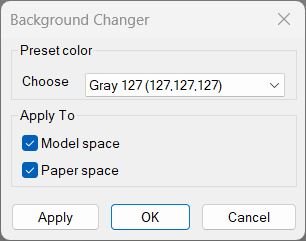
Command: c:BG Opens a DCL-based “Background Changer” dialog allowing you to pick a background color preset and apply it to Model and/or Paper space.
Description:
When executed, the program: • Step 1 Loads AutoCAD’s display and drafting preferences and builds a list of predefined gray/black/white color options. • Step 2 Displays a dialog with a dropdown list of color presets and toggles for Model and Paper space. • Step 3 Applies the selected color to the chosen workspace(s), adjusting crosshair, tracking, and snap marker colors for contrast. • Step 4 If Cancel is pressed, restores the previous colors using a saved snapshot.
Helper function: (if any)
Helper Functions Used: • _pref-display / _pref-drafting — Access AutoCAD’s preference objects for reading and setting UI color data. • _rgb->long — Converts RGB values to AutoCAD’s long integer color format. • _bg-color-by-index — Retrieves the correct color value from the preset index. • _cursorColorForBg — Determines whether the cursor should be black or white for good visibility. • _snapshot-current / _restore-snapshot — Saves and restores the current color scheme so Cancel reverts changes. • _apply-bg — Sets background and related colors for Model/Paper spaces based on the selection. • _bg-dcl-source / _write-dcl-to-temp — Creates and writes a temporary DCL dialog file for the UI.
Functionalities:
Main Functionalities: • Dialog UI (c:BG / c:BGDCL) — Interactive color picker with Apply, OK, and Cancel buttons. • Quick Commands — Includes c:BGGrey, c:BGWhite, c:BGBlack for instant background changes. • Toggle Command — c:bgt switches Model space background between black and white. • Contrast Adjustment — Automatically sets cursor, tracking vector, and snap marker colors based on background brightness. • Snapshot & Restore — Keeps original color settings safe until the user confirms changes.
Result:
Result: Model and/or Paper space background changes to the selected color preset (black, white, or gray). Cursor, tracking, and snap marker colors adjust for readability, and previous colors are restored if the dialog is canceled.
Images, animations etc.
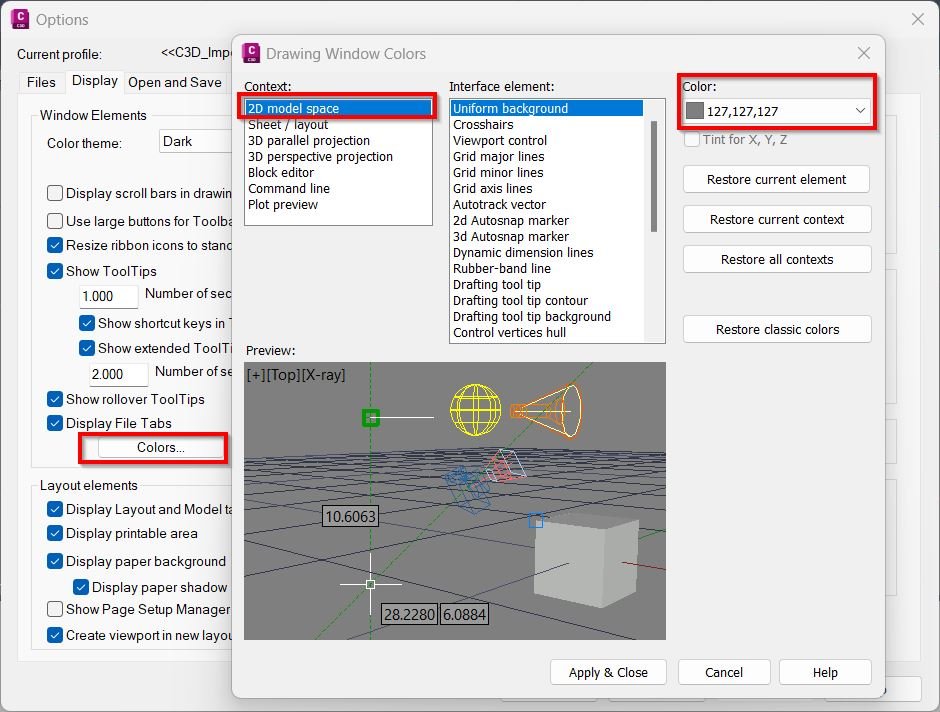
Log in to download.
Log in
Log in
XAML code:
<ResourceDictionary
xmlns="http://schemas.microsoft.com/winfx/2006/xaml/presentation"
xmlns:x="http://schemas.microsoft.com/winfx/2006/xaml"
xmlns:src="clr-namespace:Autodesk.Windows;assembly=AdWindows">

<src:RibbonToolTip x:Key="ChangeBackgroundColor">
<src:RibbonToolTip.ExpandedContent>
<StackPanel>
<TextBlock Background="AntiqueWhite" TextAlignment="Left">
<Bold>Function Syntax: BG</Bold>
<LineBreak/>
<Bold>Version: 1 Date: 08.09.2025</Bold>
<LineBreak/>
<LineBreak/>
<Hyperlink>AI+https://forums.autodesk.com/t5/visual-lisp-autolisp-and-general/lisp-to-change-background-colour-not-working/td-p/11673817</Hyperlink>
<Hyperlink>AI+https://www.theswamp.org/index.php?topic=47337.0</Hyperlink>
<LineBreak/>
<Bold>Command names</Bold><LineBreak/>
<Run>• BGDCL (type </Run><Run Foreground="DarkRed">BGDCL</Run><Run> at the AutoCAD command line)</Run><LineBreak/>
<Run>• BG (type </Run><Run Foreground="DarkRed">BG</Run><Run> at the AutoCAD command line, alias for BGDCL)</Run><LineBreak/>
<Run>• BGGrey (type </Run><Run Foreground="DarkRed">BGGrey</Run><Run> for quick gray 91,91,91)</Run><LineBreak/>
<Run>• BGWhite (type </Run><Run Foreground="DarkRed">BGWhite</Run><Run> for quick white)</Run><LineBreak/>
<Run>• BGBlack (type </Run><Run Foreground="DarkRed">BGBlack</Run><Run> for quick black)</Run><LineBreak/>
<Run>• bgt (type </Run><Run Foreground="DarkRed">bgt</Run><Run> to toggle Model space background black and white)</Run><LineBreak/>
<LineBreak/>

<Bold>Description</Bold><LineBreak/>
<Run>This program changes AutoCAD display colors by setting the Model space and Paper space background colors, and also sets related UI colors such as crosshair, auto-tracking vector, and autosnap marker color to maintain contrast. It includes a dialog-based UI with Apply and Cancel behavior that can restore the previous settings.</Run><LineBreak/>
<LineBreak/>

<Bold>Main purpose</Bold><LineBreak/>
<Run>• Quickly apply consistent background presets (black, white, and multiple gray shades) without manually editing Options settings.</Run><LineBreak/>
<Run>• Automatically adjust cursor and tracking colors for readability on light or dark backgrounds.</Run><LineBreak/>
<LineBreak/>

<Bold>Prerequisites</Bold><LineBreak/>
<Run>• Requires Visual LISP COM support via </Run><Run Foreground="DarkRed">(vl-load-com)</Run><Run>.</Run><LineBreak/>
<Run>• Uses AutoCAD Preferences objects via ActiveX, so the drawing session must support the Display and Drafting preference interfaces.</Run><LineBreak/>
<Run>• Requires permission to write a temporary DCL file for the dialog created by </Run><Run Foreground="DarkRed">vl-filename-mktemp</Run><Run>.</Run><LineBreak/>
<LineBreak/>

<Bold>User interaction</Bold><LineBreak/>
<Run>• The dialog command </Run><Run Foreground="DarkRed">BGDCL</Run><Run> opens a DCL dialog titled Background Changer.</Run><LineBreak/>
<Run>• The user chooses:</Run><LineBreak/>
<Run>  • A preset background color from a dropdown list.</Run><LineBreak/>
<Run>  • Where to apply it via toggles:</Run><LineBreak/>
<Run>    • <Run Foreground="DarkRed">Model space</Run>.</Run><LineBreak/>
<Run>    • <Run Foreground="DarkRed">Paper space</Run>.</Run><LineBreak/>
<Run>• Buttons:</Run><LineBreak/>
<Run>  • <Run Foreground="DarkRed">Apply</Run> applies changes but keeps the dialog open.</Run><LineBreak/>
<Run>  • <Run Foreground="DarkRed">OK</Run> applies changes and closes the dialog.</Run><LineBreak/>
<Run>  • <Run Foreground="DarkRed">Cancel</Run> closes the dialog and restores the pre-dialog snapshot of settings.</Run><LineBreak/>
<LineBreak/>

<Bold>High-level workflow</Bold><LineBreak/>
<Run>• Defines a palette of preset colors (black, white, and several gray values) stored as AutoCAD LONG RGB values.</Run><LineBreak/>
<Run>• On opening the dialog, captures a snapshot of current display and drafting colors so Cancel can revert.</Run><LineBreak/>
<Run>• Writes the dialog DCL source to a temp file and loads it.</Run><LineBreak/>
<Run>• When applying a selection, sets:</Run><LineBreak/>
<Run>  • Model background color and Model crosshair color (if Model is enabled).</Run><LineBreak/>
<Run>  • Paper background color and Layout crosshair color (if Paper is enabled).</Run><LineBreak/>
<Run>  • AutoTracking vector color.</Run><LineBreak/>
<Run>  • AutoSnap marker color (changes depending on light or dark background).</Run><LineBreak/>
<Run>• On Cancel, restores all snapshot values (backgrounds, crosshairs, tracking color, and snap marker).</Run><LineBreak/>
<LineBreak/>

<Bold>Functionalities</Bold><LineBreak/>
<Run>• Dialog-based background management with Apply and Cancel restore.</Run><LineBreak/>
<Run>• Preset dropdown supports:</Run><LineBreak/>
<Run>  • <Run Foreground="DarkRed">Black</Run> and <Run Foreground="DarkRed">White</Run>.</Run><LineBreak/>
<Run>  • Multiple </Run><Run Foreground="DarkRed">gray shades</Run><Run> including Gray 91,91,91 plus additional increments.</Run><LineBreak/>
<Run>• Applies to Model space, Paper space, or both.</Run><LineBreak/>
<Run>• Automatically sets cursor and tracking colors based on background contrast:</Run><LineBreak/>
<Run>  • Dark backgrounds get a white crosshair and tracking vector.</Run><LineBreak/>
<Run>  • Light backgrounds get a black crosshair and tracking vector.</Run><LineBreak/>
<Run>• Automatically sets AutoSnap marker color:</Run><LineBreak/>
<Run>  • Light backgrounds use color 6 (yellow).</Run><LineBreak/>
<Run>  • Dark backgrounds use color 2 (red).</Run><LineBreak/>
<LineBreak/>

<Bold>Quick commands</Bold><LineBreak/>
<Run>• <Run Foreground="DarkRed">BGGrey</Run> sets both Model and Paper background to Gray 91,91,91 and sets cursor and tracking to white with red autosnap markers.</Run><LineBreak/>
<Run>• <Run Foreground="DarkRed">BGWhite</Run> sets both backgrounds to white and sets cursor and tracking to black with yellow autosnap markers.</Run><LineBreak/>
<Run>• <Run Foreground="DarkRed">BGBlack</Run> sets both backgrounds to black and sets cursor and tracking to white with red autosnap markers.</Run><LineBreak/>
<Run>• <Run Foreground="DarkRed">bgt</Run> toggles Model space background between black and white based on the current Model background value.</Run><LineBreak/>
<LineBreak/>

<Bold>Important commands and calls highlighted</Bold><LineBreak/>
<Run>• <Run Foreground="DarkRed">_pref-display</Run> and <Run Foreground="DarkRed">_pref-drafting</Run> — access the Preferences Display and Drafting objects.</Run><LineBreak/>
<Run>• <Run Foreground="DarkRed">vla-put-GraphicsWinModelBackgrndColor</Run> and <Run Foreground="DarkRed">vla-put-GraphicsWinLayoutBackgrndColor</Run> — set Model and Layout background colors.</Run><LineBreak/>
<Run>• <Run Foreground="DarkRed">vla-put-ModelCrosshairColor</Run> and <Run Foreground="DarkRed">vla-put-LayoutCrosshairColor</Run> — set crosshair colors.</Run><LineBreak/>
<Run>• <Run Foreground="DarkRed">vla-put-AutoTrackingVecColor</Run> — sets tracking vector color.</Run><LineBreak/>
<Run>• <Run Foreground="DarkRed">vla-put-AutoSnapMarkerColor</Run> — sets autosnap marker color.</Run><LineBreak/>
<Run>• <Run Foreground="DarkRed">_snapshot-current</Run> and <Run Foreground="DarkRed">_restore-snapshot</Run> — snapshot and restore settings for Cancel behavior.</Run><LineBreak/>
<Run>• <Run Foreground="DarkRed">_apply-bg</Run> — central apply routine that chooses contrast colors and applies changes to Model and Paper.</Run><LineBreak/>
<Run>• <Run Foreground="DarkRed">vl-filename-mktemp</Run> and <Run Foreground="DarkRed">load_dialog</Run> — write and load the temporary DCL UI.</Run><LineBreak/>
<LineBreak/>

<Bold>Outputs and messages</Bold><LineBreak/>
<Run>• If both Model and Paper toggles are off and Apply or OK is pressed: alerts </Run><Run Foreground="DarkRed">Nothing to apply</Run><Run>.</Run><LineBreak/>
<Run>• If the dialog fails to open: alerts </Run><Run Foreground="DarkRed">Failed to open dialog</Run><Run>.</Run><LineBreak/>
<Run>• No explicit success message is printed for Apply or OK; the changes are visible immediately in the graphics window.</Run><LineBreak/>
<LineBreak/>

<Bold>Operational notes and limitations</Bold><LineBreak/>
<Run>• This changes user profile display preferences, not just a single drawing setting, so the effect is global for the current AutoCAD profile and session.</Run><LineBreak/>
<Run>• Cancel restores only the snapshot captured when the dialog opened; if other tools change these preferences while the dialog is open, Cancel will revert them to the snapshot values.</Run><LineBreak/>
<Run>• The bgt command checks only the Model background value to decide black or white toggle behavior.</Run><LineBreak/>
<Run>• AutoSnap marker color is chosen using a threshold based on white intensity; the exact threshold is approximate and may not match every user preference.</Run><LineBreak/>


</TextBlock>

<Grid>
<Image Source="ChangeBackgroundColor_000.jpg" Stretch="Uniform"/>
</Grid>

<Grid>
<Image Source="ChangeBackgroundColor_001.jpg" Stretch="Uniform"/>
</Grid>

<Grid>
<MediaElement
 Source="GIF"
 Stretch="Uniform"
 Visibility="Visible"/>
 </Grid>

</StackPanel>
</src:RibbonToolTip.ExpandedContent>
</src:RibbonToolTip>
</ResourceDictionary>
Additional info:
Learn more:
Open Website
Leave a Reply
You must be logged in to post a comment.