
Short description
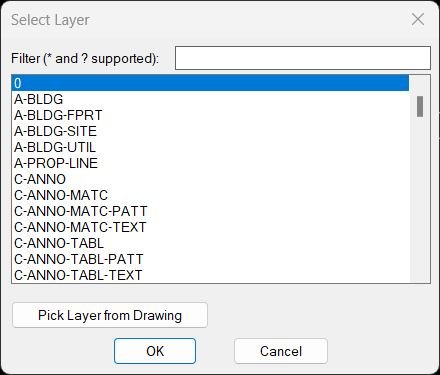
🗂️ ChangeLayerToCurrent is an AutoCAD AutoLISP layer reassignment tool with a dynamic DCL layer selector, filtering, pick-from-object support, and clipboard helper.
🎯 It changes multiple selected objects to a chosen layer and optionally preserves original displayed linetype, linetype scale, and lineweight/width.
Command:
🚀 Layer change command: ChangeLayerToCurrent – opens a searchable layer selector and moves selected objects to the chosen layer
Description:
🗂️ ChangeLayerToCurrent is an SEO-friendly AutoCAD layer management tool for changing selected objects to a selected drawing layer.
🔍 The command builds a temporary DCL dialog, lists all layers, supports a filter text box, and remembers the last selected layer and filter using environment variables.
🎯 A Pick Layer workflow lets the user select an existing object and reuse its layer as the target layer.
📋 A Copy Layer Name helper sends the chosen layer name to the Windows clipboard through PowerShell/clip logic.
🧠 The optional Keep original properties mode captures effective linetype, linetype scale, and lineweight/width before moving objects, then reapplies those values after the layer change.
Helper function: (if any)
🧩 ChangeLayerToCurrent:AddOrReplaceDxf updates entity DXF data safely for specific group codes.
🧩 ChangeLayerToCurrent:LayerLinetype resolves BYLAYER linetype from the source layer.
🧩 ChangeLayerToCurrent:LayerLineweight resolves BYLAYER lineweight from the source layer.
🧩 ChangeLayerToCurrent:GetOriginalProps captures effective visual properties before the move.
🧩 ChangeLayerToCurrent:ApplyOriginalProps reapplies captured linetype, linetype scale, and lineweight/width.
🧩 ChangeLayerToCurrent:CopySelectedLayerName writes the target layer name to the clipboard.
🧩 get-all-layers and update-layer-list populate and refresh the DCL layer selector.
Functionalities:
✅ Display all drawing layers in a DCL popup/list interface.
✅ Filter layer names with typed search text.
✅ Remember the last used layer and last filter between command runs.
✅ Pick an existing object to use its layer as the destination layer.
✅ Copy the selected layer name to the clipboard.
✅ Select multiple objects after confirming the target layer.
✅ Move selected objects to the chosen layer using CHPROP.
✅ Optionally preserve original displayed linetype, linetype scale, and lineweight/width after the layer change.
Result:
🎯 The result is faster and safer layer reassignment with fewer manual Layer dropdown actions.
📋 The optional property-preservation mode keeps object appearance stable while still moving geometry to the selected layer.
Images, animations etc.


XAML code:
<ResourceDictionary
xmlns="http://schemas.microsoft.com/winfx/2006/xaml/presentation"
xmlns:x="http://schemas.microsoft.com/winfx/2006/xaml"
xmlns:src="clr-namespace:Autodesk.Windows;assembly=AdWindows">

<src:RibbonToolTip x:Key="ChangeLayer">
<src:RibbonToolTip.ExpandedContent>
<StackPanel>
<TextBlock Background="AntiqueWhite" TextAlignment="Left">
<Bold>Function Syntax: ChangeLayer</Bold>
<LineBreak/>
<Hyperlink>AI+https://www.theswamp.org/index.php?topic=58620.0</Hyperlink>
<LineBreak/>
<Bold>Version: 1.0 Date: 09.09.2025 8:06:36AM</Bold>
<LineBreak/
<Bold>Description</Bold>
<LineBreak/>
This AutoLISP program provides an intuitive interface for managing and switching between layers in an AutoCAD drawing.
<LineBreak/>
The user is presented with a filtered, searchable, and selectable list of visible layers, including an option to pick a layer directly from an object in the drawing.
<LineBreak/>
It streamlines layer control by allowing wildcard-based filtering and persistent settings across sessions.
<LineBreak/>
<Bold>Key Functionalities:</Bold>
<LineBreak/>
  <TextBlock>
    Prompts the user with a <Run Foreground="DarkRed">dialog interface</Run> to select a layer from the list of <Run Foreground="DarkRed">visible and unfrozen layers</Run>.
<LineBreak/>
  </TextBlock>

<Grid>
<Image Source="Image_000.jpg" Stretch="Uniform"/>
</Grid>

<Grid>
<Image Source="Image_001.jpg" Stretch="Uniform"/>
</Grid>

<Grid>
<Image Source="Image_002.jpg" Stretch="Uniform"/>
</Grid>

   <TextBlock>
    Includes an <Run Foreground="DarkRed">edit box</Run> for entering a <Run Foreground="Red">wildcard-based filter</Run> (<Run Foreground="DarkRed">asterix</Run> and <Run Foreground="DarkRed">?</Run> supported).
<LineBreak/>
  </TextBlock>
  <TextBlock>
    When the filter field is <Run Foreground="DarkRed">left empty</Run>, all visible layers are displayed.
<LineBreak/>
  </TextBlock>
  <TextBlock>
    Adds a <Run Foreground="Red">Pick Layer from Drawing</Run> button that allows the user to select any entity in the drawing to <Run Foreground="DarkRed">automatically extract its layer</Run> and populate the filter.
<LineBreak/>
  </TextBlock>
  <TextBlock>
    The matching layer is <Run Foreground="DarkRed">highlighted in the list box</Run>, ready for confirmation.
<LineBreak/>
  </TextBlock>
  <TextBlock>
    The layer is <Run Foreground="Red">only changed</Run> when the user confirms with the <Run Foreground="DarkRed">OK</Run> button — <Run Foreground="DarkRed">Cancel</Run> exits with no changes.
<LineBreak/>
  </TextBlock>
  <TextBlock>
    Remembers the <Run Foreground="DarkRed">last used filter</Run> across command runs using the AutoCAD registry (<Run Foreground="Red">setenv or getenv</Run> mechanisms).
<LineBreak/>
  </TextBlock>
  <TextBlock>
    Only <Run Foreground="DarkRed">visible and unfrozen</Run> layers are considered for the list (layers that are OFF or FROZEN are skipped).
<LineBreak/>
  </TextBlock>
  <TextBlock>
    The core command can be executed using: <Run Foreground="Red">CHLAY</Run>
<LineBreak/>
  </TextBlock>
<Bold>Typical Use Case:</Bold>
<LineBreak/>
The user types <Run Foreground="Red">CHLAY</Run> in the command line.
<LineBreak/>
A dialog appears, showing all available layers (filtered using the last-used or default filter).
<LineBreak/>
The user can manually type a filter, select a layer from the list, or click <Run Foreground="Red">Pick Layer from Drawing</Run> to populate the filter and list automatically.
<LineBreak/>
Once the desired layer is highlighted, clicking <Run Foreground="DarkRed">OK</Run> sets that layer as the <Run Foreground="DarkRed">current active layer</Run>.
<LineBreak/>
<Bold>Important Commands:</Bold>
<LineBreak/>
<Run Foreground="Red">CHLAY</Run> — Launches the layer selection interface.
<LineBreak/>
<Run Foreground="Red">setenv or getenv</Run> — Used to persist the last-used filter.
<LineBreak/>
<Run Foreground="Red">entsel</Run> — Allows selecting an entity from the drawing.
<LineBreak/>
<Run Foreground="Red">assoc 8</Run> — Retrieves the layer name from the selected entity.
<LineBreak/>
<Run Foreground="Red">wcmatch</Run> — Performs wildcard-based filtering on layer names.
<LineBreak/>
<Bold>Layer Conditions:</Bold>
<LineBreak/>
Only layers that are both <Run Foreground="DarkRed">ON</Run> and <Run Foreground="DarkRed">THAWED</Run> are included in the list box.
<LineBreak/>
The logic filters layers using bitwise checks on <Run Foreground="Red">assoc 70</Run>.
<LineBreak/>


<Bold><Run Foreground="DodgerBlue">Description</Run></Bold><LineBreak/><Run Foreground="White">🗂️ ChangeLayerToCurrent is an AutoCAD AutoLISP utility for moving selected objects to a chosen layer through a searchable DCL dialog.</Run><LineBreak/><Run Foreground="LimeGreen">🎯 It adds practical production controls such as layer filtering, pick layer from object, copy selected layer name, last-used memory, and optional visual property preservation.</Run><LineBreak/><LineBreak/>
<Bold><Run Foreground="DodgerBlue">Function Syntax</Run></Bold><LineBreak/><Run Foreground="White">Layer change command: </Run><Bold><Run Foreground="Orange">ChangeLayerToCurrent</Run></Bold><Run Foreground="White">opens a searchable layer selector and moves selected objects to the chosen layer</Run><LineBreak/><LineBreak/>
<Bold><Run Foreground="DodgerBlue">SEO Optimized Overview</Run></Bold><LineBreak/><Run Foreground="White">🗂️ ChangeLayerToCurrent is an SEO-friendly AutoCAD layer management tool for changing selected objects to a selected drawing layer.</Run><LineBreak/><Run Foreground="White">🔍 The command builds a temporary DCL dialog, lists all layers, supports a filter text box, and remembers the last selected layer and filter using environment variables.</Run><LineBreak/><Run Foreground="White">🎯 A Pick Layer workflow lets the user select an existing object and reuse its layer as the target layer.</Run><LineBreak/><Run Foreground="White">📋 A Copy Layer Name helper sends the chosen layer name to the Windows clipboard through PowerShell/clip logic.</Run><LineBreak/><Run Foreground="White">🧠 The optional Keep original properties mode captures effective linetype, linetype scale, and lineweight/width before moving objects, then reapplies those values after the layer change.</Run><LineBreak/><LineBreak/>
<Bold><Run Foreground="LimeGreen">Primary Workflow</Run></Bold><LineBreak/><Run Foreground="White">1️⃣ Run </Run><Bold><Run Foreground="Orange">ChangeLayerToCurrent</Run></Bold><Run Foreground="White"> at the AutoCAD command line.</Run><LineBreak/><Run Foreground="White">2️⃣ Filter the layer list, pick a layer manually, or use Pick Layer to read a layer from an existing object.</Run><LineBreak/><Run Foreground="White">3️⃣ Optionally enable Keep original properties before confirming the dialog.</Run><LineBreak/><Run Foreground="White">4️⃣ Select one or more objects to move to the target layer.</Run><LineBreak/><Run Foreground="White">5️⃣ Review the command-line result message confirming the layer move and preserved properties if enabled.</Run><LineBreak/><LineBreak/>
<Bold><Run Foreground="LimeGreen">Functionalities</Run></Bold><LineBreak/><Run Foreground="White">✅ Display all drawing layers in a DCL popup/list interface.</Run><LineBreak/><Run Foreground="White">✅ Filter layer names with typed search text.</Run><LineBreak/><Run Foreground="White">✅ Remember the last used layer and last filter between command runs.</Run><LineBreak/><Run Foreground="White">✅ Pick an existing object to use its layer as the destination layer.</Run><LineBreak/><Run Foreground="White">✅ Copy the selected layer name to the clipboard.</Run><LineBreak/><Run Foreground="White">✅ Select multiple objects after confirming the target layer.</Run><LineBreak/><Run Foreground="White">✅ Move selected objects to the chosen layer using CHPROP.</Run><LineBreak/><Run Foreground="White">✅ Optionally preserve original displayed linetype, linetype scale, and lineweight/width after the layer change.</Run><LineBreak/><LineBreak/>
<Bold><Run Foreground="DodgerBlue">Important Commands and Functions</Run></Bold><LineBreak/><Run Foreground="White">🧩 </Run><Bold><Run Foreground="Orange">ChangeLayerToCurrent</Run></Bold><Run Foreground="White"> - main command that opens the layer selector and applies the layer change.</Run><LineBreak/><Run Foreground="White">🧩 </Run><Bold><Run Foreground="Orange">ssget</Run></Bold><Run Foreground="White"> - collects the target objects to move after the dialog closes.</Run><LineBreak/><Run Foreground="White">🧩 </Run><Bold><Run Foreground="Orange">CHPROP</Run></Bold><Run Foreground="White"> - AutoCAD command used to change selected entities to the chosen layer.</Run><LineBreak/><Run Foreground="White">🧩 </Run><Bold><Run Foreground="Orange">entsel</Run></Bold><Run Foreground="White"> - supports picking an object to read its current layer.</Run><LineBreak/><Run Foreground="White">🧩 </Run><Bold><Run Foreground="Orange">entget / entmod</Run></Bold><Run Foreground="White"> - captures and reapplies original entity display properties.</Run><LineBreak/><Run Foreground="White">🧩 </Run><Bold><Run Foreground="Orange">PowerShell / clip</Run></Bold><Run Foreground="White"> - copies the selected layer name to the clipboard.</Run><LineBreak/><LineBreak/>
<Bold><Run Foreground="LimeGreen">Result</Run></Bold><LineBreak/><Run Foreground="White">🎯 The result is faster and safer layer reassignment with fewer manual Layer dropdown actions.</Run><LineBreak/><Run Foreground="White">📋 The optional property-preservation mode keeps object appearance stable while still moving geometry to the selected layer.</Run><LineBreak/><LineBreak/>
<Bold><Run Foreground="DarkRed">Important Notes</Run></Bold><LineBreak/><Run Foreground="White">⚠️ The command changes selected entities to the chosen layer; verify the target layer before selecting a large object set.</Run><LineBreak/><Run Foreground="White">⚠️ Property preservation is focused on linetype, linetype scale, and lineweight/width; it does not preserve every possible entity override.</Run><LineBreak/><Run Foreground="White">⚠️ The clipboard helper depends on Windows clipboard/PowerShell availability.</Run><LineBreak/><LineBreak/>
<Bold><Run Foreground="Yellow">Tags</Run></Bold><LineBreak/><Run Foreground="Yellow">🏷️ AutoCAD, 🏷️ AutoLISP, 🏷️ Civil 3D, 🏷️ Change Layer, 🏷️ Layer Selector, 🏷️ DCL Dialog, 🏷️ CAD Layer Management, 🏷️ CHPROP, 🏷️ Clipboard, 🏷️ ChangeLayerToCurrent</Run><LineBreak/>


</TextBlock>


</StackPanel>
</src:RibbonToolTip.ExpandedContent>
</src:RibbonToolTip>

</ResourceDictionary>
Leave a Reply
You must be logged in to post a comment.