
Short description
🚀 CivilFeatureLines is an Autodesk Civil 3D C# .NET WPF plugin that creates Civil 3D feature lines from selected drawing objects. It improves the standard create-feature-lines-from-objects workflow by adding wildcard feature line style search, custom layer control, optional elevation assignment, source object cleanup, weed-point support, version banners, and detailed command logging for Civil 3D production workflows.
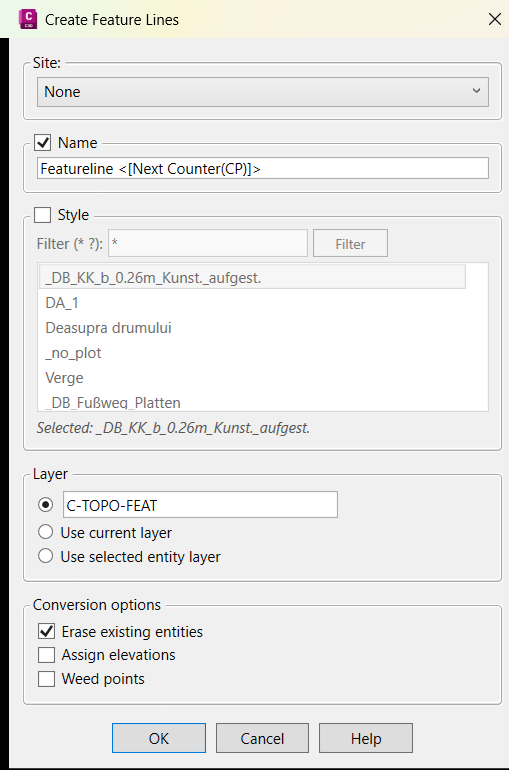
Command:
📌 Main command:
📋 Log command:
🧰 Loading method: build
🪟 The command opens a WPF dialog named
📌 The user selects source objects, chooses site, name, style, layer, erase, elevation, and weed options, then clicks
🎯 Target platform: Autodesk Civil 3D with AutoCAD .NET APIs, Civil 3D managed APIs, .NET Framework 4.8, WPF, x64, and references such as
FeatureLinesStyleExtra.📋 Log command:
FL_DUMPLOG prints all session log entries to the AutoCAD command line.🧰 Loading method: build
CivilFeatureLines.csproj as x64, then load CivilFeatureLines.dll in Autodesk Civil 3D using NETLOAD.🪟 The command opens a WPF dialog named
Create Feature Lines.📌 The user selects source objects, chooses site, name, style, layer, erase, elevation, and weed options, then clicks
OK to create feature lines.🎯 Target platform: Autodesk Civil 3D with AutoCAD .NET APIs, Civil 3D managed APIs, .NET Framework 4.8, WPF, x64, and references such as
accoremgd, acdbmgd, acmgd, AeccDbMgd, and AeccLandDbMgd.
Description:
🧠 CivilFeatureLines is a Civil 3D plugin project designed to recreate and enhance the Civil 3D
The WPF dialog allows users to choose a target site or
The code uses the Civil 3D managed API method
The plugin also includes a logging system through
Create Feature Lines from Objects workflow. The main command, FeatureLinesStyleExtra, prompts the user to select objects, opens a custom WPF dialog, collects Civil 3D sites and feature line styles, and creates Civil 3D feature lines using the selected settings.The WPF dialog allows users to choose a target site or
None, set a feature line name template, enable feature line style assignment, search styles with wildcard patterns, choose layer behavior, erase original entities, assign elevations, and trigger weed points after creation. The style search is one of the main enhancements: users can filter feature line styles with patterns such as *, ?, IEL*, or *_no.?, making style selection faster in drawings with many Civil 3D styles.The code uses the Civil 3D managed API method
FeatureLine.Create. It correctly separates siteless feature line creation from site-based creation, because passing ObjectId.Null into the site overload can throw a Civil 3D siteId argument error. When the user selects None, the two-argument overload is used. When the user selects a real Civil 3D site, the three-argument overload is used.The plugin also includes a logging system through
CommandLogger. It writes messages to the AutoCAD command line and stores daily log files under %APPDATA%\CivilFeatureLines\Logs. The command FL_DUMPLOG prints the current in-memory session log. This makes the project useful for Civil 3D feature line creation, QA tracking, command troubleshooting, survey cleanup, grading workflows, topographic modeling, and production drawing management.
Helper function: (if any)
- 🚀 Plugin initialization —
App.Initializeenables file logging, prints the version banner, and reports available commands when the DLL is loaded. - 📋 Central logging system —
CommandLogger.Instanceprovides shared command-line logging, session logging, and daily file logging. - 💾 Daily log file creation —
EnableFileLoggingcreates log files in%APPDATA%\CivilFeatureLines\Logsusing names such asFeatureLines_yyyy-MM-dd.log. - 📘 Version banner generator —
BuildVersionStringbuilds a banner from the assembly version and DLL creation timestamp. - 📋 Session log output —
DumpSessionLogwrites the in-memory command log to the AutoCAD command line. - 🧩 Site collection —
GetSiteNamesreads Civil 3D sites fromCivilDocument.GetSiteIdsand sends them to the dialog. - 🎨 Feature line style collection —
GetFeatureLineStyleNamesreads Civil 3D feature line style names fromcdb.Styles.FeatureLineStyles. - 🌐 Site resolution —
ResolveSiteIdresolves the selected site name into a Civil 3DObjectId. - 🎨 Style resolution —
ResolveFeatureLineStyleIdresolves the selected feature line style name into a Civil 3D styleObjectId. - 🧱 Layer mode resolution —
ResolveTargetLayerdecides whether to use a custom layer, current layer, or selected entity layer behavior. - 🧱 Layer creation —
EnsureLayerExistscreates the custom target layer if it is not already present in the drawing. - 🔍 Wildcard conversion —
WildcardToRegexconverts user wildcard filters into anchored regular expressions. - 🔍 Style filter refresh —
ApplyFilterupdates the visible feature line style list based on the filter text. - ✅ Dialog result collection —
BtnOK_Clickvalidates the selected style and builds theCreateFeatureLinesOptionsobject used by the command. - 🪟 WPF dialog binding —
CreateFeatureLinesDialoguses observable collections for sites and filtered styles so the dialog updates dynamically.
Functionalities:
- 🚀 Create Civil 3D feature lines from selected objects — the command converts selected source entities into Civil 3D feature lines using
FeatureLine.Create. - 🌐 Create siteless or site-based feature lines — the user can choose
Noneor an existing Civil 3D site before creation. - 🔒 Use safe FeatureLine.Create overloads — the code avoids passing
ObjectId.Nullto the site-based overload, preventing the common Civil 3DsiteIderror. - 🏷️ Apply feature line naming template — created feature lines receive names generated from the dialog name template and a four-digit sequence counter.
- 🎨 Assign feature line style — selected Civil 3D feature line styles are assigned to newly created feature lines when the Style checkbox is enabled.
- 🔍 Filter feature line styles with wildcards — users can search style names with
*and?, making large Civil 3D style lists easier to manage. - 🧱 Create custom target layer — when custom layer mode is used, the plugin creates the target layer if it does not already exist.
- 🧱 Set feature line layer — when a custom target layer is resolved, the plugin assigns that layer to the new feature line.
- 🧹 Erase source entities optionally — the source object can be erased after successful feature line creation when the erase option is enabled.
- 📐 Assign elevations optionally — the plugin can call
AssignElevationsFromSurfaceon the created feature line. - 🧹 Queue Civil 3D weed feature lines command — when enabled, the plugin queues
_AeccWeedFeaturelinesafter feature line creation. - 📋 Write command-line and file logs — the plugin records command progress, selected options, warnings, failures, and conversion results.
- 📘 Show version banner on load — every DLL load prints a version string in the format used by the project logger.
- 🪟 Use a custom WPF dialog — the interface mirrors the Civil 3D feature line creation workflow while adding wildcard style search.
- 🔴 Important limitation — the dialog includes an AssignName option, but the visible command code always builds the feature line name from the template.
- 🔴 Layer limitation — the selected entity layer mode is present in the dialog, but the visible code does not explicitly assign each new feature line to the source entity layer.
- 🔴 Surface limitation — elevation assignment uses
ObjectId.Nulland does not include a surface picker. - 🔴 Weed limitation — weed points are handled by queuing the native Civil 3D command, so the user must continue the weed workflow when Civil 3D prompts.
- 🔴 Build limitation — the project imports a machine-specific props file path that may need to be edited before building on another workstation.
- 🔐 Platform limitation — this plugin requires Autodesk Civil 3D and is not intended for plain AutoCAD without Civil 3D managed APIs.
Result:
📘 The final result is a faster and more searchable Civil 3D feature line creation workflow. Users can select objects, choose a site, filter feature line styles with wildcard patterns, assign style and layer settings, optionally assign elevations, optionally erase source objects, and log every step of the command. This improves productivity, reduces style selection time, supports better Civil 3D QA tracking, and helps survey, grading, and production teams create feature lines with fewer repetitive steps.
Images, animations etc.
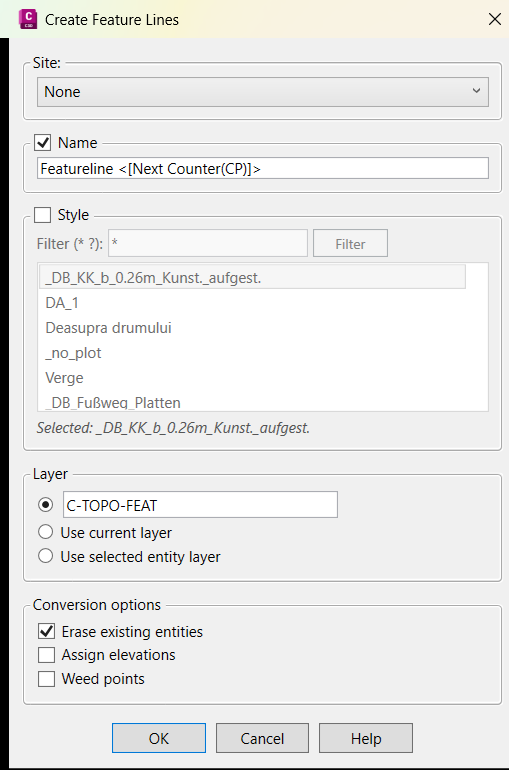
XAML code:
<ResourceDictionary
xmlns="http://schemas.microsoft.com/winfx/2006/xaml/presentation"
xmlns:x="http://schemas.microsoft.com/winfx/2006/xaml"
xmlns:src="clr-namespace:Autodesk.Windows;assembly=AdWindows">

<src:RibbonToolTip x:Key="FeatureLinesStyleExtra">
<src:RibbonToolTip.ExpandedContent>
<StackPanel>
<TextBlock Background="AntiqueWhite" TextAlignment="Left">
<Bold>Function Syntax: FeatureLinesStyleExtra</Bold>
<LineBreak/>
<Bold>Version: 1.0 Date: 15.06.2026 13:17:06</Bold>
<LineBreak/>
<Bold>Version: 1.1 Date: 15.06.2026 1:58:22PM</Bold>
<LineBreak/>
<Hyperlink>N/A</Hyperlink>
<LineBreak/>

<Bold>Description</Bold><LineBreak/>
This project is an Autodesk Civil 3D C# .NET plugin that creates Civil 3D feature lines from selected drawing objects.<LineBreak/>
The project recreates the Civil 3D create-feature-lines-from-objects workflow and adds a custom WPF dialog with wildcard feature line style filtering.<LineBreak/>
The main command is <Bold><Run Foreground="DarkRed">FeatureLinesStyleExtra</Run></Bold>.<LineBreak/>
The project also includes the command <Bold><Run Foreground="DarkRed">FL_DUMPLOG</Run></Bold> for printing the active session log to the AutoCAD command line.<LineBreak/>
The plugin is intended for Civil 3D users who need faster feature line creation, easier feature line style searching, command logging, and a more controlled conversion workflow.<LineBreak/>
<LineBreak/>
<Bold>Project Type</Bold><LineBreak/>
• <Bold>🧩 C# .NET Plugin</Bold> — this is a compiled Civil 3D plugin project that builds a <Run Foreground="DarkRed">CivilFeatureLines.dll</Run> file.<LineBreak/>
• <Bold>🪟 WPF User Interface</Bold> — the project uses <Run Foreground="DarkRed">CreateFeatureLinesDialog.xaml</Run> and <Run Foreground="DarkRed">CreateFeatureLinesDialog.cs</Run> to display a custom settings window.<LineBreak/>
• <Bold>📘 Documentation Included</Bold> — the project includes <Run Foreground="DarkRed">README.md</Run> with build notes, commands, log format, and suggested improvements.<LineBreak/>
• <Bold>🔴 Not A Standalone LISP</Bold> — <Run Foreground="Red">this uploaded project is not a single AutoLISP routine and does not include a LISP loader in the visible project files.</Run><LineBreak/>
<LineBreak/>
<Bold>Main Commands</Bold><LineBreak/>
• <Bold>🚀 <Run Foreground="DarkRed">FeatureLinesStyleExtra</Run></Bold> — opens the feature line creation dialog and converts selected objects into Civil 3D feature lines.<LineBreak/>
• <Bold>📋 <Run Foreground="DarkRed">FL_DUMPLOG</Run></Bold> — prints all in-memory session log entries to the AutoCAD command line.<LineBreak/>
<LineBreak/>
<Bold>Loading Method</Bold><LineBreak/>
• <Bold>🧰 Build DLL</Bold> — open <Run Foreground="DarkRed">CivilFeatureLines.csproj</Run> in Visual Studio and build the project as <Run Foreground="DarkRed">x64</Run>.<LineBreak/>
• <Bold>📦 Load Plugin</Bold> — load the compiled <Run Foreground="DarkRed">CivilFeatureLines.dll</Run> in Civil 3D using <Run Foreground="DarkRed">NETLOAD</Run>.<LineBreak/>
• <Bold>📌 Run Command</Bold> — run <Run Foreground="DarkRed">FeatureLinesStyleExtra</Run> from the Civil 3D command line.<LineBreak/>
• <Bold>📋 Review Log</Bold> — run <Run Foreground="DarkRed">FL_DUMPLOG</Run> to print the current command session log.<LineBreak/>
<LineBreak/>
<Bold>User Workflow</Bold><LineBreak/>
• <Bold>🚀 Start Command</Bold> — the user runs <Run Foreground="DarkRed">FeatureLinesStyleExtra</Run> in Civil 3D.<LineBreak/>
• <Bold>📌 Select Objects</Bold> — the command prompts the user to select objects that should be converted to feature lines.<LineBreak/>
• <Bold>🧩 Collect Sites</Bold> — the plugin reads available Civil 3D sites from the active drawing.<LineBreak/>
• <Bold>🎨 Collect Feature Line Styles</Bold> — the plugin reads feature line style names from the active Civil 3D document.<LineBreak/>
• <Bold>🪟 Open WPF Dialog</Bold> — the plugin opens the <Run Foreground="DarkRed">Create Feature Lines</Run> dialog.<LineBreak/>
• <Bold>🌐 Choose Site</Bold> — the user can select <Run Foreground="DarkRed">None</Run> for siteless feature lines or select an available Civil 3D site.<LineBreak/>
• <Bold>🏷️ Set Name Template</Bold> — the user can define the feature line name template used during creation.<LineBreak/>
• <Bold>🎨 Assign Style</Bold> — the user can enable style assignment and select a feature line style from the filtered list.<LineBreak/>
• <Bold>🔍 Filter Styles</Bold> — the user can search feature line styles with wildcard patterns such as <Run Foreground="DarkRed">*</Run> and <Run Foreground="DarkRed">?</Run>.<LineBreak/>
• <Bold>🧱 Choose Layer Mode</Bold> — the user can choose a custom layer, the current layer, or the selected entity layer option.<LineBreak/>
• <Bold>🧹 Choose Erase Option</Bold> — the user can erase original source entities after feature line creation.<LineBreak/>
• <Bold>📐 Assign Elevations</Bold> — the user can request elevation assignment from a surface.<LineBreak/>
• <Bold>🧹 Weed Points</Bold> — the user can request the Civil 3D weed feature lines command after feature lines are created.<LineBreak/>
• <Bold>✅ Confirm</Bold> — the user clicks <Run Foreground="DarkRed">OK</Run> to create the feature lines.<LineBreak/>
• <Bold>🔴 Cancel</Bold> — the user clicks <Run Foreground="DarkRed">Cancel</Run> to close the dialog without creating feature lines.<LineBreak/>
<LineBreak/>
<Bold>Functionalities</Bold><LineBreak/>
• <Bold>🚀 Feature Line Creation</Bold> — the plugin converts selected objects into Civil 3D feature lines using <Run Foreground="DarkRed">FeatureLine.Create</Run>.<LineBreak/>
• <Bold>🌐 Site Selection</Bold> — the dialog lets the user create siteless feature lines or assign new feature lines to an existing Civil 3D site.<LineBreak/>
• <Bold>🔒 Correct Site Overload Handling</Bold> — the code uses the two-argument <Run Foreground="DarkRed">FeatureLine.Create</Run> overload when the site is <Run Foreground="DarkRed">None</Run>, avoiding the Civil 3D error caused by passing <Run Foreground="DarkRed">ObjectId.Null</Run> as a site ID.<LineBreak/>
• <Bold>🎨 Feature Line Style Assignment</Bold> — when enabled, the plugin assigns the selected Civil 3D feature line style by setting <Run Foreground="DarkRed">StyleId</Run> on the created feature line.<LineBreak/>
• <Bold>🔍 Wildcard Style Search</Bold> — the style list supports <Run Foreground="DarkRed">*</Run> for any characters and <Run Foreground="DarkRed">?</Run> for a single character.<LineBreak/>
• <Bold>🏷️ Feature Line Naming</Bold> — the plugin uses a name template and replaces the next-counter token with a four-digit sequence number.<LineBreak/>
• <Bold>🧱 Custom Layer Creation</Bold> — when custom layer mode is selected, the plugin checks whether the layer exists and creates it if needed.<LineBreak/>
• <Bold>🧱 Layer Assignment</Bold> — when a layer name is resolved, the created feature line layer is set through the feature line <Run Foreground="DarkRed">Layer</Run> property.<LineBreak/>
• <Bold>📐 Elevation Assignment</Bold> — when enabled, the plugin calls <Run Foreground="DarkRed">AssignElevationsFromSurface</Run> using <Run Foreground="DarkRed">ObjectId.Null</Run> to use the first available surface.<LineBreak/>
• <Bold>🧹 Source Entity Erase</Bold> — when enabled, the original selected source entity is erased after the feature line is created.<LineBreak/>
• <Bold>🧹 Weed Points Workflow</Bold> — when enabled, the plugin queues <Run Foreground="DarkRed">_AeccWeedFeaturelines</Run> after creation and asks the user to select the newly created feature lines when Civil 3D prompts.<LineBreak/>
• <Bold>🔒 Document Locking</Bold> — the command uses <Run Foreground="DarkRed">DocumentLock</Run> before Civil 3D database writes to reduce write failures.<LineBreak/>
• <Bold>🧩 Transaction Handling</Bold> — feature line creation, style assignment, layer assignment, elevation assignment, and source erasing are wrapped inside an AutoCAD transaction.<LineBreak/>
• <Bold>📋 Command Logging</Bold> — the plugin logs command progress, warnings, failures, selected options, and conversion results.<LineBreak/>
• <Bold>💾 Daily Log Files</Bold> — logs are saved under <Run Foreground="DarkRed">%APPDATA%\CivilFeatureLines\Logs</Run> with daily file names.<LineBreak/>
• <Bold>📘 Version Banner</Bold> — when the DLL loads, the plugin prints a version banner using the assembly version and DLL creation timestamp.<LineBreak/>
• <Bold>🪟 Help Button</Bold> — the WPF dialog includes a Help button explaining wildcard style filter examples.<LineBreak/>
<LineBreak/>
<Bold>Important Helper Logic</Bold><LineBreak/>
• <Bold>🚀 Plugin Entry Point</Bold> — <Run Foreground="DarkRed">App.Initialize</Run> starts file logging, prints the version banner, and reports available commands when the DLL is loaded.<LineBreak/>
• <Bold>📋 Logger Singleton</Bold> — <Run Foreground="DarkRed">CommandLogger.Instance</Run> provides shared command-line and file logging for the whole plugin.<LineBreak/>
• <Bold>💾 File Logging</Bold> — <Run Foreground="DarkRed">EnableFileLogging</Run> creates the log folder and writes daily log files named like <Run Foreground="DarkRed">FeatureLines_yyyy-MM-dd.log</Run>.<LineBreak/>
• <Bold>📋 Session Log Dump</Bold> — <Run Foreground="DarkRed">DumpSessionLog</Run> prints the in-memory session log to the AutoCAD command line.<LineBreak/>
• <Bold>📘 Version Builder</Bold> — <Run Foreground="DarkRed">BuildVersionString</Run> reads the executing assembly version and DLL last-write time to build the load banner.<LineBreak/>
• <Bold>🧩 Site Collector</Bold> — <Run Foreground="DarkRed">GetSiteNames</Run> reads Civil 3D site names from <Run Foreground="DarkRed">CivilDocument.GetSiteIds</Run>.<LineBreak/>
• <Bold>🎨 Style Collector</Bold> — <Run Foreground="DarkRed">GetFeatureLineStyleNames</Run> reads available styles from <Run Foreground="DarkRed">cdb.Styles.FeatureLineStyles</Run>.<LineBreak/>
• <Bold>🌐 Site Resolver</Bold> — <Run Foreground="DarkRed">ResolveSiteId</Run> finds the selected Civil 3D site object ID by name.<LineBreak/>
• <Bold>🎨 Style Resolver</Bold> — <Run Foreground="DarkRed">ResolveFeatureLineStyleId</Run> finds the selected feature line style object ID by name.<LineBreak/>
• <Bold>🧱 Layer Resolver</Bold> — <Run Foreground="DarkRed">ResolveTargetLayer</Run> decides whether the command should use custom, current, or selected-entity layer behavior.<LineBreak/>
• <Bold>🧱 Layer Creator</Bold> — <Run Foreground="DarkRed">EnsureLayerExists</Run> creates the custom target layer when it does not exist.<LineBreak/>
• <Bold>🔍 Wildcard Converter</Bold> — <Run Foreground="DarkRed">WildcardToRegex</Run> converts wildcard style filters into anchored regular expressions.<LineBreak/>
• <Bold>🔍 Filter Logic</Bold> — <Run Foreground="DarkRed">ApplyFilter</Run> updates the visible feature line style list based on the wildcard filter text.<LineBreak/>
• <Bold>✅ Dialog Result Builder</Bold> — <Run Foreground="DarkRed">BtnOK_Click</Run> validates style selection and builds the <Run Foreground="DarkRed">CreateFeatureLinesOptions</Run> result object.<LineBreak/>
<LineBreak/>
<Bold>Important Code Notes</Bold><LineBreak/>
• <Bold>📌 Command Name</Bold> — <Run Foreground="Red">the main command name is FeatureLinesStyleExtra.</Run><LineBreak/>
• <Bold>🔴 Platform Requirement</Bold> — <Run Foreground="Red">this project requires Autodesk Civil 3D because it uses Civil 3D APIs such as FeatureLine, Site, CivilDocument, and FeatureLineStyle.</Run><LineBreak/>
• <Bold>🔴 Build Requirement</Bold> — <Run Foreground="Red">the project targets .NET Framework 4.8, uses WPF, targets x64, and requires AutoCAD and Civil 3D managed references.</Run><LineBreak/>
• <Bold>🔴 Props File Requirement</Bold> — <Run Foreground="Red">the project imports a machine-specific ObjectARX and Civil 3D reference props file from a OneDrive path. If that file is missing, the project may not build until the import path is corrected.</Run><LineBreak/>
• <Bold>🔴 Output Path Note</Bold> — <Run Foreground="Red">the project redirects bin and obj output to LocalAppData to avoid OneDrive sync locks and long path problems.</Run><LineBreak/>
• <Bold>🔴 Assign Name Limitation</Bold> — <Run Foreground="Red">the dialog includes an AssignName option, but the visible command code always builds the feature line name from the template and does not branch on AssignName.</Run><LineBreak/>
• <Bold>🔴 Selected Entity Layer Limitation</Bold> — <Run Foreground="Red">the dialog includes a Use selected entity layer option, but the visible layer resolver returns null for that mode and does not explicitly set each new feature line to the source entity layer.</Run><LineBreak/>
• <Bold>🔴 Elevation Surface Limitation</Bold> — <Run Foreground="Red">AssignElevationsFromSurface is called with ObjectId.Null, meaning the code relies on Civil 3D behavior for the first available surface and does not provide a surface picker.</Run><LineBreak/>
• <Bold>🔴 Weed Points Limitation</Bold> — <Run Foreground="Red">the managed API does not weed points directly here. The plugin queues the native _AeccWeedFeaturelines command and the user must follow the Civil 3D prompt.</Run><LineBreak/>
• <Bold>🔴 Undo Limitation</Bold> — <Run Foreground="Red">the README notes undo grouping as a suggested improvement, so the visible code does not implement a named one-step undo group for the whole batch.</Run><LineBreak/>
• <Bold>🔴 No AutoLISP Loader Note</Bold> — <Run Foreground="Red">the visible zip contents do not include an AutoLISP loader file. The plugin is loaded with NETLOAD after building the DLL.</Run><LineBreak/>
<LineBreak/>
<Bold>Final Result</Bold><LineBreak/>
The final result is a Civil 3D feature line creation workflow with a custom searchable WPF dialog.<LineBreak/>
The user selects source objects, chooses a site, optional style, layer behavior, erase option, elevation assignment, and weed-point option, then creates Civil 3D feature lines with detailed command logging.<LineBreak/>
This improves productivity, speeds up style selection, reduces repetitive Civil 3D dialog work, helps with QA tracking through logs, and gives Civil 3D users a more controlled workflow for creating feature lines from objects.<LineBreak/>


</TextBlock>

<Grid>
<Image Source="Image_000.png" Stretch="Uniform"/>
</Grid>

</StackPanel>
</src:RibbonToolTip.ExpandedContent>
</src:RibbonToolTip>
</ResourceDictionary>
Additional info:
Based on / Source code:
Open Website
Share this page:
Subscribe
Login
0 Comments
Oldest
Categories: AutoCAD_Lips
Categories: AutoCAD_Lips