
Short description
📤 CogoPointsExport.lsp is a Civil 3D AutoLISP export utility that exports COGO point data from selected point groups to Excel or CSV. The tool helps AutoCAD Civil 3D users filter point groups, choose export columns, generate Excel workbooks, save timestamped CSV files, and speed up survey point reporting, QA checking, and project documentation.
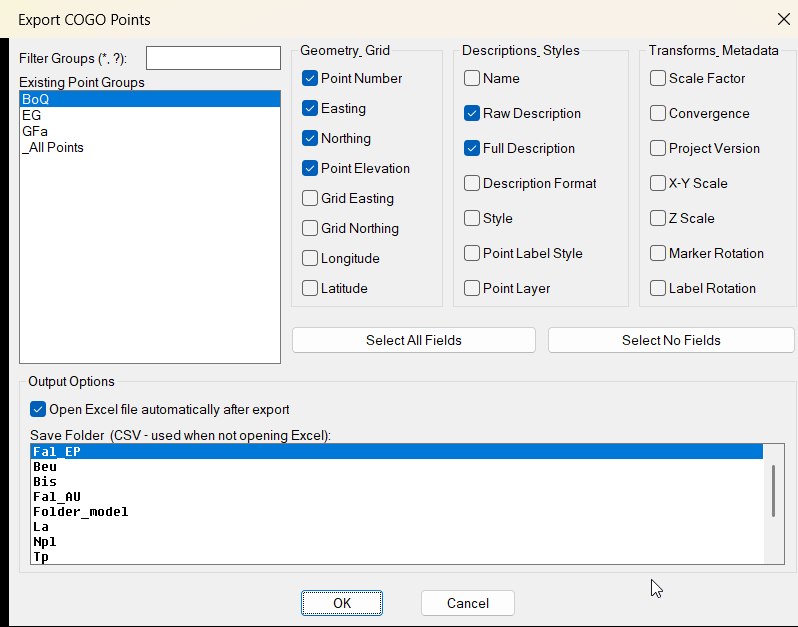
Command:
📌 Main command:
🧰 Loading method: load
🪟 The command opens a temporary DCL dialog named
🧩 The user selects one or more Civil 3D point groups from a multi-select list.
🔍 The user can filter point groups with wildcard patterns such as
📊 If
📤 If Excel opening is disabled, the routine saves a timestamped CSV file to a predefined project folder.
🎯 Target platform: Autodesk Civil 3D with AutoLISP, Visual LISP COM, Civil 3D COM support through
COGOEXPORT.🧰 Loading method: load
CogoPointsExport.lsp in Autodesk Civil 3D using APPLOAD, then run COGOEXPORT from the command line.🪟 The command opens a temporary DCL dialog named
Export COGO Points.🧩 The user selects one or more Civil 3D point groups from a multi-select list.
🔍 The user can filter point groups with wildcard patterns such as
* and ?.📊 If
Open Excel file automatically after export is enabled, the routine exports to a new Excel workbook.📤 If Excel opening is disabled, the routine saves a timestamped CSV file to a predefined project folder.
🎯 Target platform: Autodesk Civil 3D with AutoLISP, Visual LISP COM, Civil 3D COM support through
AeccXUiLand.AeccApplication, and optional Microsoft Excel COM support through Excel.Application.
Description:
🧠 This AutoLISP routine is designed for Civil 3D users who need to export COGO point data from Civil 3D point groups into Excel or CSV. Instead of manually opening point properties, copying coordinates, or building reports by hand, the user runs
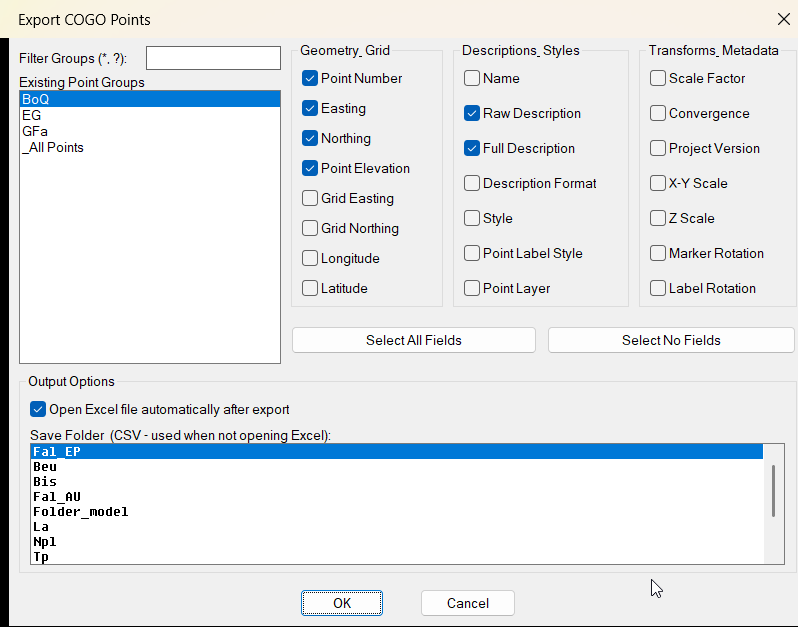
The DCL dialog includes a point group browser with wildcard filtering, a multi-select point group list, and 22 export field checkboxes. Available export fields include point number, easting, northing, point elevation, name, raw description, full description, description format, grid easting, grid northing, longitude, latitude, scale factor, convergence, style, point label style, point layer, project version, X-Y scale, Z scale, marker rotation, and label rotation.
The routine supports two output workflows. When
CSV output uses predefined save folders based on
COGOEXPORT, selects one or more point groups, chooses the required export fields, and lets the routine generate the output automatically.The DCL dialog includes a point group browser with wildcard filtering, a multi-select point group list, and 22 export field checkboxes. Available export fields include point number, easting, northing, point elevation, name, raw description, full description, description format, grid easting, grid northing, longitude, latitude, scale factor, convergence, style, point label style, point layer, project version, X-Y scale, Z scale, marker rotation, and label rotation.
The routine supports two output workflows. When
Open Excel file automatically after export is checked, the code creates a new Excel workbook through Excel.Application, writes column headers and data rows, auto-fits the columns, and displays Excel. When that option is unchecked, the routine writes a CSV file directly through AutoLISP file input and output, so Excel is not created or opened.CSV output uses predefined save folders based on
USERPROFILE and OneDrive - DB E.C.O. Group. The generated CSV file uses a timestamped name such as CogoExport_YYYYMMDD_HHMMSS.csv. This is useful for Civil 3D survey reporting, point group exports, coordinate review, asset documentation, QA checks, construction data review, and project data delivery. The routine does not edit ProfileView, SectionView, Alignment, corridor models, labels, bands, styles, point groups, or drawing geometry. Its purpose is focused on exporting existing Civil 3D COGO point data.
Helper function: (if any)
- 📁 Folder path cleanup —
cogo:strip-bsremoves trailing backslashes from folder paths for cleaner path construction. - 📁 Folder path builder —
cogo:add-bsensures that folder paths end with a backslash before file names are appended. - 📁 Predefined folder index validation —
cogo:pf-idx-safekeeps the selected predefined folder index inside the valid range. - 📁 OneDrive root resolver —
cogo:onedrive-rootbuilds the base folder fromUSERPROFILEandOneDrive - DB E.C.O. Group. - 📁 Predefined save folder resolver —
cogo:pf-foldercombines the OneDrive root path with the selected project folder path. - 🧩 Civil 3D document connection —
cogo:c3ddocconnects to the active Civil 3D document throughAeccXUiLand.AeccApplication. - 🔒 Safe property reader —
cogo:getPropSafereads COGO point properties safely and returns blank values when a property is unavailable. - 📊 Excel cell writer —
cogo:putCellValuesafely writes one value into a specified Excel cell. - 🧩 DCL selection parser —
cogo:splitStringparses the multi-select list indices returned by the DCL point group list. - 📘 Status message joiner —
cogo:joinStringsjoins selected point group names for command-line feedback. - ✅ Field toggle controller —
cogo:toggleAllCheckboxesenables or disables all 22 export fields from the dialog. - 📋 Field selection collector —
cogo:collectFlagsreads all checkbox states before the export starts. - 🧩 Point group reader —
cogo:getPointGroupsretrieves Civil 3D point group names from the active drawing. - 📌 Point object resolver —
cogo:getPointsFromGroupsreads point numbers from selected point groups and resolves them into COGO point objects through the Civil 3D point collection. - 🪟 Runtime DCL generator —
cogo:createRuntimeDCLcreates theExport COGO Pointsdialog dynamically at runtime. - 📤 CSV value formatter —
cogo:val2csvformats values safely for CSV, including string quoting and quote escaping. - 📤 CSV export engine —
cogo:exportToCSVwrites selected fields and COGO point rows to a timestamped CSV file without opening Excel. - 📊 Excel export engine —
cogo:exportToExcelcreates a new Excel workbook, writes headers and rows, auto-fits columns, and displays the completed workbook.
Functionalities:
- 🧩 Select Civil 3D point groups — the user exports COGO points from selected Civil 3D point groups instead of selecting points manually in the drawing.
- 🔍 Filter point group names — wildcard filtering helps users quickly find point groups in drawings with many Civil 3D groups.
- 📌 Export multiple point groups — multiple selected point groups can be processed in one export operation.
- 🔢 Export point numbers — the routine can export the Civil 3D point
Numberproperty. - 📐 Export coordinates and elevations — the routine can export
Easting,Northing, andElevationvalues. - 📊 Export grid and geographic data — grid coordinates, longitude, latitude, scale factor, and convergence can be included when supported by the point object.
- 📝 Export descriptions — raw description, full description, and description format can be exported for survey and CAD documentation.
- 🎨 Export style data — point style and point label style values can be included for Civil 3D standards review.
- 🏷️ Export layer data — point layer information can be exported for drawing organization checks.
- 📐 Export scale and rotation fields — X-Y scale, Z scale, marker rotation, and label rotation can be included in the output.
- 🧠 Export project version field — the export column list includes a project version field for metadata tracking.
- 🟢 Select all export fields — the dialog can enable all 22 export fields with one button.
- 🧹 Clear all export fields — the dialog can disable all 22 export fields with one button.
- 📊 Export directly to Excel — the routine creates a new Excel workbook, writes data, auto-fits columns, and opens Excel for review.
- 📤 Export directly to CSV — when Excel opening is disabled, the routine saves a CSV file using pure AutoLISP file input and output.
- 📁 Use predefined project folders — CSV exports can be saved to predefined OneDrive project folders for consistent project organization.
- 💾 Create timestamped CSV files — CSV output names include date and time to avoid overwriting previous exports.
- 🔒 Handle unavailable properties safely — missing or unsupported point properties return blank values instead of stopping the full export.
- 🔴 Important limitation — the routine exports COGO point data from point groups only. It does not manually select points from the drawing.
- 🔴 Folder limitation — CSV mode expects the selected predefined folder to already exist and does not create missing project folders.
- 🔴 Code review note — duplicate point cleanup in
cogo:getPointsFromGroupsshould be reviewed because the comparison useslast, which returns a list rather than a direct number. - 🔐 Platform limitation — this script requires Autodesk Civil 3D and is not intended for plain AutoCAD without Civil 3D point group COM support.
Result:
📘 The final result is a faster and more standardized Civil 3D COGO point export workflow. Users can filter point groups, select multiple groups, choose exactly which point properties to export, and send the result to Excel or CSV with fewer manual steps. This improves productivity, reduces repetitive data copying, supports survey QA and reporting, helps maintain project documentation, and makes Civil 3D point data easier to review, share, and archive.
Images, animations etc.
XAML code:
<ResourceDictionary
xmlns="http://schemas.microsoft.com/winfx/2006/xaml/presentation"
xmlns:x="http://schemas.microsoft.com/winfx/2006/xaml"
xmlns:src="clr-namespace:Autodesk.Windows;assembly=AdWindows">

<src:RibbonToolTip x:Key="COGOEXPORT">
<src:RibbonToolTip.ExpandedContent>
<StackPanel>
<TextBlock Background="AntiqueWhite" TextAlignment="Left">
<Bold>Function Syntax: COGOEXPORT</Bold>
<LineBreak/>
<Bold>Version: 1.0 Date: 24.05.2026 11:55:35</Bold>
<LineBreak/>
<Bold>Version: 1.1 Date: 24.05.2026 3:26:16PM</Bold>
<LineBreak/>
<Hyperlink>N/A</Hyperlink>

<Bold>Description</Bold><LineBreak/>
This AutoLISP routine exports Civil 3D COGO point data from selected Civil 3D point groups to Excel or CSV.<LineBreak/>
The program does not ask the user to select points directly in the drawing. Instead, it requires the user to select one or more Civil 3D point groups from a DCL dialog.<LineBreak/>
The main command is <Bold><Run Foreground="DarkRed">COGOEXPORT</Run></Bold>.<LineBreak/>
The routine reads the COGO points contained in the selected point groups, extracts selected point properties, and exports the result either to a new Excel workbook or to a timestamped CSV file.<LineBreak/>
This tool is useful for Civil 3D survey exports, point group reporting, QA checking, coordinate review, Excel transfer, project documentation, and production drawing management.<LineBreak/>
<Bold>Main Command</Bold><LineBreak/>
• <Bold>📌 <Run Foreground="DarkRed">COGOEXPORT</Run></Bold> — starts the Civil 3D COGO point group export workflow.<LineBreak/>
<Bold>Loading Method</Bold><LineBreak/>
• <Bold>🧰 Load LISP File</Bold> — load the file <Run Foreground="DarkRed">CogoPointsExport.lsp</Run> in Civil 3D using <Run Foreground="DarkRed">APPLOAD</Run>.<LineBreak/>
• <Bold>📌 Run Command</Bold> — run <Run Foreground="DarkRed">COGOEXPORT</Run> from the Civil 3D command line.<LineBreak/>
<Bold>User Workflow</Bold><LineBreak/>
• <Bold>🚀 Start Command</Bold> — the user runs <Run Foreground="DarkRed">COGOEXPORT</Run>.<LineBreak/>
• <Bold>🔒 Check Civil 3D</Bold> — the routine checks whether the Civil 3D COM interface is available.<LineBreak/>
• <Bold>🧩 Read Point Groups</Bold> — the program reads existing Civil 3D point groups from the active drawing.<LineBreak/>
• <Bold>🪟 Open Export Dialog</Bold> — the routine creates and opens a temporary DCL dialog named <Run Foreground="DarkRed">Export COGO Points</Run>.<LineBreak/>
• <Bold>🔍 Filter Groups</Bold> — the user can filter point group names with wildcard patterns using <Run Foreground="DarkRed">*</Run> and <Run Foreground="DarkRed">?</Run>.<LineBreak/>
• <Bold>📌 Select Point Groups</Bold> — the user selects one or more point groups from the multi-select list.<LineBreak/>
• <Bold>✅ Choose Export Fields</Bold> — the user enables or disables the COGO point properties that should be exported.<LineBreak/>
• <Bold>🟢 Select All Fields</Bold> — the user can click <Run Foreground="DarkRed">Select All Fields</Run> to enable all export columns.<LineBreak/>
• <Bold>🧹 Select No Fields</Bold> — the user can click <Run Foreground="DarkRed">Select No Fields</Run> to clear all export columns.<LineBreak/>
• <Bold>📤 Choose Output Mode</Bold> — the user chooses whether to open Excel automatically or save directly as CSV.<LineBreak/>
• <Bold>📁 Choose Save Folder</Bold> — when CSV mode is used, the user selects a predefined project folder from the dialog list.<LineBreak/>
• <Bold>📘 Confirm Export</Bold> — the user clicks OK to collect points from the selected groups and export the selected fields.<LineBreak/>
<Bold>Functionalities</Bold><LineBreak/>
• <Bold>🧩 Civil 3D Point Group Selection</Bold> — the routine exports points from selected Civil 3D point groups instead of requiring manual point selection in the drawing.<LineBreak/>
• <Bold>🔍 Point Group Filtering</Bold> — the dialog supports wildcard filtering with <Run Foreground="DarkRed">*</Run> and <Run Foreground="DarkRed">?</Run> to help find point groups quickly.<LineBreak/>
• <Bold>📌 Multi Group Export</Bold> — the user can select multiple point groups and export all valid COGO points found in those groups.<LineBreak/>
• <Bold>🔢 Point Number Export</Bold> — the routine can export the Civil 3D point number using the <Run Foreground="DarkRed">Number</Run> property.<LineBreak/>
• <Bold>📐 Coordinate Export</Bold> — the routine can export <Run Foreground="DarkRed">Easting</Run>, <Run Foreground="DarkRed">Northing</Run>, and <Run Foreground="DarkRed">Elevation</Run> values.<LineBreak/>
• <Bold>📊 Grid Coordinate Export</Bold> — the routine can export <Run Foreground="DarkRed">GridEasting</Run> and <Run Foreground="DarkRed">GridNorthing</Run> when available.<LineBreak/>
• <Bold>🌍 Geographic Export</Bold> — the routine can export <Run Foreground="DarkRed">Longitude</Run>, <Run Foreground="DarkRed">Latitude</Run>, <Run Foreground="DarkRed">ScaleFactor</Run>, and <Run Foreground="DarkRed">Convergence</Run> values when supported by the point object.<LineBreak/>
• <Bold>📝 Description Export</Bold> — the routine can export <Run Foreground="DarkRed">RawDescription</Run>, <Run Foreground="DarkRed">FullDescription</Run>, and <Run Foreground="DarkRed">DescriptionFormat</Run>.<LineBreak/>
• <Bold>🎨 Style Export</Bold> — the routine can export point style and point label style information.<LineBreak/>
• <Bold>🏷️ Layer Export</Bold> — the routine can export the Civil 3D point layer.<LineBreak/>
• <Bold>📐 Scale Export</Bold> — the routine can export X-Y scale and Z scale information through <Run Foreground="DarkRed">XYScale</Run> and <Run Foreground="DarkRed">ZScale</Run>.<LineBreak/>
• <Bold>🔄 Rotation Export</Bold> — the routine can export marker rotation and label rotation fields.<LineBreak/>
• <Bold>🧠 Project Version Export</Bold> — the routine can include a project version field in the export column list.<LineBreak/>
• <Bold>📊 Excel Export</Bold> — when <Run Foreground="DarkRed">Open Excel file automatically after export</Run> is enabled, the routine creates a new Excel workbook and writes the selected COGO point data into it.<LineBreak/>
• <Bold>📤 CSV Export</Bold> — when Excel opening is disabled, the routine writes a CSV file directly using AutoLISP file input and output, without creating an Excel COM object.<LineBreak/>
• <Bold>📁 Predefined Save Folders</Bold> — the dialog includes predefined project folders such as <Run Foreground="DarkRed">Fal_EP</Run>, <Run Foreground="DarkRed">Beu</Run>, <Run Foreground="DarkRed">Bis</Run>, <Run Foreground="DarkRed">Fal_AU</Run>, <Run Foreground="DarkRed">La</Run>, <Run Foreground="DarkRed">Npl</Run>, <Run Foreground="DarkRed">Tp</Run>, <Run Foreground="DarkRed">Wrs</Run>, <Run Foreground="DarkRed">Ags</Run>, <Run Foreground="DarkRed">Fhs</Run>, and <Run Foreground="DarkRed">Sls</Run>.<LineBreak/>
• <Bold>💾 Timestamped CSV Naming</Bold> — CSV files are saved with names like <Run Foreground="DarkRed">CogoExport_YYYYMMDD_HHMMSS.csv</Run>.<LineBreak/>
• <Bold>✅ Select All Fields</Bold> — the dialog can turn on all 22 export checkboxes at once.<LineBreak/>
• <Bold>🧹 Select No Fields</Bold> — the dialog can turn off all 22 export checkboxes at once.<LineBreak/>
• <Bold>🔒 Safe Property Reading</Bold> — the routine uses <Run Foreground="DarkRed">vl-catch-all-apply</Run> to avoid stopping the export when a point property is unavailable.<LineBreak/>
• <Bold>🪟 Temporary DCL Interface</Bold> — the DCL dialog is generated dynamically by the LISP code and does not require a permanent external DCL file.<LineBreak/>
<Bold>Important Helper Logic</Bold><LineBreak/>
• <Bold>📁 Folder Path Cleanup</Bold> — <Run Foreground="DarkRed">cogo:strip-bs</Run> removes trailing backslashes from folder paths.<LineBreak/>
• <Bold>📁 Folder Path Builder</Bold> — <Run Foreground="DarkRed">cogo:add-bs</Run> ensures that a folder path ends with a backslash.<LineBreak/>
• <Bold>📁 Predefined Folder Index</Bold> — <Run Foreground="DarkRed">cogo:pf-idx-safe</Run> validates the selected predefined folder index.<LineBreak/>
• <Bold>📁 OneDrive Root Resolver</Bold> — <Run Foreground="DarkRed">cogo:onedrive-root</Run> builds the base path from <Run Foreground="DarkRed">USERPROFILE</Run> and <Run Foreground="DarkRed">OneDrive - DB E.C.O. Group</Run>.<LineBreak/>
• <Bold>📁 Save Folder Resolver</Bold> — <Run Foreground="DarkRed">cogo:pf-folder</Run> combines the OneDrive root with the selected predefined project folder.<LineBreak/>
• <Bold>🧩 Civil 3D Document Connection</Bold> — <Run Foreground="DarkRed">cogo:c3ddoc</Run> connects to the active Civil 3D document through <Run Foreground="DarkRed">AeccXUiLand.AeccApplication</Run>.<LineBreak/>
• <Bold>🔒 Safe Property Reader</Bold> — <Run Foreground="DarkRed">cogo:getPropSafe</Run> reads point properties safely and falls back from <Run Foreground="DarkRed">MarkerRotation</Run> to <Run Foreground="DarkRed">Rotation</Run>, and from <Run Foreground="DarkRed">XYScale</Run> to <Run Foreground="DarkRed">Scale</Run> when needed.<LineBreak/>
• <Bold>📊 Excel Cell Writer</Bold> — <Run Foreground="DarkRed">cogo:putCellValue</Run> writes data safely into Excel cells.<LineBreak/>
• <Bold>🧩 String Split Helper</Bold> — <Run Foreground="DarkRed">cogo:splitString</Run> parses the DCL multi-selection index string.<LineBreak/>
• <Bold>📘 String Join Helper</Bold> — <Run Foreground="DarkRed">cogo:joinStrings</Run> joins selected point group names for command-line messages.<LineBreak/>
• <Bold>✅ Checkbox Toggle Helper</Bold> — <Run Foreground="DarkRed">cogo:toggleAllCheckboxes</Run> turns all 22 field checkboxes on or off.<LineBreak/>
• <Bold>📋 Checkbox Collector</Bold> — <Run Foreground="DarkRed">cogo:collectFlags</Run> collects all 22 field states before export.<LineBreak/>
• <Bold>🧩 Point Group Reader</Bold> — <Run Foreground="DarkRed">cogo:getPointGroups</Run> reads available Civil 3D point group names from the active drawing.<LineBreak/>
• <Bold>📌 Points From Groups</Bold> — <Run Foreground="DarkRed">cogo:getPointsFromGroups</Run> reads point numbers from selected point groups, finds the matching Civil 3D point objects, and returns a point object list for export.<LineBreak/>
• <Bold>🪟 Runtime Dialog Generator</Bold> — <Run Foreground="DarkRed">cogo:createRuntimeDCL</Run> writes the temporary <Run Foreground="DarkRed">Export COGO Points</Run> DCL interface.<LineBreak/>
• <Bold>📤 CSV Field Formatter</Bold> — <Run Foreground="DarkRed">cogo:val2csv</Run> formats values as safe CSV fields, including string quoting and quote escaping.<LineBreak/>
• <Bold>📤 CSV Export Engine</Bold> — <Run Foreground="DarkRed">cogo:exportToCSV</Run> writes the selected point data to a timestamped CSV file without opening Excel.<LineBreak/>
• <Bold>📊 Excel Export Engine</Bold> — <Run Foreground="DarkRed">cogo:exportToExcel</Run> creates a new Excel workbook, writes headers and data rows, auto-fits columns, and displays Excel.<LineBreak/>
<Bold>Important Code Notes</Bold><LineBreak/>
• <Bold>📌 Command Name</Bold> — <Run Foreground="Red">the command name is COGOEXPORT.</Run><LineBreak/>
• <Bold>🔴 Platform Requirement</Bold> — <Run Foreground="Red">this routine requires Autodesk Civil 3D because it uses Civil 3D point groups and COGO point COM objects.</Run><LineBreak/>
• <Bold>🔴 Excel Requirement</Bold> — <Run Foreground="Red">Excel export mode requires Microsoft Excel COM support through Excel.Application.</Run><LineBreak/>
• <Bold>🔴 CSV Folder Requirement</Bold> — <Run Foreground="Red">CSV export mode does not create missing folders. The selected predefined folder must already exist.</Run><LineBreak/>
• <Bold>🔴 OneDrive Path Requirement</Bold> — <Run Foreground="Red">predefined CSV folders depend on USERPROFILE and the OneDrive - DB E.C.O. Group folder structure.</Run><LineBreak/>
• <Bold>🔴 Default Output Note</Bold> — <Run Foreground="Red">Open Excel file automatically after export is enabled by default, so the routine opens Excel unless the user disables that option.</Run><LineBreak/>
• <Bold>🔴 No Manual Point Selection</Bold> — <Run Foreground="Red">the routine exports points from selected point groups, not from manually selected points in the drawing.</Run><LineBreak/>
• <Bold>🔴 Field Availability Note</Bold> — <Run Foreground="Red">some fields may be blank if the selected Civil 3D point object does not expose the requested property.</Run><LineBreak/>
• <Bold>🔴 Code Review Note</Bold> — <Run Foreground="Red">the duplicate point-number cleanup inside cogo:getPointsFromGroups compares a number with the result of last, which returns a list. This should be reviewed and may need car with last to avoid duplicate handling errors.</Run><LineBreak/>
• <Bold>🔴 Civil 3D Object Limitation</Bold> — <Run Foreground="Red">the routine does not modify ProfileView, SectionView, Alignment, corridor models, labels, bands, styles, point groups, or drawing geometry. It exports COGO point data only.</Run><LineBreak/>
<Bold>Final Result</Bold><LineBreak/>
The final result is a Civil 3D point group export workflow that sends selected COGO point group data to Excel or CSV.<LineBreak/>
The user can filter point groups, select one or more groups, choose the required point data columns, and export the result with fewer manual steps.<LineBreak/>
This improves productivity, supports faster survey QA, makes Civil 3D point reporting easier, reduces manual Excel setup, and helps project teams manage point data exports in a cleaner and more standardized way.<LineBreak/>
</TextBlock>

<Grid>
<Image Source="Image_000.png" Stretch="Uniform"/>
</Grid>

</StackPanel>
</src:RibbonToolTip.ExpandedContent>
</src:RibbonToolTip>
</ResourceDictionary>
Additional info:
Based on / Source code:
Open Website
Share this page:
Subscribe
Login
0 Comments
Oldest
Categories: AutoCAD_Lips
Categories: AutoCAD_Lips