
Short description
📋 CogoPoinsInfoToClipboard.lsp is a Civil 3D AutoLISP clipboard export utility that copies selected COGO point properties directly to plain text. The tool helps AutoCAD Civil 3D users extract point numbers, coordinates, elevations, descriptions, styles, layers, scale, rotation, latitude, longitude, and project version information without manually checking each point.
Command:
📌 Main command:
🧰 Loading method: load
📍 The command asks the user to select Civil 3D COGO points from the drawing.
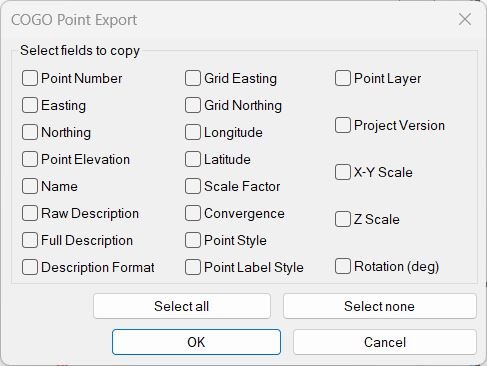
🪟 The command opens a temporary DCL dialog named
✅
🔴
🟢
🧹
🎯 Target platform: Autodesk Civil 3D with AutoLISP, Visual LISP COM, and Windows clipboard support through the
GETP.🧰 Loading method: load
CogoPoinsInfoToClipboard.lsp in Autodesk Civil 3D using APPLOAD, then run GETP from the command line.📍 The command asks the user to select Civil 3D COGO points from the drawing.
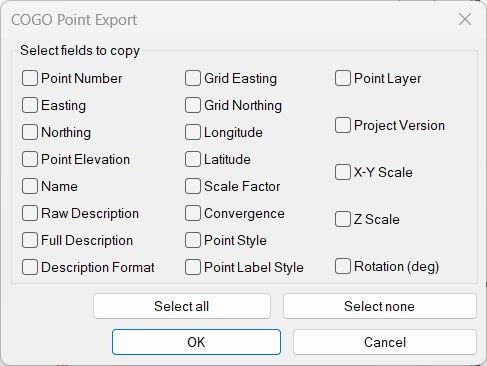
🪟 The command opens a temporary DCL dialog named
COGO Point Export.✅
OK copies the selected point information to the clipboard.🔴
Cancel closes the dialog without copying data.🟢
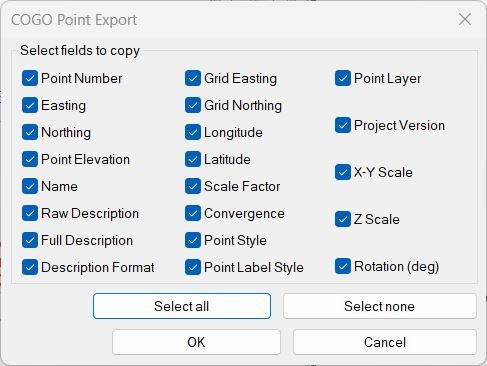
Select all enables every available export field.🧹
Select none clears all selected export fields.🎯 Target platform: Autodesk Civil 3D with AutoLISP, Visual LISP COM, and Windows clipboard support through the
htmlfile COM object.
Description:
🧠 This AutoLISP routine is designed for Civil 3D users who need to quickly extract selected COGO point information and copy it to the Windows clipboard. Instead of opening point properties one by one, the user selects points in the drawing, chooses the required fields in a DCL dialog, and receives clean plain-text output ready to paste into Excel, Notepad, Word, email, reports, survey QA notes, or construction documentation.
The workflow starts with the command
After the user clicks
This is useful for Civil 3D point review, survey point QA, coordinate checking, asset documentation, construction staking review, field-to-office verification, and quick reporting. The routine does not create COGO points, does not edit point groups, does not modify
The workflow starts with the command
GETP. The user selects drawing objects, then the program opens the COGO Point Export dialog. The dialog contains toggle fields for point number, easting, northing, elevation, name, raw description, full description, description format, grid easting, grid northing, longitude, latitude, scale factor, convergence, point style, point label style, point layer, project version, X-Y scale, Z scale, and rotation in degrees.After the user clicks
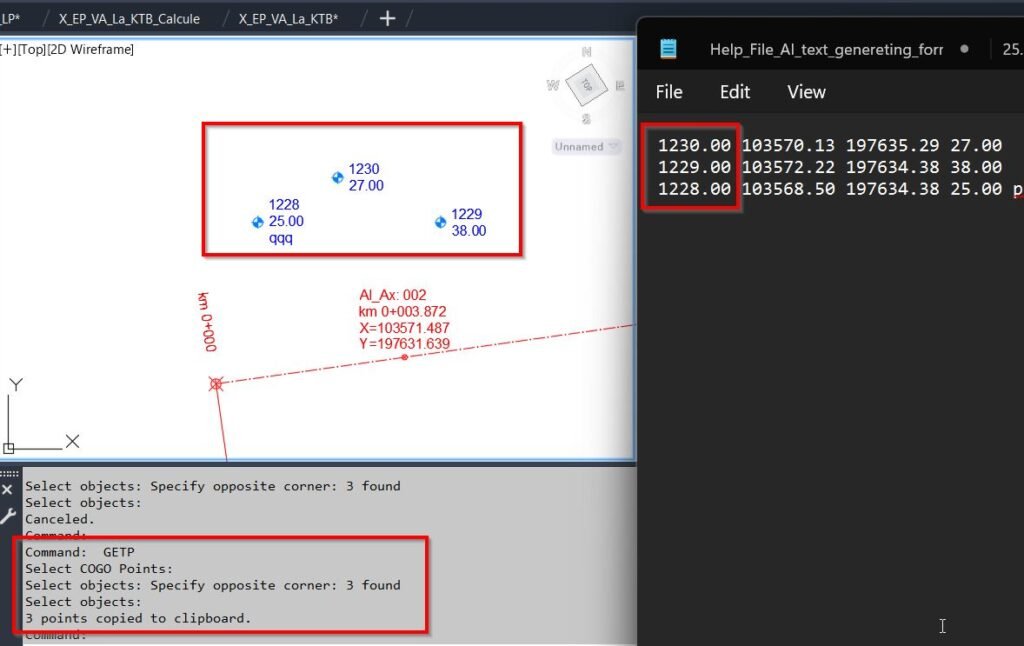
OK, the routine reads the selected properties from each selected object using safe Visual LISP property access. If one field is selected, the output is formatted as one value per line. If multiple fields are selected, the output is formatted as one line per point, with the selected values separated by spaces. The completed text is then sent directly to the Windows clipboard.This is useful for Civil 3D point review, survey point QA, coordinate checking, asset documentation, construction staking review, field-to-office verification, and quick reporting. The routine does not create COGO points, does not edit point groups, does not modify
ProfileView, SectionView, Alignment, corridor models, labels, bands, styles, or export tables. Its purpose is focused on copying Civil 3D COGO point information to the clipboard.
Helper function: (if any)
- 📋 Clipboard export helper —
_CopyToClipboard_Cogosends the generated text to the Windows clipboard using thehtmlfileCOM object. - 🔒 Safe entity conversion —
_ename->vlaconverts selected AutoCAD entity names into VLA objects while handling conversion errors. - 🧠 VLA object validation —
_is-vlachecks whether a value is a valid Visual LISP COM object before property access. - 🔍 Safe property reader —
_safe-proptries multiple possible property names and skips unsupported properties without stopping the command. - 🎨 Point style lookup —
_style-namereadsStyleNameor the nestedStyle.Nameproperty for Civil 3D point style reporting. - 🏷️ Point label style lookup —
_label-style-namereadsLabelStyleNameor the nestedLabelStyle.Nameproperty for Civil 3D label style reporting. - 📐 X-Y scale formatter —
_xy-scale-strformats X and Y scale values into a readable output string. - 📊 Project version detection —
_project-versionattempts to read the Civil 3D application version and falls back toACADVERif the Civil 3D object is unavailable. - 🧩 Text join helper —
_joincombines selected field values into one line when multiple fields are exported. - 🪟 Temporary DCL generator —
_write-temp-dclcreates theCOGO Point Exportdialog dynamically at runtime. - 🟢 Bulk toggle control —
_setAllturns all DCL field toggles on or off for faster field selection. - ✅ Dialog collector —
_collect_dlgreads the selected toggle values and builds the export field list. - 📌 Field-to-property mapper —
_get-prop-as-stringmaps each chosen export field to a Civil 3D point property and converts it to text. - 🧰 Dialog wrapper —
_show-dialogloads the DCL file, wires button actions, starts the dialog, unloads it, and deletes the temporary DCL file.
Functionalities:
- 📌 Select Civil 3D COGO points — the user selects drawing objects that should be read for point information export.
- 📋 Copy point data to clipboard — selected COGO point properties are copied directly to the Windows clipboard as plain text.
- 🔢 Export point numbers — the routine can copy Civil 3D point number values from
NumberorPointNumber. - 📐 Export coordinates and elevations — the routine can copy
Easting,Northing, andElevationvalues. - 📊 Export grid and geographic values — the routine can copy grid coordinates, longitude, latitude, scale factor, and convergence when supported by the point object.
- 📝 Export descriptions — the routine can copy raw description, full description, and description format information for point review and documentation.
- 🎨 Export point style information — the routine can copy point style and point label style names for CAD standards checking.
- 🏷️ Export layer information — the routine can copy the point layer, helping users verify drawing organization.
- 📐 Export scale and rotation — the routine can copy X-Y scale, Z scale, and rotation values in degrees.
- 🧠 Export project version — the routine can include the Civil 3D or AutoCAD version in the copied output.
- 🟢 Select all fields quickly — the
Select allbutton enables all available output fields at once. - 🧹 Clear all fields quickly — the
Select nonebutton clears every output field before the user makes a new selection. - 📘 One-value-per-line output — when one field is selected, each selected point contributes one copied value per line.
- 🧩 Multi-field row output — when multiple fields are selected, each selected point becomes one line with space-delimited values.
- 🔒 Safe property handling — unsupported object properties are skipped instead of crashing the command.
- 🔴 Selection limitation — the current code uses
ssgetwithout anAECC_COGO_POINTfilter, so non-point objects can be selected accidentally. - 🔴 DCL precision note — the code references a
prectile, but the visible DCL layout does not define that tile. This should be reviewed before production use. - 🔐 Platform limitation — this routine is intended for Autodesk Civil 3D point objects and Windows clipboard COM support. It is not a plain AutoCAD data exporter for all entity types.
Result:
📘 The final result is a fast Civil 3D point information export workflow. Users can select COGO points, choose the exact properties they need, and copy clean plain-text data directly to the clipboard. This improves productivity, reduces manual property checking, speeds up QA and reporting, supports faster survey point review, and makes it easier to transfer Civil 3D point information into Excel, documentation, emails, and project notes.
Images, animations etc.
XAML code:
<ResourceDictionary
xmlns="http://schemas.microsoft.com/winfx/2006/xaml/presentation"
xmlns:x="http://schemas.microsoft.com/winfx/2006/xaml"
xmlns:src="clr-namespace:Autodesk.Windows;assembly=AdWindows">
<src:RibbonToolTip x:Key="CogoPoinsInfoToClipboard">
<src:RibbonToolTip.ExpandedContent>
<StackPanel>
<TextBlock Background="AntiqueWhite" TextAlignment="Left">
<Bold>Function Syntax: GETP</Bold>
<LineBreak/>
<Hyperlink>AI+https://forums.autodesk.com/t5/civil-3d-forum/lisp-for-cogo-point-elevation/td-p/13197290</Hyperlink>
<LineBreak/>
<Bold>Description</Bold><LineBreak/>
This AutoLISP routine copies selected Civil 3D COGO point information directly to the Windows clipboard.<LineBreak/>
The program requires the user to select Civil 3D point objects from the drawing, then choose which point properties should be exported.<LineBreak/>
The main command is <Bold><Run Foreground="DarkRed">GETP</Run></Bold>.<LineBreak/>
The tool opens a DCL dialog named <Bold><Run Foreground="DarkRed">COGO Point Export</Run></Bold>, where the user can select fields such as point number, easting, northing, elevation, raw description, full description, point style, label style, layer, scale, rotation, latitude, longitude, and project version.<LineBreak/>
The final copied result is plain text that can be pasted into Excel, Notepad, Word, email, reports, QA notes, or other documentation tools.<LineBreak/>
<LineBreak/>
<Bold>Main Command</Bold><LineBreak/>
• <Bold>📌 <Run Foreground="DarkRed">GETP</Run></Bold> — starts the Civil 3D COGO point information export workflow.<LineBreak/>
<LineBreak/>
<Bold>Loading Method</Bold><LineBreak/>
• <Bold>🧰 Load LISP File</Bold> — load the file <Run Foreground="DarkRed">CogoPoinsInfoToClipboard.lsp</Run> in Civil 3D using <Run Foreground="DarkRed">APPLOAD</Run>.<LineBreak/>
• <Bold>📌 Run Command</Bold> — run <Run Foreground="DarkRed">GETP</Run> from the Civil 3D command line.<LineBreak/>
<LineBreak/>
<Bold>User Workflow</Bold><LineBreak/>
• <Bold>🚀 Start Command</Bold> — the user runs <Run Foreground="DarkRed">GETP</Run>.<LineBreak/>
• <Bold>📌 Select Points</Bold> — the command line asks the user to select COGO point objects from the drawing.<LineBreak/>
• <Bold>🪟 Open Export Dialog</Bold> — the routine opens the temporary DCL dialog <Run Foreground="DarkRed">COGO Point Export</Run>.<LineBreak/>
• <Bold>✅ Choose Fields</Bold> — the user chooses one or more export fields using toggle buttons.<LineBreak/>
• <Bold>🟢 Select All Fields</Bold> — the user can click <Run Foreground="DarkRed">Select all</Run> to enable every available field.<LineBreak/>
• <Bold>🧹 Clear Fields</Bold> — the user can click <Run Foreground="DarkRed">Select none</Run> to clear all selected fields.<LineBreak/>
• <Bold>📋 Confirm Export</Bold> — the user confirms with <Run Foreground="DarkRed">OK</Run>.<LineBreak/>
• <Bold>🧠 Read Properties</Bold> — the program reads the selected properties from each selected object.<LineBreak/>
• <Bold>📘 Format Text</Bold> — the program formats the selected values into plain text.<LineBreak/>
• <Bold>📋 Copy to Clipboard</Bold> — the program copies the generated text to the Windows clipboard using the <Run Foreground="DarkRed">htmlfile</Run> COM clipboard method.<LineBreak/>
<LineBreak/>
<Bold>Functionalities</Bold><LineBreak/>
• <Bold>📌 COGO Point Selection</Bold> — the command asks the user to select Civil 3D COGO point objects from the drawing.<LineBreak/>
• <Bold>📋 Clipboard Export</Bold> — the selected point properties are copied directly to the Windows clipboard as plain text.<LineBreak/>
• <Bold>✅ Custom Field Selection</Bold> — the user chooses exactly which point properties should be copied.<LineBreak/>
• <Bold>🔢 Point Number Export</Bold> — the routine can copy the Civil 3D point number using <Run Foreground="DarkRed">Number</Run> or <Run Foreground="DarkRed">PointNumber</Run>.<LineBreak/>
• <Bold>📐 Coordinate Export</Bold> — the routine can copy <Run Foreground="DarkRed">Easting</Run>, <Run Foreground="DarkRed">Northing</Run>, and <Run Foreground="DarkRed">Elevation</Run> values.<LineBreak/>
• <Bold>📊 Grid Coordinate Export</Bold> — the routine can copy <Run Foreground="DarkRed">GridEasting</Run> and <Run Foreground="DarkRed">GridNorthing</Run> when these properties are available.<LineBreak/>
• <Bold>🌍 Geographic Coordinate Export</Bold> — the routine can copy <Run Foreground="DarkRed">Longitude</Run> and <Run Foreground="DarkRed">Latitude</Run> when available from the Civil 3D point object.<LineBreak/>
• <Bold>📝 Description Export</Bold> — the routine can copy <Run Foreground="DarkRed">RawDescription</Run>, <Run Foreground="DarkRed">FullDescription</Run>, and <Run Foreground="DarkRed">DescriptionFormat</Run> values.<LineBreak/>
• <Bold>🎨 Style Export</Bold> — the routine can copy point style and point label style names.<LineBreak/>
• <Bold>🏷️ Layer Export</Bold> — the routine can copy the point layer property.<LineBreak/>
• <Bold>📐 Scale Export</Bold> — the routine can copy X and Y scale plus Z scale values.<LineBreak/>
• <Bold>🔄 Rotation Export</Bold> — the routine can copy point rotation values in degrees.<LineBreak/>
• <Bold>🧠 Project Version Export</Bold> — the routine attempts to detect and copy the Civil 3D or AutoCAD project version.<LineBreak/>
• <Bold>🟢 Select All Button</Bold> — the DCL dialog can enable all available export fields at once.<LineBreak/>
• <Bold>🧹 Select None Button</Bold> — the DCL dialog can disable all export fields at once.<LineBreak/>
• <Bold>📘 One Field Output Mode</Bold> — when only one field is selected, the routine outputs one value per line.<LineBreak/>
• <Bold>🧩 Multi Field Output Mode</Bold> — when multiple fields are selected, the routine outputs one line per point with values separated by spaces.<LineBreak/>
• <Bold>🔒 Safe Property Access</Bold> — the routine uses <Run Foreground="DarkRed">vl-catch-all-apply</Run> to reduce errors when a selected object does not support a requested property.<LineBreak/>
• <Bold>🪟 Temporary DCL Creation</Bold> — the dialog is generated dynamically by the LISP code and does not require a separate permanent DCL file.<LineBreak/>
<LineBreak/>
<Bold>Important Helper Logic</Bold><LineBreak/>
• <Bold>📋 Clipboard Helper</Bold> — <Run Foreground="DarkRed">_CopyToClipboard_Cogo</Run> copies the generated text to the Windows clipboard through a temporary <Run Foreground="DarkRed">htmlfile</Run> COM object.<LineBreak/>
• <Bold>🔒 Entity Conversion</Bold> — <Run Foreground="DarkRed">_ename->vla</Run> safely converts AutoCAD entity names into VLA objects.<LineBreak/>
• <Bold>🧠 VLA Object Check</Bold> — <Run Foreground="DarkRed">_is-vla</Run> checks whether a value is a valid VLA object before property access.<LineBreak/>
• <Bold>🔍 Safe Property Reader</Bold> — <Run Foreground="DarkRed">_safe-prop</Run> attempts to read one or more possible property names from an object and skips failed property calls.<LineBreak/>
• <Bold>🎨 Style Name Reader</Bold> — <Run Foreground="DarkRed">_style-name</Run> retrieves the point style name using either <Run Foreground="DarkRed">StyleName</Run> or the nested <Run Foreground="DarkRed">Style.Name</Run> object.<LineBreak/>
• <Bold>🏷️ Label Style Reader</Bold> — <Run Foreground="DarkRed">_label-style-name</Run> retrieves the point label style name using either <Run Foreground="DarkRed">LabelStyleName</Run> or the nested <Run Foreground="DarkRed">LabelStyle.Name</Run> object.<LineBreak/>
• <Bold>📐 Scale Formatter</Bold> — <Run Foreground="DarkRed">_xy-scale-str</Run> formats X and Y scale values into one readable text value.<LineBreak/>
• <Bold>📊 Project Version Reader</Bold> — <Run Foreground="DarkRed">_project-version</Run> attempts to read the Civil 3D application version and falls back to <Run Foreground="DarkRed">ACADVER</Run> if needed.<LineBreak/>
• <Bold>🧩 Text Join Helper</Bold> — <Run Foreground="DarkRed">_join</Run> combines selected field values into one line when multiple fields are exported.<LineBreak/>
• <Bold>🪟 Temporary Dialog Writer</Bold> — <Run Foreground="DarkRed">_write-temp-dcl</Run> writes the temporary DCL dialog file used by the command.<LineBreak/>
• <Bold>🟢 Toggle All Fields</Bold> — <Run Foreground="DarkRed">_setAll</Run> turns all export field toggles on or off.<LineBreak/>
• <Bold>✅ Dialog Collector</Bold> — <Run Foreground="DarkRed">_collect_dlg</Run> reads the selected toggle states and builds the list of fields that will be exported.<LineBreak/>
• <Bold>📌 Property Mapping</Bold> — <Run Foreground="DarkRed">_get-prop-as-string</Run> maps each selected field to the corresponding Civil 3D point property and converts the value to text.<LineBreak/>
• <Bold>🧰 Dialog Controller</Bold> — <Run Foreground="DarkRed">_show-dialog</Run> loads the DCL dialog, handles <Run Foreground="DarkRed">OK</Run>, <Run Foreground="DarkRed">Cancel</Run>, <Run Foreground="DarkRed">Select all</Run>, and <Run Foreground="DarkRed">Select none</Run> actions, then deletes the temporary DCL file.<LineBreak/>
<LineBreak/>
<Bold>Important Code Notes</Bold><LineBreak/>
• <Bold>📌 Command Name</Bold> — <Run Foreground="Red">the command name is GETP.</Run><LineBreak/>
• <Bold>🔴 Selection Filter Note</Bold> — <Run Foreground="Red">the routine is intended for Civil 3D COGO point data, but the current selection call uses ssget without an AECC_COGO_POINT filter.</Run><LineBreak/>
• <Bold>🔴 Non Point Selection Risk</Bold> — <Run Foreground="Red">because the selection is not filtered, the user may accidentally select non-point objects. The safe property logic reduces errors, but non-point objects may return blank values.</Run><LineBreak/>
• <Bold>🔴 DCL Precision Note</Bold> — <Run Foreground="Red">the DCL code references a tile named prec, but the visible DCL definition does not appear to create a precision input tile.</Run><LineBreak/>
• <Bold>🔴 Clipboard Requirement</Bold> — <Run Foreground="Red">the clipboard method depends on Windows COM support and the htmlfile object.</Run><LineBreak/>
• <Bold>🔴 Export Limitation</Bold> — <Run Foreground="Red">the routine copies plain text only. It does not create a CSV file, Excel file, table, Civil 3D report, label, band, ProfileView, SectionView, Alignment, or export database.</Run><LineBreak/>
• <Bold>🔐 Platform Requirement</Bold> — <Run Foreground="Red">the routine is intended for Autodesk Civil 3D point objects and Windows clipboard COM support.</Run><LineBreak/>
<LineBreak/>
<Bold>Final Result</Bold><LineBreak/>
The final result is a quick Civil 3D COGO point information extraction workflow.<LineBreak/>
The user can select points, choose the desired fields, and copy formatted point data directly to the clipboard.<LineBreak/>
This reduces manual data lookup, speeds up QA checks, helps with reporting, supports fast transfer to Excel or documentation, and improves Civil 3D point review workflows.<LineBreak/>
</TextBlock>
<Grid>
<Image Source="CogoPoinsInfoToClipboard_001.jpg" Stretch="Uniform"/>
</Grid>
<Grid>
<Image Source="CogoPoinsInfoToClipboard_002.jpg" Stretch="Uniform"/>
</Grid>
<Grid>
<Image Source="CogoPoinsInfoToClipboard_003.jpg" Stretch="Uniform"/>
</Grid>
</StackPanel>
</src:RibbonToolTip.ExpandedContent>
</src:RibbonToolTip>
</ResourceDictionary>
Additional info:
Based on / Source code:
Open Website
Share this page:
Subscribe
Login
0 Comments
Oldest