
Short description
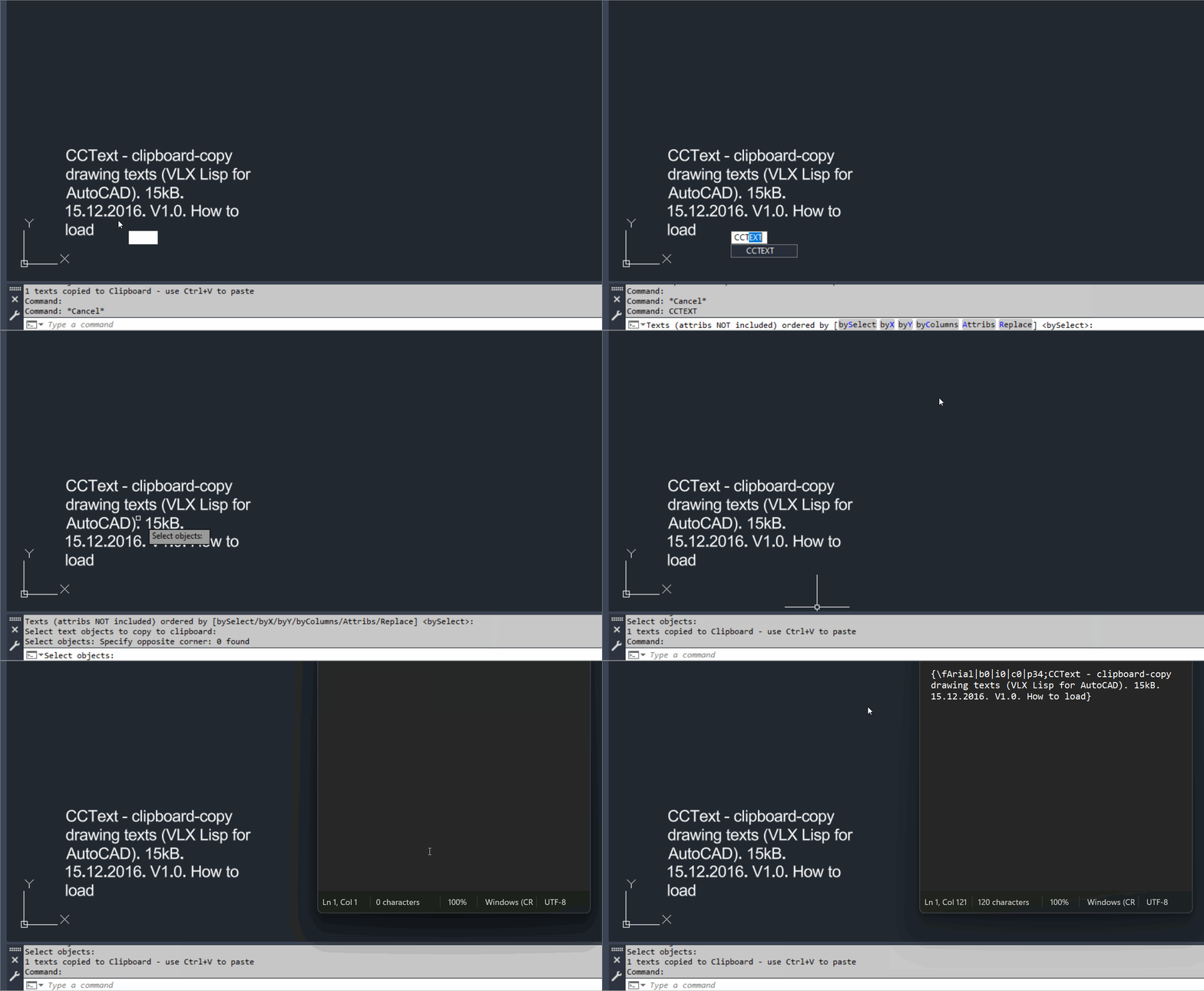
🧩 CopyClipboardText is the CADforum CCText v1.0 VLX utility for mass copying selected AutoCAD drawing text to the Windows Clipboard.
📋 Selected line text paragraph text and optionally block attributes can be transferred to Word or other Windows applications with normal Ctrl+V paste.
↕️ Clipboard text can be ordered by selection order X position Y position or column order before it is copied.
Command:
Main command: CCTEXT
Load method: APPLOAD
Published version: 1.0 dated 15.12.2016
Description:
📦 The CADforum download identifies CCText as a compiled VLX LISP application for AutoCAD.
📝 The utility mass copies selected drawing texts from the current AutoCAD drawing to the Windows Clipboard.
🔤 Supported documented content includes single line text paragraph text and optionally block attributes.
🎛️ The Attribs option controls whether attributes are accepted into the clipboard export.
🖱️ Default output order follows the order in which text objects are selected.
↔️ X ordering sorts selected text left to right.
↕️ Y ordering sorts selected text top down.
📊 Column ordering sorts top down and then left to right by columns.
🔎 The tool can preset automatic replacement of a selected substring in transferred text.
↵ MTEXT paragraph control codes are normally reformatted so the paragraph separator becomes a new line.
⚙️ Setting _CCtextNoReformat to T disables the automatic paragraph control code replacement.
🌐 Source reference: https://www.cadforum.cz/en/download.asp?file=CCText
🌐 Functional description reference: https://www.cadforum.cz/en/copy-multiple-dwg-drawing-texts-to-the-windows-clipboard-tip11223
Helper function: (if any)
APPLOAD loads the compiled VLX application.
_CCtextNoReformat controls whether MTEXT paragraph control codes are converted to line breaks.
Functionalities:
✅ Mass clipboard copy – copies many drawing text values in one operation.
✅ Single line text – supports standard AutoCAD text objects.
✅ Paragraph text – supports MTEXT style paragraph content.
✅ Optional block attributes – includes attributes when Attribs is enabled.
✅ Selection order – keeps text in the picked order.
✅ X sorting – sorts text left to right.
✅ Y sorting – sorts text top down.
✅ Column sorting – sorts top down and then left to right by column.
✅ Substring replacement – can replace a predefined substring before clipboard transfer.
✅ MTEXT paragraph conversion – normally converts paragraph control codes to new lines.
✅ Reformat override variable – _CCtextNoReformat disables paragraph reformatting.
✅ Windows Clipboard output – supports normal paste into external applications.
Result:
🎯 The result is ordered plain drawing text content placed on the Windows Clipboard for use in Word spreadsheets editors or other Windows applications.
Images, animations etc.
XAML code:
<ResourceDictionary xmlns="http://schemas.microsoft.com/winfx/2006/xaml/presentation" xmlns:src="clr-namespace:Autodesk.Windows;assembly=AdWindows" xmlns:x="http://schemas.microsoft.com/winfx/2006/xaml">
<src:RibbonToolTip x:Key="CopyClipboardText">
<src:RibbonToolTip.ExpandedContent>
<StackPanel>
    <TextBlock Background="Black" TextAlignment="Left">
        <Bold>Function Syntax: CopyClipboardText</Bold>
        <LineBreak />
        <Bold>Version: 1.0 Date: 04.09.2018 2:45:01PM</Bold>
        <LineBreak />
        <Hyperlink>https://www.cadforum.cz/en/download.asp?file=CCText</Hyperlink>
        <LineBreak />
        <Bold>
            <Run Foreground="DodgerBlue">Description</Run>
        </Bold>
        <LineBreak />
        <Run Foreground="White">🧩 CopyClipboardText is the CADforum CCText v1.0 VLX utility for mass copying selected AutoCAD drawing text to the Windows Clipboard.</Run>
        <LineBreak />
        <Run Foreground="White">📋 Selected line text paragraph text and optionally block attributes can be transferred to Word or other Windows applications with normal Ctrl+V paste.</Run>
        <LineBreak />
        <Run Foreground="White">↕️ Clipboard text can be ordered by selection order X position Y position or column order before it is copied.</Run>
        <LineBreak />
        <LineBreak />
        <Bold>
            <Run Foreground="DodgerBlue">Function Syntax</Run>
        </Bold>
        <LineBreak />
        <Run Foreground="White">Main command: </Run>
        <Bold>
            <Run Foreground="Orange">CCTEXT</Run>
        </Bold>
        <LineBreak />
        <Run Foreground="White">Load method: </Run>
        <Bold>
            <Run Foreground="Orange">APPLOAD</Run>
        </Bold>
        <LineBreak />
        <Run Foreground="White">Published version: </Run>
        <Bold>
            <Run Foreground="Orange">1.0 dated 15.12.2016</Run>
        </Bold>
        <LineBreak />
        <LineBreak />
        <Bold>
            <Run Foreground="DodgerBlue">SEO Optimized Overview</Run>
        </Bold>
        <LineBreak />
        <Run Foreground="White">📦 The CADforum download identifies CCText as a compiled VLX LISP application for AutoCAD.</Run>
        <LineBreak />
        <Run Foreground="White">📝 The utility mass copies selected drawing texts from the current AutoCAD drawing to the Windows Clipboard.</Run>
        <LineBreak />
        <Run Foreground="White">🔤 Supported documented content includes single line text paragraph text and optionally block attributes.</Run>
        <LineBreak />
        <Run Foreground="White">🎛️ The Attribs option controls whether attributes are accepted into the clipboard export.</Run>
        <LineBreak />
        <Run Foreground="White">🖱️ Default output order follows the order in which text objects are selected.</Run>
        <LineBreak />
        <Run Foreground="White">↔️ X ordering sorts selected text left to right.</Run>
        <LineBreak />
        <Run Foreground="White">↕️ Y ordering sorts selected text top down.</Run>
        <LineBreak />
        <Run Foreground="White">📊 Column ordering sorts top down and then left to right by columns.</Run>
        <LineBreak />
        <Run Foreground="White">🔎 The tool can preset automatic replacement of a selected substring in transferred text.</Run>
        <LineBreak />
        <Run Foreground="White">↵ MTEXT paragraph control codes are normally reformatted so the paragraph separator becomes a new line.</Run>
        <LineBreak />
        <Run Foreground="White">⚙️ Setting _CCtextNoReformat to T disables the automatic paragraph control code replacement.</Run>
        <LineBreak />
        <Run Foreground="White">🌐 Source reference: https://www.cadforum.cz/en/download.asp?file=CCText</Run>
        <LineBreak />
        <Run Foreground="White">🌐 Functional description reference: https://www.cadforum.cz/en/copy-multiple-dwg-drawing-texts-to-the-windows-clipboard-tip11223</Run>
        <LineBreak />
        <LineBreak />
        <Bold>
            <Run Foreground="LimeGreen">Primary Workflow</Run>
        </Bold>
        <LineBreak />
        <Run Foreground="White">• Load the CCText VLX with APPLOAD.</Run>
        <LineBreak />
        <Run Foreground="White">• Run CCTEXT.</Run>
        <LineBreak />
        <Run Foreground="White">• Select the required drawing text objects.</Run>
        <LineBreak />
        <Run Foreground="White">• Enable Attribs when block attributes should also be copied.</Run>
        <LineBreak />
        <Run Foreground="White">• Choose the required text ordering method.</Run>
        <LineBreak />
        <Run Foreground="White">• Optionally configure substring replacement.</Run>
        <LineBreak />
        <Run Foreground="White">• Copy the processed text to the Windows Clipboard.</Run>
        <LineBreak />
        <Run Foreground="White">• Paste the result into Word or another Windows application with Ctrl+V.</Run>
        <LineBreak />
        <LineBreak />
        <Bold>
            <Run Foreground="LimeGreen">Functionalities</Run>
        </Bold>
        <LineBreak />
        <Run Foreground="White">✅ </Run>
        <Bold>
            <Run Foreground="LimeGreen">Mass clipboard copy</Run>
        </Bold>
        <Run Foreground="White"> - copies many drawing text values in one operation.</Run>
        <LineBreak />
        <Run Foreground="White">✅ </Run>
        <Bold>
            <Run Foreground="LimeGreen">Single line text</Run>
        </Bold>
        <Run Foreground="White"> - supports standard AutoCAD text objects.</Run>
        <LineBreak />
        <Run Foreground="White">✅ </Run>
        <Bold>
            <Run Foreground="LimeGreen">Paragraph text</Run>
        </Bold>
        <Run Foreground="White"> - supports MTEXT style paragraph content.</Run>
        <LineBreak />
        <Run Foreground="White">✅ </Run>
        <Bold>
            <Run Foreground="LimeGreen">Optional block attributes</Run>
        </Bold>
        <Run Foreground="White"> - includes attributes when Attribs is enabled.</Run>
        <LineBreak />
        <Run Foreground="White">✅ </Run>
        <Bold>
            <Run Foreground="LimeGreen">Selection order</Run>
        </Bold>
        <Run Foreground="White"> - keeps text in the picked order.</Run>
        <LineBreak />
        <Run Foreground="White">✅ </Run>
        <Bold>
            <Run Foreground="LimeGreen">X sorting</Run>
        </Bold>
        <Run Foreground="White"> - sorts text left to right.</Run>
        <LineBreak />
        <Run Foreground="White">✅ </Run>
        <Bold>
            <Run Foreground="LimeGreen">Y sorting</Run>
        </Bold>
        <Run Foreground="White"> - sorts text top down.</Run>
        <LineBreak />
        <Run Foreground="White">✅ </Run>
        <Bold>
            <Run Foreground="LimeGreen">Column sorting</Run>
        </Bold>
        <Run Foreground="White"> - sorts top down and then left to right by column.</Run>
        <LineBreak />
        <Run Foreground="White">✅ </Run>
        <Bold>
            <Run Foreground="LimeGreen">Substring replacement</Run>
        </Bold>
        <Run Foreground="White"> - can replace a predefined substring before clipboard transfer.</Run>
        <LineBreak />
        <Run Foreground="White">✅ </Run>
        <Bold>
            <Run Foreground="LimeGreen">MTEXT paragraph conversion</Run>
        </Bold>
        <Run Foreground="White"> - normally converts paragraph control codes to new lines.</Run>
        <LineBreak />
        <Run Foreground="White">✅ </Run>
        <Bold>
            <Run Foreground="LimeGreen">Reformat override variable</Run>
        </Bold>
        <Run Foreground="White"> - _CCtextNoReformat disables paragraph reformatting.</Run>
        <LineBreak />
        <Run Foreground="White">✅ </Run>
        <Bold>
            <Run Foreground="LimeGreen">Windows Clipboard output</Run>
        </Bold>
        <Run Foreground="White"> - supports normal paste into external applications.</Run>
        <LineBreak />
        <LineBreak />
        <Bold>
            <Run Foreground="DodgerBlue">Important Commands and Aspects</Run>
        </Bold>
        <LineBreak />
        <Run Foreground="White">🧩 APPLOAD loads the compiled VLX application.</Run>
        <LineBreak />
        <Run Foreground="White">🧩 _CCtextNoReformat controls whether MTEXT paragraph control codes are converted to line breaks.</Run>
        <LineBreak />
        <LineBreak />
        <Bold>
            <Run Foreground="DodgerBlue">Result</Run>
        </Bold>
        <LineBreak />
        <Run Foreground="White">🎯 The result is ordered plain drawing text content placed on the Windows Clipboard for use in Word spreadsheets editors or other Windows applications.</Run>
        <LineBreak />
        <LineBreak />
        <Bold>
            <Run Foreground="DarkRed">Important Notes</Run>
        </Bold>
        <LineBreak />
        <Run Foreground="White">⚠️ </Run>
        <Bold>
            <Run Foreground="DarkRed">This package is based on the CADforum download and tip pages because the compiled CopyClipboardText VLX source was not supplied.</Run>
        </Bold>
        <LineBreak />
        <Run Foreground="White">⚠️ </Run>
        <Bold>
            <Run Foreground="DarkRed">The CADforum download lists CCText v1.0 dated 15 December 2016 and file size 15 kB.</Run>
        </Bold>
        <LineBreak />
        <Run Foreground="White">⚠️ </Run>
        <Bold>
            <Run Foreground="DarkRed">The documented AutoCAD command is CCTEXT.</Run>
        </Bold>
        <LineBreak />
        <Run Foreground="White">⚠️ </Run>
        <Bold>
            <Run Foreground="DarkRed">Only functionality explicitly described by CADforum is included in this package.</Run>
        </Bold>
        <LineBreak />
        <LineBreak />
        <Bold>
            <Run Foreground="Yellow">SEO Keywords</Run>
        </Bold>
        <LineBreak />
        <Run Foreground="Yellow">🏷️ AutoCAD, 🏷️ Civil 3D, 🏷️ VLX, 🏷️ CopyClipboardText, 🏷️ CCText, 🏷️ CCTEXT, 🏷️ Windows Clipboard, 🏷️ Copy text, 🏷️ MTEXT, 🏷️ Block attributes, 🏷️ Text sorting, 🏷️ CADforum, 🏷️ CAD productivity</Run>
        <LineBreak />
    </TextBlock>
    <Grid>
        <MediaElement Source="Animation_000.gif" Stretch="Uniform" Visibility="Visible" />
    </Grid>
</StackPanel>
</src:RibbonToolTip.ExpandedContent>
</src:RibbonToolTip>
</ResourceDictionary>