
Short description
🚀 ImportBlock is an AutoCAD and Civil 3D AutoLISP utility for importing selected block definitions from an external DWG, DWT, or DWS file into the active drawing.
It uses an embedded DCL dialog, ObjectDBX drawing access, saved user settings, optional insertion, scale controls, UCS-aware rotation, and safe source drawing validation to speed up block library reuse and CAD production workflows.
Command:
🧰 Load the LISP file with APPLOAD or another AutoCAD LISP loading method, then run IB or ImportBlock.
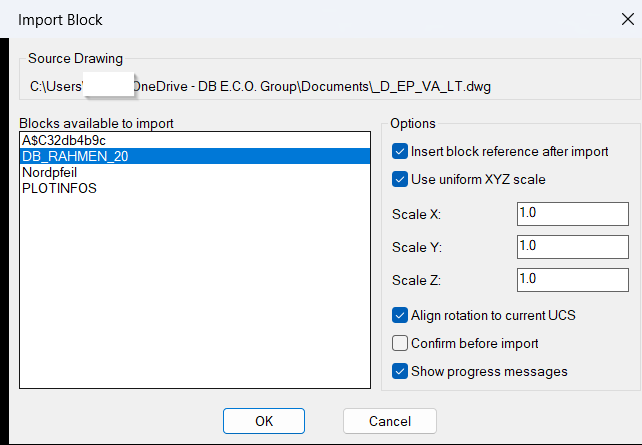
The command opens a file picker for a source DWG, DWT, or DWS file, scans importable block definitions, displays them in a generated DCL dialog, and optionally inserts the selected block reference into model space or paper space.
Main internal command functions include c:ib, c:ImportBlock, LM:GetDocumentObject, ib:import-block-definition, ib:list-importable-blocks, and ib:write-dcl.
Description:
📘 ImportBlock is designed for AutoCAD and Civil 3D users who need to reuse block definitions from another drawing without opening several manual dialogs or copying geometry by hand.
The user starts the command, chooses a source drawing file, selects a block from a generated list, and decides whether the block definition should only be imported or also inserted immediately into the active drawing.
The routine reads external drawing content through ObjectDBX using vla-getinterfaceobject and vla-open, then deep-copies the chosen block definition into the current drawing block table with copyobjects.
The DCL window includes practical options for insert after import, uniform scale, separate X/Y/Z scale, current UCS rotation alignment, confirmation before import, and progress messages.
When insertion is enabled, the user picks an insertion point and the routine calls vla-insertblock in the current drawing space. The picked point is converted from UCS to WCS using trans, which helps the block land correctly in custom AutoCAD UCS workflows.
For CAD standards and reusable block libraries, this tool improves AutoCAD block management, Civil 3D production drawing setup, DWG content reuse, block import automation, and external drawing block extraction.
Helper function: (if any)
- 🧠 Safe string and type guards –
ib:strp,ib:string,ib:nonblank-str-p,ib:num-p, and related helpers prevent BooleanTorNILvalues from being passed into string-only AutoLISP calls. - 📁 Configuration persistence –
ib:read-cfg,ib:save-cfg,ib:cfg-path, andImportBlock.cfgstore the last source drawing, selected block, scale options, insert option, UCS rotation option, confirmation setting, message setting, and dialog position. - 🧩 Generated DCL interface –
ib:write-dclbuilds a temporary DCL dialog with a unique dialog name each run, reducing dialog-name collisions and supporting repeatable UI loading. - 📌 Dialog position memory –
ib:done-dialog,ib:normalize-dlgpt, and the savedDLGX/DLGYvalues preserve dialog placement across command runs and AutoCAD sessions. - 🔍 External drawing scan –
LM:GetDocumentObjectopens the selected drawing through an existing document reference or ObjectDBX so block definitions can be read without manually opening the source DWG. - 🧹 Importable block filtering –
ib:list-importable-blocksexcludes xrefs, layout blocks, anonymous blocks, externally referenced names, and block names that already exist in the active drawing. - 📤 Block definition copy –
ib:import-block-definitiondeep-copies the selected block definition from the ObjectDBX drawing into the active drawingBlockscollection. - 📐 UCS-aware insertion –
ib:ucs-rotation,trans,ib:current-space, andvla-insertblocksupport insertion in the current model space or paper space context while respecting current UCS orientation when requested. - 🔒 Runtime cleanup – The local
*error*handler releases ObjectDBX objects, unloads DCL resources, deletes temporary DCL files, and reports non-cancel errors safely.
Functionalities:
- 🚀 Import blocks from external drawings – select a source
DWG,DWT, orDWSand copy a chosen block definition into the active AutoCAD or Civil 3D drawing. - 🧩 DCL block picker – display available importable block definitions in a practical dialog instead of requiring manual block table browsing.
- 🔍 Filter unsafe or unavailable definitions – skip layout blocks, xrefs, anonymous blocks, externally referenced names, and definitions already present in the current drawing.
- 📌 Optional immediate insertion – import only the block definition or insert a block reference immediately after import.
- 📐 Scale control – use uniform XYZ scale or separate
Scale X,Scale Y, andScale Zvalues for inserted block references. - 🧭 UCS rotation alignment – align inserted blocks to the current UCS when the Align rotation to current UCS option is enabled.
- 📝 Confirm before import – use an optional confirmation prompt before copying the selected block definition into the active drawing.
- 💾 Saved settings – remember source path, last block, scale options, toggles, and dialog position in
ImportBlock.cfg. - 🔄 ObjectDBX workflow – read external drawing block definitions efficiently without forcing the user to open the source drawing in the editor.
- 🟢 Non-destructive source handling – the selected source drawing is read for block definitions while the source file itself is not modified.
Result:
✅ The final result is a focused AutoCAD and Civil 3D block import workflow that lets users pull clean block definitions from external drawings, optionally insert them with controlled scale and UCS rotation, and keep common import settings saved for repeat use.
It improves block library reuse, drawing setup speed, CAD standardization, production drafting efficiency, and DWG management while reducing repetitive manual block import steps.
Images, animations etc.
XAML code:
<ResourceDictionary
    xmlns="http://schemas.microsoft.com/winfx/2006/xaml/presentation"
    xmlns:x="http://schemas.microsoft.com/winfx/2006/xaml"
    xmlns:src="clr-namespace:Autodesk.Windows;assembly=AdWindows">

    <src:RibbonToolTip x:Key="ImportBlocks">
        <src:RibbonToolTip.ExpandedContent>
            <StackPanel>
                <TextBlock Background="AntiqueWhite" TextAlignment="Left">
				<Bold>Function Syntax: ImportBlockDrw</Bold>
				<LineBreak/>
				<Hyperlink>https://www.lee-mac.com/copyblockfromdrawing.html</Hyperlink>
				<LineBreak/>
<TextBlock>

<Bold><Run Foreground="Orange">id: importblock01</Run></Bold><LineBreak/>
<Bold><Run Foreground="DodgerBlue">title: ImportBlock</Run></Bold><LineBreak/>
<Bold><Run Foreground="LimeGreen">short_description:</Run></Bold><LineBreak/>
<Run Foreground="White">🚀 ImportBlock is an AutoCAD and Civil 3D AutoLISP utility for importing selected block definitions from an external DWG, DWT, or DWS file into the active drawing.</Run><LineBreak/>
<Run Foreground="LimeGreen">It uses a generated DCL dialog, ObjectDBX access, optional insertion, scale controls, UCS-aware rotation, saved settings, and safe source drawing validation.</Run><LineBreak/>
<LineBreak/>
<Bold><Run Foreground="DodgerBlue">command:</Run></Bold><LineBreak/>
<Run Foreground="White">🧰 Load the LISP with APPLOAD, then run IB or ImportBlock.</Run><LineBreak/>
<Run Foreground="White">The command asks for a source DWG, DWT, or DWS file, lists importable blocks, and can insert the selected block reference after import.</Run><LineBreak/>
<Run Foreground="Orange">Important functions: c:ib, c:ImportBlock, LM:GetDocumentObject, ib:import-block-definition, ib:list-importable-blocks, and ib:write-dcl.</Run><LineBreak/>
<LineBreak/>
<Bold><Run Foreground="DodgerBlue">description:</Run></Bold><LineBreak/>
<Run Foreground="White">📘 This AutoLISP program helps AutoCAD and Civil 3D users reuse block definitions from external drawings without manually opening and copying from the source file.</Run><LineBreak/>
<Run Foreground="White">🔍 The user selects a source drawing and chooses a block from a DCL list of importable block definitions.</Run><LineBreak/>
<Run Foreground="White">🧠 The tool reads the external drawing through ObjectDBX and copies the selected block definition into the active drawing.</Run><LineBreak/>
<Run Foreground="White">📐 Optional insertion supports uniform scale, separate X/Y/Z scale, current UCS rotation alignment, and current model space or paper space placement.</Run><LineBreak/>
<Run Foreground="White">💾 ImportBlock.cfg stores the previous source drawing, selected block, scale options, dialog location, and user toggles for repeat workflows.</Run><LineBreak/>
<Bold><Run Foreground="DarkRed">🔴 Existing block names are not overwritten. Blocks already present in the active drawing are filtered out of the import list.</Run></Bold><LineBreak/>
<LineBreak/>
<Bold><Run Foreground="LimeGreen">helper_function:</Run></Bold><LineBreak/>
<Run Foreground="White">🧠 Safe string and type guards - ib:strp, ib:string, ib:nonblank-str-p, ib:num-p, and related helpers prevent Boolean T or NIL values from being passed into string-only AutoLISP calls.</Run><LineBreak/>
<Run Foreground="White">📁 Configuration persistence - ib:read-cfg, ib:save-cfg, ib:cfg-path, and ImportBlock.cfg store the last source drawing, selected block, scale options, insert option, UCS rotation option, confirmation setting, message setting, and dialog position.</Run><LineBreak/>
<Run Foreground="White">🧩 Generated DCL interface - ib:write-dcl builds a temporary DCL dialog with a unique dialog name each run, reducing dialog-name collisions and supporting repeatable UI loading.</Run><LineBreak/>
<Run Foreground="White">📌 Dialog position memory - ib:done-dialog, ib:normalize-dlgpt, and the saved DLGX/DLGY values preserve dialog placement across command runs and AutoCAD sessions.</Run><LineBreak/>
<Run Foreground="White">🔍 External drawing scan - LM:GetDocumentObject opens the selected drawing through an existing document reference or ObjectDBX so block definitions can be read without manually opening the source DWG.</Run><LineBreak/>
<Run Foreground="White">🧹 Importable block filtering - ib:list-importable-blocks excludes xrefs, layout blocks, anonymous blocks, externally referenced names, and block names that already exist in the active drawing.</Run><LineBreak/>
<Run Foreground="White">📤 Block definition copy - ib:import-block-definition deep-copies the selected block definition from the ObjectDBX drawing into the active drawing Blocks collection.</Run><LineBreak/>
<Run Foreground="White">📐 UCS-aware insertion - ib:ucs-rotation, trans, ib:current-space, and vla-insertblock support insertion in the current model space or paper space context while respecting current UCS orientation when requested.</Run><LineBreak/>
<Run Foreground="White">🔒 Runtime cleanup - The local *error* handler releases ObjectDBX objects, unloads DCL resources, deletes temporary DCL files, and reports non-cancel errors safely.</Run><LineBreak/>
<LineBreak/>
<Bold><Run Foreground="LimeGreen">functionalities:</Run></Bold><LineBreak/>
<Run Foreground="White">🚀 Import blocks from external drawings - select a source DWG, DWT, or DWS and copy a chosen block definition into the active AutoCAD or Civil 3D drawing.</Run><LineBreak/>
<Run Foreground="White">🧩 DCL block picker - display available importable block definitions in a practical dialog instead of requiring manual block table browsing.</Run><LineBreak/>
<Run Foreground="White">🔍 Filter unsafe or unavailable definitions - skip layout blocks, xrefs, anonymous blocks, externally referenced names, and definitions already present in the current drawing.</Run><LineBreak/>
<Run Foreground="White">📌 Optional immediate insertion - import only the block definition or insert a block reference immediately after import.</Run><LineBreak/>
<Run Foreground="White">📐 Scale control - use uniform XYZ scale or separate Scale X, Scale Y, and Scale Z values for inserted block references.</Run><LineBreak/>
<Run Foreground="White">🧭 UCS rotation alignment - align inserted blocks to the current UCS when the Align rotation to current UCS option is enabled.</Run><LineBreak/>
<Run Foreground="White">📝 Confirm before import - use an optional confirmation prompt before copying the selected block definition into the active drawing.</Run><LineBreak/>
<Run Foreground="White">💾 Saved settings - remember source path, last block, scale options, toggles, and dialog position in ImportBlock.cfg.</Run><LineBreak/>
<Run Foreground="White">🔄 ObjectDBX workflow - read external drawing block definitions efficiently without forcing the user to open the source drawing in the editor.</Run><LineBreak/>
<Run Foreground="White">🟢 Non-destructive source handling - the selected source drawing is read for block definitions while the source file itself is not modified.</Run><LineBreak/>
<LineBreak/>
<Bold><Run Foreground="DodgerBlue">result:</Run></Bold><LineBreak/>
<Run Foreground="White">✅ The final result is a faster AutoCAD and Civil 3D block import workflow for reusable DWG content, production drawings, and CAD library management.</Run><LineBreak/>
<Run Foreground="LimeGreen">It reduces repetitive manual block import steps and improves drawing setup speed, block standardization, and DWG management quality.</Run><LineBreak/>
<LineBreak/>
<Bold><Run Foreground="DarkOrange">additional_info:</Run></Bold><LineBreak/>
<Bold><Run Foreground="DarkRed">🔴 The routine imports only definitions that do not already exist in the active drawing.</Run></Bold><LineBreak/>
<Bold><Run Foreground="DarkOrange">🟧 The selected external drawing is read as a source and is not modified.</Run></Bold><LineBreak/>
<Run Foreground="White">📌 If insertion is cancelled, the block definition may still remain imported.</Run><LineBreak/>
<Run Foreground="White">🔒 Requires AutoCAD or Civil 3D support for DCL, Visual LISP COM, and ObjectDBX.</Run><LineBreak/>


                <!-- Use MediaElement for GIF (static first frame) and Image as fallback -->


            </StackPanel>
        </src:RibbonToolTip.ExpandedContent>
    </src:RibbonToolTip>
</ResourceDictionary>