
Short description
ExtendToBlock_003 is an AutoCAD and Civil 3D 2024 .NET utility with a modeless C# interface for previewing and selectively extending lines, lightweight polylines, arcs, and splines to the real exploded curve geometry of selected block references.
Command:
Primary command: EXTENDTOBLOCK_003
Secondary commands: EXTENDTOBLOCK, ETB
Run EXTENDTOBLOCK_003 in the AutoCAD command line for the collision-safe build-specific command. Run EXTENDTOBLOCK or ETB as convenience aliases.
Description:
ExtendToBlock_003 provides a modeless AutoCAD and Civil 3D 2024 workflow for finding curves whose loose endpoints can be extended to selected target block references. The project is written in C# for .NET Framework 4.8 and uses a build-numbered DLL and command naming system so multiple test builds can be NETLOADed side by side without assembly-name or command-name conflicts.
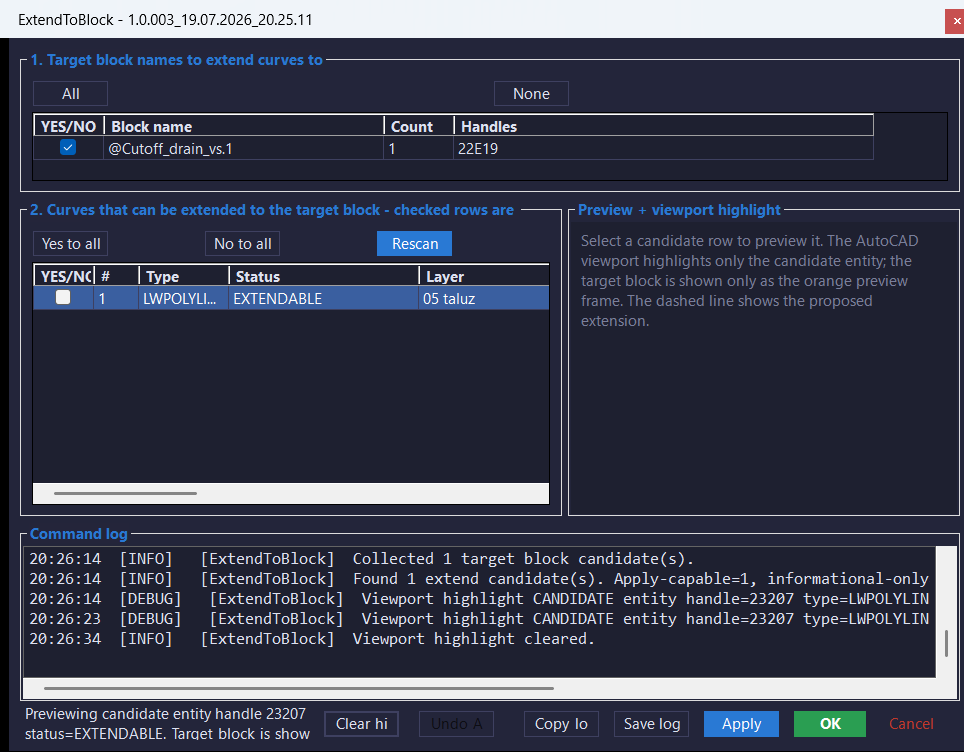
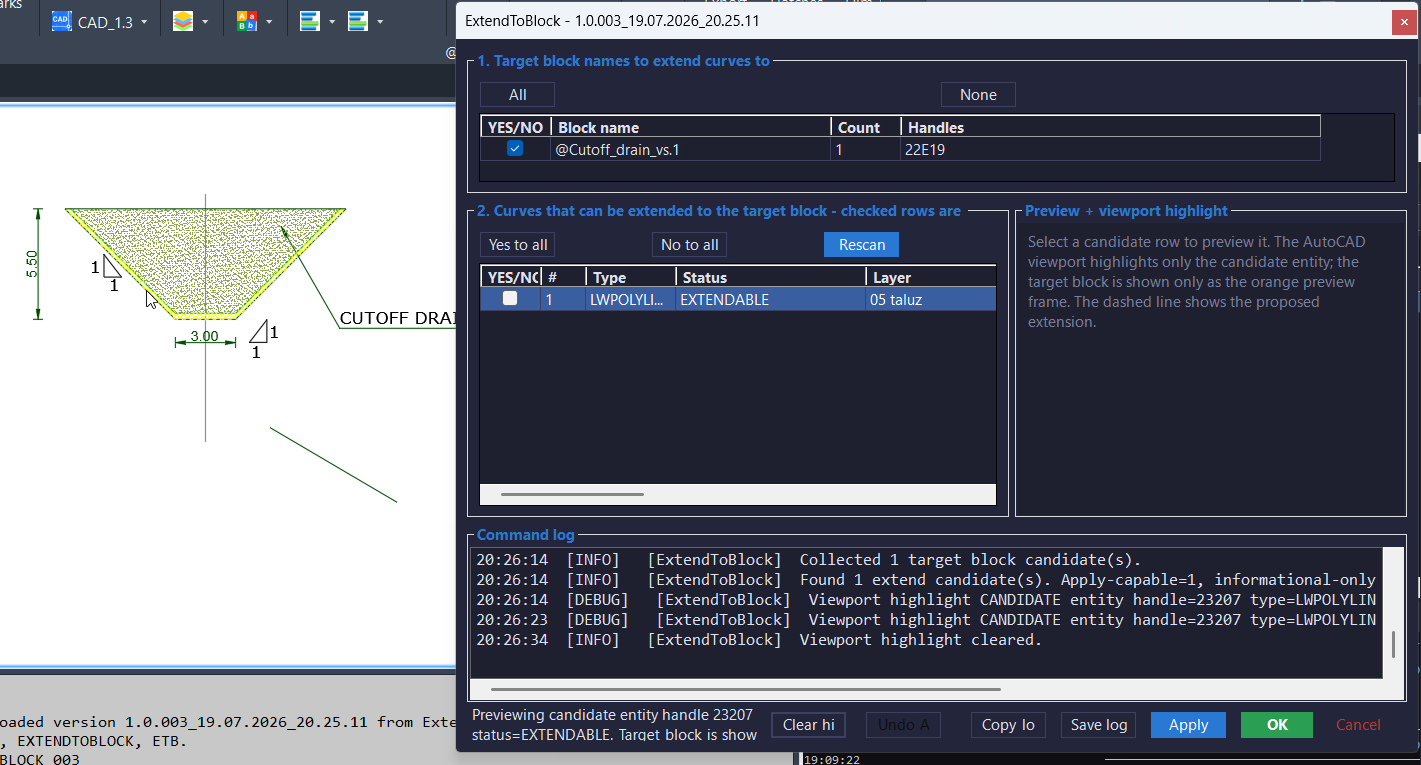
Users can preselect one or more block references before starting the command or select INSERT entities when prompted. The tool groups the selected blocks by effective block name and displays their count and handles in a target-block grid. Individual block-name groups can be enabled or disabled, and the candidate scan can be refreshed without closing the modeless form.
Candidate detection scans the owner space of each enabled target block for visible, processable curve entities. It ignores entities on off or frozen layers and skips closed curves because they do not have a loose endpoint to extend. The scanner analyzes LINE, LWPOLYLINE, ARC, SPLINE, and heavy polyline curve types, identifies whether the Start or End is nearest to a valid future intersection, records the proposed point and extension distance, and classifies each result as EXTENDABLE, ALREADY REACHES BLOCK, ALREADY AT BLOCK, or EXTENDABLE with an unsupported apply type.
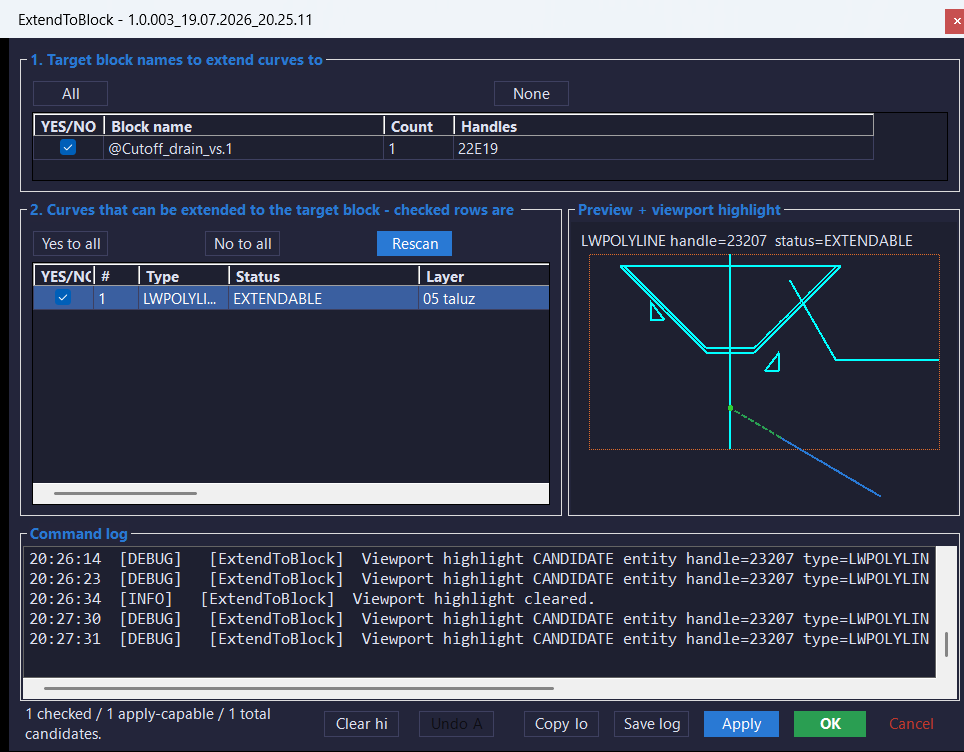
Intersection testing uses the selected block reference’s actual recursively exploded constituent curve geometry, including nested blocks, rather than extending only to an invisible rectangular bounding box. When no usable exploded curve geometry is available, the block frame is retained as a fallback intersection target. The preview panel draws the block frame, real sampled block geometry, candidate curve, proposed extension segment, endpoint, status, handle, and explanatory note.
Apply changes only checked, apply-capable rows. LINE endpoints are changed directly, LWPOLYLINE first or last vertices are moved, ARC start or end angles are recalculated while preserving the existing circle, and SPLINE terminal fit or control points are moved. Apply leaves the form open, while OK performs the same confirmed operation and then closes it. Undo Apply restores the last operation from the current dialog session using saved clones of the original entities.
The interface also provides Yes to All, No to All, Rescan, viewport highlighting, Clear Highlight, Copy Log, Save Log, Apply, OK, Cancel, and a dynamically enabled Undo Apply button. Window bounds and enabled target-block names are persisted in the user’s application-data folder. Diagnostic logs include command messages, target block details, candidate details, handles, layers, statuses, endpoints, distances, and apply results.
Helper function: (if any)
Main components include Plugin for command registration and build-version reporting, EtbCommandRunner for pickfirst or prompted target-block selection and modeless-form startup, EtbForm for the dark-themed target-block grid, candidate grid, preview, viewport highlighting, apply controls, undo, settings, and logging, EtbScanner for collecting blocks and analyzing extend candidates, EtbExtender for applying and restoring entity changes, GeometryUtil for curve intersections and 2D geometric tests, PreviewSampler for generating display samples, EtbSettings for persisted form bounds and block-name states, EtbLogger for command and diagnostic reports, Models for block, candidate, endpoint, and undo records, and C3DTheme for Civil 3D-style WinForms presentation.
Functionalities:
– Registers the collision-safe EXTENDTOBLOCK_003 command.
– Registers EXTENDTOBLOCK and ETB as stable convenience aliases.
– Uses preselected block references through AutoCAD pickfirst selection when available.
– Prompts for one or more INSERT entities when no valid target block is preselected.
– Opens a modeless, resizable C# Windows Forms interface.
– Groups selected target blocks by effective block name.
– Displays each target block name, count, and object handles.
– Lets users enable all, disable all, or individually toggle target block-name groups.
– Persists enabled target block-name choices between sessions.
– Recursively explodes target block references and nested block references into non-database-resident curve geometry for intersection testing.
– Uses the real exploded block geometry instead of relying only on a bounding-box rectangle.
– Falls back to the target block frame when no usable exploded curve geometry is available.
– Scans the owner model-space or paper-space record associated with each target block.
– Ignores the selected target block itself during candidate detection.
– Ignores entities on off or frozen layers.
– Skips closed curves that have no loose endpoint to extend.
– Detects LINE, LWPOLYLINE, ARC, SPLINE, AcDb2dPolyline, and AcDb3dPolyline candidates.
– Classifies rows as EXTENDABLE, ALREADY REACHES BLOCK, ALREADY AT BLOCK, or EXTENDABLE with an unsupported type.
– Enables Apply for supported LINE, LWPOLYLINE, ARC, and SPLINE candidates.
– Lists heavy 2D and 3D polylines for reference but does not automatically apply their extension in this build.
– Determines whether the Start or End endpoint is the best endpoint to extend.
– Calculates and displays the proposed intersection point and extension distance.
– Displays entity type, status, layer, entity handle, endpoint, distance, target block name, and target block handle.
– Provides Yes to All and No to All controls for apply-capable candidate rows.
– Prevents informational-only and unsupported rows from being checked for application.
– Warns when Apply or OK is used without any checked apply-capable row.
– Asks for confirmation before extending checked curves.
– Extends LINE entities by changing StartPoint or EndPoint.
– Extends LWPOLYLINE entities by moving the first or last vertex.
– Extends ARC entities by recalculating StartAngle or EndAngle while preserving center, radius, and plane.
– Extends SPLINE entities by moving the first or last fit point or control point.
– Leaves the interface open after Apply and closes it after the equivalent OK operation.
– Rescans blocks and candidates after applying or undoing changes.
– Stores clones of modified entities to support Undo Apply for the latest operation in the current dialog session.
– Visually disables Undo Apply when no restorable Apply operation exists and enables it after a successful Apply.
– Highlights selected target-block groups in the AutoCAD viewport.
– Highlights only the current candidate entity in the viewport during candidate preview.
– Provides a Clear Highlight control.
– Draws the target block bounding frame as a dotted reference outline.
– Draws actual sampled block geometry separately from the bounding frame.
– Draws the candidate curve and proposed extension segment in the preview panel.
– Displays the candidate status, handle, and explanatory note in the preview.
– Maintains an on-screen command log.
– Copies the command log to the Windows clipboard.
– Saves timestamped diagnostic logs to the ExtendToBlock application-data folder.
– Includes target-block and extend-candidate details in saved logs.
– Persists modeless form position and size in ExtendToBlock.cfg.
– Uses a Civil 3D-inspired dark interface theme.
– Uses a build-numbered assembly and generated command suffix for side-by-side test builds.
Result:
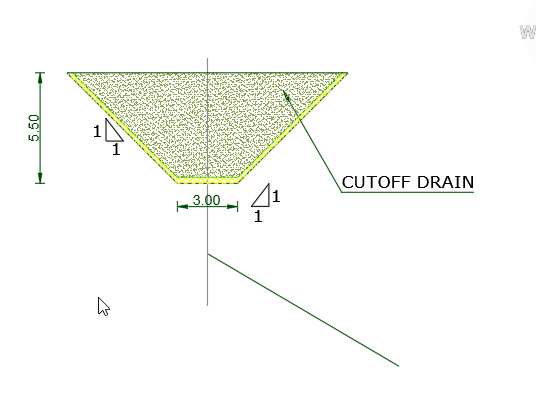
The project identifies open curves whose existing or extended geometry reaches selected block references, presents the results in a reviewable candidate grid, and extends only the checked supported rows. The applied geometry reaches the actual curve content of the target block whenever that geometry can be exploded, while the preview, distance column, status classifications, logging, and session-level Undo Apply provide control over the modification.
Images, animations etc.
XAML code:
<ResourceDictionary
 xmlns="http://schemas.microsoft.com/winfx/2006/xaml/presentation"
 xmlns:x="http://schemas.microsoft.com/winfx/2006/xaml"
 xmlns:src="clr-namespace:Autodesk.Windows;assembly=AdWindows">

 <src:RibbonToolTip x:Key="ExtendToBlock">
 <src:RibbonToolTip.ExpandedContent>
 <StackPanel>
 <TextBlock Background="AntiqueWhite" TextAlignment="Left">
<Bold>Function Syntax:  EXTENDTOBLOCK_ / EXTENDTOBLOCK / ETB</Bold>
<LineBreak/>
<Bold>Version: 1.1 Date: 20.07.2026 6:57:05AM</Bold>
<LineBreak/>
<Hyperlink>N/A</Hyperlink>
<LineBreak/>

<Bold><Run Foreground="DodgerBlue">🚀 ExtendToBlock_003</Run></Bold><LineBreak/>
<Run Foreground="White">ExtendToBlock_003 is an AutoCAD and Civil 3D 2024 .NET utility with a modeless C# interface for previewing and selectively extending curve endpoints to selected block references.</Run><LineBreak/>
<Run Foreground="LimeGreen">It improves CAD editing accuracy by detecting only relevant curves, testing them against real exploded block geometry, and showing the proposed endpoint and extension distance before any checked object is modified.</Run><LineBreak/>
<Bold><Run Foreground="DodgerBlue">Main Commands</Run></Bold><LineBreak/>
<Run Foreground="White">🧰 Run </Run><Bold><Run Foreground="Orange">EXTENDTOBLOCK_003</Run></Bold><Run Foreground="White"> to start the collision-safe build-specific command.</Run><LineBreak/>
<Run Foreground="White">⚙️ Run </Run><Bold><Run Foreground="Orange">EXTENDTOBLOCK</Run></Bold><Run Foreground="White"> as the stable full-name convenience alias.</Run><LineBreak/>
<Run Foreground="White">⚡ Run </Run><Bold><Run Foreground="Orange">ETB</Run></Bold><Run Foreground="White"> as the short convenience alias.</Run><LineBreak/>
<Bold><Run Foreground="DodgerBlue">SEO Optimized Description</Run></Bold><LineBreak/>
<Run Foreground="White">📐 This AutoCAD extend-to-block tool finds lines, lightweight polylines, arcs, and splines whose loose endpoints can reach selected block references and presents the results in a reviewable modeless grid.</Run><LineBreak/>
<Run Foreground="White">🔍 The utility supports CAD cleanup, symbol connection, utility drafting, schematic editing, Civil 3D production, endpoint correction, block connection, and workflows where curves must terminate precisely on block geometry.</Run><LineBreak/>
<Run Foreground="White">🧠 It recursively explodes selected blocks and nested blocks into temporary curve geometry, calculates extended intersections, identifies the nearest Start or End point, and uses the block frame only as a fallback when real curve geometry is unavailable.</Run><LineBreak/>
<Run Foreground="White">📌 ExtendToBlock_003 is useful for CAD technicians, Civil 3D users, survey drafting, utility plans, network diagrams, construction details, electrical layouts, mechanical symbols, and repetitive endpoint-extension tasks.</Run><LineBreak/>
<Bold><Run Foreground="LimeGreen">Functionalities</Run></Bold><LineBreak/>
<Run Foreground="White">🚀 </Run><Bold><Run Foreground="LimeGreen">Modeless C# workflow</Run></Bold><Run Foreground="White"> - opens a resizable Windows Forms interface that remains available while users review blocks, candidates, previews, and logs.</Run><LineBreak/>
<Run Foreground="White">🧱 </Run><Bold><Run Foreground="LimeGreen">Multiple target blocks</Run></Bold><Run Foreground="White"> - uses preselected block references or prompts for one or more </Run><Bold><Run Foreground="Orange">INSERT</Run></Bold><Run Foreground="White"> entities.</Run><LineBreak/>
<Run Foreground="White">☑️ </Run><Bold><Run Foreground="LimeGreen">Target block controls</Run></Bold><Run Foreground="White"> - groups blocks by effective name and lets users enable all, disable all, or individually process block-name groups.</Run><LineBreak/>
<Run Foreground="White">🎯 </Run><Bold><Run Foreground="LimeGreen">Real block geometry</Run></Bold><Run Foreground="White"> - tests candidate curves against recursively exploded constituent curves from the block and nested blocks instead of snapping only to an invisible bounding rectangle.</Run><LineBreak/>
<Run Foreground="White">🟧 </Run><Bold><Run Foreground="LimeGreen">Frame fallback</Run></Bold><Run Foreground="White"> - retains the target block bounding frame as a fallback intersection target when no usable exploded curve geometry is available.</Run><LineBreak/>
<Run Foreground="White">📐 </Run><Bold><Run Foreground="LimeGreen">Supported Apply objects</Run></Bold><Run Foreground="White"> - modifies </Run><Bold><Run Foreground="Orange">LINE</Run></Bold><Run Foreground="White">, </Run><Bold><Run Foreground="Orange">LWPOLYLINE</Run></Bold><Run Foreground="White">, </Run><Bold><Run Foreground="Orange">ARC</Run></Bold><Run Foreground="White">, and </Run><Bold><Run Foreground="Orange">SPLINE</Run></Bold><Run Foreground="White"> entities.</Run><LineBreak/>
<Run Foreground="White">ℹ️ </Run><Bold><Run Foreground="LimeGreen">Heavy polyline visibility</Run></Bold><Run Foreground="White"> - detects AcDb2dPolyline and AcDb3dPolyline candidates but lists them as unsupported informational rows in this build.</Run><LineBreak/>
<Run Foreground="White">🔍 </Run><Bold><Run Foreground="LimeGreen">Relevant candidate scanning</Run></Bold><Run Foreground="White"> - lists only curves that already reach the block or whose extension intersects the target geometry.</Run><LineBreak/>
<Run Foreground="White">🚫 </Run><Bold><Run Foreground="LimeGreen">Closed-curve filtering</Run></Bold><Run Foreground="White"> - skips circles, closed polylines, full ellipses, and other curves without a loose endpoint.</Run><LineBreak/>
<Run Foreground="White">📋 </Run><Bold><Run Foreground="LimeGreen">Detailed candidate grid</Run></Bold><Run Foreground="White"> - shows type, status, layer, handle, Start or End choice, extension distance, target block name, block handle, and a full description.</Run><LineBreak/>
<Run Foreground="White">🟢 </Run><Bold><Run Foreground="LimeGreen">Visual preview</Run></Bold><Run Foreground="White"> - draws the candidate curve, actual block geometry, reference frame, original endpoint, proposed new point, and dashed extension segment.</Run><LineBreak/>
<Run Foreground="White">✨ </Run><Bold><Run Foreground="LimeGreen">Viewport highlighting</Run></Bold><Run Foreground="White"> - highlights selected target blocks or the active candidate entity in AutoCAD and provides a Clear Highlight control.</Run><LineBreak/>
<Run Foreground="White">✅ </Run><Bold><Run Foreground="LimeGreen">Selective application</Run></Bold><Run Foreground="White"> - modifies only rows checked in the </Run><Bold><Run Foreground="Orange">YES/NO</Run></Bold><Run Foreground="White"> column and prevents informational rows from being selected.</Run><LineBreak/>
<Run Foreground="White">🔄 </Run><Bold><Run Foreground="LimeGreen">Apply and OK behavior</Run></Bold><Run Foreground="White"> - Apply performs the confirmed extension and keeps the form open, while OK performs the same operation and closes the form.</Run><LineBreak/>
<Run Foreground="White">↩️ </Run><Bold><Run Foreground="LimeGreen">Undo Apply</Run></Bold><Run Foreground="White"> - restores the latest Apply operation from the active dialog session using saved clones of the original entities.</Run><LineBreak/>
<Run Foreground="White">🛡️ </Run><Bold><Run Foreground="LimeGreen">No-selection warning</Run></Bold><Run Foreground="White"> - explains that a row must be checked before Apply and asks for confirmation before OK closes without changing geometry.</Run><LineBreak/>
<Run Foreground="White">📝 </Run><Bold><Run Foreground="LimeGreen">Diagnostic logging</Run></Bold><Run Foreground="White"> - records command activity, target blocks, candidates, handles, layers, statuses, extension distances, and apply results.</Run><LineBreak/>
<Run Foreground="White">📋 </Run><Bold><Run Foreground="LimeGreen">Copy and save log</Run></Bold><Run Foreground="White"> - copies the live log to the Windows clipboard or saves a timestamped diagnostic TXT file.</Run><LineBreak/>
<Run Foreground="White">💾 </Run><Bold><Run Foreground="LimeGreen">Persistent settings</Run></Bold><Run Foreground="White"> - saves form position, form size, and per-block-name process choices in </Run><Bold><Run Foreground="Orange">ExtendToBlock.cfg</Run></Bold><Run Foreground="White">.</Run><LineBreak/>
<Run Foreground="White">🧪 </Run><Bold><Run Foreground="LimeGreen">Side-by-side test builds</Run></Bold><Run Foreground="White"> - uses a generated build number in the DLL and primary command so multiple NETLOADed versions can coexist in one AutoCAD session.</Run><LineBreak/>
<Bold><Run Foreground="DodgerBlue">Practical Result</Run></Bold><LineBreak/>
<Run Foreground="White">✅ The result is a controlled AutoCAD endpoint-extension workflow that finds applicable curves, previews the proposed geometry, and extends only the checked supported objects to the selected block content.</Run><LineBreak/>
<Run Foreground="LimeGreen">This makes ExtendToBlock_003 useful for block connection, CAD production cleanup, symbol-based drafting, Civil 3D support drawings, utility networks, and repetitive curve-end correction.</Run><LineBreak/>
<Bold><Run Foreground="DarkRed">Important Note</Run></Bold><LineBreak/>
<Run Foreground="White">This command directly modifies checked drawing curves. Review the target block, status, Start or End choice, extension distance, and visual preview before applying.</Run><LineBreak/>
<Run Foreground="White">Closed curves are skipped, heavy 2D and 3D polylines are not auto-applied in build 003, long extension distances are not capped, spline changes move a terminal point rather than fully refitting the curve, and Undo Apply is available only for the latest Apply while the dialog remains open.</Run><LineBreak/>


</TextBlock>

<Grid>
<Image Source="Image_000.png" Stretch="Uniform"/>
</Grid>

<Grid>
<Image Source="Image_001.png" Stretch="Uniform"/>
</Grid>

<Grid>
<Image Source="Image_002.png" Stretch="Uniform"/>
</Grid>

<Grid>
<Image Source="Image_003.png" Stretch="Uniform"/>
</Grid>


 <!-- Use MediaElement for GIF (static first frame) and Image as fallback -->


  </StackPanel>
 </src:RibbonToolTip.ExpandedContent>
 </src:RibbonToolTip>


</ResourceDictionary>