
Short description
AutoCAD AutoLISP utility that exports a filtered CIVIL.cuix package containing selected [username] ribbon tabs, ribbon panels, QAT content, toolbars, and double-click actions.
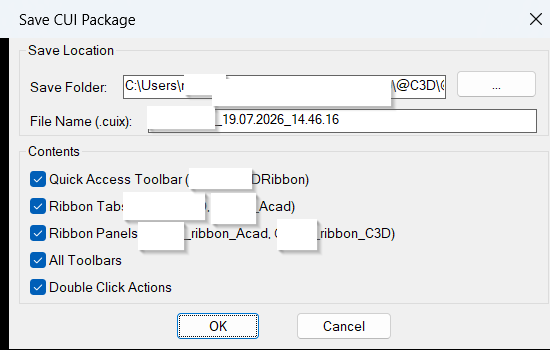
Command:
Run SaveCUIX in AutoCAD or Civil 3D to open the Save CUI Package dialog.
Description:
SaveCUIX is an AutoCAD and Civil 3D customization utility for creating a controlled CUIX export from the active CIVIL.cuix file. The command finds CIVIL.cuix on the AutoCAD support path, opens a DCL dialog, lets the user choose the output folder and file name, and then builds a filtered CUIX package using a hidden PowerShell workflow.
The tool is designed for CAD administrators who need to package selected ribbon customizations without manually editing the CUI editor. It can preserve the Quick Access Toolbar target [username]_C3DRibbon, ribbon tabs [username]_C3D and [username]_Acad, ribbon panels [username]_ribbon_Acad and [username]_ribbon_C3D, all toolbars, and all double-click actions depending on the dialog toggles selected by the user.
Internally, SaveCUIX treats the CUIX file as a compressed package, extracts it to a temporary workspace, edits XML-based CUI files such as RibbonRoot.cui, QuickAccessToolbarRoot.cui, ToolbarRoot.cui, and DoubleClickRoot.cui, then repacks the result into a new .cuix file. The source CIVIL.cuix is used as the input package, while the selected destination file becomes the generated filtered output.
Helper function: (if any)
SC:FileExists checks whether a file path can be opened for reading.
SC:ReadLine reads the first line from a status file.
SC:WriteLines writes generated DCL, VBS, and PowerShell script content to disk.
SC:RunID creates a run identifier from the AutoCAD DATE system variable.
SC:Wait and SC:WaitForFile provide simple asynchronous wait logic while the external process runs.
SC:LaunchViaVBS starts PowerShell through a temporary VBS file without showing a console window.
SC:Timestamp creates the default dd.mm.yyyy_hh.mm.ss file suffix.
SC:DCLPath returns the temporary DCL dialog path.
SC:WriteDCL creates the Save CUI Package dialog definition.
Functionalities:
Finds CIVIL.cuix automatically using AutoCAD search paths.
Creates a temporary DCL dialog with save folder, file name, and content toggles.
Builds default output names using [username]C3D_ plus a timestamp.
Lets the user include or exclude Quick Access Toolbar, ribbon tabs, ribbon panels, toolbars, and double-click actions.
Extracts the CUIX package to a temporary working folder.
Filters RibbonRoot.cui to keep only the target [username] ribbon tabs and panels.
Filters QuickAccessToolbarRoot.cui to keep only [username]_C3DRibbon when enabled.
Clears ToolbarRoot.cui when toolbar export is disabled.
Clears DoubleClickRoot.cui when double-click action export is disabled.
Repacks the filtered files into a new .cuix file.
Uses a done file to report OK, ERROR, or timeout status back to AutoCAD.
Result:
The command produces a new filtered .cuix file at the selected output location. The exported package can contain only the required [username] ribbon tabs, [username] ribbon panels, [username] Quick Access Toolbar, toolbars, and double-click actions selected in the dialog.
Images, animations etc.
XAML code:
<ResourceDictionary
xmlns="http://schemas.microsoft.com/winfx/2006/xaml/presentation"
xmlns:x="http://schemas.microsoft.com/winfx/2006/xaml"
xmlns:src="clr-namespace:Autodesk.Windows;assembly=AdWindows">

<src:RibbonToolTip x:Key="SaveCUIX">
<src:RibbonToolTip.ExpandedContent>
<StackPanel>
<TextBlock Background="AntiqueWhite" TextAlignment="Left">
<Bold>Function Syntax: SaveCUIX</Bold>
<LineBreak/>
<Bold>Version: 1.0 Date: 28.04.2026 4:13:20PM</Bold>
<LineBreak/>
<Hyperlink>WEB</Hyperlink>
<LineBreak/>
<Bold><Run Foreground="DodgerBlue">Function Syntax: SaveCUIX</Run></Bold><LineBreak/>
<Bold><Run Foreground="DodgerBlue">Version: 2.0</Run></Bold><LineBreak/>
<Run Foreground="White">🚀 SaveCUIX is an AutoCAD and Civil 3D CUIX export utility for creating a filtered customization package from the active </Run><Bold><Run Foreground="Orange">CIVIL.cuix</Run></Bold><Run Foreground="White"> file.</Run><LineBreak/>
<Run Foreground="LimeGreen">It helps CAD administrators package ribbon tabs, ribbon panels, Quick Access Toolbar content, toolbars, and double-click actions without manually editing the full CUI editor.</Run><LineBreak/>
<Bold><Run Foreground="DodgerBlue">Main Command</Run></Bold><LineBreak/>
<Run Foreground="White">🧰 Run </Run><Bold><Run Foreground="Orange">SaveCUIX</Run></Bold><Run Foreground="White"> in AutoCAD or Civil 3D to open the </Run><Bold><Run Foreground="Orange">Save CUI Package</Run></Bold><Run Foreground="White"> dialog.</Run><LineBreak/>
<Run Foreground="White">The command locates </Run><Bold><Run Foreground="Orange">CIVIL.cuix</Run></Bold><Run Foreground="White"> from the AutoCAD search path and creates a new filtered </Run><Bold><Run Foreground="Orange">.cuix</Run></Bold><Run Foreground="White"> output file.</Run><LineBreak/>
<Bold><Run Foreground="DodgerBlue">SEO Optimized Description</Run></Bold><LineBreak/>
<Run Foreground="White">📘 This AutoCAD Civil 3D customization tool exports a clean CUIX package containing only selected Dan ribbon and interface components.</Run><LineBreak/>
<Run Foreground="White">📌 It is useful for CAD standards deployment, Civil 3D ribbon backup, AutoCAD workspace distribution, CUIX cleanup, and controlled customization sharing.</Run><LineBreak/>
<Run Foreground="White">🔍 The script extracts the CUIX package, filters XML CUI content, and repacks the result into a new customization file.</Run><LineBreak/>
<Bold><Run Foreground="LimeGreen">Functionalities</Run></Bold><LineBreak/>
<Run Foreground="White">🔎 </Run><Bold><Run Foreground="LimeGreen">Automatic CIVIL.cuix detection</Run></Bold><Run Foreground="White"> - uses </Run><Bold><Run Foreground="Orange">findfile</Run></Bold><Run Foreground="White"> to locate the source CUIX from AutoCAD support paths.</Run><LineBreak/>
<Run Foreground="White">📝 </Run><Bold><Run Foreground="LimeGreen">DCL save dialog</Run></Bold><Run Foreground="White"> - lets the user choose output folder, output file name, and export content toggles.</Run><LineBreak/>
<Run Foreground="White">📌 </Run><Bold><Run Foreground="LimeGreen">Quick Access Toolbar filter</Run></Bold><Run Foreground="White"> - keeps </Run><Bold><Run Foreground="Orange">@Dan_C3DRibbon</Run></Bold><Run Foreground="White"> when QAT export is enabled.</Run><LineBreak/>
<Run Foreground="White">🧩 </Run><Bold><Run Foreground="LimeGreen">Ribbon tab filter</Run></Bold><Run Foreground="White"> - keeps </Run><Bold><Run Foreground="Orange">@Dan_C3D</Run></Bold><Run Foreground="White"> and </Run><Bold><Run Foreground="Orange">@Dan_Acad</Run></Bold><Run Foreground="White"> when ribbon tab export is enabled.</Run><LineBreak/>
<Run Foreground="White">🧰 </Run><Bold><Run Foreground="LimeGreen">Ribbon panel filter</Run></Bold><Run Foreground="White"> - keeps </Run><Bold><Run Foreground="Orange">@Dan_ribbon_Acad</Run></Bold><Run Foreground="White"> and </Run><Bold><Run Foreground="Orange">@Dan_ribbon_C3D</Run></Bold><Run Foreground="White"> when panel export is enabled.</Run><LineBreak/>
<Run Foreground="White">📂 </Run><Bold><Run Foreground="LimeGreen">Toolbar export option</Run></Bold><Run Foreground="White"> - preserves all toolbars or clears </Run><Bold><Run Foreground="Orange">ToolbarRoot.cui</Run></Bold><Run Foreground="White"> depending on the selected option.</Run><LineBreak/>
<Run Foreground="White">🖱️ </Run><Bold><Run Foreground="LimeGreen">Double-click action option</Run></Bold><Run Foreground="White"> - preserves or clears </Run><Bold><Run Foreground="Orange">DoubleClickRoot.cui</Run></Bold><Run Foreground="White"> depending on the selected option.</Run><LineBreak/>
<Run Foreground="White">🔄 </Run><Bold><Run Foreground="LimeGreen">Hidden PowerShell rebuild</Run></Bold><Run Foreground="White"> - extracts the CUIX archive, edits XML content, and rebuilds the final </Run><Bold><Run Foreground="Orange">.cuix</Run></Bold><Run Foreground="White"> package.</Run><LineBreak/>
<Run Foreground="White">🔐 </Run><Bold><Run Foreground="LimeGreen">Status reporting</Run></Bold><Run Foreground="White"> - reports saved, failed, or timed-out status back to AutoCAD through a temporary completion file.</Run><LineBreak/>
<Bold><Run Foreground="DodgerBlue">Helper Functions</Run></Bold><LineBreak/>
<Run Foreground="White">🧠 </Run><Bold><Run Foreground="Orange">SC:FileExists</Run></Bold><Run Foreground="White">, </Run><Bold><Run Foreground="Orange">SC:ReadLine</Run></Bold><Run Foreground="White">, and </Run><Bold><Run Foreground="Orange">SC:WriteLines</Run></Bold><Run Foreground="White"> manage file checks, status reads, and script writing.</Run><LineBreak/>
<Run Foreground="White">⏱️ </Run><Bold><Run Foreground="Orange">SC:Timestamp</Run></Bold><Run Foreground="White"> and </Run><Bold><Run Foreground="Orange">SC:RunID</Run></Bold><Run Foreground="White"> create unique names for output and temporary process files.</Run><LineBreak/>
<Run Foreground="White">🚀 </Run><Bold><Run Foreground="Orange">SC:LaunchViaVBS</Run></Bold><Run Foreground="White"> starts PowerShell through VBS so the CUIX rebuild can run without a visible console window.</Run><LineBreak/>
<Run Foreground="White">📝 </Run><Bold><Run Foreground="Orange">SC:WriteDCL</Run></Bold><Run Foreground="White"> builds the temporary AutoCAD dialog used by the command.</Run><LineBreak/>
<Bold><Run Foreground="DodgerBlue">Practical Result</Run></Bold><LineBreak/>
<Run Foreground="White">✅ The result is a new filtered CUIX package ready for AutoCAD and Civil 3D customization deployment, ribbon distribution, workspace cleanup, or backup workflows.</Run><LineBreak/>
<Run Foreground="LimeGreen">This improves CUIX management speed and reduces manual work when distributing selected ribbon and toolbar configurations.</Run><LineBreak/>
<Bold><Run Foreground="DarkRed">Important Notes</Run></Bold><LineBreak/>
<Run Foreground="White">⚠️ The script contains hard-coded Dan target names and a hard-coded default save path, so these values should be adjusted for other environments.</Run><LineBreak/>
<Run Foreground="White">⚠️ It depends on PowerShell, VBS, and .NET compression support to extract and rebuild the CUIX package.</Run><LineBreak/>
<Run Foreground="White">🔒 Keep backups of production CUIX files before using any direct CUIX package export or replacement workflow.</Run><LineBreak/>


</TextBlock>

<Grid>
<Image Source="Image_000.png" Stretch="Uniform"/>
</Grid>

</StackPanel>
</src:RibbonToolTip.ExpandedContent>
</src:RibbonToolTip>
</ResourceDictionary>