
Short description
AutoCAD ribbon button editor for updating custom CUIX command buttons, images, XAML help links, macros, metadata, order, and panel placement from a DCL dialog.
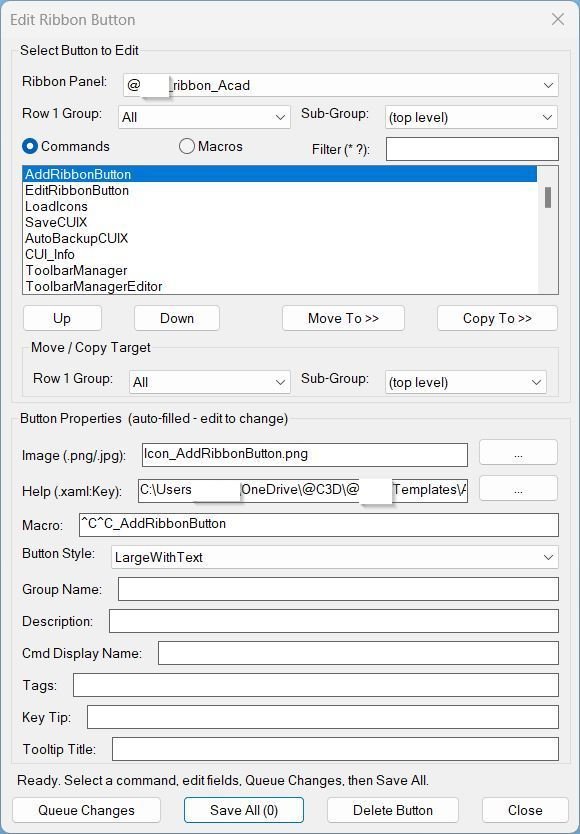
Command:
Command: EditRibbonButton
Diagnostic command: ERB_Debug
Run EditRibbonButton in AutoCAD to open the ribbon button editor. Run ERB_Debug to diagnose CUIX path discovery, cached ribbon structure, file access, and reload prerequisites.
Description:
EditRibbonButton is an AutoLISP and PowerShell based AutoCAD ribbon editing utility designed for CAD managers and Civil 3D production environments that maintain many custom ribbon commands in CUIX files.
The tool scans the AutoCAD support directory for the CUIX file containing [username]_ribbon_* ribbon panels, reads ribbon panel structure and menu macro data, and displays editable command information in a practical DCL interface.
Users can select a ribbon panel, group, subgroup, command, or macro, then update the button image, extended XAML help file and key, macro string, button style, group name, description, command display name, tags, key tip, and tooltip title.
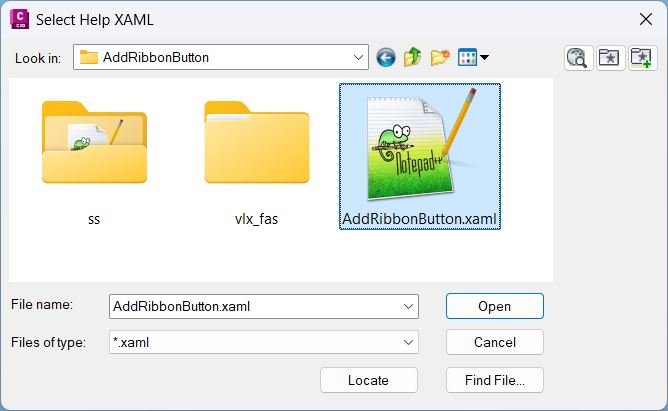
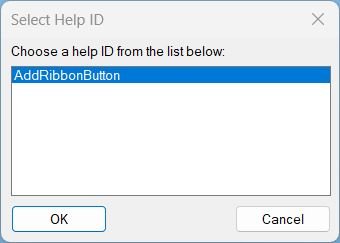
Version 4.5 improves the XAML browse workflow by rebinding all dialog actions after the help-file picker reopens the main dialog. This keeps Queue Changes working after XAML browsing and uses the selected command’s existing ExtendedHelpFile as the default browse path.
Helper function: (if any)
ERB:Find[username] locates the best custom CUIX file by scanning support-directory CUIX files for[username]_ribbon_*definitions.ERB:ReadAllextracts ribbon panels, groups, subgroups, commands, macro links, and editable properties from CUIX XML.ERB:SaveAllapplies queued edits toRibbonRoot.cuiandMenuGroup.cui, then rebuilds the CUIX archive.ERB:DeleteCmdremoves a selected ribbon command button and deletes generated ARB menu macro entries when applicable.ERB:ReorderCmdmoves a command to top, up, down, or bottom inside the selected ribbon row.ERB:MoveCopyCmdmoves or copies command buttons between groups and subgroups, including cloned macro UID support for copied buttons.ERB:XamlKeyPickerreads XAML tooltip keys and lets the user select the correctSourceKeyfor extended help.ERB:DebugInfoandERB_Debugprovide troubleshooting information for CUIX discovery, structure cache, and reload behavior.
Functionalities:
- 🧰 CUIX ribbon command editor for custom AutoCAD and Civil 3D ribbon panels.
- 🔍 Automatic CUIX discovery by scanning support-directory CUIX files for
[username]_ribbon_*ribbon panel definitions. - 📂 Ribbon panel, group, and subgroup navigation for editing commands inside folded panels, split buttons, and top-level groups.
- 🧠 Command and macro mode for browsing ribbon buttons by command name or underlying menu macro string.
- 🏷️ Wildcard filtering with
*and?to quickly locate commands or macros. - 🎨 Image assignment for small and large ribbon images using PNG or JPG file references.
- 📘 XAML help linking with
ExtendedHelpFileandExtendedHelpKeysupport, including a key picker for tooltip ResourceDictionary entries. - 📝 Metadata editing for macro, button style, group name, description, command display name, tags, key tip, and tooltip title.
- 📌 Button ordering tools to move commands to top, up, down, or bottom within the active row.
- 🔄 Move and copy tools for transferring ribbon buttons to another group or subgroup.
- 🧹 Delete button workflow for removing selected ribbon commands from the CUIX structure.
- 📤 Queue, Apply, and Save All workflow for batching edits before writing changes to the CUIX file.
- 🔐 Timestamped CUIX backup before every direct CUIX modification.
- 🧩 Debug command to inspect CUIX resolution, cached structure, support-directory files, and reload readiness.
Result:
The result is a faster and more controlled AutoCAD ribbon customization workflow. Users can update ribbon buttons, images, help tooltips, macros, command metadata, and command placement without manually editing CUIX XML or repeatedly opening the full CUI editor.
Images, animations etc.
XAML code:
<ResourceDictionary
xmlns="http://schemas.microsoft.com/winfx/2006/xaml/presentation"
xmlns:x="http://schemas.microsoft.com/winfx/2006/xaml"
xmlns:src="clr-namespace:Autodesk.Windows;assembly=AdWindows">

<src:RibbonToolTip x:Key="EditRibbonButton">
<src:RibbonToolTip.ExpandedContent>
<StackPanel>
<TextBlock Background="AntiqueWhite" TextAlignment="Left">
<Bold>Function Syntax: EditRibbonButton / ERB_Debug</Bold>
<LineBreak/>
<Bold>Version: 1.0 Date: 14.05.2026 6:17:02PM</Bold>
<LineBreak/>
<Hyperlink>WEB</Hyperlink>
<LineBreak/>


<Bold><Run Foreground="DodgerBlue">Function Syntax: EditRibbonButton</Run></Bold><LineBreak/>
<Bold><Run Foreground="DodgerBlue">Version: 4.5</Run></Bold><LineBreak/>
<Run Foreground="White">🚀 EditRibbonButton is an AutoCAD ribbon button editor for managing custom CUIX command buttons, images, XAML help links, macro strings, command metadata, and button placement from one DCL dialog.</Run><LineBreak/>
<Run Foreground="LimeGreen">It is designed for AutoCAD and Civil 3D CAD managers who maintain many custom ribbon commands in loaded CUIX and partial CUIX files.</Run><LineBreak/>
<Bold><Run Foreground="DodgerBlue">Main Commands</Run></Bold><LineBreak/>
<Run Foreground="White">🧰 Run </Run><Bold><Run Foreground="Orange">EditRibbonButton</Run></Bold><Run Foreground="White"> to open the visual ribbon button editor.</Run><LineBreak/>
<Run Foreground="White">🧩 Run </Run><Bold><Run Foreground="Orange">ERB_Debug</Run></Bold><Run Foreground="White"> to diagnose CUIX discovery, cached ribbon structure, CUIX file access, and reload prerequisites.</Run><LineBreak/>
<Bold><Run Foreground="DodgerBlue">SEO Optimized Description</Run></Bold><LineBreak/>
<Run Foreground="White">📘 This AutoCAD Civil 3D utility scans the support directory for the CUIX file that contains </Run><Bold><Run Foreground="Orange">@Dan_ribbon_*</Run></Bold><Run Foreground="White"> ribbon panels, reads ribbon command data, and presents editable properties in a practical DCL interface.</Run><LineBreak/>
<Run Foreground="White">🔍 Users can browse ribbon panels, groups, subgroups, commands, and macros, then edit ribbon button images, extended XAML help files, source keys, macro strings, descriptions, display names, tags, key tips, and tooltip titles.</Run><LineBreak/>
<Run Foreground="White">📌 The tool also supports command ordering, move-to-group workflows, copy-to-group workflows, command deletion, queued edits, apply without closing, save all, and safe CUIX reload.</Run><LineBreak/>
<Run Foreground="White">🧠 Version 4.5 improves the XAML browse workflow by rebinding dialog actions after every help picker reopen, keeping Queue Changes active after XAML browsing.</Run><LineBreak/>
<Bold><Run Foreground="LimeGreen">Functionalities</Run></Bold><LineBreak/>
<Run Foreground="White">🔍 </Run><Bold><Run Foreground="LimeGreen">Automatic CUIX discovery</Run></Bold><Run Foreground="White"> - finds the custom CUIX file with real </Run><Bold><Run Foreground="Orange">@Dan_ribbon_*</Run></Bold><Run Foreground="White"> ribbon panel definitions.</Run><LineBreak/>
<Run Foreground="White">📂 </Run><Bold><Run Foreground="LimeGreen">Ribbon structure browser</Run></Bold><Run Foreground="White"> - lists ribbon panels, groups, subgroups, folded panels, split buttons, commands, and macros.</Run><LineBreak/>
<Run Foreground="White">🏷️ </Run><Bold><Run Foreground="LimeGreen">Wildcard command filtering</Run></Bold><Run Foreground="White"> - uses </Run><Bold><Run Foreground="Orange">*</Run></Bold><Run Foreground="White"> and </Run><Bold><Run Foreground="Orange">?</Run></Bold><Run Foreground="White"> to locate commands and macros quickly.</Run><LineBreak/>
<Run Foreground="White">🎨 </Run><Bold><Run Foreground="LimeGreen">Ribbon image editing</Run></Bold><Run Foreground="White"> - updates small and large ribbon image references from PNG or JPG files.</Run><LineBreak/>
<Run Foreground="White">📘 </Run><Bold><Run Foreground="LimeGreen">XAML help linking</Run></Bold><Run Foreground="White"> - assigns extended tooltip XAML files and ResourceDictionary keys using an integrated help key picker.</Run><LineBreak/>
<Run Foreground="White">📝 </Run><Bold><Run Foreground="LimeGreen">Button property editing</Run></Bold><Run Foreground="White"> - edits macro, button style, group name, description, command display name, tags, key tip, and tooltip title.</Run><LineBreak/>
<Run Foreground="White">📌 </Run><Bold><Run Foreground="LimeGreen">Button ordering tools</Run></Bold><Run Foreground="White"> - moves selected commands to top, up, down, or bottom inside the active ribbon row.</Run><LineBreak/>
<Run Foreground="White">🔄 </Run><Bold><Run Foreground="LimeGreen">Move and copy workflow</Run></Bold><Run Foreground="White"> - moves or clones buttons into another group or subgroup, including unique macro UID creation for copied buttons.</Run><LineBreak/>
<Run Foreground="White">🧹 </Run><Bold><Run Foreground="LimeGreen">Delete button tool</Run></Bold><Run Foreground="White"> - removes selected ribbon commands and generated macro records when applicable.</Run><LineBreak/>
<Run Foreground="White">📤 </Run><Bold><Run Foreground="LimeGreen">Queue Apply Save workflow</Run></Bold><Run Foreground="White"> - batches edits, applies without closing, or saves all queued changes.</Run><LineBreak/>
<Run Foreground="White">🔐 </Run><Bold><Run Foreground="LimeGreen">Timestamped backup</Run></Bold><Run Foreground="White"> - creates a CUIX backup before direct archive modification.</Run><LineBreak/>
<Bold><Run Foreground="DodgerBlue">Practical Result</Run></Bold><LineBreak/>
<Run Foreground="White">✅ The result is a faster AutoCAD ribbon customization workflow for updating command buttons, tooltip help, icons, macros, command metadata, and button placement without manually editing CUIX XML.</Run><LineBreak/>
<Run Foreground="LimeGreen">This improves AutoCAD workspace administration, Civil 3D ribbon maintenance, CUIX command organization, and CAD production interface control.</Run><LineBreak/>
<Bold><Run Foreground="DarkRed">Important Note</Run></Bold><LineBreak/>
<Run Foreground="White">This utility directly modifies the selected CUIX archive. It creates timestamped backup files, but a manual production backup is strongly recommended before saving changes.</Run><LineBreak/>
<Run Foreground="White">The workflow is optimized for custom </Run><Bold><Run Foreground="Orange">@Dan_ribbon_*</Run></Bold><Run Foreground="White"> panels and depends on AutoLISP, Visual LISP COM, PowerShell, Windows Script Host, and AutoCAD CUI reload behavior.</Run><LineBreak/>


</TextBlock>

<Grid>
<Image Source="Image_000.jpg" Stretch="Uniform"/>
</Grid>

<Grid>
<Image Source="Image_001.jpg" Stretch="Uniform"/>
</Grid>

<Grid>
<Image Source="Image_002.jpg" Stretch="Uniform"/>
</Grid>

</StackPanel>
</src:RibbonToolTip.ExpandedContent>
</src:RibbonToolTip>
</ResourceDictionary>