
Short description
🚀 SteSysVar is an AutoCAD AutoLISP environment tuner that opens a tabbed DCL dialog for applying practical system variable presets across file handling, dialogs, drawing behavior, selection, drafting aids, xrefs, publishing, and layer isolation.
Command:
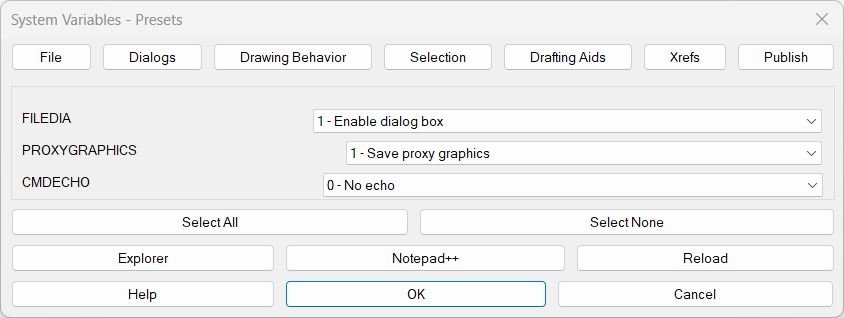
🧰 Main command: SteSysVar. Optional command: SteSysVarPublish. SteSysVar opens the full environment tuner starting on the File tab. SteSysVarPublish opens directly on the Publish tab for quick access to PUBLISHCOLLATE.
Description:
🚀 SteSysVar is a dialog-driven AutoCAD and Civil 3D system variable manager designed for CAD users who need a fast, repeatable way to tune drawing environment settings.
📂 The tool organizes important AutoCAD system variables into clear tabs: File, Dialogs, Drawing Behavior, Selection, Drafting Aids, Xrefs, Publish, and Layer Tools. Each tab uses dropdown controls instead of raw numeric input, so values such as FILEDIA, ORTHOMODE, PICKFIRST, OSMODE, DYNMODE, XREFOVERRIDE, PUBLISHCOLLATE, and LAYERISOLATION can be reviewed and applied with readable labels.
🧠 SteSysVar improves CAD productivity by reducing manual SETVAR work, documenting recommended defaults, grouping related variables, and giving the user quick access to help text, source reload, folder opening, and Notepad++ editing from the same interface.
🟡 Tags: 🏷️ AutoCAD, 🏷️ AutoLISP, 🏷️ Civil 3D, 🏷️ System Variables, 🏷️ CAD Environment, 🏷️ Drafting Settings, 🏷️ Selection Settings, 🏷️ Xref Settings, 🏷️ Publish Settings, 🏷️ Layer Isolation, 🏷️ DCL Dialog, 🏷️ Productivity Tool
Helper function: (if any)
Functionalities:
✅ Tabbed DCL interface for managing grouped AutoCAD system variables.
✅ Dropdown value lists with readable meaning labels for each supported variable.
✅ File settings: FILEDIA, PROXYGRAPHICS, and CMDECHO.
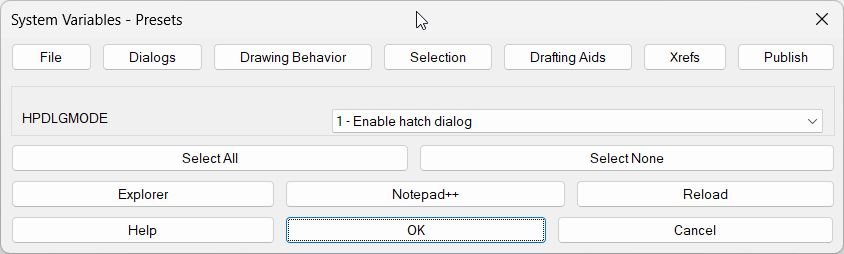
✅ Dialog settings: HPDLGMODE for hatch dialog behavior.
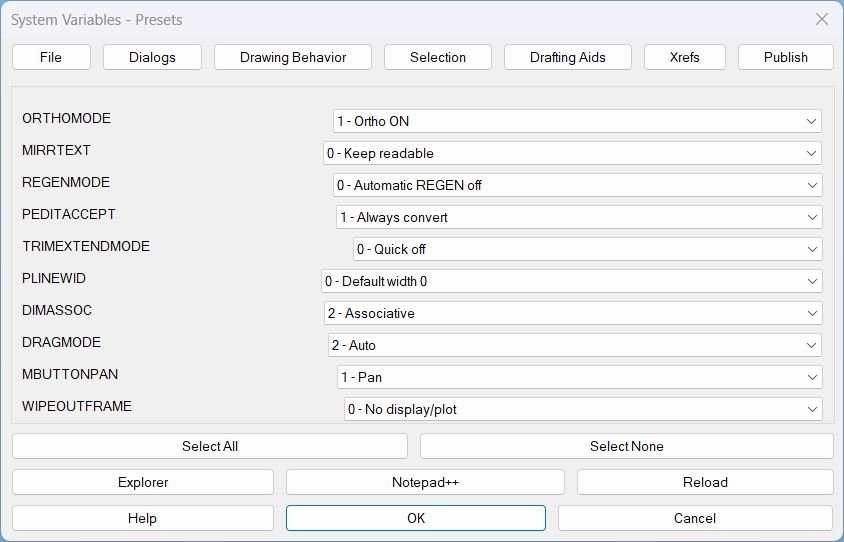
✅ Drawing behavior settings: ORTHOMODE, MIRRTEXT, REGENMODE, PEDITACCEPT, TRIMEXTENDMODE, PLINEWID, PLINETYPE, DIMASSOC, DRAGMODE, MBUTTONPAN, and WIPEOUTFRAME.
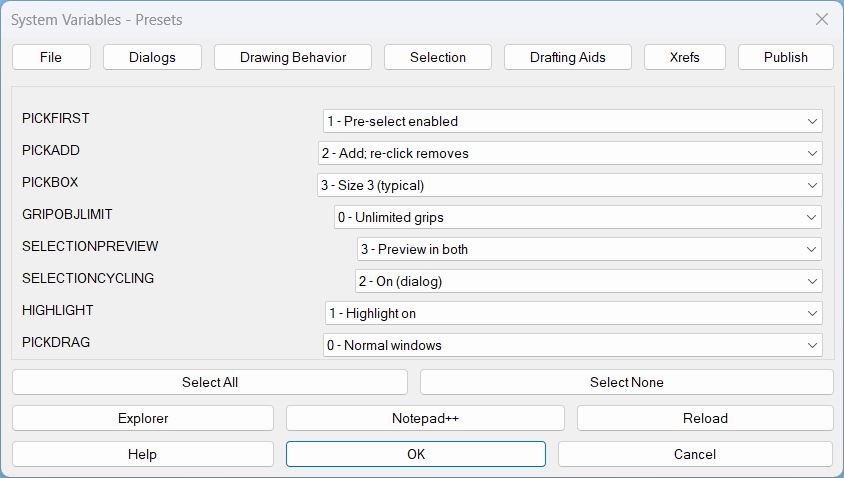
✅ Selection settings: PICKFIRST, PICKADD, PICKBOX, GRIPOBJLIMIT, SELECTIONPREVIEW, SELECTIONCYCLING, HIGHLIGHT, PICKDRAG, and GRIPS.
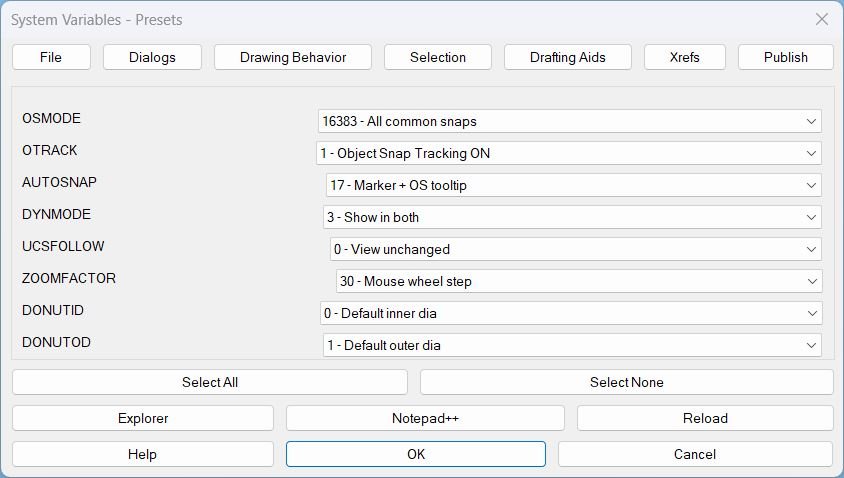
✅ Drafting aid settings: OSMODE, OTRACK, AUTOSNAP, DYNMODE, UCSFOLLOW, ZOOMFACTOR, DONUTID, DONUTOD, and SNAPANG.
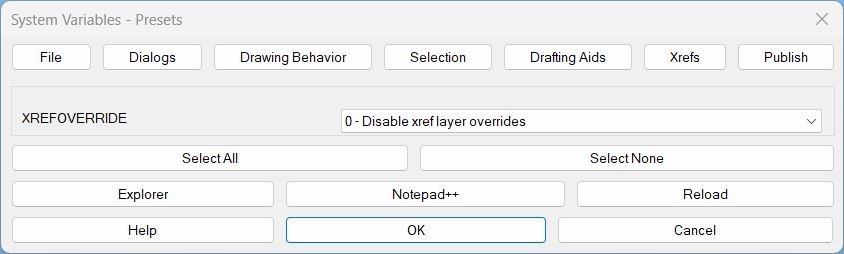
✅ Xref setting support for XREFOVERRIDE.
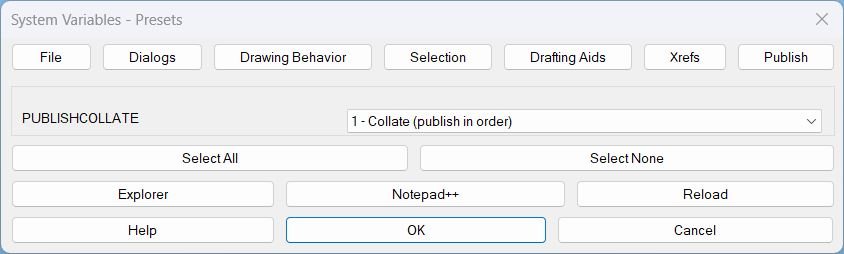
✅ Publish setting support for PUBLISHCOLLATE.
✅ Layer isolation support for LAYERISOLATION, with special handling for LAYISO behavior and LAYLOCKFADECTL.
✅ Select All and Select None actions for the current tab.
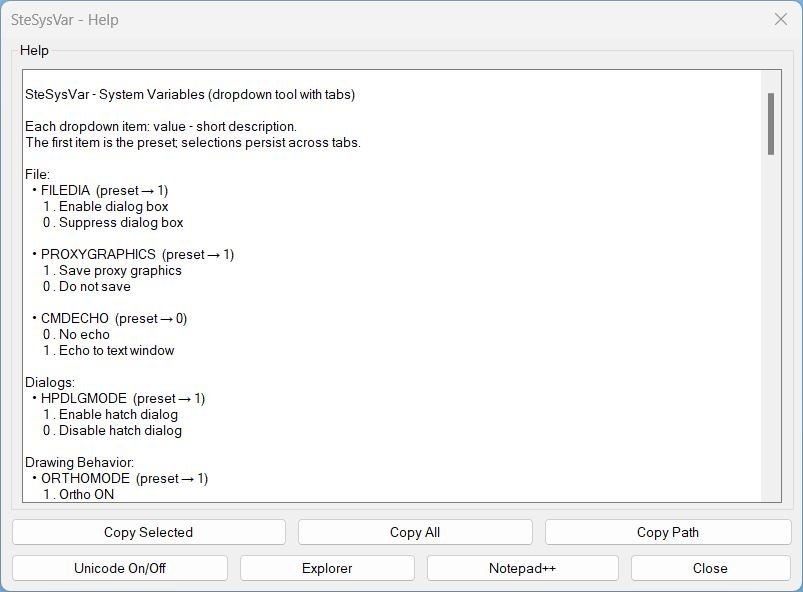
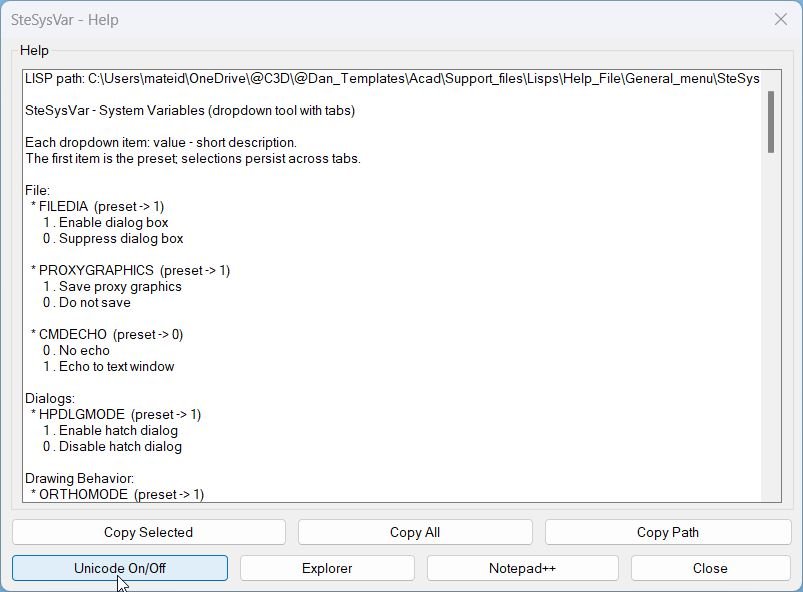
✅ Built-in help dialog with copy selected, copy all, copy path, Unicode toggle, and source navigation actions.
✅ Open LSP folder, open current LSP in Notepad++, reload self, and copy LSP path utilities.
✅ Runtime DCL generation, AutoLISP COM usage, safe setvar calls, and clipboard export through PowerShell.
Result:
✅ The result is a faster, cleaner AutoCAD and Civil 3D setup workflow: users can review and apply multiple production-oriented system variable settings from one organized dialog instead of typing and remembering individual SETVAR values.
Images, animations etc.
XAML code:
<ResourceDictionary
xmlns="http://schemas.microsoft.com/winfx/2006/xaml/presentation"
xmlns:x="http://schemas.microsoft.com/winfx/2006/xaml"
xmlns:src="clr-namespace:Autodesk.Windows;assembly=AdWindows">

<src:RibbonToolTip x:Key="SteSysVar">
<src:RibbonToolTip.ExpandedContent>
<StackPanel>
<TextBlock Background="AntiqueWhite" TextAlignment="Left">
<Bold>Function Syntax: SteSysVar / SteSysVarPublish</Bold>
<LineBreak/>
<Bold>Version: 4 Date: 20.10.2025</Bold>
<LineBreak/>
<Bold>Version: 5 Date: 20.06.2026 6:38:52PM</Bold>
<LineBreak/>
<Hyperlink>N/A</Hyperlink>


<Bold><Run Foreground="DodgerBlue">Function Syntax: SteSysVar</Run></Bold><LineBreak/>
<Bold><Run Foreground="Orange">Commands: SteSysVar, SteSysVarPublish</Run></Bold><LineBreak/>
<LineBreak/>
<Bold><Run Foreground="DodgerBlue">Description</Run></Bold><LineBreak/>
<Run Foreground="White">🚀 SteSysVar is an AutoCAD and Civil 3D AutoLISP environment tuner for quickly managing important AutoCAD system variables from one tabbed DCL dialog.</Run><LineBreak/>
<Run Foreground="LimeGreen">The main benefit is faster CAD setup, cleaner drafting behavior, consistent selection settings, practical xref control, publish configuration, and repeatable production-ready system variable presets.</Run><LineBreak/>
<Run Foreground="White">The tool replaces manual SETVAR typing with readable dropdown lists, grouped tabs, built-in help, and one-click application of selected AutoCAD environment settings.</Run><LineBreak/>
<LineBreak/>
<Bold><Run Foreground="DodgerBlue">Main Commands</Run></Bold><LineBreak/>
<Run Foreground="White">🧰 Run </Run><Bold><Run Foreground="Orange">SteSysVar</Run></Bold><Run Foreground="White"> to open the full tabbed system variable manager starting on the File tab.</Run><LineBreak/>
<Run Foreground="White">📤 Run </Run><Bold><Run Foreground="Orange">SteSysVarPublish</Run></Bold><Run Foreground="White"> to open directly on the Publish tab for quick access to </Run><Bold><Run Foreground="Orange">PUBLISHCOLLATE</Run></Bold><Run Foreground="White">.</Run><LineBreak/>
<LineBreak/>
<Bold><Run Foreground="DodgerBlue">SEO Optimized Description</Run></Bold><LineBreak/>
<Run Foreground="White">📘 This AutoCAD AutoLISP utility manages common system variables used in daily CAD and Civil 3D production workflows.</Run><LineBreak/>
<Run Foreground="White">🔍 Users can configure file dialogs, drawing behavior, selection preview, object snaps, dynamic input, xref overrides, publish collation, and layer isolation from a structured graphical interface.</Run><LineBreak/>
<Run Foreground="White">🧠 SteSysVar is useful for CAD managers, Civil 3D designers, infrastructure drafting teams, AutoCAD power users, and anyone who needs consistent workspace behavior across many drawings.</Run><LineBreak/>
<Run Foreground="White">📌 It improves AutoCAD productivity by centralizing environment tuning, documenting useful presets, and reducing repetitive command-line system variable setup.</Run><LineBreak/>
<LineBreak/>
<Bold><Run Foreground="LimeGreen">Functionalities</Run></Bold><LineBreak/>
<Run Foreground="White">📂 </Run><Bold><Run Foreground="LimeGreen">Tabbed system variable manager</Run></Bold><Run Foreground="White"> - organizes settings into File, Dialogs, Drawing Behavior, Selection, Drafting Aids, Xrefs, Publish, and Layer Tools.</Run><LineBreak/>
<Run Foreground="White">🔽 </Run><Bold><Run Foreground="LimeGreen">Readable dropdown presets</Run></Bold><Run Foreground="White"> - displays meaningful labels for numeric AutoCAD system variable values instead of forcing the user to remember raw codes.</Run><LineBreak/>
<Run Foreground="White">📁 </Run><Bold><Run Foreground="LimeGreen">File and dialog control</Run></Bold><Run Foreground="White"> - manages </Run><Bold><Run Foreground="Orange">FILEDIA</Run></Bold><Run Foreground="White">, </Run><Bold><Run Foreground="Orange">PROXYGRAPHICS</Run></Bold><Run Foreground="White">, </Run><Bold><Run Foreground="Orange">CMDECHO</Run></Bold><Run Foreground="White">, and </Run><Bold><Run Foreground="Orange">HPDLGMODE</Run></Bold><Run Foreground="White">.</Run><LineBreak/>
<Run Foreground="White">📐 </Run><Bold><Run Foreground="LimeGreen">Drawing behavior setup</Run></Bold><Run Foreground="White"> - controls </Run><Bold><Run Foreground="Orange">ORTHOMODE</Run></Bold><Run Foreground="White">, </Run><Bold><Run Foreground="Orange">MIRRTEXT</Run></Bold><Run Foreground="White">, </Run><Bold><Run Foreground="Orange">REGENMODE</Run></Bold><Run Foreground="White">, </Run><Bold><Run Foreground="Orange">PEDITACCEPT</Run></Bold><Run Foreground="White">, </Run><Bold><Run Foreground="Orange">TRIMEXTENDMODE</Run></Bold><Run Foreground="White">, polyline settings, dimension associativity, drag mode, middle-button pan, and wipeout frame display.</Run><LineBreak/>
<Run Foreground="White">🖱️ </Run><Bold><Run Foreground="LimeGreen">Selection workflow tuning</Run></Bold><Run Foreground="White"> - manages </Run><Bold><Run Foreground="Orange">PICKFIRST</Run></Bold><Run Foreground="White">, </Run><Bold><Run Foreground="Orange">PICKADD</Run></Bold><Run Foreground="White">, </Run><Bold><Run Foreground="Orange">PICKBOX</Run></Bold><Run Foreground="White">, grip behavior, selection preview, selection cycling, highlighting, and pick-drag behavior.</Run><LineBreak/>
<Run Foreground="White">🎯 </Run><Bold><Run Foreground="LimeGreen">Drafting aid presets</Run></Bold><Run Foreground="White"> - configures object snap mode, object snap tracking, AutoSnap display, dynamic input, UCS follow, zoom factor, donut defaults, and snap angle.</Run><LineBreak/>
<Run Foreground="White">🧩 </Run><Bold><Run Foreground="LimeGreen">Xref and publish options</Run></Bold><Run Foreground="White"> - includes </Run><Bold><Run Foreground="Orange">XREFOVERRIDE</Run></Bold><Run Foreground="White"> and </Run><Bold><Run Foreground="Orange">PUBLISHCOLLATE</Run></Bold><Run Foreground="White"> for production plotting and external reference control.</Run><LineBreak/>
<Run Foreground="White">🧱 </Run><Bold><Run Foreground="LimeGreen">Layer isolation handling</Run></Bold><Run Foreground="White"> - applies </Run><Bold><Run Foreground="Orange">LAYERISOLATION</Run></Bold><Run Foreground="White"> and uses special logic for </Run><Bold><Run Foreground="Orange">LAYISO</Run></Bold><Run Foreground="White"> and </Run><Bold><Run Foreground="Orange">LAYLOCKFADECTL</Run></Bold><Run Foreground="White">.</Run><LineBreak/>
<Run Foreground="White">✅ </Run><Bold><Run Foreground="LimeGreen">Select All and Select None</Run></Bold><Run Foreground="White"> - quickly applies preset selections or clears selections for the active tab.</Run><LineBreak/>
<Run Foreground="White">📘 </Run><Bold><Run Foreground="LimeGreen">Built-in help system</Run></Bold><Run Foreground="White"> - provides grouped help text, copy selected, copy all, copy source path, Unicode toggle, open folder, and open in Notepad++ actions.</Run><LineBreak/>
<Run Foreground="White">🔄 </Run><Bold><Run Foreground="LimeGreen">Reload and source navigation</Run></Bold><Run Foreground="White"> - opens the LISP folder, opens the source file in Notepad++, copies the LISP path, and reloads the current script.</Run><LineBreak/>
<Run Foreground="White">🔐 </Run><Bold><Run Foreground="LimeGreen">Safe application logic</Run></Bold><Run Foreground="White"> - applies variables through protected </Run><Bold><Run Foreground="Orange">setvar</Run></Bold><Run Foreground="White"> calls and keeps the interface stable during value changes.</Run><LineBreak/>
<LineBreak/>
<Bold><Run Foreground="DodgerBlue">Practical Result</Run></Bold><LineBreak/>
<Run Foreground="White">✅ The final result is a faster AutoCAD and Civil 3D environment setup workflow where common system variables are reviewed, selected, and applied from one organized dialog.</Run><LineBreak/>
<Run Foreground="LimeGreen">SteSysVar helps standardize CAD behavior, reduce setup time, simplify drafting configuration, and improve consistency across production drawings.</Run><LineBreak/>
<LineBreak/>
<Bold><Run Foreground="DarkRed">Important Notes</Run></Bold><LineBreak/>
<Run Foreground="White">⚠️ This tool changes AutoCAD system variables in the active AutoCAD environment. Review selected dropdown values before pressing OK.</Run><LineBreak/>
<Run Foreground="White">⚠️ Some system variables are drawing-specific and others are profile or session specific depending on AutoCAD behavior.</Run><LineBreak/>
<Run Foreground="White">⚠️ The source path is defined inside </Run><Bold><Run Foreground="Orange">SSV:set-path</Run></Bold><Run Foreground="White"> and may need adjustment if the LISP is moved to another folder.</Run><LineBreak/>
<Run Foreground="White">⚠️ The tool is focused on environment configuration and does not edit drawing geometry.</Run><LineBreak/>
<LineBreak/>
<Bold><Run Foreground="DodgerBlue">Tags</Run></Bold><LineBreak/>
<Run Foreground="Yellow">🏷️ AutoCAD, 🏷️ AutoLISP, 🏷️ Civil 3D, 🏷️ System Variables, 🏷️ CAD Environment, 🏷️ Drafting Settings, 🏷️ Selection Settings, 🏷️ Xref Settings, 🏷️ Publish Settings, 🏷️ Layer Isolation, 🏷️ DCL Dialog, 🏷️ Productivity Tool</Run><LineBreak/>


</TextBlock>

<Grid>
<Image Source="Image_000.jpg" Stretch="Uniform"/>
</Grid>

<Grid>
<Image Source="Image_001.jpg" Stretch="Uniform"/>
</Grid>

<Grid>
<Image Source="Image_002.jpg" Stretch="Uniform"/>
</Grid>

<Grid>
<Image Source="Image_003.jpg" Stretch="Uniform"/>
</Grid>

<Grid>
<Image Source="Image_004.jpg" Stretch="Uniform"/>
</Grid>

<Grid>
<Image Source="Image_005.jpg" Stretch="Uniform"/>
</Grid>

<Grid>
<Image Source="Image_006.jpg" Stretch="Uniform"/>
</Grid>

<Grid>
<Image Source="Image_007.jpg" Stretch="Uniform"/>
</Grid>

<Grid>
<Image Source="Image_008.jpg" Stretch="Uniform"/>
</Grid>

</ResourceDictionary>