
Short description
Tags: Layouts, Paper Space, Viewports, DCL, Dialog_UI, Lisp, CAD, Clipboard
Suggested tags not in list: ObjectARX, COM_Automation, Stability, Undo_Stack
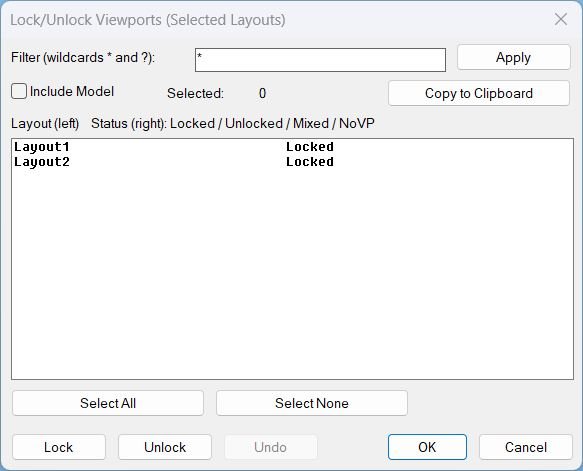
Command:
- • LOCKALLVP Open the dialog to lock or unlock viewports in selected layouts.
- • LockAllVp Alias command to run the same dialog workflow.
- • _LOCKALLVP Underscore alias for macro use.
Description:
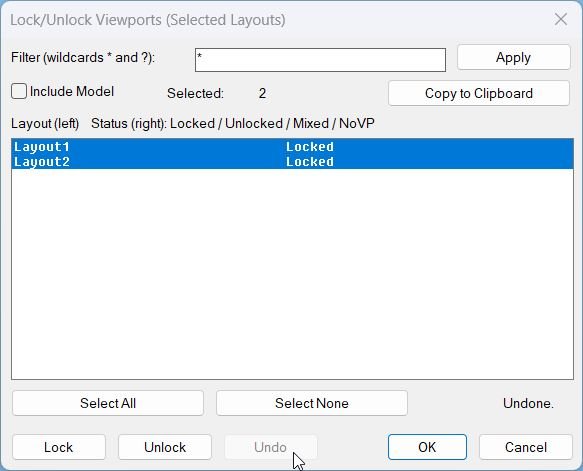
- This tool provides a DCL dialog to manage viewport locking by layout, with multi-select layout targeting and per-layout status display.
- It is designed to avoid ARX/DCL callback crashes by not running fragile command sequences from dialog callbacks and by applying changes using safer mechanisms where possible.
- The list shows each layout name and a computed status: Locked, Unlocked, Mixed, or NoVP.
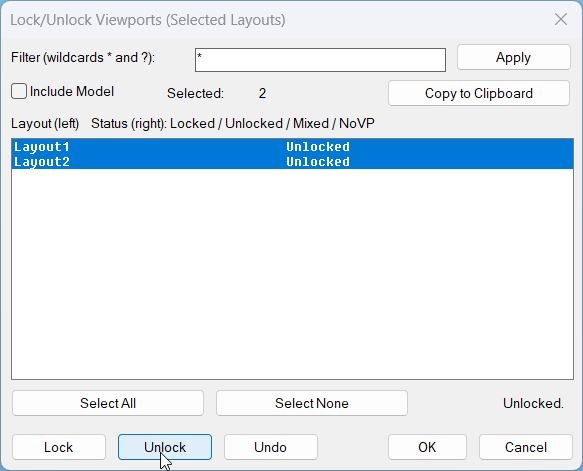
- After clicking Lock or Unlock, the dialog should refresh the list so the status reflects the new state immediately.
Helper function: (if any)
- • Unique DCL name Generates a different dialog name each run to avoid conflicts with cached dialogs.
- • DCL writer Writes the DCL definition to a temporary file and loads it at runtime, then deletes it on exit.
- • Layout collector Builds the layout list (optionally including Model) and applies wildcard filtering using * and ?.
- • Viewport scanner Detects Paper Space viewports per layout and determines whether they are locked, unlocked, mixed, or missing.
- • Undo stack Stores changes per operation so Undo can revert the last Lock or Unlock action without calling AutoCAD UNDO from DCL callbacks.
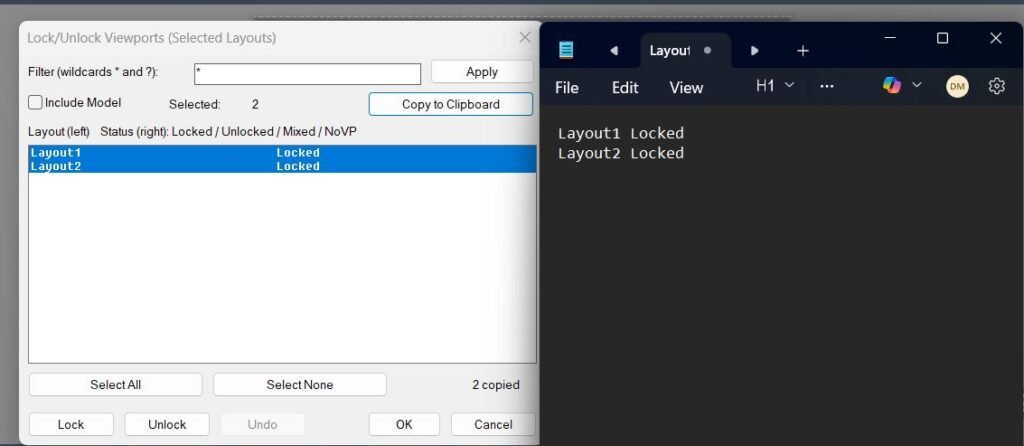
- • Clipboard copy Copies selected layout names (and their status text) to the Windows clipboard, one line per layout.
Functionalities:
- • Filter layouts using wildcard patterns (*, ?) and click Apply to rebuild the displayed list.
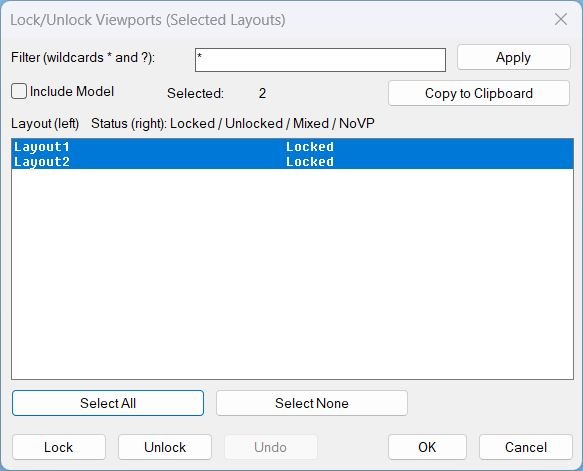
- • Multi-select layouts from the list for batch processing.
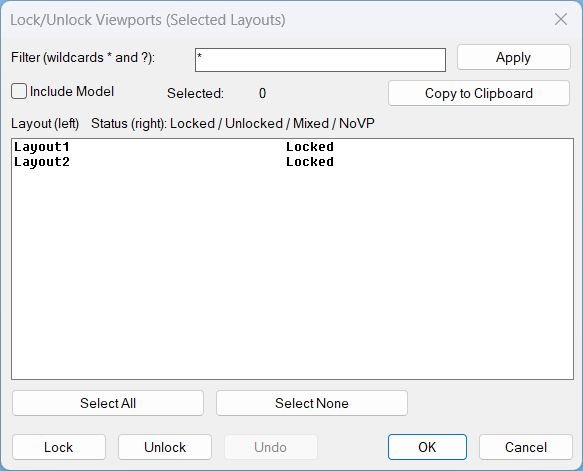
- • Select All and Select None for fast selection control.
- • Lock all detected Paper Space viewports in the selected layouts.
- • Unlock all detected Paper Space viewports in the selected layouts.
- • Show per-layout current status (Locked / Unlocked / Mixed / NoVP) so the user can validate before and after changes.
- • Undo the last operation (and potentially multiple operations) using an internal restore stack, avoiding unstable undo calls inside the dialog.
- • Copy to Clipboard selected layout names and status for documentation or reporting.
- • Preserve user environment by restoring CTAB and minimizing command echo during processing.
Result:
- The selected layouts will have their Paper Space viewports set to Locked or Unlocked according to the chosen action.
- The dialog list updates to reflect the new per-layout status immediately after Lock or Unlock.
- Users can export the selected layout list (with status) via Copy to Clipboard for external use.
Images, animations etc.
Log in to download.
Log in
Log in
XAML code:
<ResourceDictionary
xmlns="http://schemas.microsoft.com/winfx/2006/xaml/presentation"
xmlns:x="http://schemas.microsoft.com/winfx/2006/xaml"
xmlns:src="clr-namespace:Autodesk.Windows;assembly=AdWindows">

<src:RibbonToolTip x:Key="LockAllVp">
<src:RibbonToolTip.ExpandedContent>
<StackPanel>
<TextBlock Background="AntiqueWhite" TextAlignment="Left">
<Bold>Function Syntax: LockAllVp</Bold>
<LineBreak/>
<Bold>Version: 2 Date: 24.12.2025</Bold>
<LineBreak/>
<LineBreak/>
<Hyperlink>AI+https://www.cadtutor.net/forum/topic/75876-unlocking-all-viewports-kent-cooper-kent1cooper/</Hyperlink>
<LineBreak/>
<Bold>Description</Bold><LineBreak/>
This program displays a dialog that lets you <Span Foreground="Red">Lock</Span> or <Span Foreground="Red">Unlock</Span> all Paper Space viewports in the <Span Foreground="DarkRed">selected layouts</Span>, without using fragile ARX command calls from inside DCL callbacks.<LineBreak/>
It is designed to be stable in AutoCAD and Civil 3D by using <Span Foreground="DarkRed">COM properties</Span> to change viewport lock state and by avoiding command-based locking during dialog actions.<LineBreak/>
<Bold>Commands</Bold>
<LineBreak/>
• <Span Foreground="DarkRed">LOCKALLVP</Span> run the dialog tool.<LineBreak/>
• <Span Foreground="DarkRed">LockAllVp</Span> run the dialog tool (same as above).<LineBreak/>
• <Span Foreground="DarkRed">_LOCKALLVP</Span> run the dialog tool (underscore alias).<LineBreak/>
<Bold>User Workflow</Bold>
<LineBreak/>

Run <Span Foreground="DarkRed">LOCKALLVP</Span> to open the dialog.<LineBreak/>

Optionally filter layouts using wildcard pattern <Span Foreground="DarkRed">*</Span> and <Span Foreground="DarkRed">?</Span> then click <Span Foreground="DarkRed">Apply</Span> to rebuild the list.<LineBreak/>

Select one or more layouts in the list (multi-select).<LineBreak/>

Click <Span Foreground="Red">Lock</Span> or <Span Foreground="Red">Unlock</Span>
<LineBreak/>

The list immediately refreshes to show updated status per layout.<LineBreak/>

Use <Span Foreground="DarkRed">Undo</Span> to revert the last Lock or Unlock operation, including multi-level undo frames.<LineBreak/>

Use <Span Foreground="DarkRed">Copy to Clipboard</Span> to copy selected layout names plus their status.<LineBreak/>
<Bold>What the Dialog Shows</Bold>
<LineBreak/>
• Each list row displays: <Span Foreground="DarkRed">Layout Name</Span> on the left and <Span Foreground="DarkRed">Status</Span> on the right.<LineBreak/>
• Status values: <Span Foreground="DarkRed">Locked</Span>, <Span Foreground="DarkRed">Unlocked</Span>, <Span Foreground="DarkRed">Mixed</Span>, <Span Foreground="DarkRed">NoVP</Span>, <Span Foreground="DarkRed">Model</Span>.<LineBreak/>
• The <Span Foreground="DarkRed">Selected</Span> counter updates based on the current multi-selection.<LineBreak/>
<Bold>Viewport Detection Logic</Bold>
<LineBreak/>
• The program scans each chosen layout by reading the layout <Span Foreground="DarkRed">Block</Span> contents and collecting entities of type <Span Foreground="DarkRed">AcDbViewport</Span>.<LineBreak/>
• It skips the overall Paper Space viewport when possible by ignoring viewport <Span Foreground="DarkRed">Number = 1</Span> to avoid unintended global effects.<LineBreak/>
• If no valid viewports are found in a layout, the status becomes <Span Foreground="DarkRed">NoVP</Span>.<LineBreak/>
<Bold>Functionalities</Bold>
<LineBreak/>
• <Span Foreground="DarkRed">Wildcard filtering</Span> of layouts using <Span Foreground="DarkRed">*</Span> and <Span Foreground="DarkRed">?</Span> with an Apply button that rebuilds the visible list.<LineBreak/>
• <Span Foreground="DarkRed">Multi-select layouts</Span> with <Span Foreground="DarkRed">Select All</Span> and <Span Foreground="DarkRed">Select None</Span> controls.<LineBreak/>
• <Span Foreground="Red">Lock</Span> all detected Paper Space viewports in the selected layouts by setting <Span Foreground="DarkRed">DisplayLocked</Span> to true via COM.<LineBreak/>
• <Span Foreground="Red">Unlock</Span> all detected Paper Space viewports in the selected layouts by setting <Span Foreground="DarkRed">DisplayLocked</Span> to false via COM.<LineBreak/>
• <Span Foreground="DarkRed">Live status refresh</Span> after Lock or Unlock so the list updates immediately to Locked, Unlocked, Mixed, or NoVP.<LineBreak/>
• <Span Foreground="DarkRed">Safe Undo</Span> that stores changes as handle plus prior lock state and can revert multiple operations without calling AutoCAD UNDO from DCL.<LineBreak/>
• <Span Foreground="DarkRed">Copy to Clipboard</Span> for selected layouts, copying lines formatted as layout name then status (tab-separated), one per line.<LineBreak/>
• Optional <Span Foreground="DarkRed">Include Model</Span> toggle to show Model in the list, but Model is not modified and is displayed as <Span Foreground="DarkRed">Model</Span> status.<LineBreak/>
<Bold>Important Technical Notes</Bold>
<LineBreak/>
• The tool intentionally avoids calling command-based viewport locking from DCL callbacks to reduce the risk of <Span Foreground="Red">ARX hard crashes</Span> and stack errors.<LineBreak/>
• Lock and Unlock operations use COM property writes on <Span Foreground="DarkRed">AcDbViewport</Span> objects, which is typically more stable during UI interaction.<LineBreak/>
• Undo is implemented as an internal stack of changes rather than using AutoCAD command undo inside the dialog callbacks.<LineBreak/>
<Bold>Result</Bold>
<LineBreak/>
After running the tool, the selected layouts will have their Paper Space viewports set to <Span Foreground="Red">Locked</Span> or <Span Foreground="Red">Unlocked</Span>
<LineBreak/>

</TextBlock>

<Grid>
<Image Source="PNG" Stretch="Uniform"/>
</Grid>

<Grid>
<MediaElement
 Source="GIF"
 Stretch="Uniform"
 Visibility="Visible"/>
 </Grid>

</StackPanel>
</src:RibbonToolTip.ExpandedContent>
</src:RibbonToolTip>
</ResourceDictionary>
Additional info:
Based on / Source code:
Open Website
Leave a Reply
You must be logged in to post a comment.