
Short description
Title Blocks Tools – Unified Menu System
Comprehensive dialog-based interface for exporting and updating titleblock attributes via CSV with integrated help, file management, and reload utilities.
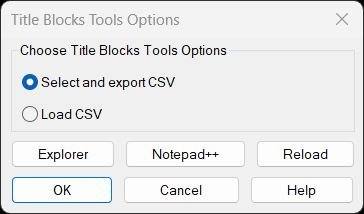
Command:
Commands: TitleBlocksTools, EXPTBCSV_EXPORT, UTB2
Description:
This integrated toolset combines CSV export and import functionality for titleblock attribute management:
- Main Menu Dialog provides radio button selection between Export and Load CSV operations
- EXPTBCSV_EXPORT – Exports titleblock attributes to CSV format from paper space inserts:
- User picks titleblock inserts interactively until pressing ENTER
- Collects all instances across all paper space layouts
- Displays available attribute tags with numbered list
- Allows tag selection via “All”, “None”, or range syntax (1,3,5-7)
- Outputs CSV with columns: DWG, Layout, Block, plus selected tags
- Handles Excel-problematic values (dates, formulas) with single-quote prefix
- Escapes commas, quotes, and newlines using proper CSV quoting
- Auto-opens in Excel via hard-coded path with registry and fallback detection
- UTB2 – Updates titleblock attributes from CSV (Lee Mac’s Update Titleblock V1.9):
- Matches current drawing name against first column of CSV
- Optional Layout column filter for layout-specific updates
- Optional Block column filter for block-specific updates
- Updates only attributes whose tags match CSV column headers
- Changes only when attribute values differ from CSV
- Supports dynamic blocks via effective name resolution
- Handles duplicate attribute tags correctly
- Single UNDO mark for entire operation
- Configurable block name wildcard filter (UTB2:ftr)
- Can run automatically on drawing open (commented by default)
- Enhanced Help Dialog with comprehensive documentation:
- Displays LISP file path and full usage instructions
- Unicode/ASCII toggle for bullet points and arrows
- Multi-select list with Copy Selected and Copy All to clipboard
- Copy Path button for LISP file location
- Integrated Explorer and Notepad++ launcher buttons
- Explains CSV format, column requirements, and workflow
- File Management Tools:
- Explorer button opens folder containing LISP file with file pre-selected
- Notepad++ button opens LISP in editor (detects installation paths)
- Reload button reloads LISP file from disk without closing AutoCAD
- Path resolution via %USERPROFILE% environment variable
- Persistent Settings – Remembers last selected option and Unicode preference across sessions
Helper function: (if any)
Helper Functions:
- tbt:set-path – Resolves LISP file path from USERPROFILE environment variable
- tbt:quote – Wraps strings in double quotes for shell commands
- tbt:isStr / tbt:slen – String type checking and safe length calculation
- tbt:clipboard-put – Copies text to clipboard via MSHTML object
- tbt:join – Joins string list with separator
- tbt:get-selected-lines – Retrieves selected items from DCL list box
- tbt:open-lsp-folder – Opens Explorer with LISP file selected
- tbt:open-with-npp – Launches Notepad++ or fallback editor
- tbt:open-this-in-npp – Opens current LISP file in Notepad++
- tbt:reload-self – Reloads LISP file from disk
- tbt:copy-path – Copies LISP file path to clipboard
- tbt:help-make – Builds help text with Unicode or ASCII formatting
- tbt:help-build-display – Constructs help list with path header
- tbt:help-refresh-list – Updates DCL list box with help content
- writetbtDCL – Generates temporary DCL file with both dialogs
- tbt-help-local – Displays help dialog with action handlers
- radiotbtDCL – Main dialog runner with option selection
- csvEscape – Escapes commas, quotes, newlines for CSV format
- needsQuote / maybeExcelSafe – Detects and prefixes Excel formula values
- dwgBaseName – Extracts drawing filename without extension
- push-uniq – Adds item to list if not already present
- collectAttribs – Extracts attributes from INSERT entity
- rowsForBlockAllLayouts – Collects block data from all paper space layouts
- unionTags – Aggregates all unique attribute tags from rows
- valForTag – Retrieves attribute value for specific tag
- writeCSV-withTags – Writes CSV file with selected columns
- guess-excel-paths – Detects Excel installation locations
- try-open-excel – Attempts to open CSV in Excel via multiple methods
- pickBlockNames – Interactive block selection loop
- collectRowsForBlockNames – Aggregates rows for multiple block names
- parse-range – Parses range syntax (1,3,5-7) into index list
- LM:al-effectivename – Resolves dynamic block effective name
- LM:readcsv – Parses CSV file into matrix list
- LM:csv->lst – Parses CSV line handling quotes and separators
- LM:csv-replacequotes – Converts double quotes to single
- LM:massoc – Returns all associations of key in list
- LM:remove1st – Removes first occurrence from list
- LM:startundo / LM:endundo – Undo group management
Functionalities:
Functionalities:
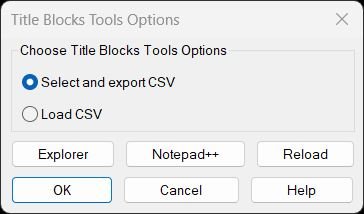
- Displays unified menu dialog with radio buttons for Export CSV or Load CSV operations
- Resolves LISP file path dynamically from USERPROFILE environment variable
- Main dialog includes Explorer, Notepad++, and Reload buttons for file management
- Help button launches comprehensive documentation dialog
- Export workflow (EXPTBCSV_EXPORT):
- Prompts user to pick titleblock inserts until ENTER pressed
- Collects unique block names from selections
- Scans all paper space layouts for matching inserts with attributes
- Displays numbered list of all unique attribute tags found
- Accepts “All”, “None”, or range input (1,3,5-7) for tag selection
- Prompts for CSV save location with drawing name as default
- Writes CSV with DWG, Layout, Block columns plus selected tags
- Applies Excel-safe formatting (single-quote prefix for dates/formulas)
- Escapes special characters (commas, quotes, newlines) per CSV standard
- Attempts to auto-open CSV in Excel via multiple detection methods
- Update workflow (UTB2):
- Prompts for CSV file if UTB2:csv not preset
- Validates CSV format and searches for current drawing name in first column
- Applies optional layout filter if UTB2:lay is true (CSV has Layout column)
- Applies optional block filter if UTB2:blk is true (CSV has Block column)
- Uses wildcard filter UTB2:ftr to limit scope to specific block names
- Resolves effective names for dynamic/anonymous blocks
- Iterates through all attributed inserts matching filters
- Updates only attributes with tags matching CSV headers
- Changes only when current value differs from CSV value
- Supports duplicate attribute tags by removing processed items from value list
- Creates single undo mark for entire batch operation
- Reports count of attributes and blocks updated
- Help dialog functionality:
- Displays LISP file path at top of help content
- Shows comprehensive documentation with bullet points and arrows
- Unicode toggle switches between Unicode symbols and ASCII alternatives
- Rebuilds and refreshes display when Unicode preference changes
- Copy Selected copies highlighted lines to clipboard
- Copy All copies entire help text to clipboard
- Copy Path copies LISP file location to clipboard
- Explorer button navigates to LISP folder with file selected
- Notepad++ button opens LISP in editor with fallback to Notepad
- File management features:
- Reload button executes (load) on current LISP file without closing AutoCAD
- Explorer integration uses /select argument for file highlighting
- Notepad++ detection tries configured path, cmd shell, and Notepad fallback
- Path copying via MSHTML clipboard object for reliability
- Persistent state management:
- *tbt-last-option* remembers last radio button selection
- *tbt-unicode* remembers Unicode/ASCII preference
- *NPP:Path* stores custom Notepad++ installation path
- CSV parsing handles alternative delimiters (semicolon) from regional settings
- Removes case sensitivity for drawing name matching
- Supports filenames with or without .dwg extension in CSV
- Handles CSV cells containing embedded commas, quotes, and line breaks
Result:
Result:
- Main menu dialog appears with Export CSV and Load CSV options
- Selecting Export launches interactive titleblock picker and tag selector
- CSV file is generated with proper escaping and Excel-safe formatting
- CSV optionally opens in Excel automatically for editing
- Selecting Load CSV updates titleblocks from edited CSV file
- Only changed attribute values are updated (efficiency optimization)
- Single undo operation reverts all updates if needed
- Help dialog provides complete documentation with copy-to-clipboard features
- Explorer and Notepad++ buttons enable quick LISP file access and editing
- Reload button applies code changes without restarting AutoCAD
- Round-trip workflow: Export → Excel edit → Update maintains data integrity
- Status messages report counts of updated attributes and blocks
- Unicode/ASCII toggle adapts help text for different display preferences
Images, animations etc.
Log in to download.
Log in
Log in
Additional info:
Based on / Source code:
Open Website