
Short description
Sort / Purpose: Interactive manager for showing and hiding AutoCAD toolbars using a filterable, grouped list dialog.
• Scope: Reads all toolbars from all menu groups, displays them with their group names, and lets you control visibility in bulk.
• Goal: Quickly create, recall, and adjust toolbar layouts without hunting through CUI, using saved filter and group selections between runs.
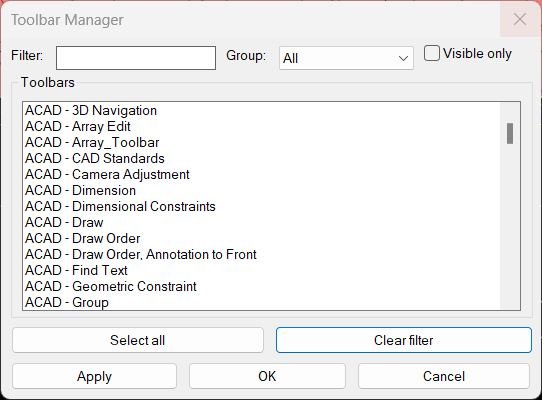
Command:
Command name: ToolbarManager
How to run: Type ToolbarManager in the command line after loading the LISP and press Enter.
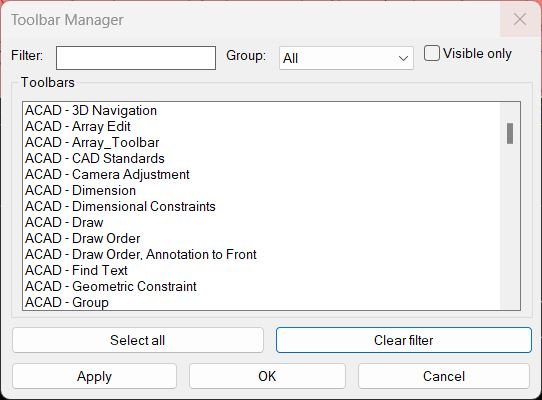
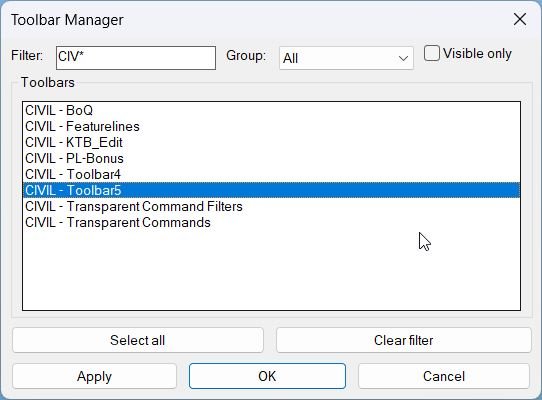
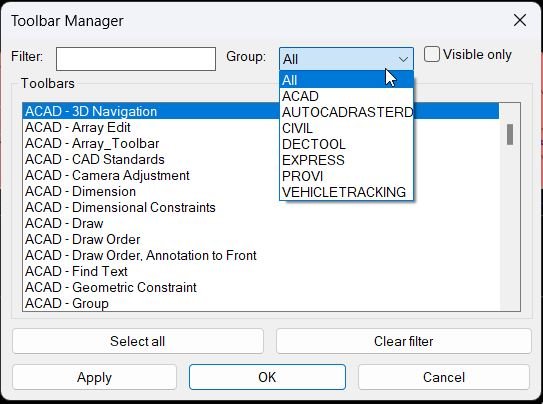
• Dialog title: Opens a dialog labeled “Toolbar Manager” containing filter, group, visibility, and toolbar list controls.
• Selection workflow: Adjust filter / group / visible only, select the toolbars you want active in the list, then use Apply or OK to update toolbar visibility.
Description:
• Global session state: Maintains internal lists *tbm-all*, *tbm-view*, the current filter text *tbm-filter*, the visible only toggle *tbm-visonly*, the active group *tbm-group*, and the group list *tbm-groups* so your choices persist while the drawing is open.
• Toolbar collection: On each run, the command queries all menu groups from the Acad object, scans each group’s toolbars, and builds a master list of items in the form (label object visible? group).
• Label format: Each toolbar label combines the menu group and toolbar name as “Group – ToolbarName” so you can distinguish toolbars with identical names in different groups.
• Sorting: The combined toolbar list is sorted first by group name and then by label, giving you a stable and predictable order inside the list box.
• Group list building: Extracts the unique group names from the toolbar list and stores them in *tbm-groups*, always inserting “All” as the first option to show toolbars from every group.
• DCL dialog creation: Writes a temporary DCL file defining the Toolbar Manager dialog with a filter edit box, group popup, Visible only toggle, multi select list box, and buttons for Select all, Clear filter, Apply, OK, and Cancel.
• Initial UI state: The dialog tiles are initialized from the saved global values so your last used filter text, visible only flag, and selected group are restored when you reopen the manager.
• View list refresh: Whenever filter, group, or visible only options change, the routine rebuilds *tbm-view* with matching indices from *tbm-all* and repopulates the list box with just those toolbars.
• Preselection of visible: After repopulating the list, the code automatically selects entries corresponding to toolbars that are currently visible so you can see your active setup at a glance.
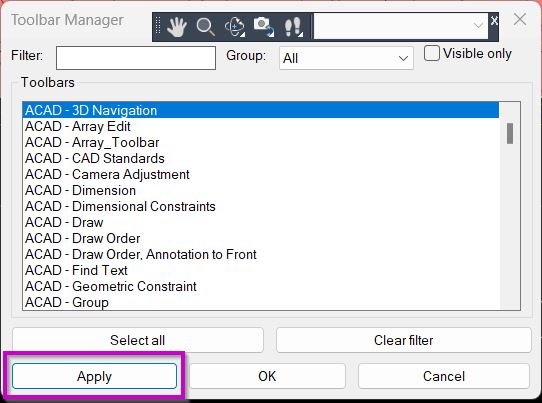
• Apply behavior: When you press Apply or OK, the code reads the current list selection and turns on visibility for those toolbars in the current view, setting all other toolbars in the view to hidden.
• Visibility update scope: Only the toolbars that match the current filter and group (the current view) are modified; toolbars outside that view keep their existing visibility state.
• Filter clearing: The Clear button resets the filter text, updates the filter tile, and refreshes the view so that all toolbars in the chosen group are shown again in the list.
• Dialog exit: OK applies the current selection and closes the dialog, Apply updates toolbars but leaves the dialog open, and Cancel closes the dialog without applying any further changes after the last apply.
Helper function: (if any)
Filter & group helpers:
• tbm-match: Performs case insensitive wildcard matching between the filter pattern and toolbar label, treating an empty pattern as a match for everything.
• tbm-get-toolbars: Walks through all menu groups and their toolbars via COM, building and sorting the master list *tbm-all* with label, object handle, visibility flag, and group name.
• tbm-build-groups: Extracts unique group names from the master toolbar list, initializes *tbm-groups* with “All”, and appends group names as they are found.
DCL / UI helpers:
• tbm-write-dcl: Creates and writes the temporary DCL file that defines the Toolbar Manager dialog layout, ready to be loaded with load_dialog.
• tbm-refresh-list: Rebuilds the visible list of toolbars according to the current filter, group, and visible only flags, fills the list box, and preselects currently visible toolbars in that view.
• tbm-select-all: Selects all rows in the current list view by generating a space separated index string for the list box selection tile.
Apply helper:
• tbm-apply-from-sel: Interprets the list box index string, maps it back to indices in *tbm-all* via *tbm-view*, and for each toolbar in the view sets Visible true if selected, false if not, updating *tbm-all* to reflect the new visibility state.
Functionalities:
• Centralized toolbar overview: Lists all toolbars across all menu groups in one dialog, showing their group and name so you can understand your full toolbar set at a glance.
• Text filtering: Allows you to type a partial name or wildcard into the filter box to narrow the list to toolbars whose labels match that pattern, making it easy to find related toolbars.
• Group based view: Lets you restrict the view to a single menu group or to All, so you can manage toolbars for a specific add on or workspace separately.
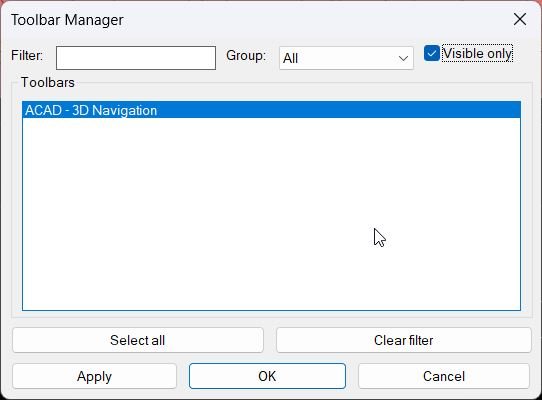
• Visible only mode: When enabled, shows only toolbars that are currently visible in the UI, useful for cleaning up or saving an existing configuration.
• Multi selection control: Supports multiple selection in the list box so you can toggle on a whole set of toolbars at once while hiding the rest in the current view.
• Select all helper: The Select all button selects every toolbar in the current view in one click, ready to be applied as a visible set.
• Incremental apply: The Apply button updates toolbar visibility without closing the dialog so you can interactively refine your setup, adjusting the filter, group, or selections as you go.
• Persistent view settings: Remembers the last used filter text, visible only condition, and selected group in global variables, making subsequent uses of ToolbarManager feel continuous within the session.
Result:
Result: Your AutoCAD toolbars are updated so that only the toolbars selected in the current filtered view are visible, while all other toolbars in that view are hidden, giving you a clean, customized toolbar layout.
• Faster workspace management: You can switch between different toolbar sets in seconds, without editing the CUI or manually toggling individual toolbars on and off.
• Reduced clutter: Unused toolbars are easily hidden based on simple filters and group selections, improving available screen space and focus on your current task.
• Repeatable setups: Because the manager remembers your last view, it is easy to revisit and refine the same toolbar configuration throughout a project session.
• Clear feedback: The list preselection shows which toolbars are visible before and after applying, and a short message confirms when toolbars have been updated.
Copy code:
Images, animations etc.
Log in to download.
Log in
Log in
Additional info:
Learn more:
Open Website