
Short description
Sort / Purpose: Interactive “Length / Area → Clipboard & MTEXT” calculator with Excel-ready formulas, rounding with CEILING, and two different text-output formats.
• Scope: Works on selected geometry (lines, polylines, arcs, circles, regions, hatches, etc.), sums Length or Area, formats the expression, copies it to the Windows clipboard, and optionally places result text in the drawing.
• Goal: Make it trivial to grab the total length or area of a selection, paste it straight into Excel (with optional
=CEILING() wrapping), and/or drop a readable result label in AutoCAD with project-friendly formatting.
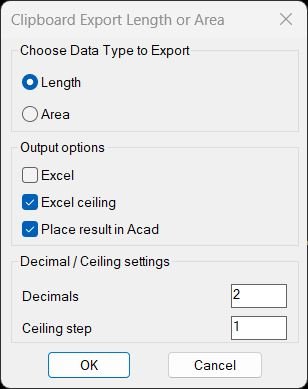
Command:
Main Command:
• TotalLengthAreaDetailed – opens the dialog, lets you choose Length or Area, Excel options, precision, and result format, then runs the appropriate calculation.
Description:
• Mode selection (Length / Area): The dialog has two radios:
– rb01 → Length (lines, polylines, arcs, circles, splines, ellipses, mlines, regions, mpolygons).
– rb02 → Area (closed polylines, circles, ellipses, regions, hatches, mpolygons).
The last choice is remembered across sessions in
• Output options: – Excel (
• Decimal / Ceiling settings: – Decimals (
• Persistence between sessions: All the above options (mode, Excel toggles, place-in-Acad, precision, ceiling step, result mode) are saved to environment variables on dialog “OK” and reloaded automatically next time:
*ctc-last-option* via environment variable CTC_LAST_OPTION.• Output options: – Excel (
cbExcel): when ON, the clipboard text becomes an Excel formula (prefixed with “=”); e.g. =1.25+3.40+0.10.
– Excel ceiling (cbCeil): when ON, takes priority over plain Excel and wraps expression as =CEILING(expr, step), where step is configurable (default 5).
– Place result in Acad (cbAcad): when ON, the tool prompts for an insertion point and creates MTEXT with the result, respecting the current UCS and CLAYER.
– Acad_Result / Acad_Length/Area_Layer_Result (cbResResult, cbResLAL): choose how the MTEXT should be formatted:
• Result mode (cbResResult / *ctc-res-mode*=”0″): shows only the numeric result or expression, e.g. 12.35 or 1.20+3.40=4.60.
• Length/Area_Layer_Result mode (cbResLAL / *ctc-res-mode*=”1″): prefixes the base result with the type and current layer, e.g. Length_MYLAYER=1.20+3.40=4.60 or Area_MYLAYER=12.35.• Decimal / Ceiling settings: – Decimals (
ebPrec / *ctc-prec*): controls the number of decimal places in rtos. Negative inputs are auto-clamped to 0.
– Ceiling step (ebCeilStep / *ctc-ceil-step*): the second argument for Excel’s CEILING() function (default 5). Values ≤0 fall back to 5.• Persistence between sessions: All the above options (mode, Excel toggles, place-in-Acad, precision, ceiling step, result mode) are saved to environment variables on dialog “OK” and reloaded automatically next time:
CTC_LAST_OPTION, CTC_EXCEL, CTC_EXCEL_CEILING, CTC_PLACE_ACAD, CTC_PREC, CTC_CEIL_STEP, CTC_RES_MODE.
Helper function: (if any)
Helper functions:
• ctc-load-settings / ctc-save-settings: Read/write all user settings to AutoCAD environment variables so the dialog opens with last used values.
• ctc-ensure-defaults: Validates globals and fills in sane defaults if something is missing or out of range (e.g. negative precision, zero/negative ceiling step, invalid toggles).
• writeLengthAreaDCL / radioLengthAreaDCL:
– Dynamically writes the
ClipboardExportLengthorArea.dcl file.
– Builds the dialog with radio buttons, toggles, and edit boxes, then wires the Accept/Cancel callbacks, stores CTC_OPTION, and updates all *ctc-* globals before closing.
• copy-to-clipboard: Uses a COM htmlfile object and its parentwindow.clipboardData.setData("text", ...) to push the expression (or Excel formula) into the Windows clipboard.
• format-excel-expr: Post-processes the raw algebraic sum (e.g. 1.25+3.40+0.10):
– If Excel ceiling = ON: wraps it as =CEILING(expr, step) with step = *ctc-ceil-step*.
– Else if Excel = ON: just prefixes “=”.
– Else: leaves the expression as plain text, which is still valid to paste into other tools or labels.
• insert-result-text:
– Only runs if “Place result in Acad” is ON and there is a non-empty expression and numeric total.
– Prompts for insertion point in UCS, converts to WCS, and creates MTEXT in ModelSpace.
– Builds a base string:
• 1 entity → just the formatted total.
• Multiple entities → “expr=total” (e.g. 1.20+3.40=4.60).
– If result mode = “Length/Area_Layer_Result” then wraps that base with Length_<CLAYER>=... or Area_<CLAYER>=... depending on rb01/rb02.
Functionalities:
Length calculation (TotalLengthDetailed):
• Selection filter:
Area calculation (TotalAreaDetailed): • Selection filter:
LINE, POLYLINE, LWPOLYLINE, ARC, CIRCLE, ELLIPSE, SPLINE, MLINE, REGION, MPOLYGON.
• For each entity, it computes length using the appropriate API:
– Lines / polylines → vla-get-length.
– Arc → vla-get-arclength.
– Circle → vla-get-circumference.
– Spline / Ellipse → vlax-curve-getdistatparam at end param.
– MLINE → manual sum of distances along its coordinate triples.
– REGION / MPOLYGON → perimeter via vla-get-perimeter.
• Builds expr as len1+len2+...+lenN with *ctc-prec* decimals.
• Accumulates di as the numeric total length.
• After the loop:
– Calls insert-result-text for an on-drawing label (if enabled).
– Copies the Excel(ish) expression via copy-to-clipboard(format-excel-expr expr).
– Prints a console message like:
• “The Total Length of the Object is : 12.35” for 1 entity.
• “The Total Length of the 3 Objects is : 45.67” for many.
– Deletes the temporary selection set.Area calculation (TotalAreaDetailed): • Selection filter:
LWPOLYLINE, POLYLINE, CIRCLE, ELLIPSE, REGION, HATCH, MPOLYGON.
• For each entity, it takes area only when it is meaningful:
– Closed polylines → vla-get-area if vla-get-closed is true.
– Circle / Ellipse / Region / Hatch / MPOLYGON → vla-get-area.
• Builds expr as a1+a2+...+aN (for >0 areas only) and sums area as the numeric total.
• Calls insert-result-text and copy-to-clipboard exactly like the length version, and prints “Area” messages to the command line.
Result:
Result: The TotalLengthAreaDetailed tool becomes a configurable “Length/Area → Excel + MTEXT” pipeline with:
• A remembered choice between Length & Area, Excel vs. CEILING, and insertion into AutoCAD.
• User-controlled decimal precision and
CEILING step.
• Two MTEXT formats: simple numeric result or verbose Length/Area_layer=result style for drawing annotations.
• One-click clipboard export of a ready-to-paste Excel formula that reflects the exact breakdown of all selected entities.
Usage summary: Run TotalLengthAreaDetailed → pick Length/Area + options → OK → select objects → pick insertion point (if enabled) → paste formula into Excel and/or use the MTEXT label in the drawing.
Images, animations etc.
Additional info:
Based on / Source code:
Open Website