
3D_PolyOffset
- 3D polyline vertex extraction.
- Temporary 2D polyline generation.
- Keyboard-driven offset distance input.
- Automated 2D offset operation.
- Reconstruction of a 3D polyline with preserved elevation values.
- Automatic cleanup of intermediate geometry.
- System variable state preservation and restoration.
UnReloadDetachSelectedXrefs_01
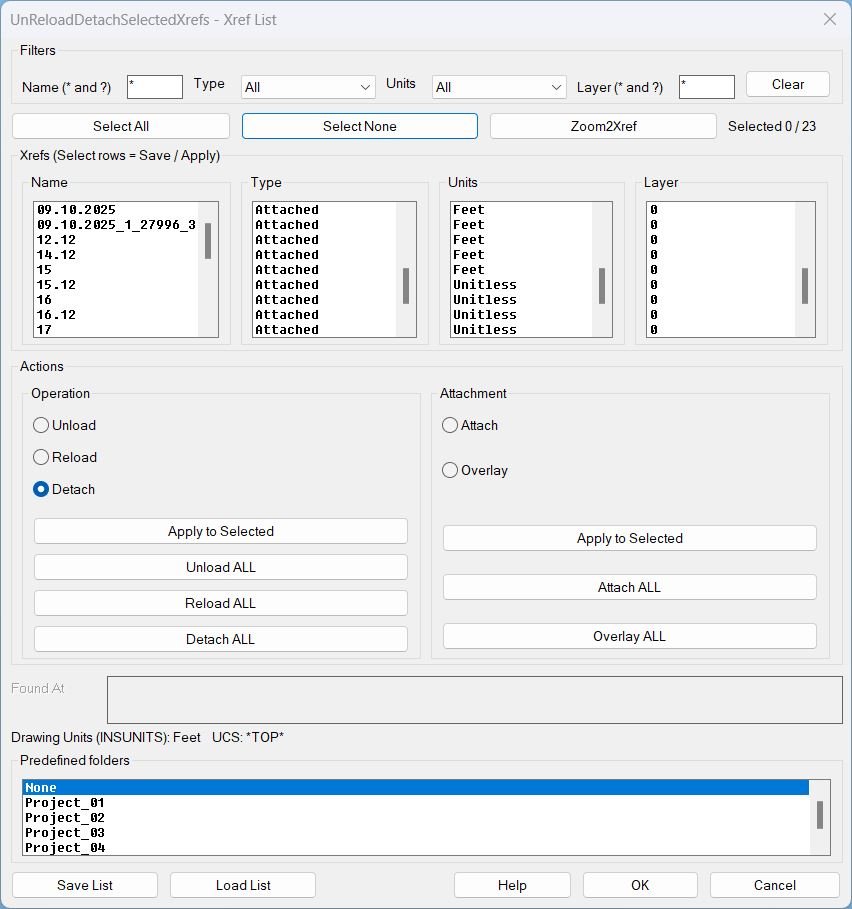
Functionalities- Filter xrefs by Name wildcard, Type, Units, and Layer wildcard, then work only on the visible subset.
- Select All and Select None for the currently filtered list, with a live selected counter.
- Zoom2Xref zooms to the Model Space extents of the first selected xref insert set.
- Operations on selected using the Operation radio group and Apply to Selected: Unload, Reload, Detach.
- Operations on all using dedicated buttons: Unload ALL, Reload ALL, Detach ALL.
- Attachment type conversion using the Attachment radio group and Apply to Selected: Attach or Overlay.
- Attachment conversion on all using dedicated buttons: Attach ALL, Overlay ALL.
- Save List writes a text file containing only the selected xrefs with their key properties (Name, Type, Found At, UnitsCode, Layer) plus host metadata (INSUNITS and UCSNAME).
- Load List reads a saved list, attaches missing xrefs from Found At paths, enforces stored units during attach, reloads them, and restores host settings after completion.
- Predefined folders allow Save List and Load List dialogs to open directly in the selected project folder: None, Project_01, Project_02, Project_03, Project_04, Project_05.
UnReloadDetachSelectedXrefs_00
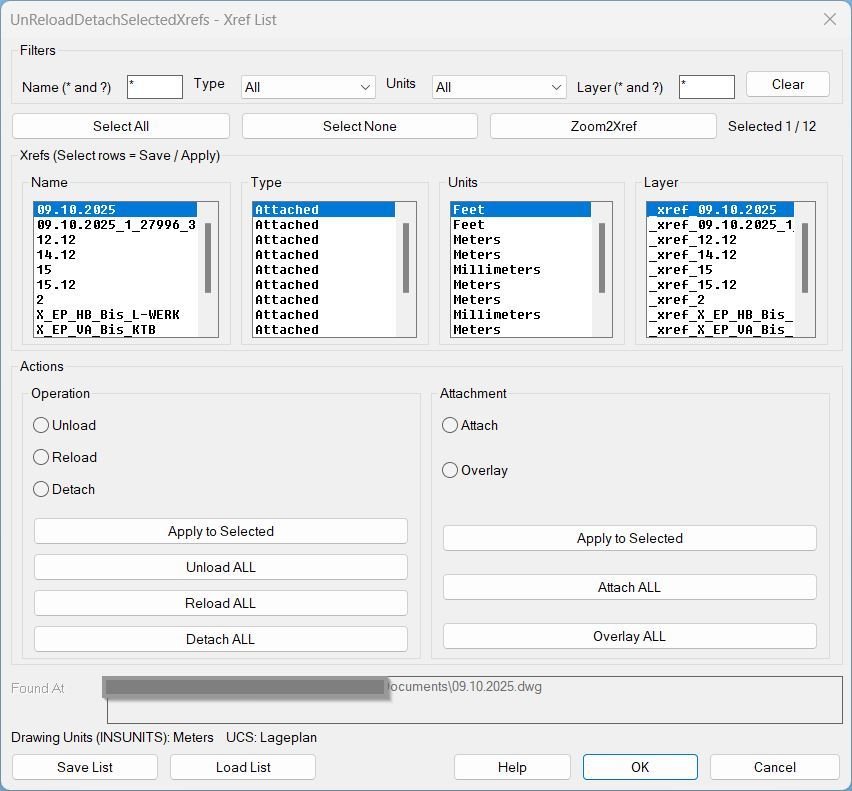
Functionalities:- Filter by Name: Wildcard filter using
*and?patterns. - Filter by Type: Dropdown list populated from Xref types present in the drawing (All / Attached / Overlay).
- Filter by Units: Dropdown list populated from units present in the drawing (All / mm / m / ft / …).
- Filter by Layer: Wildcard filter using
*and?patterns. - Selection control: Select All / Select None, selection counter, and multi-select list behavior used as “checkboxes.”
- Save List: Writes header HOSTINSUNITS and HOSTUCSNAME, then per selected xref writes Name|Type|FoundAt|UnitsCode|Layer.
- Load List (per xref): UCS reset to World → set drawing INSUNITS to the xref UnitsCode → attach if missing (Found At + Type) → reload → force inserts to saved Layer.
- Load List (final restore): Restores original drawing INSUNITS and UCS; keeps named UCS if present, otherwise uses a temporary UCS name for safe restore.
- Apply to Selected (Operation): Unload / Reload / Detach on selected xrefs only.
- Apply to Selected (Attachment): Attach / Overlay type conversion on selected xrefs only.
- ALL operations: Unload ALL / Reload ALL / Detach ALL / Attach ALL / Overlay ALL for all xrefs, executed with UCS+view preservation to prevent user context changes.
- Zoom2Xref: Zooms to the selected xref extents without requiring manual selection in the External References palette.
- Filter by Name: Wildcard filter using
CopySelection
• Polyline validation Ensures the selected object is a LWPOLYLINE • Point projection Snaps the picked points to the closest polyline points before using them • Distinct point enforcement Rejects overlapping points and forces user to choose a valid second point • Parameter order correction Swaps start and end parameters when reversed by selection • Layer dialog with memory Recalls last filter and layer using stored environment variables • Layer filtering Dynamically filters layer names using wildcard matching • Pick layer from drawing Lets the user click any object to inherit its layer • Segment extraction Reconstructs only the portion between the two parametric points including widths and bulges • New polyline creation Builds a fresh LWPolyline with original properties but on the new layer • Cleanup Removes temporary DCL file after dialog closes • Cancellation handling Stops with a message if no valid layer is chosen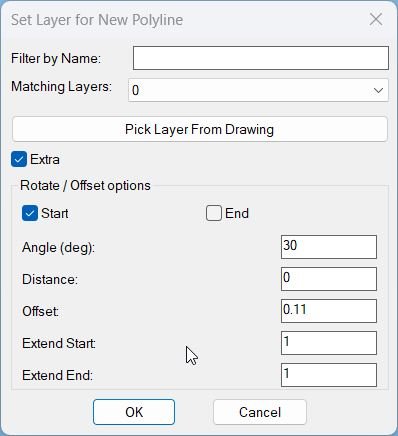
CopySelection_vs.01
• Segment duplication: Quickly duplicates only a chosen portion of an LWPOLYLINE between two points, instead of copying and trimming manually. • Layer targeting: Lets you send the new polyline and its copies directly onto a specific layer chosen from a filtered list or from a picked object, keeping layer structure organized. • Optional advanced transforms: When Extra is on, you can extend ends, rotate the new polyline around the start or end point, shift it perpendicular to its own direction, and generate several parallel copies at fixed offset distances. • Preset offset library: Built in presets (DN110, KK I to KK IV) automatically set offset distances that match typical pipe or trench sizes, saving you from repeatedly typing standard values. • Interactive Apply and Undo: You can iteratively test different settings: Apply to create geometry, Undo to remove the last created batch, adjust dialog values, and repeat, all on the same source polyline selection. • Robust cancellation: If you close the dialog or choose Cancel after one or more Apply actions, the routine automatically undoes all those actions so the drawing returns to its original state. • Single step final undo: When you finish with OK, all geometry created in this session remains, but the entire operation is enclosed in an UNDO group so one undo command removes everything if needed.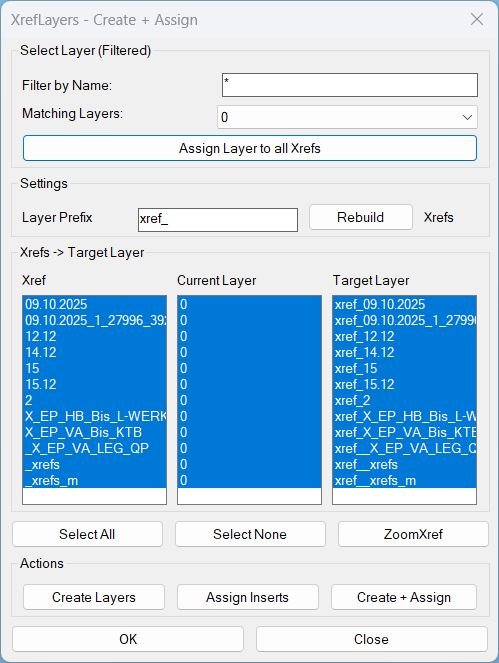
CreatesXrefsLayersAssign_01
Dialog Controls and Actions- Filter by Name Filters the Matching Layers dropdown (non-Xref layers only).
- Assign Layer to all Xrefs Moves all XREF inserts in the drawing to the selected Matching Layer and sets it current.
- Layer Prefix Controls how Target Layer names are generated (Prefix + XrefName).
- Rebuild Re-scans XREFs and refreshes all lists and the layer filter results.
- Xref List shows detected XREF names and supports multi-select.
- Current Layer List shows where each XREF insert currently resides: single layer name, <varies>, or <none>.
- Target Layer List previews the computed target layer per XREF using the current prefix.
- Select All Selects every XREF row in all three columns.
- ZoomXref Zooms to the first selected XREF inserts extents in Model Space without closing the dialog.
- Select None Clears selection in all three columns.
- Create Layers Creates missing per-XREF target layers (color 7) for the selected XREFs (or all if none selected).
- Assign Inserts Moves selected XREF inserts onto their computed target layers (Prefix + XrefName) with locked-layer safety.
- Create + Assign Runs Create Layers then Assign Inserts in one step for the selected XREFs (or all if none selected).
- OK Closes the dialog only.
- Close Closes the dialog only.
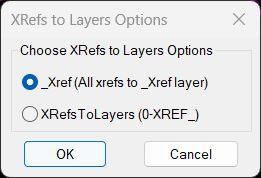
XRefs2Layers
- XRef discovery: Scans block definitions for XRefs (excluding names matching *TBLOCK*) and builds a selection filter for XRef inserts.
- Layer creation: Creates missing target layers (either _XREF or 0-XREF_<XRefName>).
- Reassignment: Moves each XRef insert to the target layer; if the current layer is locked, it temporarily unlocks, moves, and re-locks.
- Optional locking: In per-XRef mode, prompts to lock created XRef layers (default Yes).
- Undo safety: Wraps changes in an undo mark for rollback consistency.
- Reporting: Counts how many XRef inserts end up on each affected layer and displays a summary via alert.
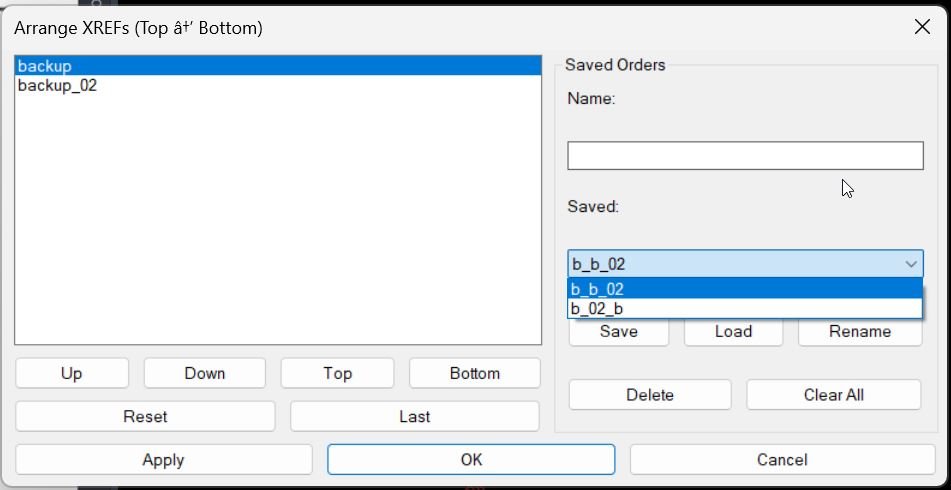
XrefDrawingOrder
- • List XREFs: Reads all XREF block definitions (excluding layouts) and displays their names in a list box.
- • Reorder UI: Up, Down, Top, Bottom buttons reorder the list selection.
- • Reset: Rebuilds the order from the current XREF set (deduped, then fills missing).
- • Last: Restores the most recently applied order stored inside the drawing, then fills any new XREFs not in the stored list.
- • Apply safe loop: Apply runs without closing the dialog, letting the user test and adjust repeatedly.
- • Save named order: Saves the current ordering under a name, overwriting an existing record with the same name.
- • Load named order: Loads a saved ordering, then merges it with the current XREF set (dedupe then fill).
- • Rename: Renames the selected saved order to the typed name and overwrites the target name if it exists.
- • Delete: Deletes the selected or typed saved order name if it exists.
- • Clear All: Removes all saved orders from the storage file.
- • Draw order application: Applies order by repeatedly issuing DRAWORDER to move each subsequent XREF under the previous one.
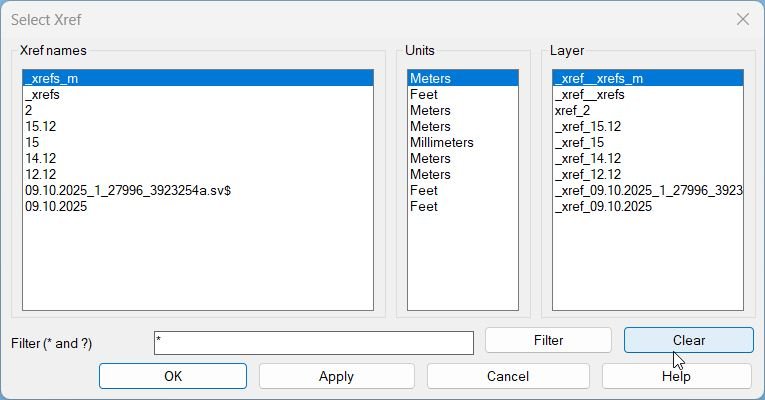
ZoomXref
Functionalities- • Live wildcard filter: Type to filter immediately; supports * and ?; case-insensitive matching.
- • Three-column view: Xref Name, Units (from block definition), Layer (from Model Space inserts).
- • Synchronized selection: Selecting a row in any list keeps the other two lists aligned to the same index.
- • Apply without closing: Apply zooms and leaves the dialog open for repeated zooms.
- • Precise bbox zoom: Merges all Model Space inserts into one bounding box and zooms to exact LL and UR corners.
- • Robust helpers: Avoids fragile built-ins, traps units errors, and uses a custom wildcard matcher.
- • Clean teardown: Unloads dialog and deletes the temporary DCL file after closing.
Multiple_text_mtext_2
• Multi text merge: Merges multiple individual TEXT and MTEXT items into a single MTEXT object for easier global editing. • Paragraph preservation: Keeps each original TEXT line as its own paragraph inside MTEXT so line structure is not lost. • Underline aware: Translates “%%U” underline codes into proper MTEXT underline formatting that works in modern text styles. • Style consistency: Uses the first selected text object as a template for layer, color, text style, and height, ensuring the new MTEXT matches the existing annotation style. • Alignment and rotation: Attempts to reproduce the same alignment and rotation of the first entity so the new MTEXT appears in the same visual position and orientation. • Space aware: Automatically works in model space or paper space depending on the current active space of the document. • Automatic cleanup: Removes all original text entities after creation of the MTEXT, preventing duplicates on screen.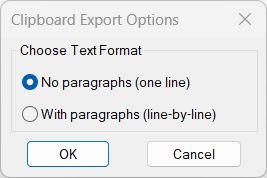
Copy_to_Clipboard
• Two Export Modes: Choose between flat single-line text or structured line-by-line paragraphs. • MTEXT Formatting Removal: Eliminates all inline codes such as A1;, H0.7;, fArial;, L, O, etc. • Unicode Handling: Converts U+XXXX hexadecimal escape sequences into real characters (≥ ≤ ± °). • Paragraph Logic: Cleans unwanted “P” markers while preserving valid words like “PE-HD”. • Clipboard Automation: Sends the processed result directly to the Windows clipboard without prompting. • Wide Object Support: Works with TEXT, MTEXT, DIMENSION, MULTILEADER, attributes, and attribute blocks. • Error Safety: Custom *error* handler ensures clipboard object is released even during failures.Lower
• Supports TEXT & MTEXT: Works on both object types simultaneously. • Uppercase Mode: Converts all selected text content to uppercase. • Lowercase Mode: Converts all selected text content to lowercase. • Default Behavior: Uppercase is automatically used if no choice is provided. • Non-Destructive: Only the string content is modified; all other entity properties remain unchanged. • Environment-Safe: Resets all system variables changed during execution.Upper
• Select all TEXT + MTEXT automatically using (ssget). • Loops through each entity and converts its content to uppercase. • Uses STRCASE to ensure consistent uppercase transformation. • Displays “Done.” when complete.Region2Polyline
• Automatic REGION selection No need to pick objects — all REGIONs are processed automatically • Topology reconstruction Correctly orders exploded segments into a clean closed loop • Arc bulge preservation Converts arcs into bulges for accurate curve representation in LWPOLYLINE format • Normal and elevation restoration Preserves the REGION’s original 3D plane orientation • Deletion of intermediate entities Exploded parts and original REGION are removed to keep drawing tidy • Undo support Protected by an undo mark for safe rollback of the entire conversion • Robust endpoint matching Ensures proper polyline closure even when geometry contains reversed or unordered segments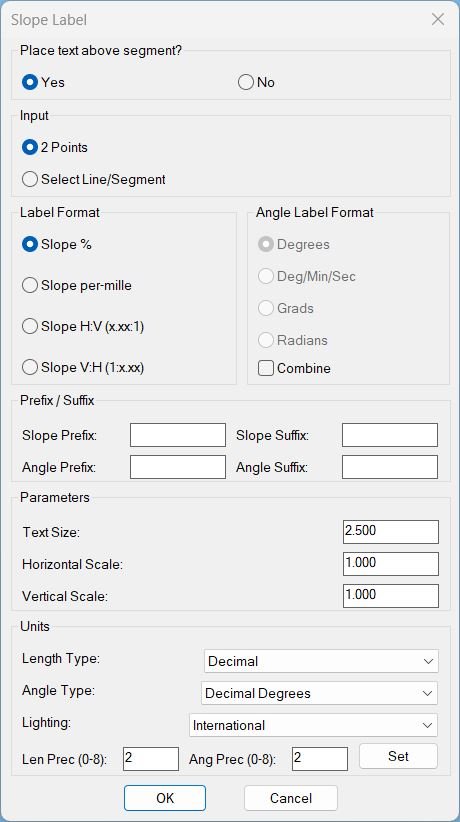
Slope_01
Key functionalities of slope_p: • Dual input modes: 2-point mode or entity-selection mode, switchable in the dialog. • Flexible slope formats: Percentage, per-mille, H:V ratio (x.xx:1), or V:H ratio (1:x.xx). • Optional angle label: Can show angle in Degrees, DMS, Grads, or Radians; may be combined on a second line under the slope. • Prefix / Suffix control: Independent prefix/suffix strings for slope and angle text (e.g., “S=” or “α=” etc.). • Scaling & offset: User-set text height, horizontal/vertical scale factors (to respect vertical exaggeration), and above/below toggle for label offset from the line. • Drawing units integration: Dialog can read and set LUNITS, AUNITS, LIGHTINGUNITS, and their precisions for consistent numeric formatting. • Segment-wise labeling: For polylines, every segment is processed individually with its own midpoint and orientation. • Robust checks: Skips zero-length segments, handles vertical slopes (INF) and guards against invalid numeric inputs.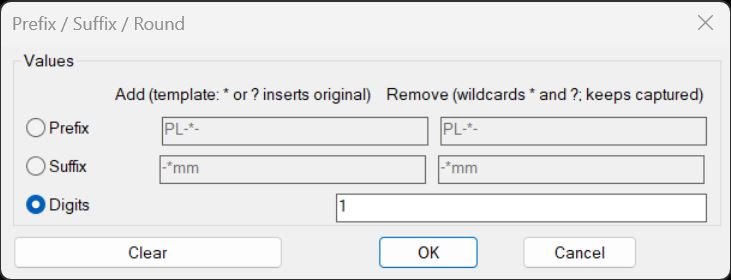
PrefixSuffixRound
• Prefix add/remove — Add or strip prefixes to/from text, with either literal strings or wildcard patterns that can embed or preserve parts of the original text • Suffix add/remove — Add or strip suffixes similarly, with anchored wildcard matching at the end of the string • Wildcard templates — Patterns can use “*” and “?” such that the original text is reinserted into a new structured form (e.g., “PRE_*_SUF”, “?OLD?”) • Safe numeric rounding — Numeric-only texts are converted to rounded values with a given number of decimal digits, while non-numeric text is left unchanged • Per-entity text source — For INSERT, only the first attribute’s text is modified; for TEXT/MTEXT/ATTRIB, the DXF 1 text string is directly edited • Dialog radio logic — Uses USERR1 system variable and radio buttons to switch between Prefix, Suffix, and Digits modes, enabling/disabling relevant input fields dynamically • Persistent UI state — Stores the last active mode and input values (prefix/suffix add/remove strings and rounding digits) so they appear pre-filled next time • One-shot and quick commands — You can run the full dialog via PREF_SUFF_OKR_TXT or quickly reapply the last stored prefix, suffix, or rounding via PREF, SUFF, OKR_TXT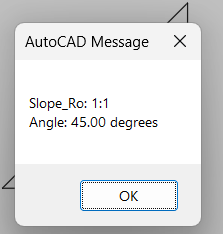
Slope_Ro
• Two-point slope measurement — Uses user input for start and end points • Imperial 12-run standard — Converts slope to a rise-per-12-units format • Automatic ratio simplification — Ensures output is reduced (e.g., 12:6 → 2:1) • Angle reporting — Provides the slope angle with two decimal precision • Error-safe logic — Prevents zero-division and handles flat slopes correctly • Clean environment — Restores system variables on exit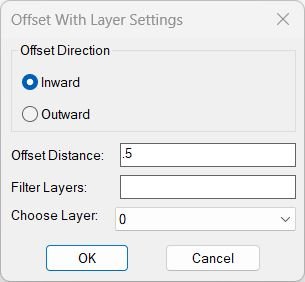
OffsetAndLayer
• Dialog-driven offset — Combines direction, distance, and layer control in one interface • Distance parsing — Converts the distance input from text to a numeric value using distof • Layer filtering — Allows narrowing down layer selection using wildcard text input • Planarity check — Only offsets 2D planar entities and skips 3D polylines or non-planar objects • Area-based direction check — Determines if offset is Inward or Outward by comparing the new area with the original • Automatic direction correction — Deletes and recreates the offset if wrong direction was applied • Layer assignment — Puts every created offset curve onto the selected layer • Failure counting — Tracks objects too small to offset inward and reports the number • Undo-safe execution — Encloses all operations within a single undo group • Temporary file handling — Deletes the temporary DCL file after the dialog closes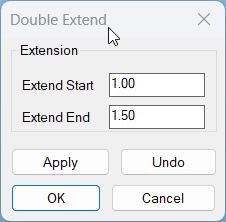
Lengthen
• Separate start and end control: Lets you extend the start and end of each entity by different distances so you can lengthen segments asymmetrically where needed. • Multi type support: Handles plain lines, circular arcs, lightweight polylines and old style polylines, preserving bulges and widths where appropriate. • Arc safety: For arcs and bulged segments the extension length is limited so that the implied arc never wraps around into a full circle, preventing invalid geometry. • Iterative preview: Apply can be pressed repeatedly with different extension values in one session, allowing you to visually tune the result while Undo steps back to the previous version each time. • Global persistence: The extension values are stored in global variables so the next time you run the command the dialog opens with the last used start and end distances already filled in. • Undo group integration: All modifications performed while the command is active are wrapped inside a single AutoCAD UNDO group, making it easy to revert the entire operation with one undo if needed. • Selection reuse: The initial selection set is kept for the whole dialog loop, so you do not need to re select objects between Apply and Undo cycles.MiddleLinePolylines_2
• Automatic curve type handling Uses the generic curve API so the same logic works across lines, polylines, arcs, splines, and ellipses • First and last driven logic Only the first and the last objects in the selection are used, which allows flexible window or crossing selection while still defining two sides • Closed curve safeguard Skips processing when a selected curve has identical start and end points, avoiding problematic closed input • Midpoint centerline Calculates midpoints between the two start points and between the two end points then draws the centerline through these midpoints • Planar output Uses only X and Y from the picked curves and ignores Z so the resulting LWPOLYLINE is a clean two dimensional object • Silent behaviour No command line prompts are issued; if the conditions are not met, nothing is created and the routine exits quietly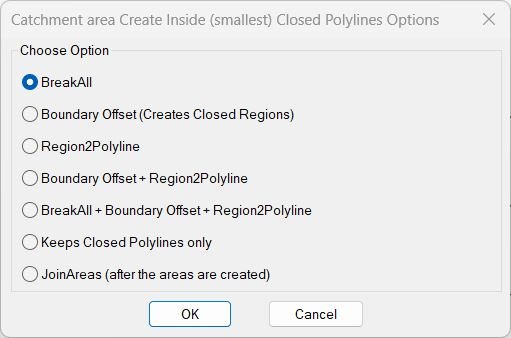
InteriorPolylinesArea
• Unified workflow One command controls multiple area-processing operations • Intersection breaking Prepares geometry for clean area creation • Inside boundary generation Using region + offset-edge logic from robust Lee Mac tools • Region → Polyline Converts regions into accurate closed polylines with proper bulges • Pipeline commands rb04 and rb05 execute chained multi-step workflows automatically • Cleaning tool Deletes all open polylines inside a window selection • Area joining Regions are boolean-united then converted back to closed polylines with maintained properties • Undo safety Uses undo marks and restores system variables after operations • Temporary file cleanup Removes DCL file after use and deletes interim geometry during processingCloseParalelPolylines
• Entity filtering Skips unsupported types and informs the user • Count enforcement Ensures exactly two valid entities; warns if fewer or more • Automatic opening of polylines Closed LWPOLYLINE is forced open with a status message • Endpoint connection Creates LINE from start-to-start and end-to-end via ENTMAKEX • Automatic joining Uses PEDIT multiple and join to merge all entities into one polyline • Failure handling Gracefully aborts with a message if selection invalid or empty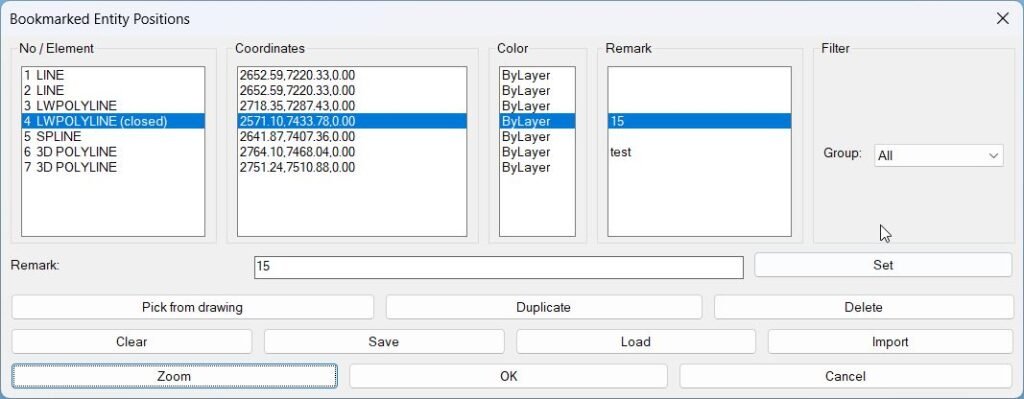
BookmarkEntities
Picking & storing bookmarks: • Button “Pick from drawing” callsbm-pick-and-storewhich: – Usesssgetwith filter(0 . "TEXT,MTEXT,LINE,LWPOLYLINE,POLYLINE,CIRCLE,SPLINE,INSERT"). – For each entity, determines: • Label – e.g. “TEXT”, “LWPOLYLINE (closed)”, “3D POLYLINE”, “BLOCK MyBlock”. • Representative start/end points via bounding box or geometry. • Color string viabm-color-string(TrueColor/aci/ByLayer/ByBlock). • Handle and entity type. – Creates an entry with empty remark""and appends it to*bm-list*.
Group / filter system: •bm-entry-groupmaps entity type to a group name: – TEXT/MTEXT → “Text”. – LINE → “Lines”. – (LW)POLYLINE → “Polylines”. – CIRCLE → “Circles”. – SPLINE → “Splines”. – INSERT → “Blocks”. – Others → “Other”. •bm-build-groupsscans*bm-list*and builds*bm-groups*=("All" ... unique group names ...). • The popup “Group” in the dialog is filled from*bm-groups*; changing it updates*bm-group*and refreshes the list. •bm-pass-filterensures only entries matching the selected group (or All) are shown.
Dialog listboxes & synchronization: • Columns are separate list boxes: – No / Element (lb_elem) – row number + label. – Coordinates (lb_coord) – bookmark start point as “X,Y,Z” (formatted using currentLUPREC). – Color (lb_color). – Remark (lb_rem). •bm-update-listrebuilds these four list boxes from*bm-list*+ current group filter, and rebuilds*bm-index-map*for “visible index → real index” translation. • Selecting in any of the list boxes forces all other list boxes to the same index and runsbm-on-select(which updates the Remark edit box).
Zoom to bookmark: • Button “Zoom” callsbm-apply-zoom: – Uses selected row inlb_elemto get visible index, then real index via*bm-index-map*, then fetches entry from*bm-list*. – Attempts to resolve the current entity by handle usinghandent. If found, recomputes the bounding box for an up-to-date zoom window (even if the object has moved). If not found, falls back to stored start/end points. –bm-make-windowbuilds a padded window around those two points (5% margin). – Callsbm-zoom-ll-ur, which usesvla-ZoomWindowto actually zoom the current view.
Remarks: • The edit box “Remark” lets you attach a free-text comment to the selected bookmark. •bm-update-remark-fieldfills the edit box when you change selection. • Button “Set” callsbm-set-remarkwhich: – Reads the current remark text. – Updates the corresponding entry in*bm-list*(usingbm-replace-nth). – Rebuilds the lists and re-selects the same visible row so the UI stays in sync.
Duplicate / Delete / Clear: • Duplicate – inserts a copy of the selected entry immediately after it in*bm-list*viabm-insert-after-nth, then refreshes the UI. • Delete – removes the selected entry from*bm-list*viabm-remove-nthand clears the remark field. • Clear – empties*bm-list*and*bm-index-map*in one shot and refreshes all list boxes.
Save / Load / Import (per-DWG persistence): • Automatic default file path:DWGPREFIX + (vl-filename-base DWGNAME) + "_BMEntityPos.lst". – This means each drawing can have its own bookmark list stored right next to the DWG (same prefix, custom suffix). • Save –bm-save-list: – Writes*bm-list*as a single LISP-readable expression into the default file (usingprin1). – Notifies with the path on success; warns if there’s nothing to save. • Load –bm-load-list: – Reads from the default per-DWG file, validates that it’s a list, assigns it to*bm-list*, and updates the dialog. • Import –bm-import-list: – Usesgetfiledto let you choose any.lstfile containing a bookmark list. – On success, replaces current*bm-list*with the imported content and updates the dialog, with a path confirmation message.PlusMinusNumericValue
• Dialog-driven numeric change — User sets plus/minus value and which numeric position(s) to affect before any entity is touched • Integer and real support — Detects whether the input increment contains a decimal point and handles values as REAL when needed, preserving or extending decimal places • Location modes — Supports changing a specific numeric block by index, all numeric blocks at once, or using interactive List mode to review positions before deciding • MTEXT-aware parsing — Respects MTEXT control sequences (like C, H, etc.), treating them as units so formatting is preserved around changed numbers • Attribute mode choice — For ATTDEF objects, prompts once whether to modify Tag or Text, then applies this choice to all attribute definitions in the selection • Per-entity processing — Reads each entity’s current string, runs parseString and adjustString, and writes back the new string using the proper VLA setter (TagString or TextString) • Undo-safe update — Starts an UNDO mark before making changes and ends it afterwards, so the user can revert the entire batch in a single undo operation • Persistent defaults — Saves the last used numeric increment and location string to the registry and global variables, so the dialog auto-fills them next time • Negative number support — Optional global flag GlbVarInvAllowNeg allows proper recognition and editing of signed numbers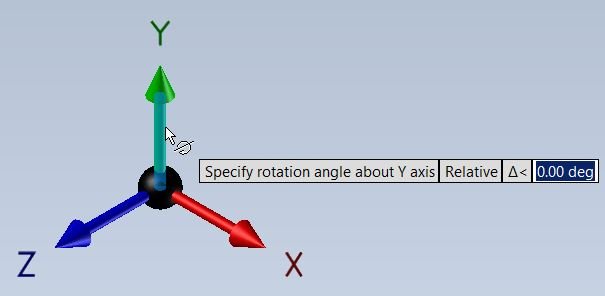
RotateUCS
Main Functionalities: • Rotate UCS around Z by a user-defined angle. • Auto-reset snap angle to 0 so the drafting angle matches the UCS. • Start from World UCS every time to avoid cumulative rotation errors. • Display the final angle to the user for confirmation. • Optionally save the rotated UCS under a custom name for later reuse.ChangeBlockEntitiesLayer
• Multiple block support: Processes all block references included in the selection set in one execution of the command. • Definition based edit: Modifies the block definition itself, so every instance of that block in the drawing reflects the updated internal layers. • Layer unification: Ensures that geometry inside the block uses the same layer as the block reference, improving control over visibility, color, and plotting through the block layer. • Property safe: Only objects that actually expose a Layer property are modified, preventing errors on unsupported objects inside the definition. • Case insensitive compare: Compares layer names in a case insensitive way so layers that differ only by letter case are recognized as identical. • No geometry duplication: Edits existing definition entities in place instead of creating new geometry, keeping the drawing clean.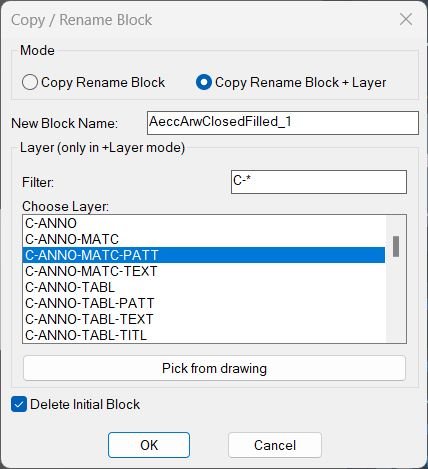
CopyBlock
• Copy and rename in one step: Creates a new block definition, copies geometry, and assigns a new name while leaving the original definition intact. • Two working modes: Simple “Copy Rename Block” mode, or an extended “Copy Rename Block + Layer” mode with full layer control and filtering. • Interactive layer selection: In +Layer mode, you can filter layer names, select from a list, or pick any object in the drawing to adopt its layer. • Content normalization: Optionally forces all entities in the new block definition to a single layer and ByLayer display properties for consistent behavior. • Safe naming strategy: Automatically proposes a unique default name and prevents invalid or duplicate block names from being used. • Delete original toggle: You can decide whether the original block reference is kept or automatically deleted after the new one is created and linked. • Locked layer protection: Rejects block references placed on locked layers to avoid unintended edits in protected areas. • Version aware: Uses the AutoCAD version to connect to the correct ObjectDBX interface for reliable operation across releases.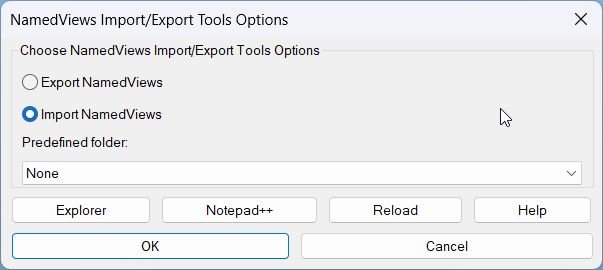
Exp_Imp_NamedViews
• One-click Named View export/import: The main command ExpImpNVU lets you choose Export or Import, select a predefined project folder (or DWG/fixed folder), and invoke the proper ExportViews / ImportViews pipeline without knowing the underlying file paths. • Project-aware path selection: Automatically discovers OneDrive-based project structures and offers them in a dropdown, dramatically reducing manual browsing to the rightNamed_Viewsfolder for each project. • Robust view + visual style export: Cleanly exports all VIEW table entries and their linked VISUALSTYLE objects into a single human-readable TXT file, stripping volatile handle/owner codes so the data is portable and safe to re-import. • Correct reconstruction on import: Restores VISUALSTYLEs into the proper dictionary, repairs owner (330) and view (348) links, and then recreates the VIEW entries, so imported Named Views behave as if they were defined in the target drawing originally. • Session-persistent favorites: Remembers your last radio selection (Export/Import) and predefined index, plus stores the last used folder in the registry, giving you stable defaults across sessions and drawings. • Integrated tooling (Explorer / Notepad++ / Reload): Buttons in the dialog allow you to open the fixed LSP folder in Explorer, open the fixed LSP file in Notepad++ (or Notepad as fallback), and reload the LSP script into AutoCAD without manually reloading via APPLOAD. • Rich help + clipboard: A dedicated Help dialog shows a structured quick reference for the whole toolset and lets you copy either selected lines, all lines, or the resolved path to clipboard in one click, with optional Unicode stripping for ASCII-only contexts. • Dual GUI / command line paths: You can work via the full GUI (ExportViews / ImportViews) or via pure command line versions (-ExportViews / -ImportViews) for scripting and batch workflows.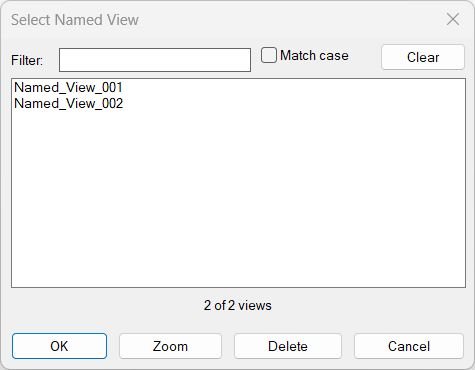
NamedViewList
• Automatic view collection — Reads all named views from the current drawing and sorts them case-insensitively • Live filtering — As you type in the Filter box, the list updates instantly using wildcard matching • Case sensitivity toggle — “Match case” toggle switches between case-sensitive and case-insensitive filters • Multi-selection — The list box allows multiple view selection and stores indices for later operations • Inline rename — Double-clicking a view in the list triggers a rename prompt and live update of the sorted view list • In-place delete — The Delete button removes selected views via ActiveX and refreshes the filtered and full lists without closing the dialog • Zoom without closing — The Zoom button switches to the first selected view while the dialog remains open for further navigation • Batch restore — After clicking OK, each selected view is restored in sequence using the -VIEW _R command • Temporary DCL management — Writes a compact DCL definition to a temp file, loads it, then deletes it after dialog use or error • Portable implementation — Avoids reliance on higher-level vl-string or float flags and uses only explicit helper functions for portability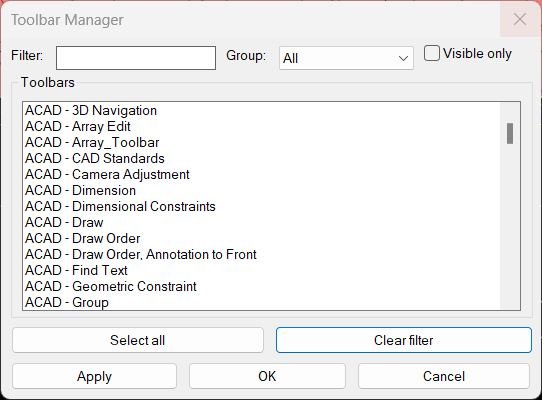
ToolbarManager
• Centralized toolbar overview: Lists all toolbars across all menu groups in one dialog, showing their group and name so you can understand your full toolbar set at a glance. • Text filtering: Allows you to type a partial name or wildcard into the filter box to narrow the list to toolbars whose labels match that pattern, making it easy to find related toolbars. • Group based view: Lets you restrict the view to a single menu group or to All, so you can manage toolbars for a specific add on or workspace separately. • Visible only mode: When enabled, shows only toolbars that are currently visible in the UI, useful for cleaning up or saving an existing configuration. • Multi selection control: Supports multiple selection in the list box so you can toggle on a whole set of toolbars at once while hiding the rest in the current view. • Select all helper: The Select all button selects every toolbar in the current view in one click, ready to be applied as a visible set. • Incremental apply: The Apply button updates toolbar visibility without closing the dialog so you can interactively refine your setup, adjusting the filter, group, or selections as you go. • Persistent view settings: Remembers the last used filter text, visible only condition, and selected group in global variables, making subsequent uses of ToolbarManager feel continuous within the session.
TotalLengthAreaDetailed_vs_01
Functional options in the dialog • Length or Area Radio buttons to choose whether to sum linear lengths or areas. • Excel When checked, the clipboard expression is prefixed with an equal sign for direct use in Excel. • Excel ceiling When checked, wraps the expression in a ceiling call with step 5, overriding the simple Excel option. • Place result in Acad When checked, prompts for an insertion point and creates MText showing the numeric result inside the drawing. • Decimal precision Edit box where you specify the global number of decimal places used in expressions, MText, and command line output, default value is 2.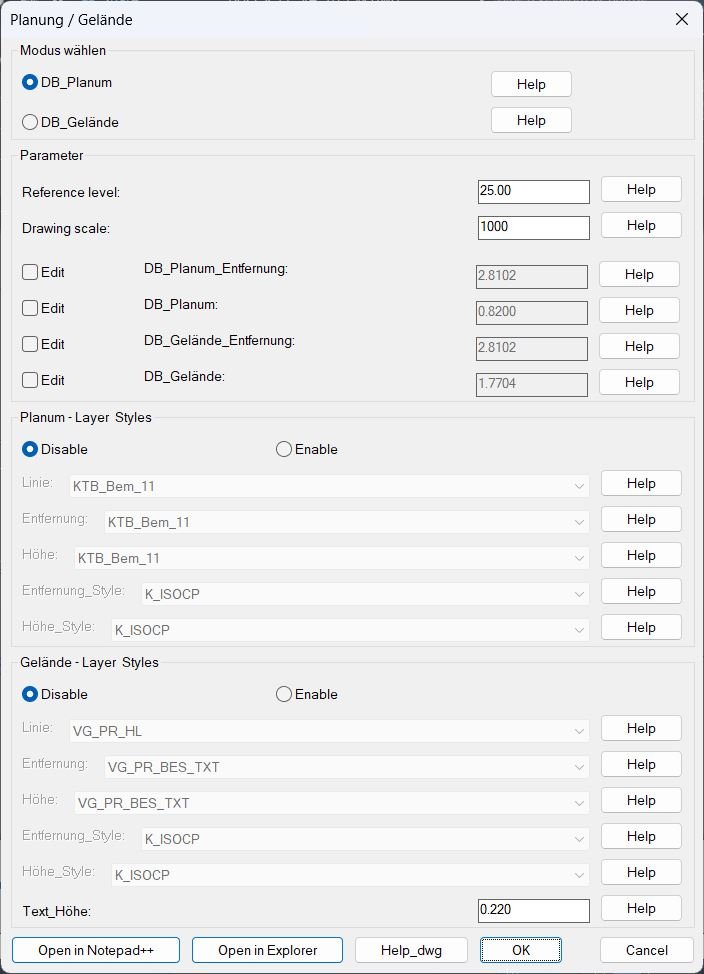
DB_Planung_Gelände
• Two main modes: Supports separate Planum and Gelaende workflows that share the same configuration dialog but use different layers, styles, and offsets for drawn labels. • Persistent configuration: Saves and reloads mode, reference level, scale, offsets, layers, styles, and edit flags so that each drawing remembers its last annotation settings automatically. • Interactive geometry picking: Asks the user to pick the intersection between center line and band, then finds cartridge and profile reference lines and repeatedly prompts for quotation points along the profile to place labels. • Automatic layer creation: Ensures all required Planum and Gelaende layers exist before drawing, and temporarily uses auxiliary layers for highlighting while restoring their colors after finishing. • Leader and label generation: For each picked quotation point it creates a vertical leader line from the point to the band, and places one distance text and one elevation text at configurable offsets below the band on their dedicated layers and styles. • Scale aware values: Converts drawing distances to real world distances using the configured drawing scale, and adds the reference elevation to the vertical difference to compute absolute heights. • Style enable options: Allows disabling or enabling layer and style dropdowns for Planum and Gelaende groups, which can lock them to configuration values or let the user freely choose from layer and style lists. • Context sensitive help: Multiple Help buttons open image files or a sample DWG showing what each parameter, layer, style, or mode represents, assisting the user in configuring complex settings. • Undo friendly: When undo is enabled, wraps the geometry operations into an undo group so the created labels and temporary changes can be reverted in a single step if needed.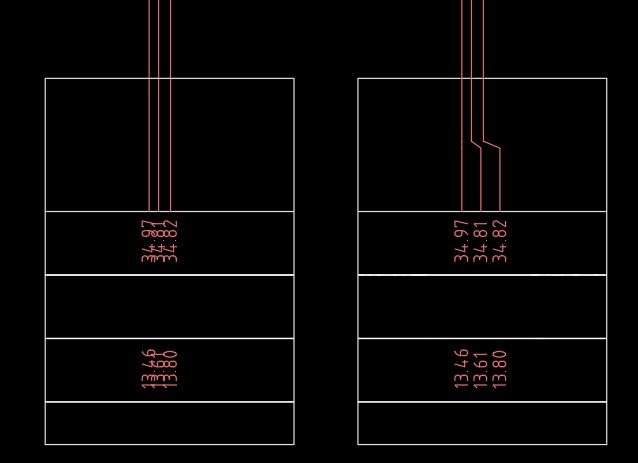
FixLineTextOverlap
• Automatic crank line creation: Replaces straight vertical lines with multi segment polylines that bend at a user defined crank point while keeping a minimum horizontal spacing between them. • Shared spacing logic: Uses one spacing value for both line crank offsets and text offsets so geometry and annotation stay visually aligned in the X direction. • Rail based text layout: Treats a vertical rail X as the central alignment and pushes labels on both sides away from that rail in controlled steps to remove overlaps. • Per row protection: Only texts that share a similar Y coordinate are moved relative to each other, leaving labels in other height bands untouched. • Mixed TEXT and MTEXT support: Handles both classic TEXT and MTEXT entities, preserving left or right alignment when deciding where to move and which DXF codes to update. • Re run friendly: Because *distance* and *lastPick* are stored, you can run Text_Overlap alone later to fix new labels using the same configuration chosen in the initial Line_Overlap run. • Combined workflow: Line_Overlap_Text_Overlap and FixLineTextOverlap provide a single command that first cleans up vertical line positions then immediately arranges text labels to match, reducing manual steps.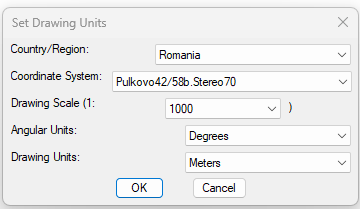
SetUpUnits
Main Functionalities: • Set Civil 3D coordinate system: it gets the DrawingSettings → UnitZoneSettings → CoordinateSystem object and sets its cscode property to the picked zone (e.g. “LL”, national grids, etc.). • Set drawing scale: writes the numeric scale into drawingScale so all drawing annotations follow that scale. • Set angular units: writes user’s choice (Degrees / Radians / Grads) into angularUnits of the drawing settings. • Set drawing/linear units: writes user’s choice (Meters, Millimeters, Centimeters, Decimeters, Inches) into drawingUnits so the drawing reflects the expected measurement system. • Dynamic DCL generation: the dialog is not a separate .dcl file shipped with the routine — it is generated in the temp folder at runtime and deleted afterwards, so the LSP is self-contained. • Civil 3D version independence: by reading the registry for “Aecc” it tries to attach to whatever Civil 3D version is installed, instead of hardcoding the COM server name.MleaderStraight
- • DCL scope chooser — dialog offers Select MLeaders interactively (default) or All MLeaders in current space.
- • Interactive selection — attempts preselection with ssget "_I"; if none, prompts user to select MLeaders and finish with Enter; supports typical add/remove behavior depending on selection settings.
- • All-in-space selection — uses a global filter ssget "_X" restricted to current CTAB to process all MLeaders on that space/layout.
- • Per-MLeader vertex read — reads leader vertices via GetLeaderLineVertices for leader index 0, groups into 3D points, and uses the first two points as begin/end reference.
- • Choose perpendicular reference — compares ΔX vs ΔY between begin/end to decide whether to create a vertical or horizontal XLINE through the end point.
- • Project begin point — finds closest point from the begin point to that XLINE (perpendicular projection), then deletes the XLINE.
- • Rewrite leader vertices — updates leader line vertices to a two-point list (b_pt r_pt) using SetLeaderLineVertices for leader index 0.
- • Regen + report — calls Regen and prints processed count; prints “Nothing to process” if selection set is empty.
- • Robust cleanup — custom *error* handler unloads dialog, deletes temp DCL file, and reports non-cancel errors.
CubeDisplay_Off_On
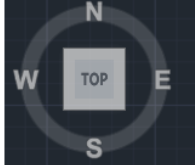
Main Functionalities: • Turns off and re-enables the Navigation Cube display automatically. • Uses vla-sendcommand instead of manual user input, allowing programmatic control from scripts or macros. • Provides a quick way to refresh the ViewCube when it becomes unresponsive or missing. • Compatible with AutoCAD 2010+ versions supporting NAVVCUBEDISPLAY command.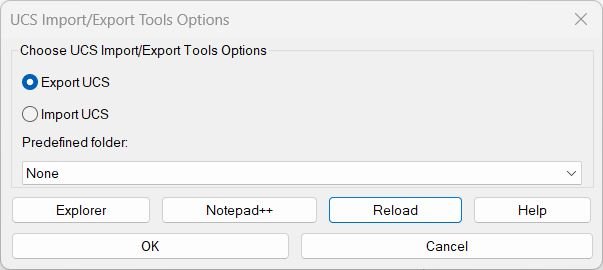
Export Import Custom MS_UCS
Main Functionalities: • Export all named UCS in the drawing to a human-readable `.ucs` file (one UCS per line). • Import UCS from file and recreate them in the current drawing, even if some lines are malformed (bad lines are skipped with a message). • Predefined project folders resolved under any detected OneDrive root, so users don’t need to browse every time. • Persistent help dialog with list, copy selected / copy all / copy path, and “Toggle Unicode” — state is shown on a single status line. • Reload LSP button to re-load the fixed `ExpImpUCS.lsp` from a known folder, useful when centrally distributing updated versions. • COM-based import variant (at the bottom) that adds/updates UCS directly in the UCS collection without calling AutoCAD UCS commands — this avoids prompts and makes it more “freeze-safe”. • Remember last folder — the code stores last used directory and uses it next time, falling back to DWG folder if none.
MLeaderWidthFix
- • Selection — collects entities using ssget with filter TEXT,MTEXT,MULTILEADER; prints “No valid entities selected” if none.
- • Width measurement: TEXT — uses textbox extents and computes width from X difference of the two corners; contributes to averaging.
- • Width measurement: MTEXT — reads bounding box and computes width from ur.x – ll.x; contributes to averaging.
- • Width measurement: MLeader — only includes MLeaders with ContentType = 2 (MTEXT content) and adds TextWidth to averaging.
- • Default width — sets default to total / count if count > 0; otherwise falls back to 1.0; formats as a string with 3 decimals for the prompt.
- • User input — prompts New Width <avg>:; if user presses Enter, uses the default value.
- • Apply: TEXT — prints a message indicating TEXT width is not directly settable and skips changes.
- • Apply: MTEXT — attempts to set Width to the chosen value using a protected property write.
- • Apply: MLeader (MTEXT content) — for ContentType = 2, attempts to set TextWidth to the chosen value using a protected property write.
- • Feedback — prints Applied width: with the final numeric value.
Text2Multileader_01
Functionalities- Creates one MLEADER from multiple text entities.
- Automatically orders the note content using insertion point Y coordinates to preserve reading order in typical stacked notes.
- Supports leader point extraction from LINE start and end points.
- Supports leader point extraction from LWPOLYLINE or POLYLINE by using the first and last vertex coordinates.
- Sets the leader text width using the maximum bounding-box width among selected text objects for more consistent wrapping behavior.
- Performs cleanup by deleting the source leader geometry and deleting the original text objects after successful creation.
- Prints warnings when the chosen polyline has insufficient points or when the selected leader object is not supported.
Text2Multileader_00
- • Select TEXT/MTEXT — uses ssget with filter (0 . "*TEXT") to capture text-like objects.
- • Convert selection set to VLA objects — converts entity names to VLA objects and removes nested list entries from ssnamex results.
- • Create ordered combined text — concatenates each TextString with a trailing space, sorted by Y so the final string follows the visual stack order.
- • Compute width — evaluates rjp-getbbwdth over all selected objects and uses the maximum as the new MLeader TextWidth.
- • Trim trailing character — removes the last character from the built string (effectively trimming the trailing space).
- • Delete originals — deletes the selected text objects after capture via vla-delete.
- • Create MLeader — prompts for arrowhead point then landing point, runs ._MLEADER, and grabs the newly created entity via entlast.
- • Apply text + width — sets the new leader’s TextString to the combined text and TextWidth to the computed maximum width.
Change Background Color
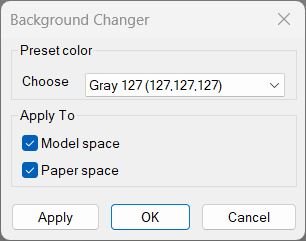
Main Functionalities: • Dialog UI (c:BG / c:BGDCL) — Interactive color picker with Apply, OK, and Cancel buttons. • Quick Commands — Includes c:BGGrey, c:BGWhite, c:BGBlack for instant background changes. • Toggle Command — c:bgt switches Model space background between black and white. • Contrast Adjustment — Automatically sets cursor, tracking vector, and snap marker colors based on background brightness. • Snapshot & Restore — Keeps original color settings safe until the user confirms changes.
Hide / Show Objects
Main Functionalities: • Dialog-driven visibility control — Choose from isolate, hide, or show-all directly via a simple UI. • Remembers last selection — Automatically selects the last used option on the next run. • Dynamic DCL creation — Builds its dialog at runtime without needing an external DCL file. • Automatic screen refresh — Uses “_regen” after every visibility change to update the display.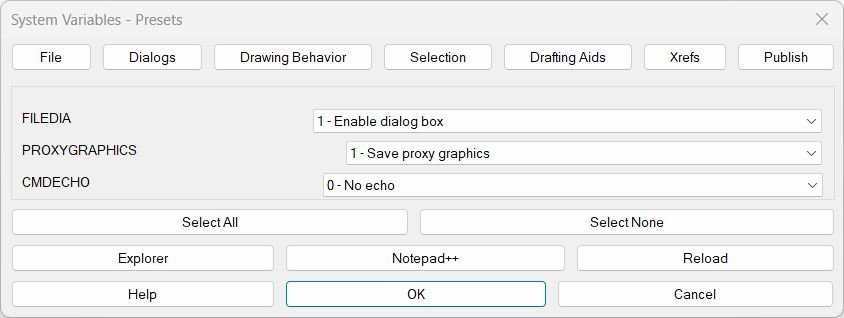
SteSysVar
Main Functionalities: • Tabbed SYSVAR editor — variables are grouped by use (File, Dialogs, Drawing Behavior, Selection, Drafting Aids, Xrefs, Publish). • Dropdown-based presets — each system variable shows the recommended / preset value first, followed by documented alternatives (e.g. DIMASSOC, AUTOSNAP, SELECTIONPREVIEW). • Select All / Select None per tab — set all vars on the current tab to preset (index 0) or to 0 when available, with one click. • Integrated Help panel — shows a generated list of all variables with their meanings; user can copy selected or all to clipboard. • Path-aware tools — buttons to open the folder, open the LISP in Notepad++, or reload the LISP without restarting AutoCAD. • Publish tab — extra tab specifically forPUBLISHCOLLATEto control publish collation from the same UI. • Dedicated publish entry point — commandc:SteSysVarPublishjumps directly to the Publish tab.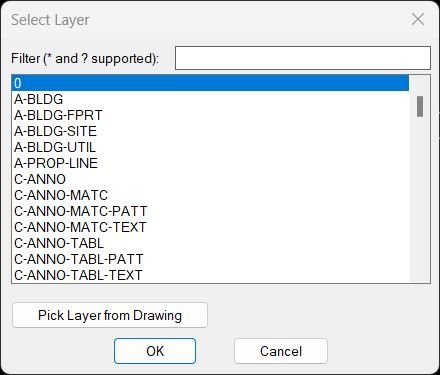
ChangeLayer
- • Visible layer enumeration — uses tblnext over LAYER and filters by flags in group code 70 to exclude Off/Frozen layers.
- • Last filter persistence — reads CHLAY-LAST-FILTER from environment; defaults to * if none; saves it back on exit.
- • Temporary DCL generation — writes a layerfilter.dcl-style file to a temp path using vl-filename-mktemp and open/write-line.
- • Wildcard filtering — uses wcmatch against the filter pattern; treats an empty filter as *.
- • Live list refresh — filter edit_box action updates filter-pat and repopulates the list box immediately.
- • Single selection tracking — list_box action stores the selected index so the chosen layer can be returned on OK.
- • Pick layer from drawing — dialog button exits with a special code (2), prompts entsel, extracts group code 8 (layer), sets filter to that layer, then reopens dialog.
- • Cleanup — unloads the dialog, deletes the temporary DCL file, and writes the last-used filter to the environment.
- • Apply current layer — c:ChangeLayer sets CLAYER to the returned layer name and prints confirmation, otherwise prints cancel/no-selection message.
ChangeLayerToSelected
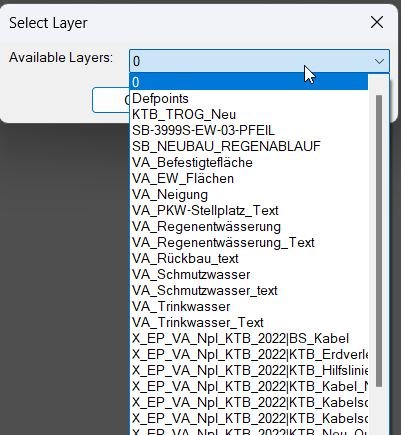
- • Layer scope — enumerates layers from the active document and excludes Xref layers by rejecting names matching *|*.
- • Temporary DCL generation — writes a dialog definition to a temp .dcl file and loads it each loop iteration.
- • Filter behavior — filter text is applied as a substring match using wcmatch against *filter* (case-insensitive); empty filter shows all layers.
- • Preselection rules — if a picked layer exists in the filtered list, it is selected; else if the last used layer exists, it is selected; otherwise the first entry is selected.
- • OK handler — captures current filter and selected popup index, resolves the layer name, saves ChangeLayer_LastFilter and ChangeLayer_LastLayer, then closes dialog with result 1.
- • Pick-from-drawing handler — closes dialog with result 2, prompts for an entity via entsel, reads group code 8 (layer), validates it exists in the non-Xref layer list, then reopens the dialog.
- • Final object selection — after OK, prompts for a multi-selection using ssget (no single-select flags), allowing window/crossing and add/remove selection gestures.
- • Apply layer change — runs _.CHPROP on the selected set and sets property LA to the chosen layer name.
- • Cleanup — unloads the dialog each loop and deletes the temporary DCL file at the end of the routine.
DeleteLayerByFilter
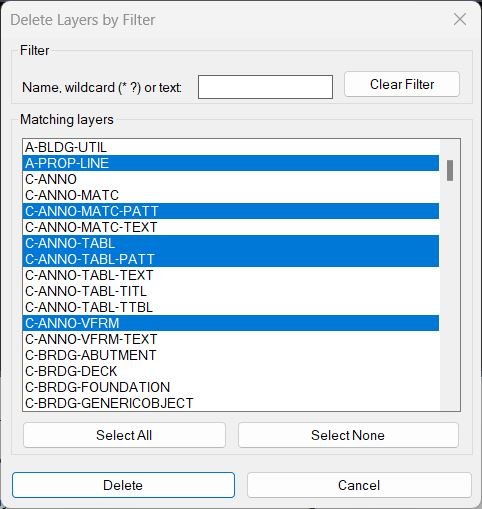
- • Embedded DCL UI — dialog includes filter edit box, multi-select list of matches, and buttons: Clear Filter, Select All, Select None, Delete, Cancel.
- • Layer candidate set — enumerates layers and excludes Xref-dependent names (*|*) and reserved layers (0, DEFPOINTS).
- • Filtering rules — empty filter shows all; wildcard filters are honored as-is; plain text is converted to *text* for “contains” matching.
- • Live list refresh — typing in the filter edit box updates the match list immediately by repopulating lb_layers.
- • Select All / None — Select All sets list_box selection to the full index range string; Select None clears the selection tile string.
- • Index parsing — on Delete, reads list_box selection indices, parses them into integers, and maps indices back to layer names.
- • Primary deletion path — attempts layer removal via -LAYDEL scripted input sequence and validates success by confirming the layer no longer exists in the table.
- • Fallback deletion path — if scripted deletion fails, attempts VLA deletion of the layer object as a last resort (typically only works if layer is deletable/empty).
- • Reporting — prints how many layers were deleted and lists failed layer names (including (reserved) and (xref) annotations when applicable).
- • Alternate command: LayDelByList — deletes layers from variable LAYLIST (must be a list of names) using the same checks and deletion pipeline, then prints Deleted/Failed summary.
DuplicateToSelectedLayer
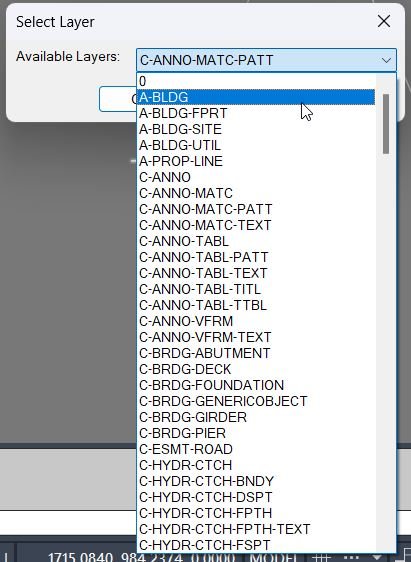
- • Select source entities — prompts ssget to capture the objects to duplicate; exits with a message if none selected.
- • Build layer list — enumerates all layers, removes Xref-dependent layers (*|*), sorts alphabetically, and populates a DCL popup_list.
- • Dialog defaulting — if the stored last layer exists in the list, preselects it; otherwise defaults to the first entry.
- • Temporary DCL lifecycle — writes a temp .dcl file, loads it, runs the dialog, unloads it, and deletes the file.
- • Duplicate-in-place — saves current CLAYER, sets CLAYER to the target, then runs _.COPY with base/displacement 0,0 to create duplicates without moving them.
- • Capture new entities — uses ssget "_P" to get the copied entities produced by the COPY command.
- • Assign to target layer — runs _.CHPROP on the copied entities with property LA set to the chosen layer name.
- • Bring to front — runs _.DRAWORDER on the copied entities with option _Front to adjust display order.
- • Preselect result — calls sssetfirst to make the duplicated entities the current selection for immediate follow-on operations.
- • Restore state — restores the original current layer and prints a summary including the count of duplicated entities and the target layer name.
DuplicateToNewLayer
- • Source layer detection — DUPLICATELAYER extracts source layer from the picked entity (DXF group 8); DUPLICATELAYERCURRENT uses CLAYER.
- • Dialog-driven naming — shows “Duplicate Layer” dialog with an edit box for the new name and a toggle defaulted to checked.
- • Existence check — uses tblsearch "LAYER" to determine whether the target name already exists before creating a new layer.
- • Layer creation by cloning — if missing, calls CreateLayerLike to create the new layer and copy properties from the source layer via VLA property gets/puts.
- • Set current layer — sets CLAYER to the new layer name in both commands.
- • Optional entity reassignment — for DUPLICATELAYER when the toggle is enabled, updates the entity’s layer (substitutes group 8), then calls entmod and entupd to apply changes.
- • Temporary DCL lifecycle — dialog definition is written to a temp file, loaded, used, unloaded, then the temp DCL file is deleted.
- • Validation / messaging — handles cancel/empty name/nothing selected conditions and prints status messages for created vs existing layers and assignment actions.
FreezeLayersInMS
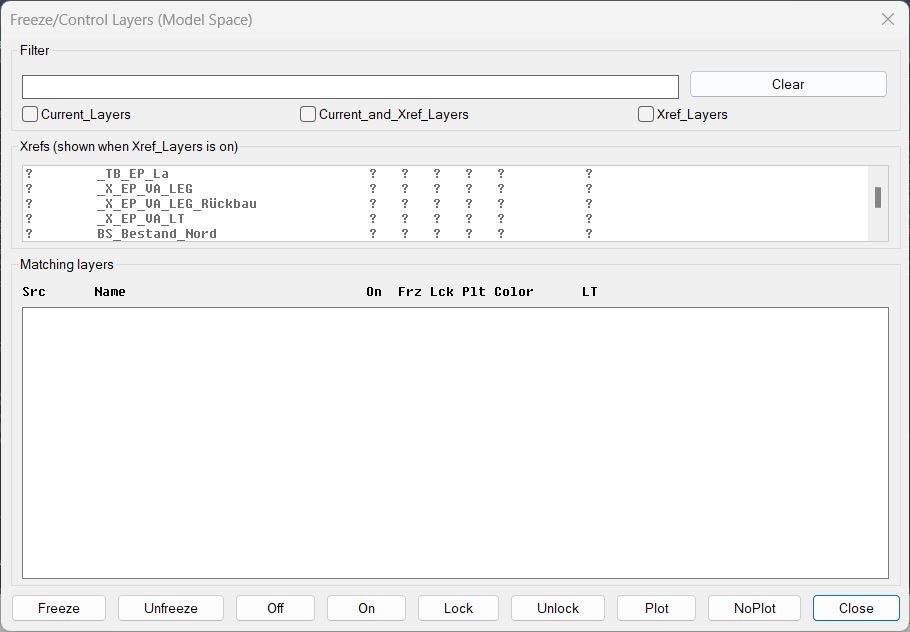
- • State management — global variables track filter text, xref filter, scope toggles, selected xrefs, selected layer names, and both full/display lists for the layer list box.
- • Filter normalization — UI filter values are read as strings; a legacy "T" value is normalized to empty, preventing unexpected filter behavior/appearance.
- • Xref filter + selection — xref list is filtered by wildcard or contains-match, filled into lbXrefs, and prior selections are re-applied by index mapping.
- • Scope toggles — Current_Layers / Xref_Layers / Both determine whether matches include only non-xref layers, only xref layers (optionally limited to selected xrefs), or all layers.
- • Matching layer evaluation — a layer matches when it satisfies the name filter (wildcard or contains-match) and the scope rules (current/xref/both + selected xrefs).
- • Display vs true names — the list shows a formatted row where the layer name is displayed without xref| prefix, but selection indexes map back to the full layer names for operations.
- • Multi-select mapping — layer selections are tracked by index in lbLayers and translated back to flms3*listFull to populate flms3*selNames.
- • Batch operations — action buttons call flms3-apply which sets VLA properties on each selected layer: Freeze, LayerOn, Lock, Plottable toggles.
- • UI enable/disable — the Xref list box is enabled only when Xref_Layers or Both is selected; otherwise it is disabled via mode_tile.
- • Dialog lifecycle — writes DCL to a temp path, loads/opens dialog, wires action tiles, runs, snapshots state, unloads dialog, deletes the DCL file.
- • User feedback — after each action, prints a summary line such as Freeze applied to N layer(s).
LayerCreation
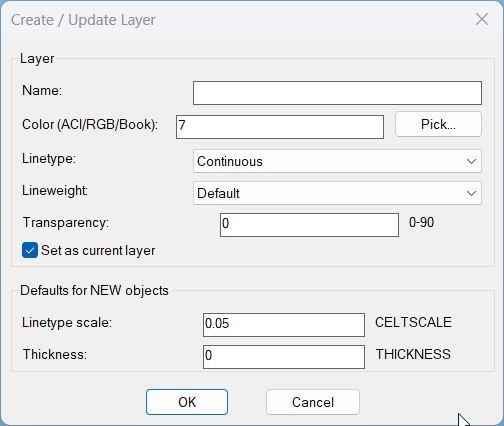
- • Dual interface — LayerCreation uses DCL when available; otherwise it runs NEWLAYERCLI which prompts in the command line and always works.
- • Layer name validation — rejects empty names and names containing forbidden characters (\ / : ; * ? " < > | , =).
- • Color selection — supports three color modes: ACI index (62), RGB truecolor (420), and Color Book color (430), with persistent “last used” values.
- • Manual color input — dialog allows typing ACI, r,g,b, or BOOK$COLOR; parser converts it into the internal selector list used for TrueColor application.
- • Linetype management — linetypes are listed from the drawing; missing linetypes can be auto-loaded before assignment.
- • Layer creation/update — if the layer does not exist, creates it; then sets Linetype, Lineweight, and Transparency using -LAYER scripted calls; color is applied afterwards via TrueColor API to support RGB/books.
- • Defaults for new objects — applies CELTSCALE (default 0.05), CETRANSPARENCY (default 0), and THICKNESS (default 0) using a safe setvar wrapper so invalid settings do not cancel the command.
- • Set current toggle — both UI flows allow setting the created/updated layer as current (default Yes/checked).
- • Cleanup — DCL version writes a unique temp dialog file, loads/unloads it, then deletes it; color selection is persisted for the next run.
MultiOffsetBothSidesWithLayer
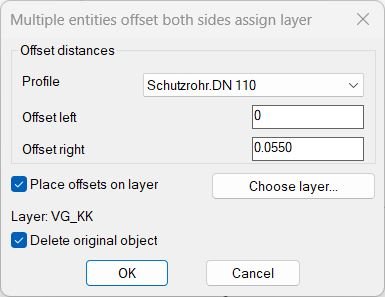
Main Functionalities: • Perform bi-directional offset (left and right) on multiple selected lines. • Apply predefined offset profiles or set custom offset distances. • Delete originals after offset creation (optional). • Change the entity layer to a selected target before offsetting (optional). • Maintain proper layer inheritance for new offset lines. • Use of ActiveX and(vl-load-com) to manage AutoCAD objects dynamically. • Temporary DCL files created with (vl-filename-mktemp) are auto-deleted after dialog use.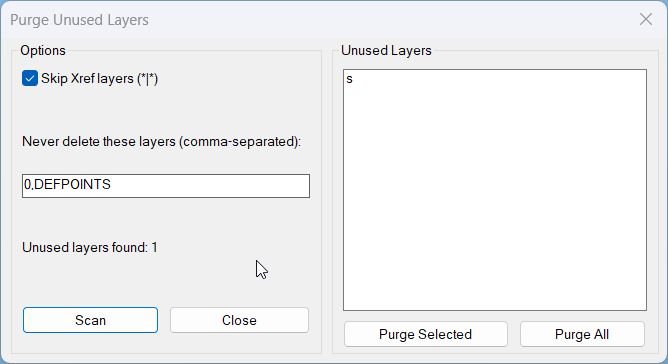
PurgeUnusedLayers
- Dialog options: toggle to Skip Xref layers that match *|* and an edit box for additional never delete layers.
- Scan: refreshes the unused layer list based on current settings and updates the status count.
- Purge Selected: deletes only the layers selected in the list box.
- Purge All: deletes all currently detected unused layers in one operation.
- Safety rules: never deletes 0, DEFPOINTS, or the current layer and can exclude Xref layers when enabled.
RenameLayer
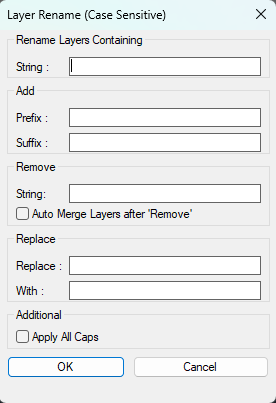
- • Undo safety — starts an Undo mark at the beginning and ends it at completion so the full batch can be undone as one unit.
- • Dialog inputs — captures: Search substring, New Prefix, New Suffix, Remove substring, Replace-from (OSTR), Replace-to (NSTR), Apply All Caps toggle, and Auto Merge toggle.
- • Replace validation — enforces that Replace fields must be provided as a pair (both filled or both blank); otherwise alerts and re-runs the command.
- • Matching layer set — if Search is blank, targets all layers except 0; if Search is provided, targets layers containing the Search string; avoids duplicates via vl-position checks.
- • Name transformation order — for each layer: Remove substring → Replace substring → Add prefix → Add suffix → optional ALL CAPS conversion.
- • Merge vs rename — when Merge is enabled and the computed new name already exists, uses -LAYMRG to merge the old layer into the existing target; otherwise uses -RENAME to rename.
- • Progress reporting — shows “Modifying Layers” progress and advances per processed layer; alerts and restarts if no matches were found.
- • Session cleanup — restores CMDECHO, closes the progress UI, deletes the temp DCL file, and restores the prior error handler.
Zoom2Layer
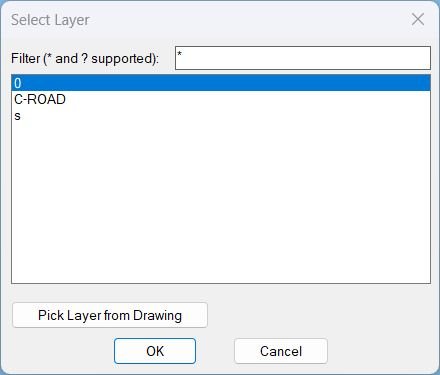
- • Layer filtering with wildcard patterns entered in the dialog filter box.
- • Layer list scope includes only layers that are not off and not frozen (visible/unfrozen set).
- • Pick Layer from Drawing button temporarily exits the dialog so the user can select an object and adopt that object’s layer as the new filter, then reopens the dialog.
- • Persisted filter stored in CHLAY-LAST-FILTER and restored on next run.
- • Zoom-to-layer extents by collecting all objects on the selected layer and computing min/max XY bounds from each entity’s bounding box.
- • Robustness uses guarded ActiveX calls and skips entities that do not support GetBoundingBox.
LayersNameToClipboard
- • User selection — uses ssget to collect entities; exits with a message if nothing is selected.
- • Layer extraction — iterates the selection set, calls entget, and reads (assoc 8) to obtain each entity’s layer name.
- • Deduplication — adds layer names to an in-memory list only if they are not already present (member check).
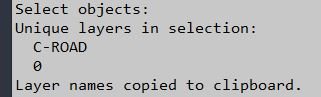
- • Reporting — prints “Unique layers in selection” and lists each layer name in the command line output.
- • Clipboard formatting — builds a single string containing only layer names separated by newline characters (one layer per line).
- • Clipboard write — calls ClipPut to copy the newline-separated list into the clipboard and prints confirmation.
- • COM cleanup — releases the temporary htmlfile object after writing to the clipboard.
NCopyExtra
• Xref geometry extraction: Copies geometry out of xrefs or nested blocks into the current drawing space while preserving position and orientation. • Layer name cleaning: Automatically strips the xref prefix from layer names so copied entities end up on clean local layers (e.g. “VG_KK” instead of “_XREF|VG_KK”). • Local layer creation: Automatically creates missing local layers on the fly when they do not already exist in the drawing. • Visual property sync: Mirrors color, linetype, and lineweight from the original xref layer to the local layer to maintain the same visual appearance. • Entity relocation: New copies are placed directly on the local (non-xref) layer, making them independent from the xref reference. • Multi-pick workflow: You can keep picking objects one after another and each one will be copied and re-layered until you press Enter to finish. • Safe layer handling: Operates only on layers that actually exist and ensures new layers are properly initialized before use.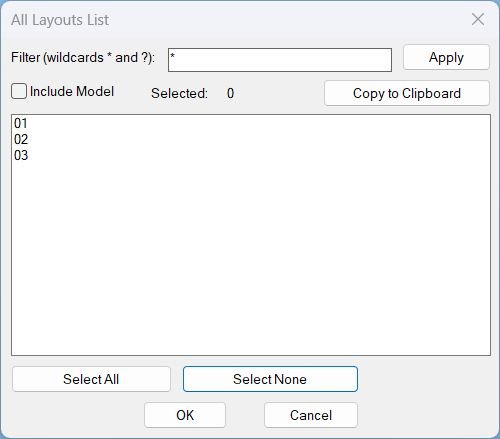
Layouts_list
- Wildcard layout filtering with an explicit Apply button that rebuilds the displayed list only.
- Optional Include Model toggle controlling whether Model appears in the list.
- Multi-select list with live selected count and selection preservation when the filter changes.
- Select All and Select None for rapid selection management.
- Copy to Clipboard that outputs one layout name per line to the Windows clipboard, with multiple copy mechanisms for robustness.
- DCL is embedded in the LSP, written to a temp file with a unique dialog name per run, then removed on exit.
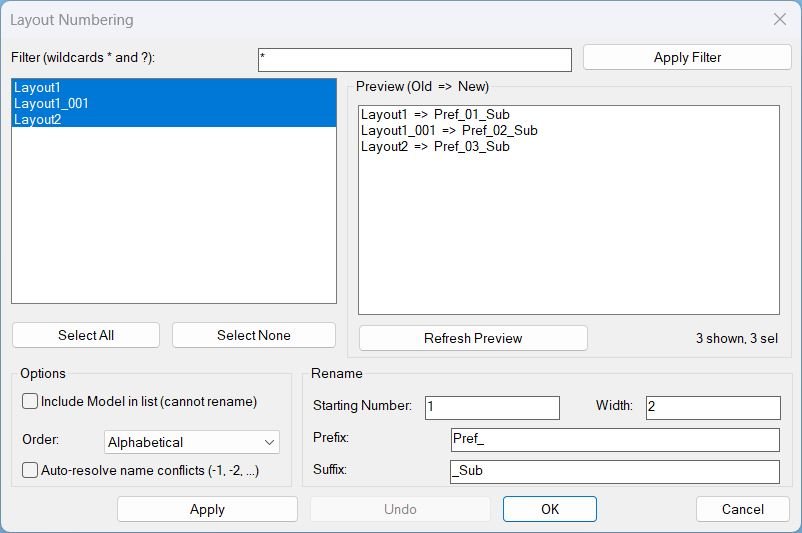
LayoutNum
- Wildcard filter with a dedicated Apply Filter action that rebuilds the displayed list without renaming anything.
- Multi-select layouts with Select All and Select None shortcuts and a live status indicator showing shown and selected counts.
- Preview panel showing proposed renames as Old => New, with a Refresh Preview button and auto-refresh on option changes.
- Renaming options including starting number, zero-padding width, prefix, suffix, order mode (tab order or alphabetical), and auto-resolve for conflicts by appending -1, -2, and so on.
- Non-destructive handling of Model when included: it can be listed but is blocked from renaming and triggers validation alerts if selected for rename.
- Bottom controls: Apply renames and keeps dialog open, Undo restores prior rename sets, OK renames and closes, Cancel closes without applying a new rename.
- Safety rule avoids calling AutoCAD UNDO from DCL callbacks and instead uses a manual undo stack, while still grouping changes with VLA undo marks.
- Persists last-used settings across runs for faster repeat usage.
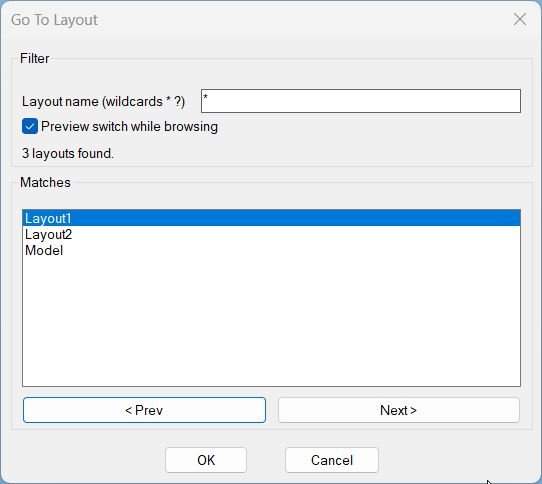
GoToLayout
- Wildcard filter input supporting * and ? to quickly narrow layout names.
- Case-insensitive matching and sorting for reliable results regardless of layout name casing.
- Preview toggle that can switch CTAB live as the user browses matches.
- Navigation buttons < Prev and Next > with wrap-around to cycle through matches efficiently.
- Automatic enabling and disabling of OK and navigation when zero layouts match the filter pattern.
- Remembers the last used pattern in a global variable so subsequent runs start with the previous filter.
- Restores the original tab on cancel or dialog close for safe browsing workflows.
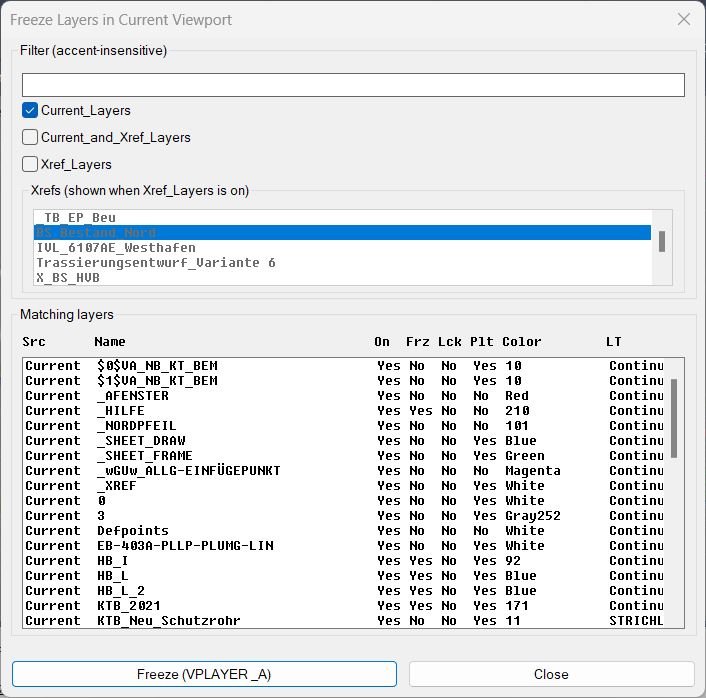
FreezeLayersInVP
- • Runtime DCL generation writes the dialog to a temp file each run, loads it, then deletes it after closing.
- • Sticky header shows the faux-column titles in a fixed-width text control above the layer list.
- • Faux columns display: Src, Name, On, Frz, Lck, Plt, Color, LT, Desc using fixed-width padding.
- • Accent-insensitive filtering normalizes both filter text and layer names before matching, improving usability with localized naming.
- • Scope toggles to include Current_Layers, Current_and_Xref_Layers, and Xref_Layers when filtering the layer list.
- • Xref picker becomes enabled only when Xref_Layers is on and can restrict results to layers belonging to selected Xrefs.
- • Persistent settings remembers last filter text, toggle states, and chosen Xrefs using environment variables for the next session.
- • Multi-select layer freeze freezes each selected layer using VPLAYER with the freeze option and the _A scope as implemented in the routine.
- • Note the routine freezes with VPLAYER _A as coded, and the comment indicates _C could be used to target only the current viewport if desired.

Copy2Layouts
- • Runtime DCL generation writes and loads a temp dialog with a unique name on each run.
- • Pick from drawing captures a selection set once and displays only Total: N in the dialog.
- • Layout filtering supports wildcard patterns * and ? and applies case-insensitive matching.
- • Multi-select target layouts copies to any subset of filtered layouts, with Select All and Select None for fast control.
- • Copy enable/disable disables the Copy button when no objects are selected to reduce invalid runs.
- • ActiveX CopyObjects copies converted VLA objects into each destination layout’s paper-space block to avoid command-based copy/paste issues.
- • UNDO grouping wraps the copy operation in UNDO Begin/End so the entire multi-layout copy can be undone in a single step.
- • Looped dialog workflow Apply Filter and Pick reopen the dialog, while a successful Copy ends the command.
RotateMtextVport
Functionalities:- Calculates current viewport rotation by measuring UCS X-axis angle in WCS
- Prompts user to select TEXT and/or MTEXT objects
- Iterates through selected objects and applies rotation based on object type
- For MTEXT: sets rotation to 0° and attachment point to top-left
- For TEXT: sets rotation to viewport angle and alignment to left
- Displays message if no objects are selected
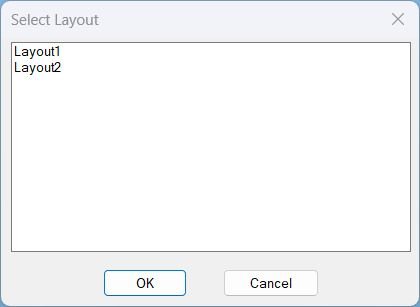
SelectLayout
Functionalities:- Accesses all layouts in the active drawing document
- Filters out Model space, collecting only paper space layout names
- Dynamically creates a DCL file with list box interface specifications
- Writes dialog definition including dimensions and interaction settings
- Loads and displays the custom dialog box
- Populates list box with all available layout names
- Captures user selection from list box
- Switches to selected layout using AutoCAD LAYOUT command
- Cleans up temporary files after use
- Displays confirmation message with selected layout name
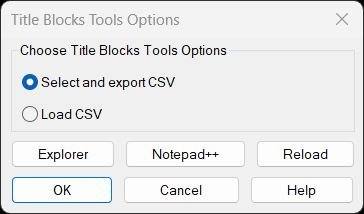
TitleBlocksTools
Functionalities:- Displays unified menu dialog with radio buttons for Export CSV or Load CSV operations
- Resolves LISP file path dynamically from USERPROFILE environment variable
- Main dialog includes Explorer, Notepad++, and Reload buttons for file management
- Help button launches comprehensive documentation dialog
- Export workflow (EXPTBCSV_EXPORT):
- Prompts user to pick titleblock inserts until ENTER pressed
- Collects unique block names from selections
- Scans all paper space layouts for matching inserts with attributes
- Displays numbered list of all unique attribute tags found
- Accepts “All”, “None”, or range input (1,3,5-7) for tag selection
- Prompts for CSV save location with drawing name as default
- Writes CSV with DWG, Layout, Block columns plus selected tags
- Applies Excel-safe formatting (single-quote prefix for dates/formulas)
- Escapes special characters (commas, quotes, newlines) per CSV standard
- Attempts to auto-open CSV in Excel via multiple detection methods
- Update workflow (UTB2):
- Prompts for CSV file if UTB2:csv not preset
- Validates CSV format and searches for current drawing name in first column
- Applies optional layout filter if UTB2:lay is true (CSV has Layout column)
- Applies optional block filter if UTB2:blk is true (CSV has Block column)
- Uses wildcard filter UTB2:ftr to limit scope to specific block names
- Resolves effective names for dynamic/anonymous blocks
- Iterates through all attributed inserts matching filters
- Updates only attributes with tags matching CSV headers
- Changes only when current value differs from CSV value
- Supports duplicate attribute tags by removing processed items from value list
- Creates single undo mark for entire batch operation
- Reports count of attributes and blocks updated
- Help dialog functionality:
- Displays LISP file path at top of help content
- Shows comprehensive documentation with bullet points and arrows
- Unicode toggle switches between Unicode symbols and ASCII alternatives
- Rebuilds and refreshes display when Unicode preference changes
- Copy Selected copies highlighted lines to clipboard
- Copy All copies entire help text to clipboard
- Copy Path copies LISP file location to clipboard
- Explorer button navigates to LISP folder with file selected
- Notepad++ button opens LISP in editor with fallback to Notepad
- File management features:
- Reload button executes (load) on current LISP file without closing AutoCAD
- Explorer integration uses /select argument for file highlighting
- Notepad++ detection tries configured path, cmd shell, and Notepad fallback
- Path copying via MSHTML clipboard object for reliability
- Persistent state management:
- *tbt-last-option* remembers last radio button selection
- *tbt-unicode* remembers Unicode/ASCII preference
- *NPP:Path* stores custom Notepad++ installation path
- CSV parsing handles alternative delimiters (semicolon) from regional settings
- Removes case sensitivity for drawing name matching
- Supports filenames with or without .dwg extension in CSV
- Handles CSV cells containing embedded commas, quotes, and line breaks
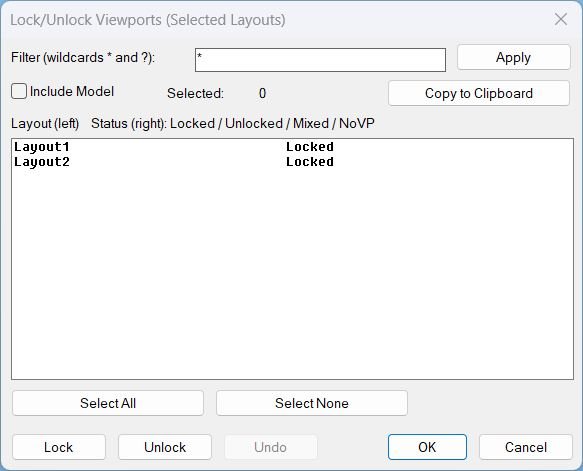
LockAllVp
- • Filter layouts using wildcard patterns (*, ?) and click Apply to rebuild the displayed list.
- • Multi-select layouts from the list for batch processing.
- • Select All and Select None for fast selection control.
- • Lock all detected Paper Space viewports in the selected layouts.
- • Unlock all detected Paper Space viewports in the selected layouts.
- • Show per-layout current status (Locked / Unlocked / Mixed / NoVP) so the user can validate before and after changes.
- • Undo the last operation (and potentially multiple operations) using an internal restore stack, avoiding unstable undo calls inside the dialog.
- • Copy to Clipboard selected layout names and status for documentation or reporting.
- • Preserve user environment by restoring CTAB and minimizing command echo during processing.
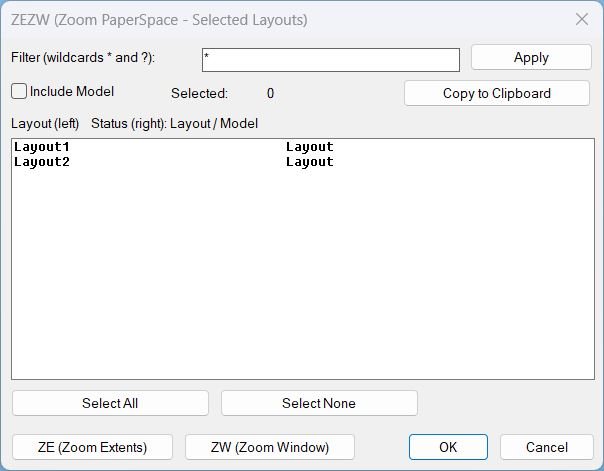
Zoom Extend Window
Functionalities- Dialog UI with filter, multi-select list, select all, select none, and selected count display.
- Layout filtering using wildcards to quickly isolate target layout tabs.
- Clipboard export of selected layout names and their status, formatted line-by-line for paste into other tools.
- Zoom Extents across selected layouts in Paper Space with stable post-dialog execution.
- Zoom Window across selected layouts using one picked window applied consistently to all layouts.
- Paper Space enforcement by forcing MSpace false before zooming to avoid viewport context issues.
- Undo grouping using StartUndoMark and EndUndoMark for clean rollback of multi-layout operations.
- Robust fallbacks for zoom (COM first, then command-based) and for clipboard copy (multiple methods).

Zoom Extend
Functionalities- Dialog UI for filtering and multi-selecting layouts.
- Select All and Select None selection tools and selected count display.
- Clipboard export of selected layout names and status.
- Zoom Extents in Paper Space across the selected layouts.
- Undo grouping for multi-layout operations using StartUndoMark and EndUndoMark.
- Robust fallbacks for temp DCL creation and zoom execution.
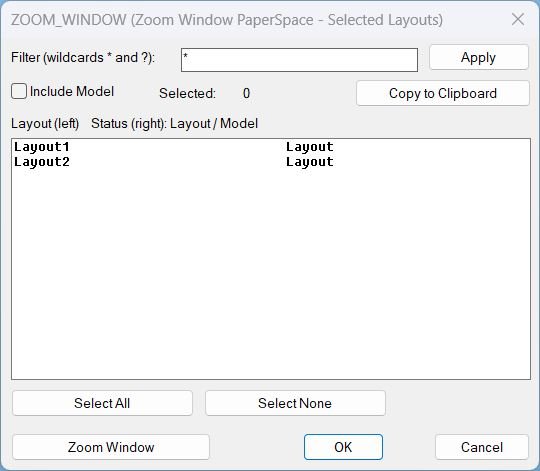
Zoom Window
Functionalities- Dialog UI for filtering and multi-selecting layouts.
- Select All and Select None selection tools and selected count display.
- Clipboard export of selected layout names and status.
- Zoom Window in Paper Space across the selected layouts using one picked window applied consistently.
- Undo grouping for multi-layout operations using StartUndoMark and EndUndoMark.
- Robust fallbacks for temp DCL creation and zoom execution.
AnnoAllOnOff
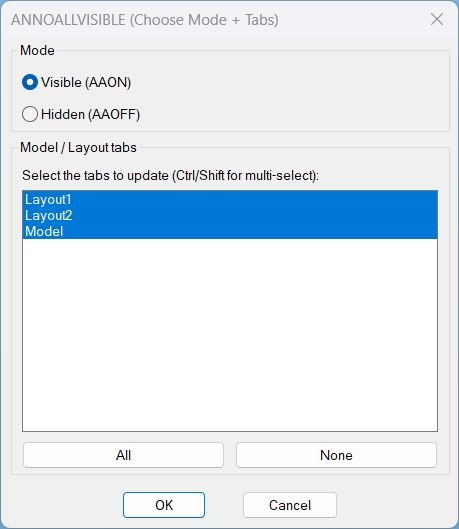
- • Embedded DCL is written to a temp file at runtime and loaded to display a single configuration dialog.
- • Mode selection via radio buttons: Visible (AAON) sets value 1, Hidden (AAOFF) sets value 0.
- • Multi-select tab picker allows choosing any combination of Model/Layout tabs to update.
- • All selects all tabs using a generated index string, and None clears selection to prevent changes.
- • Per-tab application switches CTAB for each selected tab and applies ANNOALLVISIBLE to the chosen value.
- • Layout handling forces paperspace on layout tabs by setting MSPACE to false when in a layout context.
- • State restoration restores CTAB, TILEMODE, and MSPACE after execution.
AnnoAllOff
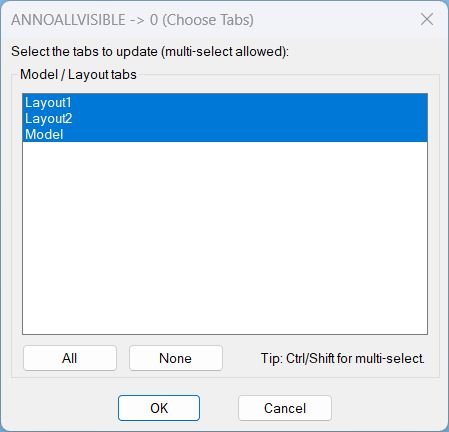
- • Runtime DCL generation creates a dialog file in a temp location and loads it for the session.
- • Multi-select tab picker allows choosing any combination of Model and Layout tabs for updating.
- • All button selects every tab in the list box using a generated index string.
- • None button clears the selection to prevent changes from being applied.
- • Per-tab update switches CTAB for each chosen tab and sets ANNOALLVISIBLE to 0.
- • Layout handling forces paperspace on layout tabs by setting MSPACE false when TILEMODE indicates a layout context.
- • State restoration restores prior CTAB, TILEMODE, and MSPACE values after processing.
AnnoAllOn
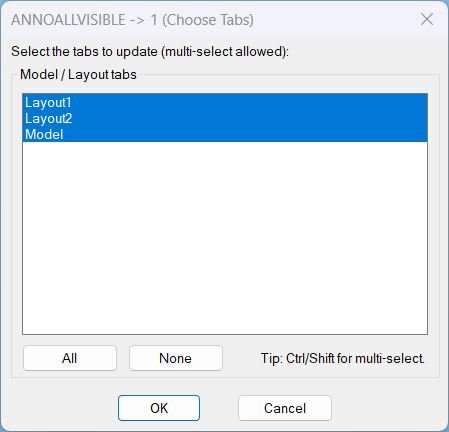
- Runtime DCL generation creates and loads a temporary dialog file for tab selection.
- Multi-select tab picker supports choosing any combination of Model and Layout tabs to update.
- All selects every listed tab by setting the list box to an auto-generated index string.
- None clears the list box selection to prevent changes from being applied.
- Per-tab application switches CTAB to each selected tab and applies ANNOALLVISIBLE value 1.
- Layout handling forces paperspace on layout tabs by setting MSPACE to false when in a layout context.
- State restoration restores prior CTAB, TILEMODE, and MSPACE after processing completes.
LayoutTools
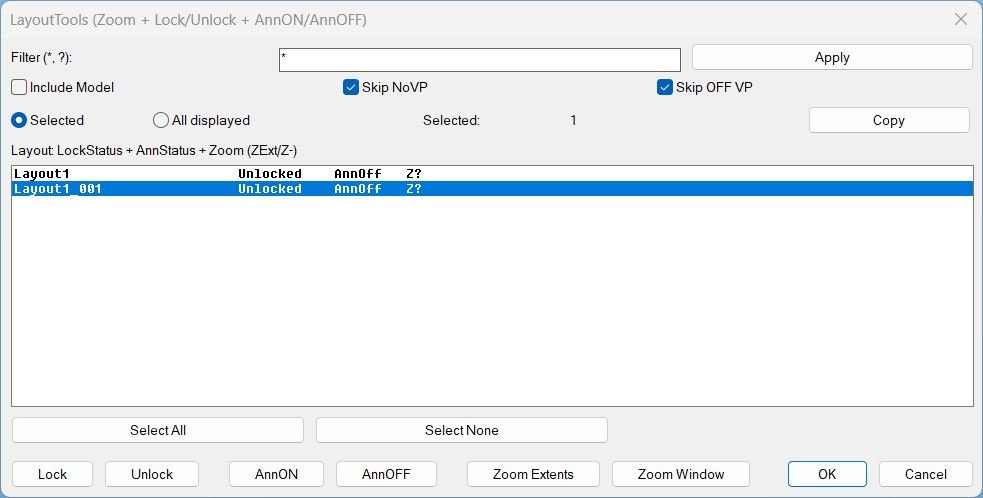
Functionalities- Layout list and selection
- Filter layouts by pattern and refresh the list using Apply.
- Toggle Include Model to show or hide Model from the list, while actions still avoid Model for viewport operations.
- Choose targeting scope between Selected and All displayed layouts.
- Use Select All and Select None to manage multi selection quickly.
- Display per layout columns for lock state, annotation state, and zoom status.
- Viewport locking
- Lock locks paper space viewports across the target layouts using DisplayLocked.
- Unlock unlocks paper space viewports across the target layouts.
- Skip NoVP prevents actions on layouts that have no usable paper space viewports.
- Skip OFF VP ignores viewports that are turned off when applying lock changes.
- Lock status is shown as Locked, Unlocked, Mixed, NoVP, or Model.
- Annotation visibility
- AnnON sets ANNOALLVISIBLE to 1 for the target layouts.
- AnnOFF sets ANNOALLVISIBLE to 0 for the target layouts.
- Annotation state is displayed as AnnOn, AnnOff, or Ann? if it cannot be read.
- Paper space zoom
- Zoom Extents applies a paper space zoom extents in each target layout and records the status as ZExt.
- Zoom Window prompts the user for two corners, applies the same window to each target layout, and records the status as Z-.
- Zoom status is shown as ZExt, Z-, or Z? when unknown, and is persisted in the DWG.
- Clipboard reporting
- Copy exports a tab separated report of layout name, lock status, annotation status, and zoom status for the current target scope.
- Operational safeguards
- Actions are wrapped in a single undo mark per batch operation for easier rollback.
- The tool restores TILEMODE, CTAB, and MSPACE after operations that switch tabs or paper space state.
- Layout list and selection
DuplicateLayouts_00
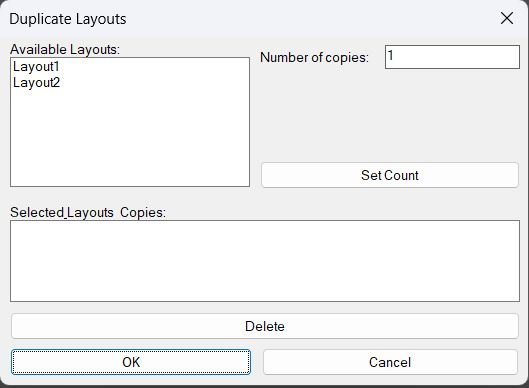
- • Runtime DCL generation creates and deletes a temporary dialog file automatically.
- • Layout list shows available paper-space layouts and excludes Model from duplication choices.
- • Per-layout copy counts lets the user assign different copy quantities per selected layout using the Set Count workflow.
- • Summary management displays the configured list of layouts and counts and allows removal via Delete prior to running copies.
- • Automated naming generates new layout names by appending a two-digit sequence suffix to the source layout name.
- • Command-based duplication performs duplication using ._layout _copy for each requested copy instance.
DuplicateLayouts_01
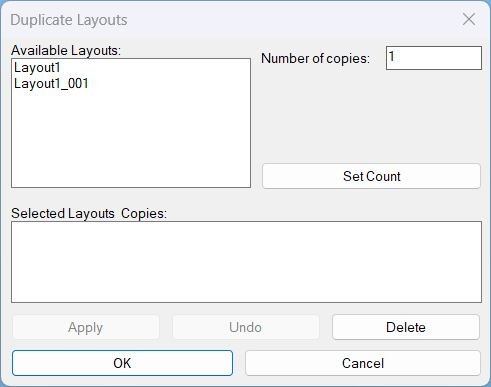
Functionalities- Queue layouts for duplication
- Select an available layout and set Number of copies.
- Press Set Count to add or update the queued entry in the summary list.
- Displays queued items as layout : count for review before applying.
- Batch duplicate layouts
- Apply duplicates all queued layouts and keeps the dialog open for additional changes.
- OK duplicates all queued layouts then exits, and exits silently if nothing is queued.
- Each duplicate is created with a unique name BaseName_### to prevent naming conflicts.
- Delete behavior
- If a summary row is selected, Delete removes that queued entry only and does not change the drawing.
- If no summary row is selected and an available layout is selected, Delete deletes that layout tab from the drawing and switches CTAB to Model first if the tab was active.
- Deletion blocks invalid targets such as Model and missing layouts with clear alerts.
- Undo within the session
- Undo runs a single step undo using UNDO 1 for the last duplication batch or delete operation executed in this dialog session.
- The tool enables the Undo button only after at least one operation was performed during the session.
- UI rules
- Apply is disabled until at least one layout is queued with Set Count.
- OK remains enabled always, and will only duplicate when there are queued items.
- Queue layouts for duplication
SetPublishLocation_01
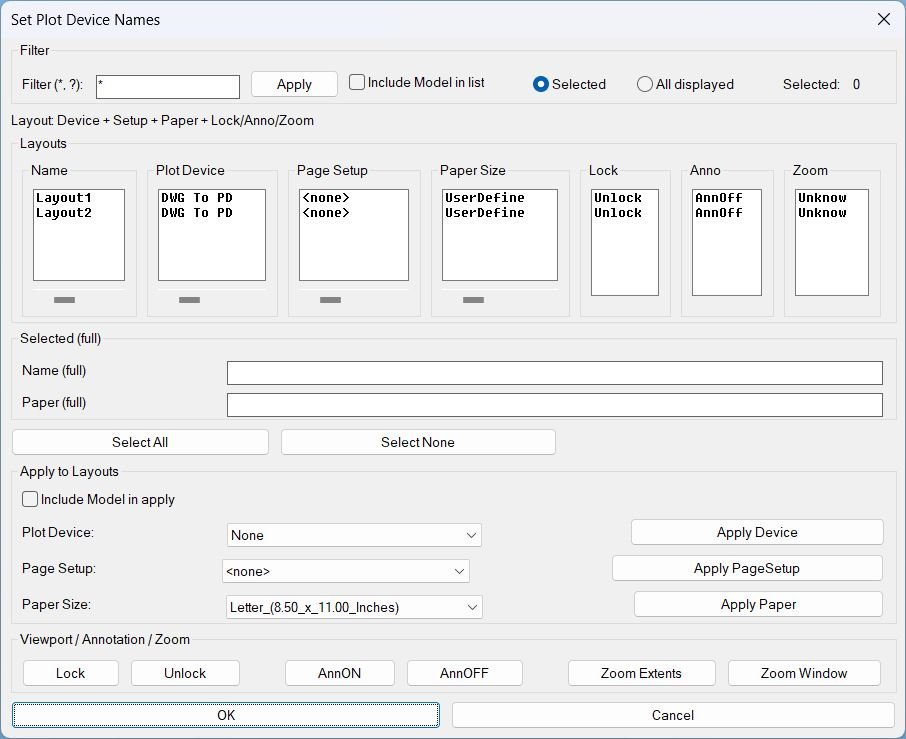
Functionalities- Apply Device sets the plot device for targeted layouts and refreshes plot device info.
- Apply PageSetup copies a selected page setup into targeted layouts, or clears it when none is chosen.
- Apply Paper sets the canonical media name based on the selected device and selected paper display name.
- Lock locks all applicable paper-space viewports for targeted layouts.
- Unlock unlocks all applicable paper-space viewports for targeted layouts.
- AnnON turns ANNOALLVISIBLE on for targeted paper-space layouts.
- AnnOFF turns ANNOALLVISIBLE off for targeted paper-space layouts.
- Zoom Extents zooms extents inside each viewport for targeted layouts and marks those layouts to display ZExt in the Zoom column.
- Zoom Window prompts for two corners inside a viewport on the first targeted layout, then applies the same window zoom across targeted layouts without marking ZExt.
SetPlotDeviceNames_00
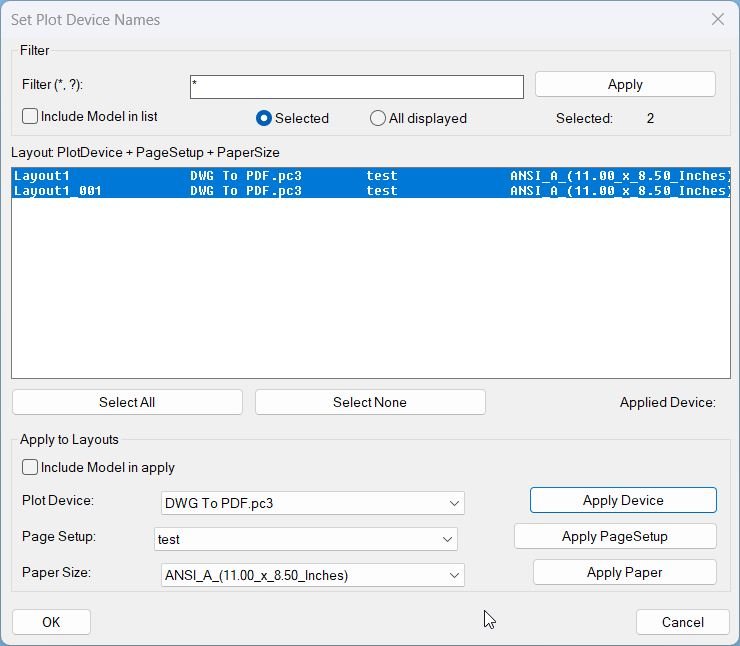
- • Target device selection — sets desired device string to DWG To PDF.pc3.
- • Enumerate layouts — iterates all layouts in the active drawing using vlax-for over the Layouts collection.
- • Refresh device info — calls vla-RefreshPlotDeviceInfo to ensure device list is current.
- • Case-insensitive validation — uppercases both the target device and the returned device list for reliable matching.
- • Assign plot config — if present, sets ConfigName for the layout to the target device.
- • Per-layout warning — if missing, prints Plot device ‘DWG To PDF.pc3’ not available for layout: <layout name>.
Clear_Bookmarks
• Prompts user with a confirmation message • Clears the bookmark memory list when confirmed • Leaves stored data untouched if Cancel is pressed • Prints status messages to the command line after completionAdd_Bookmark
• Text handling — For TEXT and MTEXT, stores the actual string content and uses the insertion point as start, with an artificial end point offset 10 units in X • Line handling — For LINE, uses the true start point (DXF 10) and end point (DXF 11) and labels it as “LINE” • Polyline handling — For LWPOLYLINE and POLYLINE, labels as “POLYLINE” and uses bounding box corners from getboundingbox • Circle handling — For CIRCLE, uses the center (DXF 10) and a corner computed from center plus radius in X and Y, labels as “CIRCLE” • Spline handling — For SPLINE, uses DXF 10 and 11 as start and end points, labels as “SPLINE” • Block handling — For INSERT, uses the block name (DXF 2) prefixed with “BLOCK: ” and uses insertion point plus an X-offset as end point • Fallback case — For unknown types, labels as “UNKNOWN” with zeroed points to avoid nil values • Selectable accumulation — Multiple runs keep pushing new bookmarks into *textPositions* instead of overwriting itSlope_00
• Slope formatting options — Percent, integer ratios, or decimal ratios • Scale-aware slope calculation — Applies H/V multipliers before evaluating run & rise • Negative slope detection — Prepends “-” when dy indicates descending elevation • Robust ratio reduction — Converts values like 200:100 into 2:1 cleanly • Special case protections — Vertical/horizontal slopes produce INF-safe labels • Controlled text placement — Aligns TEXT with segment and offsets above/below automatically • System variable safety — Temporarily sets and restores OSMODE and LUPREC • Dialog-driven settings — Radio buttons ensure mutually exclusive format choicesCopy_to_Clipboard_Xref
• Nested Entity Picking: Supports selecting items inside block references with full transformation accuracy. • Supported Types: TEXT, MTEXT, DIMENSION (with override or measurement), LEADER (via Annotation), and BLOCK attribute text. • Temporary Copy System: Creates duplicates on the current layer for consistent extraction. • Text Aggregation: Multiple selected entities produce a combined clipboard output, each separated by line breaks. • Clipboard Automation: Automatically exports collected text into Windows clipboard without extra interaction. • Cleanup Guarantee: All temporary entities are removed after copying, leaving the drawing unmodified.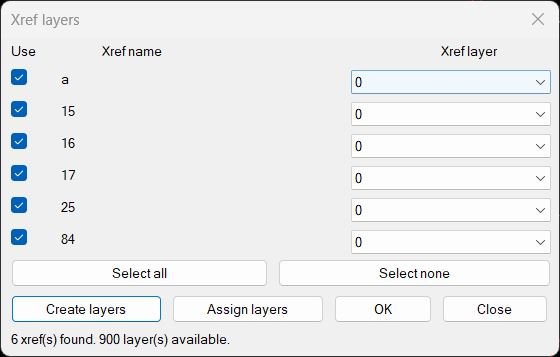
CreatesXrefsLayersAssign_vs.00
Functionalities: • Automatic xref detection: every external reference in the drawing is listed in the dialog. • Per xref enable checkbox: only checked xrefs will be processed by create or assign actions. • Per xref layer popup: each xref can be assigned to any existing layer through a dropdown. • Create layers button: makes layers named _xref_xrefName for all checked xrefs, ensures they exist, refreshes the popups, and selects the new layer for those rows. • Assign layers button: moves all inserts of the checked xrefs to the currently selected layer, in both model space and paper space. • Select all and Select none: quick buttons to toggle all checkboxes in one click. • Dynamic layer list: if new layers are created the dialog reloads the layer list so the new layers can be picked immediately. • OK button: performs the assign action then closes the dialog. • Close button: exits without changes.