
Short description
This AutoLISP package provides a full workflow for exporting and importing named UCS definitions using dialogs, predefined OneDrive folders, clipboard helpers, and a help window that stays open.
It is designed to work in an environment where UCS files are stored in shared/network/OneDrive folders and where users need to switch between ExpUCS, ImpUCS and a combined ExpImpUCS dialog.
It also includes an enhanced COM-only UCS importer at the end, so importing UCS does not freeze or prompt, and it can overwrite/update UCS definitions silently.
Command:
Commands:
• c:ExpUCS — export all named UCS to a .ucs text file.
• c:ImpUCS — import UCS definitions from a .ucs text file (with several enhanced versions later in the file).
• c:ExpImpUCS — main dialog-based entry point where the user chooses Export or Import and a predefined folder.
• EI-help-dialog — opens the help window for this toolset, allowing copy of help lines and paths.
Description:
When executed, the toolset does the following:
• Defines fixed locations: a base folder and a fixed .lsp file path (under OneDrive) that the dialog buttons can open in Explorer or Notepad++.
• Builds and keeps global state: last chosen option (export/import), last used directory, currently selected predefined folder, whether Unicode copy is on, etc.
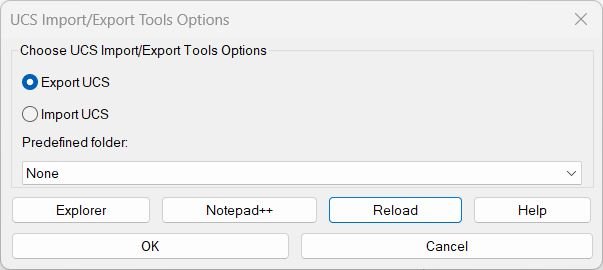
• Creates a DCL dialog on the fly (no external .dcl shipped) with:
– radio buttons: “Export UCS” / “Import UCS”
– a popup list of predefined folders (Project_001_UCS, Project_002_UCS, …)
– quick buttons: Explorer / Notepad++ / Reload / Help
• Resolves OneDrive roots dynamically using registry and environment variables so the same code works on different machines/tenants — then builds real, existing folders for predefined UCS export locations.
• The Help dialog is a second DCL: it shows a list of generated help lines, current Unicode state, and has buttons to copy selected/all lines to clipboard, copy the active folder path, toggle Unicode, or open the LSP folder.
• Clipboard copy is done using Windows tools (`cmd | clip`) or using an htmlfile COM trick so user doesn’t need PowerShell and the dialog can stay open.
• Export reads every UCS from the DWG table, reconstructs the 3-point definition, and writes it as `name;P1;P2;P3` to a `.ucs` file.
• Import reads each such line, validates points, and creates/updates the UCS in the current drawing — first with a command-based approach, and later in the file with a COM-only, freeze-safe importer that directly edits the UCS collection.
Helper function: (if any)
Helper Functions / Utilities:
• EI-isStr, EI-trim, EI-split, EI-unique — string and list utilities for trimming spaces, splitting by “;” or “,”, removing duplicates while keeping order.
• EI-last-dir, EI-set-last-dir — remember the last used folder and reuse it next time the user exports/imports.
• EI-onedrive-roots — discovers all possible OneDrive root folders from environment and registry.
• EI-resolve-under-any-root — tries to append a subfolder to every discovered OneDrive root and returns the first that really exists.
• EI-build-predefs — builds the list of “Project_00X_UCS_export” folders and stores the resolved paths in *EIUCS_predef_values*.
• EI-write-dcl — generates 2 DCL dialogs: the main “ExpImpUCS” and the “EI_HelpDlg”.
• EI-help-lines — builds the text lines that appear in the Help dialog (start folder, LSP path, operations list, predefined folders with “(selected)” marker).
• EI-clipboard-put — copy text to Windows clipboard using temp file + cmd or using COM htmlfile, depending on version in the file.
• EI-open-explorer-fixed, EI-open-npp-fixed — buttons in the dialog that open the fixed LSP folder or the LSP file in Notepad++.
• EI-main-dialog — shows the main “Export / Import UCS” dialog, wires all action tiles, and stores the user’s last selection.
Functionalities:
Main Functionalities:
• Export all named UCS in the drawing to a human-readable `.ucs` file (one UCS per line).
• Import UCS from file and recreate them in the current drawing, even if some lines are malformed (bad lines are skipped with a message).
• Predefined project folders resolved under any detected OneDrive root, so users don’t need to browse every time.
• Persistent help dialog with list, copy selected / copy all / copy path, and “Toggle Unicode” — state is shown on a single status line.
• Reload LSP button to re-load the fixed `ExpImpUCS.lsp` from a known folder, useful when centrally distributing updated versions.
• COM-based import variant (at the bottom) that adds/updates UCS directly in the UCS collection without calling AutoCAD UCS commands — this avoids prompts and makes it more “freeze-safe”.
• Remember last folder — the code stores last used directory and uses it next time, falling back to DWG folder if none.
Result:
Result:
The user can quickly export all UCS definitions from a drawing into a shared folder, and later (or another user) can import them back into another drawing using the same dialog and folder presets.
Because folders are auto-resolved (OneDrive, fixed path, last used, DWG folder), the workflow becomes repeatable across machines and projects.
The help dialog makes the tool self-documented: users can copy commands, paths, and explanations straight to clipboard without closing the dialog.
Images, animations etc.
Additional info:
Learn more:
Open Website
Share this page:
Subscribe
Login
0 Comments
Oldest
Tags: Coordinates
Tags: Coordinates