
Short description
Sort / Purpose: Named Views Import/Export front-end with presets, OneDrive-aware folders, and integrated help + clipboard utilities.
• Scope: Wraps the core ExportViews / ImportViews engine with a DCL UI, predefined project folders, Notepad++ / Explorer shortcuts, and rich help text copyable to clipboard.
• Goal: Make handling AutoCAD Named Views (and their Visual Styles) easy and repeatable across multiple projects and sessions, with minimal manual path browsing.
Command:
Main Commands:
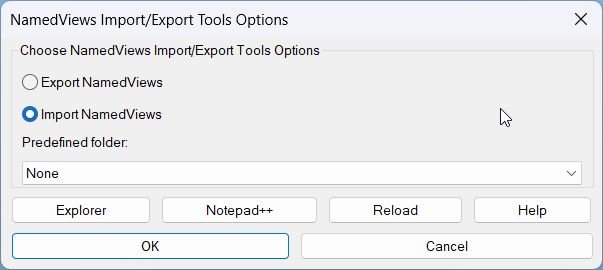
• ExpImpNVU – Opens the main “NamedViews Import/Export Tools Options” dialog (export/import selector + predefined folders & tools).
• NVVIEWSIO – Shortcut/launcher that simply calls ExpImpNVU.
• ExportViews – GUI export of all VIEW + VISUALSTYLE definitions to a
.txt file.
• ImportViews – GUI import of VIEW + VISUALSTYLE definitions from a .txt file.
• -ExportViews – Command line version of export (no dialog).
• -ImportViews – Command line version of import (no dialog).
• NV-help-dialog (via Help button) – Opens the “Title Blocks Tools – Help” window with copyable reference text.
Description:
• Global state: Stores the last mode (*EINVU_Project_02st_option* = Export / Import), last chosen predefined index (*EINVU_predef_idx*), resolved predefined paths (*EINVU_predef_values*), and fixed LSP folder/file paths (*NVU_fixed_folder*, *NVU_fixed_file*).
• Predefined folders: Uses NV-build-predefs to probe OneDrive roots and auto-resolve project-specific
..._extraNamed_Views folders for multiple projects (Project_01..Project_04). These become entries in the Predefined folder popup.
• Fixed folder + file: A constant base folder (*NVU_fixed_folder*) holds a central Exp_Imp_NamedViews.lsp file, which the UI can open in Notepad++ or reload into AutoCAD directly.
• Export/Import mode selection: The main dialog offers two radio buttons: Export NamedViews (rb01) and Import NamedViews (rb02). The selected option is persisted in *EINVU_Project_02st_option* and used by c:ExpImpNVU to decide which operation to dispatch.
• Predefined folder popup: A popup list (predef) displays human-readable labels (e.g. “Project_01 Named_Views”) backed by the resolved paths in *EINVU_predef_values*. The chosen index and corresponding directory are stored in *EINVU_predef_idx* and *EINVU_predef_dir*.
• ViewsIO coordination: The code writes the chosen import folder into the registry under HKEY_CURRENT_USERSoftwareJTBWorldviewsIOProject_02stFolder, which the separate viewsIO tool reads when running its own GUI Import/Export.
• Export file structure: ExportViews iterates all table VIEW entries and, when present, their linked VISUALSTYLE (code 348). Each VISUALSTYLE is exported only once as a clean DXF list with handle/owner/link codes removed, followed by a cleaned VIEW entity that omits handle, owner, and 348 references. These are written one entity-per-line using prin1 format.
• Import file structure: ImportViews reads back each line, reconstructs VISUALSTYLE entries into the ACAD_VISUALSTYLE dictionary, fixes owner references, then inserts the VIEW entries, reattaching their 348 link to the newly created VISUALSTYLE so they’re fully functional again.
• Folder persistence: The helper save-persisted-folder writes the last used folder to the registry; get-persisted-folder reads it back. Export/Import defaults prefer DWG folder, then persisted folder, then fall back to C:Temp.
• Help dialog: A secondary dialog (NV_HelpDlg) shows a multi-line textual reference listing start folder resolution rules, commands, operations, and predefined folders. It supports copying selected lines, all lines, or the resolved path to clipboard, and toggling Unicode mode to include or strip non-ASCII characters.
• Clipboard integration: The help-related functions implement both a cmd.exe | clip text-file based copy and a COM-based htmlfile → ParentWindow → clipboardData route, giving robust text copy into Windows clipboard from inside AutoCAD.
Helper function: (if any)
Path & string helpers:
• NV-isStr / NV-trim / NV-to-str: Safe string tests and trimming, plus uniform conversion of values to printable strings.
• NV-path-join: Joins folder + filename with correct backslashes, tolerating existing trailing slash or empty base.
• NV-dir-exists-p: Safety check for whether a given string points to an existing directory.
• NV-unique / NV-split: Removes duplicates from lists and splits strings into lists by a delimiter, used for parsing selection strings and building unique root lists.
OneDrive-aware roots & predefined folders:
• NV-onedrive-roots: Scans environment variables and registry for OneDrive paths (personal, business, and account-specific), plus
%USERPROFILE%OneDrive* folders, then normalizes the unique list of candidate roots.
• NV-resolve-under-any-root: Combines each discovered OneDrive root with a given relative subpath (e.g. LucruP_B001595P_Project_02_extraNamed_Views) and returns the first existing directory.
• NV-build-predefs: Uses the resolver to build real paths for multiple project-specific Named_Views folders and stores them in *EINVU_predef_values* for use in the popup list.
• NV-persisted-is-predef-p / NV-get-export-startdir: Distinguishes between user-picked folders and auto-predefined folders, and selects the best starting directory for export dialogs.
Clipboard & Unicode helpers:
• NV-ascii-only / NV-for-copy: Optionally strip non-ASCII characters from strings when Unicode is off, guaranteeing safer plain-text copies.
• NV-clipboard-put (two variants): One variant writes via a temporary file piped through cmd | clip, the other uses COM (htmlfile object) to push text to the Windows clipboard directly.
• NV-help-lines: Constructs the full list of help lines (start folder rules, commands, operations, predefined folder states) using bullet symbols depending on Unicode mode.
• NV-help-copy-selected / NV-help-copy-all / NV-help-copy-path: Read list box selection, map indices to help lines, and copy text or start folder path to clipboard, updating the Unicode status label in the dialog.
• NV-help-toggle-unicode: Flips Unicode mode on/off, regenerates the help lines, repopulates the list, and updates the “Unicode: On/Off” status text.
DCL / UI helpers:
• NV-write-dcl: Dynamically writes a DCL file containing both the main options dialog (ExpImpNVU_PREDEF_FIX) and the help dialog (NV_HelpDlg).
• NV-help-dialog: Loads the help dialog from the DCL, fills the list with help lines, wires up copy/toggle buttons, and runs the modal session.
• NVUI_show: Top-level UI builder and runner for the main options dialog; initializes radio buttons, popup list, and helper buttons (Explorer, Notepad++, Reload, Help), then returns 1 (OK) or 0 (Cancel).
• NV-on-accept: Reads user selections from the main dialog (mode + predefined index), updates globals, and closes the dialog with success code.
ViewsIO / Registry helpers:
• NV-write-viewsIO-startdir: Writes the chosen import folder to the JTBWorld viewsIO registry key so the external tool will default there.
• get-persisted-folder / save-persisted-folder: Minimal key/value reader/writer for the viewsIO registry path.
Functionalities:
• One-click Named View export/import: The main command ExpImpNVU lets you choose Export or Import, select a predefined project folder (or DWG/fixed folder), and invoke the proper ExportViews / ImportViews pipeline without knowing the underlying file paths.
• Project-aware path selection: Automatically discovers OneDrive-based project structures and offers them in a dropdown, dramatically reducing manual browsing to the right
Named_Views folder for each project.
• Robust view + visual style export: Cleanly exports all VIEW table entries and their linked VISUALSTYLE objects into a single human-readable TXT file, stripping volatile handle/owner codes so the data is portable and safe to re-import.
• Correct reconstruction on import: Restores VISUALSTYLEs into the proper dictionary, repairs owner (330) and view (348) links, and then recreates the VIEW entries, so imported Named Views behave as if they were defined in the target drawing originally.
• Session-persistent favorites: Remembers your last radio selection (Export/Import) and predefined index, plus stores the last used folder in the registry, giving you stable defaults across sessions and drawings.
• Integrated tooling (Explorer / Notepad++ / Reload): Buttons in the dialog allow you to open the fixed LSP folder in Explorer, open the fixed LSP file in Notepad++ (or Notepad as fallback), and reload the LSP script into AutoCAD without manually reloading via APPLOAD.
• Rich help + clipboard: A dedicated Help dialog shows a structured quick reference for the whole toolset and lets you copy either selected lines, all lines, or the resolved path to clipboard in one click, with optional Unicode stripping for ASCII-only contexts.
• Dual GUI / command line paths: You can work via the full GUI (ExportViews / ImportViews) or via pure command line versions (-ExportViews / -ImportViews) for scripting and batch workflows.
Result:
Result: You get a complete, project-aware Named Views toolkit that can export and import VIEW + VISUALSTYLE definitions between drawings using predefined folders, with path persistence, help, and clipboard tools built in.
• Data portability: Named Views and their visual styles can be easily transferred between projects and machines using simple TXT files, without manual DXF hacking or CUI edits.
• Project consistency: Predefined OneDrive-based paths ensure each project’s view libraries are stored and reused consistently, reducing mistakes and manual re-creation of standard views.
• User efficiency: One dialog covers project folder selection, export/import mode choice, and tooling, drastically reducing clicks and dialog navigation compared to raw commands alone.
• Documentation on demand: The Help window plus Copy-to-Clipboard features make it easy to share usage instructions with colleagues or paste them into documentation and emails.
Copy code:
Images, animations etc.
Log in to download.
Log in
Log in
Additional info:
Learn more:
Open Website
Share this page:
Subscribe
Login
0 Comments
Oldest
Tags: Bookmark
Tags: Bookmark