
Short description
Short description
This LISP adjusts Civil 3D manhole structures so their rim elevations follow selected TIN surfaces or profiles, with elevation offsets, batch selection and a dialog that supports live Apply preview and final confirmation.
This LISP adjusts Civil 3D manhole structures so their rim elevations follow selected TIN surfaces or profiles, with elevation offsets, batch selection and a dialog that supports live Apply preview and final confirmation.
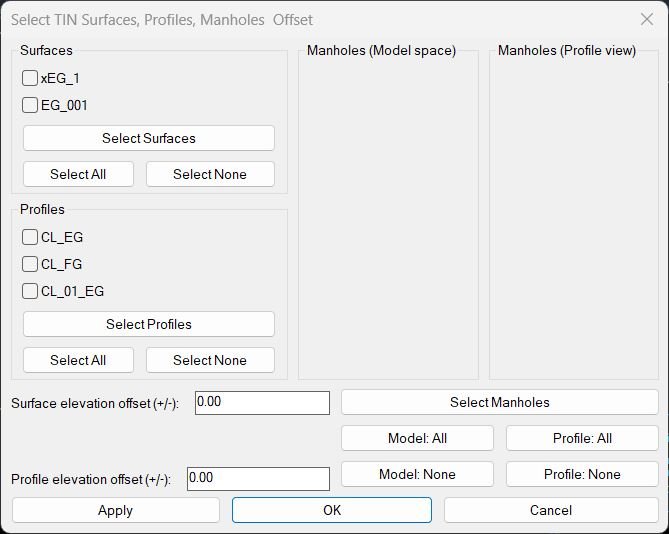
Command:
Main command
• MHPipes2SurfacesProfilesElevationTool – opens the manhole elevation adjustment dialog and runs the tool.
• MHPipes2SurfacesProfilesElevationTool – opens the manhole elevation adjustment dialog and runs the tool.
Description:
What this program does
• Scans the drawing and lists all available TIN surfaces and profiles in the dialog, each with a checkbox for activation.
• Allows the user to select manholes in Model space and manholes in Profile view; these are shown in separate lists and can be toggled individually.
• For each checked manhole, tries to obtain elevation from the selected profiles first and, if that fails, from the selected TIN surfaces at the manhole XY position.
• Applies a user defined surface elevation offset or profile elevation offset before setting the final rim elevation.
• Writes the computed elevation back to the structure RimElevation property and updates the Z of its Position point to keep graphics consistent.
• Scans the drawing and lists all available TIN surfaces and profiles in the dialog, each with a checkbox for activation.
• Allows the user to select manholes in Model space and manholes in Profile view; these are shown in separate lists and can be toggled individually.
• For each checked manhole, tries to obtain elevation from the selected profiles first and, if that fails, from the selected TIN surfaces at the manhole XY position.
• Applies a user defined surface elevation offset or profile elevation offset before setting the final rim elevation.
• Writes the computed elevation back to the structure RimElevation property and updates the Z of its Position point to keep graphics consistent.
Helper function: (if any)
Important helper logic
• MH-AddStructuresFromDrawing reads the selection set and adds AeccDbStructure objects from plan, plus structures mapped from AeccDbGraphProfileNetworkPart entities in profile views.
• MH-SelectSurfacesFromDrawing lets the user pick TIN surfaces on screen and automatically checks their entries in the Surfaces list.
• MH-SelectProfilesFromDrawing lets the user pick profiles in profile views and auto checks the matching profile entries.
• MH-SetStructureElevToSources computes a single elevation value for each manhole, using the selected profiles or surfaces plus the chosen offsets and writes it back to the object.
• MH-ApplyCurrent processes all checked manholes in one pass and calls REGEN so the new elevations are visible immediately.
• MH-AddStructuresFromDrawing reads the selection set and adds AeccDbStructure objects from plan, plus structures mapped from AeccDbGraphProfileNetworkPart entities in profile views.
• MH-SelectSurfacesFromDrawing lets the user pick TIN surfaces on screen and automatically checks their entries in the Surfaces list.
• MH-SelectProfilesFromDrawing lets the user pick profiles in profile views and auto checks the matching profile entries.
• MH-SetStructureElevToSources computes a single elevation value for each manhole, using the selected profiles or surfaces plus the chosen offsets and writes it back to the object.
• MH-ApplyCurrent processes all checked manholes in one pass and calls REGEN so the new elevations are visible immediately.
Functionalities:
Functionalities
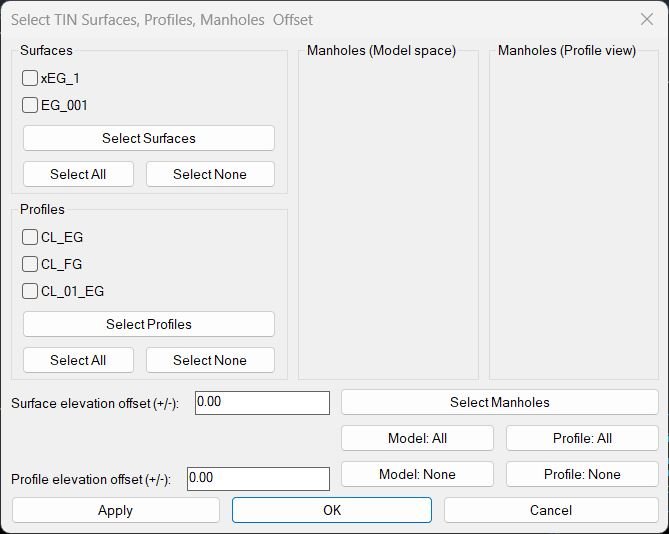
Surface selection area
• Shows all TIN surfaces in a grouped list with checkboxes, initially all off.
• A Select Surfaces button lets the user pick one or more surfaces from the drawing and automatically checks them in the list.
• Select All and Select None buttons quickly toggle all surface checkboxes.
Profile selection area
• Lists all profiles associated with alignments in the drawing with their display names.
• A Select Profiles button allows graphical selection of profiles and auto checks them in the dialog.
• Select All and Select None manage the entire profile list at once.
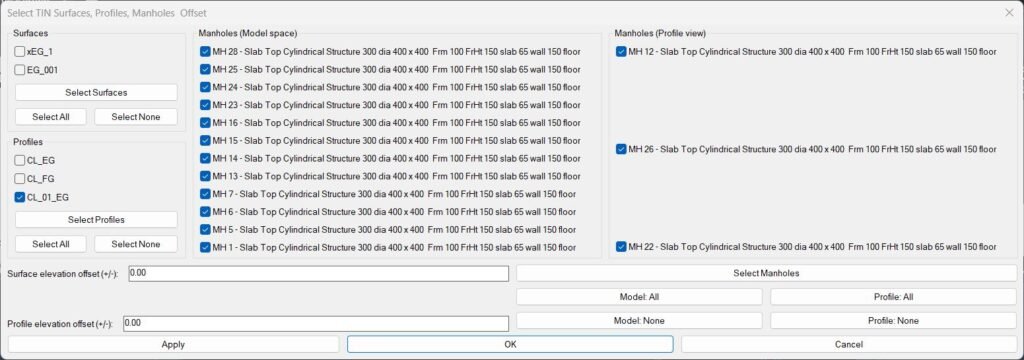
Manholes (Model space)
• Shows each selected AeccDbStructure from plan as “DisplayName – PartSizeName”, one item per row with a checkbox.
• Buttons Model: All and Model: None select or deselect all model manholes in a single click.
Manholes (Profile view)
• Shows manholes that were selected through profile view network graphics and mapped back to their model structures.
• Buttons Profile: All and Profile: None control the entire profile based manhole list.
Select Manholes button
• A wide button spanning below both manhole columns that allows repeated selection of manholes in both plan and profile views without closing the dialog.
Elevation offset controls
• One numeric field for the Surface elevation offset, which is added to surface based elevations.
• One numeric field for the Profile elevation offset, which is added to profile based elevations.
Source priority
• For each manhole, the routine first projects its XY onto the alignment of every checked profile and tries to evaluate the profile elevation at that station.
• If no valid profile elevation is found, the routine queries each checked TIN surface at the same XY until one returns a valid height.
Control buttons
• Apply updates all checked manholes using the current settings and regenerates the drawing but keeps the dialog open for further edits.
• OK performs the same update then closes the dialog.
• Cancel exits the dialog without changing anything further.
Surface selection area
• Shows all TIN surfaces in a grouped list with checkboxes, initially all off.
• A Select Surfaces button lets the user pick one or more surfaces from the drawing and automatically checks them in the list.
• Select All and Select None buttons quickly toggle all surface checkboxes.
Profile selection area
• Lists all profiles associated with alignments in the drawing with their display names.
• A Select Profiles button allows graphical selection of profiles and auto checks them in the dialog.
• Select All and Select None manage the entire profile list at once.
Manholes (Model space)
• Shows each selected AeccDbStructure from plan as “DisplayName – PartSizeName”, one item per row with a checkbox.
• Buttons Model: All and Model: None select or deselect all model manholes in a single click.
Manholes (Profile view)
• Shows manholes that were selected through profile view network graphics and mapped back to their model structures.
• Buttons Profile: All and Profile: None control the entire profile based manhole list.
Select Manholes button
• A wide button spanning below both manhole columns that allows repeated selection of manholes in both plan and profile views without closing the dialog.
Elevation offset controls
• One numeric field for the Surface elevation offset, which is added to surface based elevations.
• One numeric field for the Profile elevation offset, which is added to profile based elevations.
Source priority
• For each manhole, the routine first projects its XY onto the alignment of every checked profile and tries to evaluate the profile elevation at that station.
• If no valid profile elevation is found, the routine queries each checked TIN surface at the same XY until one returns a valid height.
Control buttons
• Apply updates all checked manholes using the current settings and regenerates the drawing but keeps the dialog open for further edits.
• OK performs the same update then closes the dialog.
• Cancel exits the dialog without changing anything further.
Result:
Result
• All selected manholes are set to rim elevations derived from the chosen profiles or TIN surfaces plus the corresponding offsets.
• Manholes picked from profile views are safely mapped back to the underlying model structures so there is no duplication or mismatch.
• The designer can iterate quickly using the Apply button until all manhole elevations match the intended design before committing with OK or abandoning with Cancel.
• All selected manholes are set to rim elevations derived from the chosen profiles or TIN surfaces plus the corresponding offsets.
• Manholes picked from profile views are safely mapped back to the underlying model structures so there is no duplication or mismatch.
• The designer can iterate quickly using the Apply button until all manhole elevations match the intended design before committing with OK or abandoning with Cancel.
Images, animations etc.
Additional info:
Learn more:
Open Website
Share this page:
Subscribe
Login
0 Comments
Oldest